Set Up CAN Hardware on Host Computer for XCP on CAN Communication
R2026bTo establish XCP on CAN external mode communication between the host computer and Raspberry Pi®, connect supported CAN hardware to the host computer and install the required vendor drivers. After installation, verify that MATLAB® detects the CAN hardware. This page describes how to:
Install CAN hardware vendor drivers on the host computer.
Detect and verify the CAN device in Windows® Device Manager.
Configure the CAN channel assignment in Vector Hardware Configuration software.
Verify that MATLAB detects the CAN hardware using the
canChannelList(Vehicle Network Toolbox) function.
The following CAN hardware vendors are validated for XCP on CAN communication with Raspberry Pi:
Vector
PEAK-System
Kvaser
Prerequisites
Before you begin, make sure you have:
A supported CAN hardware interface from Vector, PEAK-System, or Kvaser connected to the host computer
Vehicle Network Toolbox™ license
Install CAN Hardware Vendor Drivers
Install the vendor-specific drivers for your CAN hardware on the host computer. Download the drivers directly from the vendor website.
| CAN Hardware Vendor | More Information | Tested Versions |
|---|---|---|
| Vector | Vector CAN Interface Support | 8.7.16.0 |
| PEAK-System | PEAK-System CAN Interface Support | 5.1.2.20099 |
| Kvaser | Kvaser CAN Interface Support | 8.51.461.0 |
Restart the computer after installing the drivers.
Verify CAN Device in Windows Device Manager
After installing the vendor drivers, verify that Windows recognizes the CAN hardware.
After you connect the CAN interface to the host computer, open Windows Device Manager.
Locate the CAN device in the device list. Depending on the vendor, it appears in a vendor-specific category.
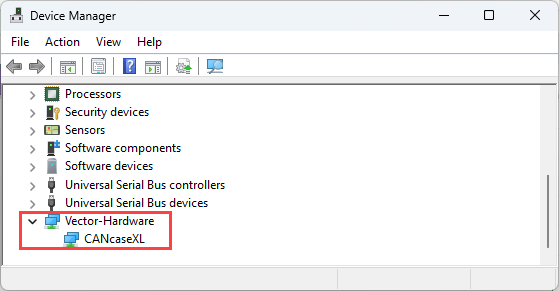
Confirm the device appears without a yellow warning icon. A warning icon indicates an incomplete or failed driver installation.
If the device does not appear or shows a warning icon:
Uninstall the driver, restart the computer, and reinstall the latest version from the vendor website.
Try a different USB port.
Configure Vector CAN Hardware on Host Computer
Configure the CAN channel assignment in the Vector Hardware Configuration tool to associate a MATLAB CAN channel with the physical CAN channel on the Vector hardware.
To open the Vector Hardware Configuration tool. Run
vcanconf.exefrom the Windows Start menuAdd a new application entry.
Enter MATLAB as the application name.
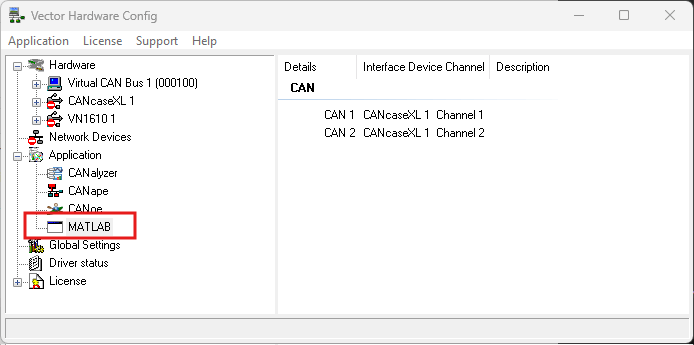
Under the MATLAB application entry, assign CAN1 to the physical CAN channel on your Vector hardware.
Set the baud rate to match the CAN baud rate used in the Simulink® model.
Save the configuration and close the tool.
Note
The baud rate you configure in the Vector Hardware Configuration tool must match the baud rate configured in the model. A baud rate mismatch prevents communication.
Verify CAN Hardware Detection in MATLAB
After installing the vendor drivers, verify that MATLAB detects the CAN hardware. Execute this command in MATLAB Command Prompt.
canChannelList
ans =

  3x5 table

       Vendor          Device       Channel    DeviceModel     SerialNumber
    ___________    _____________    _______    ____________    ____________

    "Vector"         "CANCaseXL"        1       "CANCaseXL"       "12345"
    "PEAK-System"    "PCAN-USB"         1       "PCAN-USB"        "67890"
Verify that the output lists your CAN hardware. The output displays the available CAN channels with their vendor, device, and channel information. Note the Vendor, Device, and Channel values to configure the model for XCP over CAN external mode in the External mode properties.
In the Configuration Parameters dialog, select the CAN
Vendor, CAN
Device, and CAN
Channel that match the values as returned by canChannelList (Vehicle Network Toolbox)
function to configure the host-side connection for XCP on CAN.

Troubleshooting
CAN hardware does not appear in canChannelList
If your CAN hardware does not appear when you execute canChannelList (Vehicle Network Toolbox):
Check physical connection — Make sure the CAN interface is properly connected to the host computer via USB or PCIe.
Verify Windows Device Manager — Open Windows Device Manager and check that the CAN device appears without warning icons. If there is a yellow warning icon, the driver is not installed correctly.
Reinstall vendor drivers — Uninstall the existing driver, restart the computer, and reinstall the latest version from the vendor website.
Restart MATLAB — Close and reopen MATLAB after installing or reinstalling drivers. MATLAB detects CAN hardware only at startup.
See Also
External mode | canChannelList (Vehicle Network Toolbox) | External mode | CAN | CAN
Transmit | CAN
Receive

