Send Action Node
R2026bSend Action Node block
Description
A Send Action Node sends object tokens to one or more Accept Action Node in an activity diagram. You can use this node to send object tokens without using flows between nodes. A send action node can send tokens across different levels of nested activity within the same activity diagram. A send action node has an input Pin that receives object tokens that the node will send.
A Send Action Node and an accept action node are matched by tags. The Tag Name parameter determines where the send action node sends tokens to.
Create a Send Action Node
You can create a send action node by dragging the Send Action Node icon from the palette on the left or from the Modeling tab on the toolstrip to any location on the canvas.
Examples
This example shows how to use an activity diagram with send action nodes and accept action nodes to model a simple automatic emergency braking system.
Open the Model
Open the activity diagram model.
open_system("AEBSystem");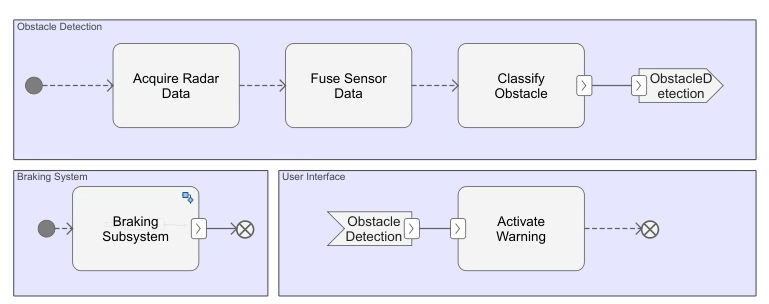
The activity diagram contains three main areas:
Obstacle Detection - Simulates obstacle detection using the
Acquire Radar Data,Fuse Sensor Data, andClassify Obstacleaction nodes. Once the obstacle is detected, the send action nodes sends the object tokens using a shared tag.Braking System - Within the nested activity of
Braking Subsystemaction node, accept action node receives the object token from the send action node that have the same tagObstacle Detection.This triggers theCalculate Braking ForceandActuate Brakesaction nodes, ending at a flow final node.User Interface - An accept action node receives an object token. This triggers the
Activate Warningaction node, ending at a flow final node.
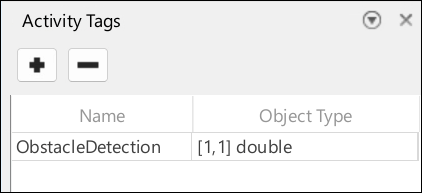
Define the tags in the Symbols Pane from the Modeling tab. In this example, the symbols pane defines the Obstacle Detection tag with object type of double.
Run the Model
Simulate the model.
sim("AEBSystem");To clearly view the flow of tokens, you can slow down the animation speed by changing the Animation speed in the Debug tab.
Parameters
Version History
Introduced in R2026b
See Also
Functions
systemcomposer.createActivity|addNode|addParameter|getNode|getNodes|getFlow|connect|getParameter|getParameters|getPin|getPins|addPin|addTag|getParentPin|applyStereotype|removeStereotype|getStereotype|destroy|setBehaviorType|linkToModel
Objects
systemcomposer.activity.AcceptAction|systemcomposer.activity.Action|systemcomposer.activity.Activity|systemcomposer.activity.ActivityNode|systemcomposer.activity.ActivityFinal|systemcomposer.activity.ControlNode|systemcomposer.activity.Flow|systemcomposer.activity.FlowFinal|systemcomposer.activity.Model|systemcomposer.activity.JoinFork|systemcomposer.activity.Initial|systemcomposer.activity.MergeDecision|systemcomposer.activity.Parameter|systemcomposer.activity.Pin|systemcomposer.activity.SendAction|systemcomposer.activity.TimeAction
Tools
Blocks
- Initial Node | Action Node | Accept Action Node | Pin | Parameter Node | Decision or Merge Node | Join or Fork Node | Flow Final Node | Time Action Node | Activity Final Node
Topics
- Describe System Behavior Using Activity Diagrams
- Establish Traceability and Extend Model Elements
- Simulate, Visualize, and Validate Activity Diagrams
- Compose Architectures Visually
- Implement Component Behavior Using Activity Diagrams
- Implement Component Behavior Using Stateflow Charts
- Implement Component Behavior Using Simscape

