Create an App for Comparing Image Filters
R2026bThis example shows how to build an app to interactively filter images using App Designer. Using the ImageFilterComparisonApp app, users can interactively filter the same image using two different image filtering methods and compare the results side by side. The app can compare the results of these image filtering functions: imfilter, medfilt2, imgaussfilt, bwareafilt, ordfilt2, stdfilt, imbilatfilt, imboxfilt, and entropyfilt.
In this example, you first build a custom UI component you can use to filter an image, and then build an app that uses the custom UI component to compare image filtering results. The custom UI component inherits from the matlab.ui.componentcontainer.ComponentContainer class. You can reuse the custom UI component in different apps to improve code reusability, logic isolation, and maintainability.
Open App Designer
App Designer is an interactive development environment for designing custom UI components and apps and programming their behavior.
To build the app from scratch, open App Designer using this command. Alternatively, you can open App Designer by selecting the Design App option on the Apps tab of the MATLAB® toolstrip.
appdesigner
In this example, you build the ImageFilter custom UI component and the ImageFilterComparisonApp app. The ImageFilter component and the ImageFilterComparisonApp app are also attached to this example as supporting files. For information on running the app, see the Compare Image Filters Using the App section.
You can also open this example from the App Designer home page by clicking Show examples in the Apps section of the home page and selecting Compare Image Filtering Results from the list of examples.
You can customize the code of the app in the attached supporting files. For information on customizing the app, see the Customize the App section.
App Layout Design
The ImageFilterComparisonApp app has two main regions: a toolstrip and a working area.
The toolstrip contains these sections:
Import — Consists of UI components used to import image data from a file or the workspace.
Export — Consists of UI components used to export the filtered images.
The working area of the app consists of a single section containing two instances of the custom UI component ImageFilter, which filter the imported image using two different methods.
Each ImageFilter component contains these sections:
Image view — Consists of a
ViewerUI component that displays the imported image as filtered by the selected filter. The component displays the image using theimageshowfunction. The handle of the displayed image is anImageobject, for which theViewerobject is the parent. For more information about theViewerobject, see Viewer Properties. For more information about theImageobject, see Image Properties.Image filter — Consists of UI components used to interactively select an image filter and its parameters.
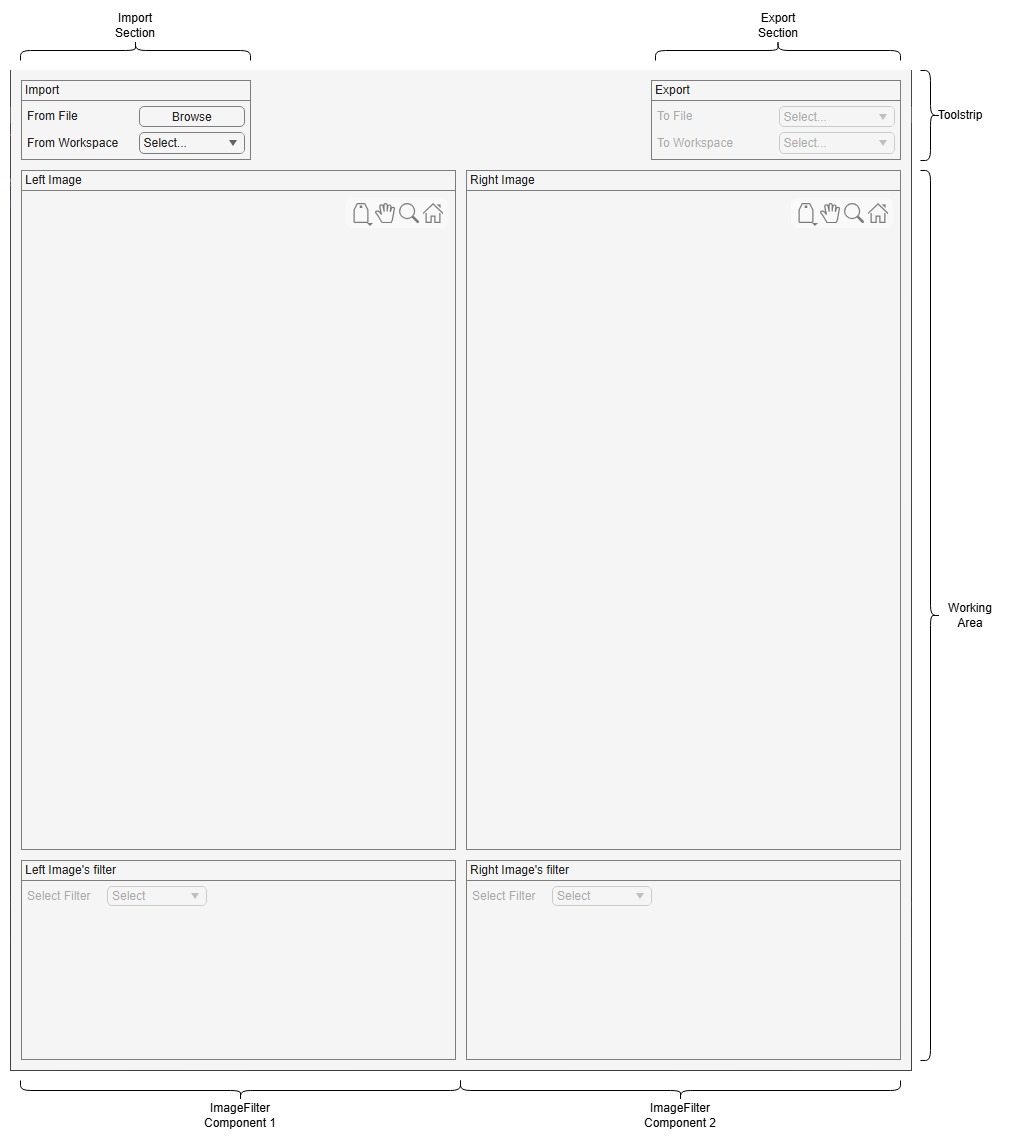
The app uses this grid layout structure to create the defined layout.
Main app figure
Main app grid layout
Toolstrip grid layout
Toolstrip elements like import, export
Working area grid layout
ImageFiltercustom UI component
For more information on using a grid layout with App Designer, see Use Grid Layout Managers in App Designer.
Create the ImageFilter Custom UI Component
Each ImageFilter custom component includes these properties:
OriginalImage— Original image loaded by the user of the app.Image— Displayed image. Initially,Imageis the same asOriginalImage. When you apply a filtering method to the image, the app updatesImageto the filtered image being displayed.UpdateRequestedFlag— Flag to trigger theupdatemethod of the component. This is a private flag, not accessible to users of the app.
Custom UI components inherit from the matlab.ui.componentcontainer.ComponentContainer class and have two primary methods: setup and update.
The setup method and other custom functions of the ImageFilter custom component create and set up its layout, including these UI components.
A grid layout for the UI components.
The
Viewerobjects used to display the image.UI elements used to interactively select an image filtering method and its parameters.
The ImageFilter component stores the image to be filtered in the Image property. When the user sets the Image property of the component, the component resets to the default view. The component determines the applicable filtering methods based on the size and data type of the input image. The set.Image method defines this behavior.
function set.Image(comp,img)
    % Save the input image to OriginalImage and display it. Based
    % on the type of image passed, update the available filters.
    comp.OriginalImage = img;
    comp.ImageshowHandle.Data = img;
    if (ismatrix(img) || (ndims(img)==3 && size(img,3)==1))
        if isa(img,"logical")
            % 2D BW image
            comp.SelectFilterDropDown.Items = [comp.DefaultDropDownValue,"imfilter","medfilt2","bwareafilt","ordfilt2","stdfilt","entropyfilt"];
        else
            % 2D Grayscale image
            comp.SelectFilterDropDown.Items = [comp.DefaultDropDownValue,"imfilter","medfilt2","imgaussfilt","ordfilt2","stdfilt","imbilatfilt","imboxfilt","entropyfilt"];
        end
    else
        if isa(img,"logical")
            comp.SelectFilterDropDown.Items = [comp.DefaultDropDownValue,"imfilter","stdfilt","entropyfilt"];
        else
            % 2D Color image
            comp.SelectFilterDropDown.Items = [comp.DefaultDropDownValue,"imfilter","imgaussfilt","stdfilt","imbilatfilt","imboxfilt","entropyfilt"];
        end
    end
    % Reset filter selection on new data load
    comp.SelectFilterDropDown.Value = comp.DefaultDropDownValue;
    comp.SelectFilterDropDownLabel.Enable = "on";
    comp.SelectFilterDropDown.Enable = "on";
    delete(comp.FilterPropertiesGridLayout.Children);
end
When the user changes the filtering method or the filter parameters, the ImageFilter component triggers the update method. The update method computes the filtered image based on the original image and current input values and displays the results.
function update(comp)
    % Based on the current filter selection, compute the
    % filtered image and display it
    value = comp.SelectFilterDropDown.Value;
    switch value
        case "imfilter"
            if strcmp(comp.ImportFilterFromWorkspaceDropdown.Value,comp.DefaultDropDownValue)
                % If multidimensional filter has not yet been
                % selected, then just display the base image
                comp.ImageshowHandle.Data = comp.OriginalImage;
                return;
            end
            comp.ImageshowHandle.Data = imfilter(comp.OriginalImage, ...
                double(evalin("base",comp.ImportFilterFromWorkspaceDropdown.Value)), ...
                comp.PaddingDropDown.Value, ...
                comp.OutputSizeDropDown.Value, ...
                comp.CorrOrConvDropDown.Value);
        case "medfilt2"
            comp.ImageshowHandle.Data = medfilt2(comp.OriginalImage, ...
                [comp.NeighbourhoodSizeRowsEditField.Value comp.NeighbourhoodSizeColumnsEditField.Value], ...
                comp.PaddingDropDown.Value);
        case "imgaussfilt"
            if ~rem(comp.FilterSizeRowsEditField.Value,2) || ~rem(comp.FilterSizeColumnsEditField.Value,2)
                % If filter size is not an odd number, then return an error
                comp.displayError("Filter size must be odd");
                return;
            end
            comp.ImageshowHandle.Data = imgaussfilt(comp.OriginalImage, ...
                [comp.SigmaRowsEditField.Value comp.SigmaColumnsEditField.Value], ...
                FilterSize=[comp.FilterSizeRowsEditField.Value comp.FilterSizeColumnsEditField.Value], ...
                Padding=comp.PaddingDropDown.Value, ...
                FilterDomain=comp.FilterDomainDropDown.Value);
        case "bwareafilt"
            if strcmp(comp.ModeRadioButtonGroup.SelectedObject.Text,"Range")
                % 'Range' mode is selected
                comp.ImageshowHandle.Data = bwareafilt(comp.OriginalImage, ...
                    [comp.RangeMinEditField.Value comp.RangeMaxEditField.Value], ...
                    str2double(comp.PixelConnectivityDropDown.Value));
            else
                % 'Keep' mode is selected
                comp.ImageshowHandle.Data = bwareafilt(comp.OriginalImage, ...
                    comp.NumObjectsToInclude.Value, ...
                    comp.SizeOfObjectToKeepDropDown.Value, ...
                    str2double(comp.PixelConnectivityDropDown.Value));
            end
        case "ordfilt2"
            if ~strcmp(comp.ImportDomainFromWorkspaceDropdown.Value,comp.DefaultDropDownValue)
                domain = evalin("base",comp.ImportDomainFromWorkspaceDropdown.Value);
                if any(domain~=0 & domain~=1,"all")
                    % If domain matrix does not contain only 0s and 1s, return error
                    comp.displayError("Domain must contain only values of 0 or 1");
                    return;
                end
                if strcmp(comp.ImportAdditiveOffsetFromWorkspaceDropdown.Value,comp.DefaultDropDownValue)
                    comp.ImageshowHandle.Data = ordfilt2(comp.OriginalImage, ...
                        comp.OrderNumericEditField.Value, ...
                        domain,comp.PaddingDropDown.Value);
                else
                    % Additive offset is also selected
                    offset = evalin("base",comp.ImportAdditiveOffsetFromWorkspaceDropdown.Value);
                    if ~isequal(size(domain),size(offset))
                        % Additive offset and domain matrix are not
                        % of the same size.
                        comp.displayError("Domain and additive offset must be of same size");
                        return;
                    end
                    comp.ImageshowHandle.Data = ordfilt2(comp.OriginalImage, ...
                        comp.OrderNumericEditField.Value, ...
                        domain,offset, ...
                        comp.PaddingDropDown.Value);
                end
            else
                % If domain matrix is not yet selected, then show
                % the base image
                comp.ImageshowHandle.Data = comp.OriginalImage;
            end
        case "stdfilt"
            if strcmp(comp.ImportNeighborhoodFromWorkspaceDropdown.Value,comp.DefaultDropDownValue)
                comp.ImageshowHandle.Data = stdfilt(comp.OriginalImage);
            else
                % Neighborhood matrix is also passed
                nhood = evalin("base",comp.ImportNeighborhoodFromWorkspaceDropdown.Value);
                if any(nhood~=0 & nhood~=1,"all")
                    % If neighborhood matrix does not contain only 0s and 1s, return error
                    comp.displayError("Neighborhood must contain only values of 0 or 1");
                    return;
                end
                comp.ImageshowHandle.Data = stdfilt(comp.OriginalImage,nhood);
            end
        case "imbilatfilt"
            if ~rem(comp.NeighborhoodSizeEditField.Value,2)
                % If neighborhood size is not odd, return error
                comp.displayError("Neighborhood size must be odd");
                return;
            end
            comp.ImageshowHandle.Data = imbilatfilt(comp.OriginalImage, ...
                comp.SmoothingEditField.Value, ...
                comp.SigmaEditField.Value, ...
                NeighborhoodSize=comp.NeighborhoodSizeEditField.Value, ...
                Padding=comp.PaddingDropDown.Value);
        case "imboxfilt"
            if ~rem(comp.FilterSizeRowsEditField.Value,2)||~rem(comp.FilterSizeColumnsEditField.Value,2)
                % If the size of box filter is not odd in both dimensions, return error
                comp.displayError("Filter size must be odd in both dimensions");
                return;
            end
            comp.ImageshowHandle.Data = imboxfilt(comp.OriginalImage, ...
                [comp.FilterSizeRowsEditField.Value comp.FilterSizeColumnsEditField.Value], ...
                Padding=comp.PaddingDropDown.Value, ...
                NormalizationFactor=comp.NormalizationFactorEditField.Value);
        case "entropyfilt"
            if strcmp(comp.ImportNeighborhoodFromWorkspaceDropdown.Value,comp.DefaultDropDownValue)
                comp.ImageshowHandle.Data = entropyfilt(comp.OriginalImage);
            else
                % Neighborhood matrix is also passed
                nhood = evalin("base",comp.ImportNeighborhoodFromWorkspaceDropdown.Value);
                if any(nhood~=0 & nhood~=1,"all")
                    % If neighborhood matrix does not contain only 0s and 1s, return error
                    comp.displayError("Neighborhood must contain only values of 0 or 1");
                    return;
                end
                comp.ImageshowHandle.Data = entropyfilt(comp.OriginalImage,nhood);
            end
    end
end
Define Callbacks for ImageFilter Custom UI Component
The ImageFilter component uses callback functions to handle user interactions. The callback functions ensure that the ImageFilter component triggers the update method when you change the image, filtering method, or filter parameters.
For example, when you change the selected filtering method, the ImageFilter component deletes the existing UI elements for the parameters of the previous filter and creates UI elements for the filter parameters of the newly selected filter. The SelectFilterDropDownValueChanged callback, as shown here, invokes a filter creation function that corresponds to the selected filter. For example, if you select the imfilter filtering method, the callback invokes the createImfilter function. The filter creation function creates the UI elements for the filter parameters and invokes the updateImage function when you change any filter parameter. The updateImage function in turn sets the UpdateRequestedFlag to true, which triggers the update method of the ImageFilter component.
% Value changed function: SelectFilterDropDown
function SelectFilterDropDownValueChanged(comp,event)
    % Callback function to create the UI
    % components of the selected filter
    value = comp.SelectFilterDropDown.Value;
    % Delete any existing input components
    delete(comp.FilterPropertiesGridLayout.Children);
    switch value
        case "imfilter"
            comp.createInputImfilter();
        case "medfilt2"
            comp.createInputMedfilt2();
        case "imgaussfilt"
            comp.createInputGaussFilt();
        case "bwareafilt"
            comp.createInputBwAreaFilt();
        case "ordfilt2"
            comp.createInputOrdfilt2();
        case "stdfilt"
            comp.createInputStdfilt();
        case "imbilatfilt"
            comp.createInputBilatfilt();
        case "imboxfilt"
            comp.createInputBoxfilt();
        case "entropyfilt"
            comp.createInputEntropyfilt();
    end
end

function createInputImfilter(comp)
    % Function to create UI components to get imfilter parameters
    % from user
    imfilterGrid = uigridlayout([4,2], ...
        Parent=comp.FilterPropertiesGridLayout, ...
        Scrollable="on", ...
        Padding=0, ...
        RowHeight=[20 20 20 20]);

    % Create import from workspace label and drop-down for selecting filter
    uilabel(Text="Multidimensional Filter", ...
        Tooltip="Import variable from workspace", ...
        Parent=imfilterGrid);
    importFilterFromWorkspaceDropdown = uidropdown(Items=comp.DefaultDropDownValue, ...
        Parent=imfilterGrid);
    importFilterFromWorkspaceDropdown.DropDownOpeningFcn = @(src,~)comp.getVarFromWorkspace(src);
    importFilterFromWorkspaceDropdown.ValueChangedFcn = @(~,~)comp.updateImage();
    comp.ImportFilterFromWorkspaceDropdown = importFilterFromWorkspaceDropdown;

    % Create Padding label and drop-down
    uilabel(Text="Padding",Parent=imfilterGrid);
    paddingDropDown = uidropdown(Items=["symmetric","replicate","circular"], ...
        Parent=imfilterGrid);
    paddingDropDown.ValueChangedFcn = @(~,~)comp.updateImage();
    comp.PaddingDropDown = paddingDropDown;

    % Create OutputSize label and drop-down
    uilabel(Text="Output Size",Parent=imfilterGrid);
    outputSizeDropDown = uidropdown(Items=["same","full"],Parent=imfilterGrid);
    outputSizeDropDown.ValueChangedFcn = @(~,~)comp.updateImage();
    comp.OutputSizeDropDown = outputSizeDropDown;

    % Create Correlation or Convolution label and drop-down
    uilabel(Text="Correlation or Convolution",Parent=imfilterGrid);
    corrOrConvDropDown = uidropdown(Items=["corr","conv"], ...
        Parent=imfilterGrid);
    corrOrConvDropDown.ValueChangedFcn = @(~,~)comp.updateImage();
    comp.CorrOrConvDropDown = corrOrConvDropDown;
end

function updateImage(comp)
    % Function to request update when user updates a UI input
    comp.UpdateRequestedFlag = true;
end
The ImageFilter component displays error messages when an error occurs in execution. For example, when the Filter Size parameter of the imgaussfilt function is not an odd number, the component displays an error. The component displays the error message in a dialog box using the uialert function. Because uialert requires a figure to display the message, the ImageFilter component attempts to get the ancestor figure of the component to display the message. If it fails to get an ancestor figure, it displays the error message in the command window by using the error function instead of a dialog box. The displayError function defines this behavior.
function displayError(comp,errorMsg)
    % Function to display error messages. To display the error
    % message as a uialert, this function tries to get an ancestor
    % figure to which the custom UI component is parented. If
    % it fails to find an ancestor figure, the error passes to the command window.
    fig = ancestor(comp,"figure");
    if isempty(fig)
        error(errorMsg);
    else
        uialert(fig,errorMsg,"Error");
    end
end
Define App Methods
The app uses methods to import and visualize data, process user input and update the display, export the filtered images, and control the app state. The app also uses some helper functions to improve code readability and code reusability. These are some of the important app methods.
Create Two ImageFilter Components
To enable users to view the results of two different image filtering operations side by side, the working area of the app is split into two components, defined as the LeftComponent and RightComponent properties of the app class. Each component of the working area contains an instance of the ImageFilter custom UI component, and the Viewer objects from the ImageFilter components are linked using the linkviewers function. Linking the viewers enables the user to pan and zoom both images synchronously. The startupFcn method defines the creation and placement of the custom UI components.
% Code that executes after component creation
function startupFcn(app)
    % Initialization function to create the component containers
    % and link their viewers
    app.LeftComponent = ImageFilter(app.WorkingAreaGridLayout);
    app.RightComponent = ImageFilter(app.WorkingAreaGridLayout);
    linkviewers([app.LeftComponent.Viewer app.RightComponent.Viewer],"on");

    % Set a name for each component to make it easy to identity them
    app.LeftComponent.ImageName = "Left Image";
    app.RightComponent.ImageName = "Right Image";
end
Reset App on New Image Load
When the user loads a new image into the app, both the ImageFilter components clear the existing data and display the loaded image with no filter applied. The app also enables the Export section of the app toolstrip. The resetAppOnNewDataLoad method defines this behavior.
function resetAppOnNewDataLoad(app,img)
    % Function to set input image and reset app on new data load
    app.LeftComponent.Image = img;
    app.RightComponent.Image = img;

    app.ToFileLabel.Enable = "on";
    app.ToFileDropDown.Enable = "on";
    app.ToWorkspaceLabel.Enable = "on";
    app.ToWorkspaceDropDown.Enable = "on";

end
Import Images in App
Users can load an image into the app from a file or from the workspace using the Import section of the app toolstrip. If the user loads the image from a file by selecting the Browse option, the app opens a dialog box enabling the user to browse for files that have image file formats. When the user selects a new image file, the app resets. The BrowseButtonPushed method defines the file browsing behavior.
function BrowseButtonPushed(app,event)
    % Function to import an image file by browsing file system
    filterSpec = app.getSupportedFileFilter();

    [file,location] = uigetfile(filterSpec,"Select an image file");
    if ~isequal(file,0)
        try
            imageData = imread(fullfile(location,file));
        catch
            uialert(fig,"Unable to read image file.","Invalid File");
            return;
        end
        app.resetAppOnNewDataLoad(imageData);
    end
end
If the user loads the image from the workspace by selecting the Select option, the app filters workspace variables for potential images and displays the variable names in the drop-down. When the user selects a new image from the workspace, the apps resets. The FromWorkspaceDropDownOpening and FromWorkspaceDropDownValueChanged methods define these behaviors.
% Drop-down opening function: FromWorkspaceDropDown
function FromWorkspaceDropDownOpening(app,event)
    % Callback function to filter possible images in workspace and
    % display them in FromWorkspaceDropDown for input selection
    vars = evalin("base","whos");
    supportedClasses = ["int8","uint8","int16","uint16","int32","uint32","single","double","logical"];
    ValidInputVariables = app.DefaultImportFromWorkspaceDropDownValue;
    for idx = 1:numel(vars)
        var = vars(idx);
        TF = ismember(var.class,supportedClasses) && ((length(var.size) == 2) || (length(var.size) == 3 && var.size(3) == 3));
        if TF
            ValidInputVariables(end+1) = convertCharsToStrings(vars(idx).name);%#ok<AGROW>
        end
    end
    app.FromWorkspaceDropDown.Items = ValidInputVariables;
end

% Value changed function: FromWorkspaceDropDown
function FromWorkspaceDropDownValueChanged(app,event)
    % Callback function to read an image variable from the workspace and
    % load it to the app
    value = app.FromWorkspaceDropDown.Value;
    if ~strcmp(value,app.DefaultImportFromWorkspaceDropDownValue)
        imageData = evalin("base",value);
        app.resetAppOnNewDataLoad(imageData);
    end
    app.FromWorkspaceDropDown.Items = app.DefaultImportFromWorkspaceDropDownValue;
end
Export Filtered Images
Users can export the filtered images to files or to the workspace using the Export section of the app toolstrip. In both the To File and To Workspace options, the user can select either of the filtered images to export to a file or to the workspace. The ToFileDropDownValueChanged and ToWorkspaceDropDownValueChanged methods define these respective behaviors.
% Value changed function: ToFileDropDown
function ToFileDropDownValueChanged(app,event)
    % Callback function to write filtered image to disk
    value = app.ToFileDropDown.Value;
    switch value
        case "Image 1"
            imageToExport = app.LeftComponent.Image;
        case "Image 2"
            imageToExport = app.RightComponent.Image;
        otherwise
            return;
    end
    filterSpec = app.getSupportedFileFilter(true);
    [file,location] = uiputfile(filterSpec,"Save Filtered Image","filteredImage.png");
    if ~(isequal(file,0) || isequal(location,0))
        try
            imwrite(imageToExport,fullfile(location,file));
            uialert(app.ImageFilterComparisonToolFigure, ...
                "Filtered image saved successfully", ...
                "Export Success", ...
                Icon="success");
        catch ME
            uialert(app.ImageFilterComparisonToolFigure,ME.message,"Export Failed");
        end
    end
end

% Value changed function: ToWorkspaceDropDown
function ToWorkspaceDropDownValueChanged(app,event)
    % Callback function to write filtered image to base workspace
    value = app.ToWorkspaceDropDown.Value;
    switch value
        case "Image 1"
            imageToExport = app.LeftComponent.Image;
            assignin("base","filteredImageLeft",imageToExport);
        case "Image 2"
            imageToExport = app.RightComponent.Image;
            assignin("base","filteredImageRight",imageToExport);
        otherwise
            return;
    end
    uialert(app.ImageFilterComparisonAppFigure, ...
        "Filtered image saved to workspace successfully", ...
        "Export Success", ...
        Icon="success");
end
Compare Image Filters Using the App
Run the ImageFilterComparisonApp app.
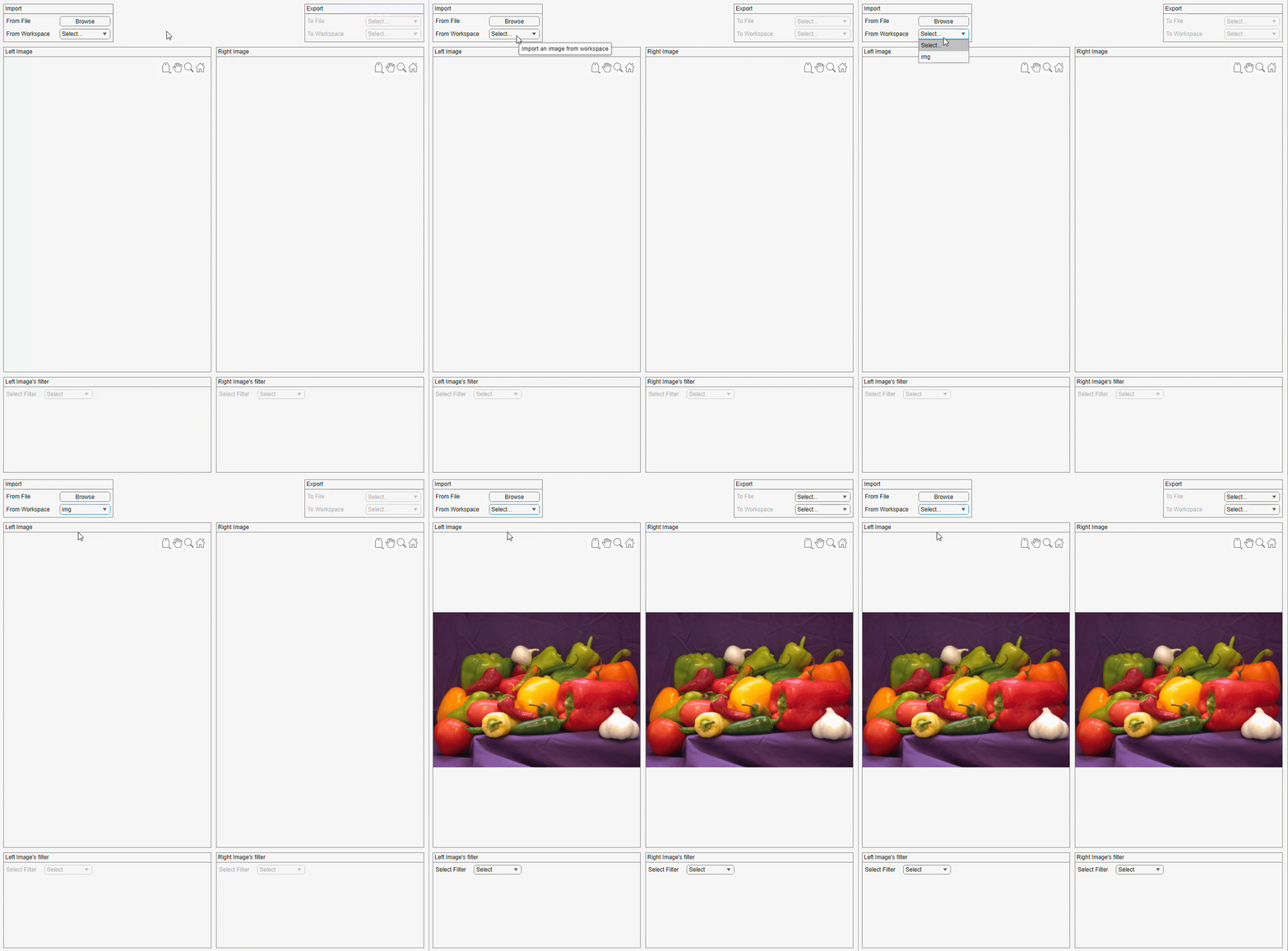
Import an image either from a file or from the workspace using the options in the Import section of the app toolstrip. If you choose to import the image from a file, the app opens a dialog box enabling you to browse files that have image file formats. If you choose to import the image from the workspace, the app filters workspace variables for potential images and displays the variable names in the drop-down. When you import an image, the app resets and displays the imported image as both the Left Image and Right Image.
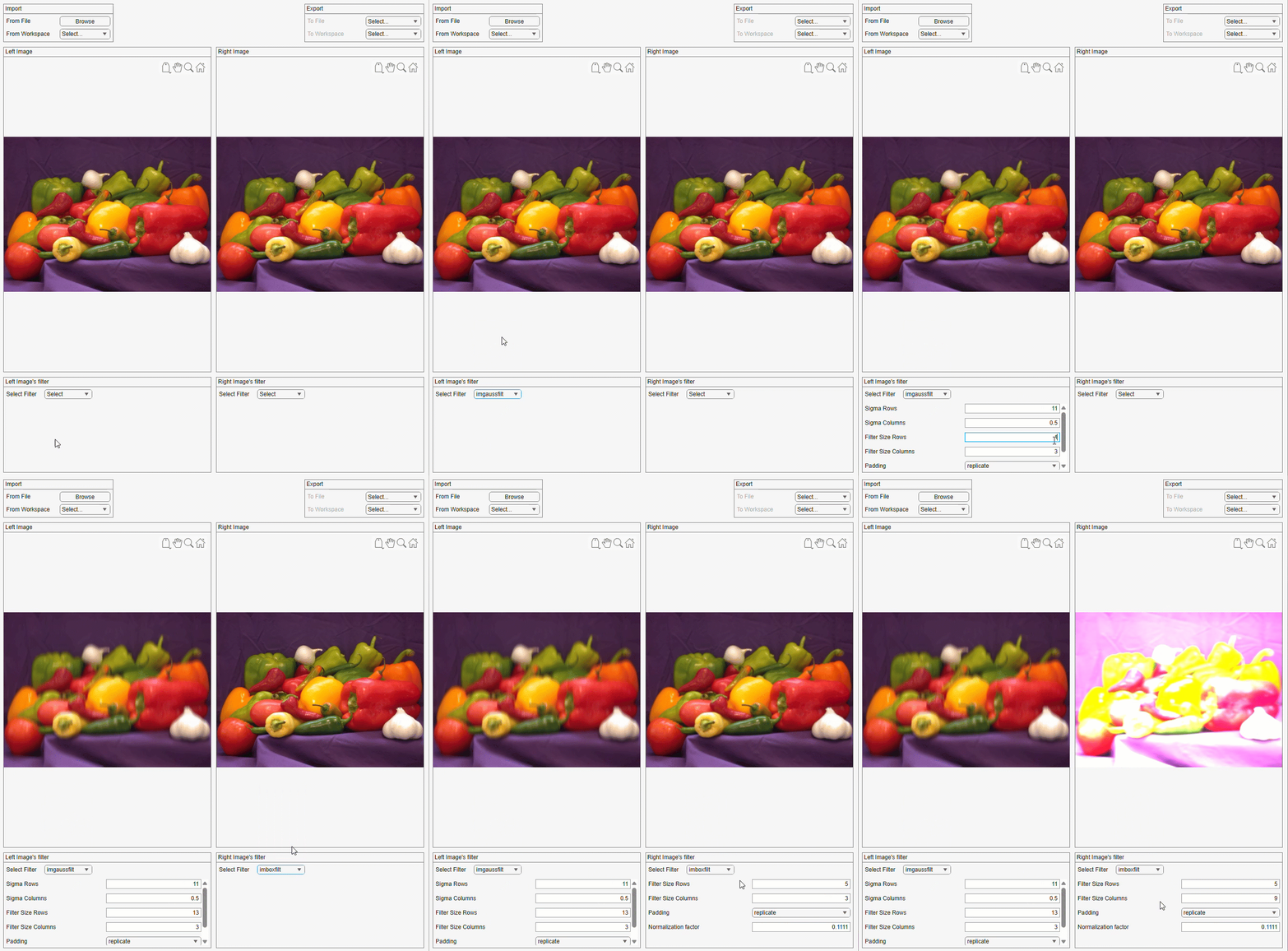
Select filtering methods for both the Left Image and Right Image from the Left Image's filter and Right Image's filter sections, respectively. For example, to compare the result of imgaussfilt and imboxfilt on the image, select imgaussfilt from the Select Filter drop-down for the left image, and the imboxfilt from the Select Filter drop-down for the right image. Specify parameters for the left image filter. Observe that the left image updates immediately. Similarly, specify parameters for the right image filter. Observe that the right image updates immediately.
You can export the filtered images to files or to the workspace. For example, to export the left image to a file, select the Image 1 option in the To File drop-down. To export the right image to the workspace, select the Image 2 option in the To Workspace drop-down.
Customize the App
You can customize the code of the ImageFilter custom UI component and ImageFilterComparisonApp app in the attached supporting files. You can support more image filtering and enhancement functions by adding them to the list of filters, adding the UI elements required for their parameters, and adding the corresponding filtering function call to the update method of the ImageFilter component. You can also add support for comparing more than two filtering methods by adding more cells to the grid layout of the app and associating ImageFilter components with them.
To customize the app, you can choose one of these options:
Open the attached MLAPP files in App Designer and edit the code in the Code View.
Open the attached MLAPP files in App Designer, select Share in the Designer tab and then Export to MATLAB Class (.m), and save the M file. You can then edit the M file.
See Also
Apps
Properties
Functions
imageshow|imfilter|imgaussfilt|imboxfilt|medfilt2|ordfilt2|stdfilt|entropyfilt|imbilatfilt|bwareafilt

