Results for

Short version: MathWorks have released the MATLAB Agentic Toolkit which will significantly improve the life of anyone who is using MATLAB and Simulink with agentic AI systems such as Claude Code or OpenAI Codex. Go and get it from here: https://github.com/matlab/matlab-agentic-toolkit
Long version: On The MATLAB Blog Introducing the MATLAB Agentic Toolkit » The MATLAB Blog - MATLAB & Simulink
MATLAB MCP Core Server v0.6.0 has been released onGitHub: https://github.com/matlab/matlab-mcp-core-server/releases/tag/v0.6.0
Release highlights:
- New cross-platform MCP Bundle; one-click installation in Claude Desktop
Enhancements:
- Provide structured output from check_matlab_code and additional information for MATLAB R2022b onwards
- Made project_path optional in evaluate_matlab_code tool for simpler tool calls
- Enhanced detect_matlab_toolboxes output to include product version
Bug fixes:
- Updated MCP Go SDK dependency to address CVE.
We encourage you to try this repository and provide feedback. If you encounter a technical issue or have an enhancement request, create an issue https://github.com/matlab/matlab-mcp-core-server/issues

Giving All Your Claudes the Keys to Everything
Introduction
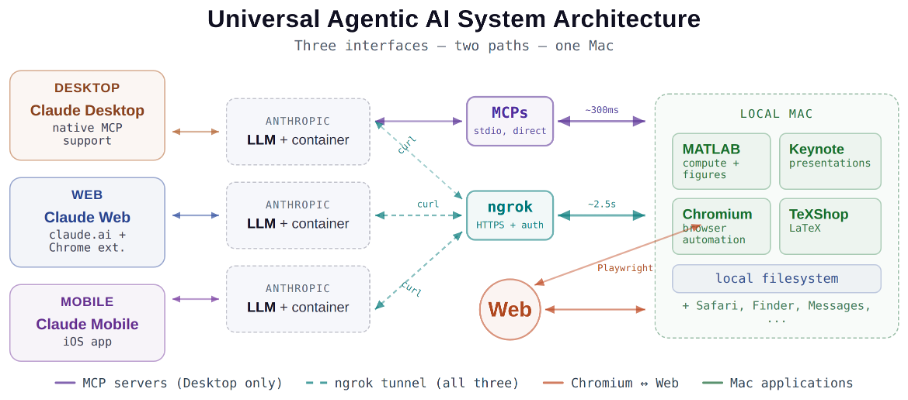
This started as a plumbing problem. I wanted to move files between Claude’s cloud container and my Mac faster than base64 encoding allows. What I ended up building was something more interesting: a way for every Claude – Desktop, web browser, iPhone – to control my entire computing environment with natural language. MATLAB, Keynote, LaTeX, Chrome, Safari, my file system, text-to-speech. All of it, from any device, through a 200-line Python server and a free tunnel.
It isn’t quite the ideal universal remote. Web and iPhone Claude do not yet have the agentic Playwright-based web automation capabilities available to Claude desktop via MCP. A possible solution may be explored in a later post.
Background information
The background here is a series of experiments I’ve been running on giving AI desktop apps direct access to local tools. See How to set up and use AI Desktop Apps with MATLAB and MCP servers which covers the initial MCP setup, A universal agentic AI for your laptop and beyond which describes what Desktop Claude can do once you give it the keys, and Web automation with Claude, MATLAB, Chromium, and Playwright which describes a supercharged browser assistant. This post is about giving such keys to remote Claude interfaces.
Through the Model Context Protocol (MCP), Claude Desktop on my Mac can run MATLAB code, read and write files, execute shell commands, control applications via AppleScript, automate browsers with Playwright, control iPhone apps, and take screenshots. These powers have been limited to the desktop Claude app – the one running on the machine with the MCP servers. My iPhone Claude app and a Claude chat launched in a browser interface each have a Linux container somewhere in Anthropic’s cloud. The container can reach the public internet. Until now, my Mac sat behind a home router with no public IP.
An HTTP server MCP replacement
A solution is a small HTTP server on the Mac. Use ngrok (free tier) to give the Mac a public URL. Then anything with internet access – including any Claude’s cloud container – can reach the Mac via curl.
iPhone/Web Claude -> bash_tool: curl https://public-url/endpoint
-> Internet -> ngrok tunnel -> Mac localhost:8765
-> Python command server -> MATLAB / AppleScript / filesystem
The server is about 200 lines of Python using only the standard library. Two files, one terminal command to start. ngrok provides HTTPS and HTTP Basic Auth with a single command-line flag.
The complete implementation consists of three files:
claude_command_server.py (~200 lines): A Python HTTP server using http.server from the standard library. It implements BaseHTTPRequestHandler with do_GET and do_POST methods dispatching to endpoint handlers. Shell commands are executed via subprocess.run with timeout protection. File paths are validated against allowed roots using os.path.realpath to prevent directory traversal attacks.
start_claude_server.sh (~20 lines): A Bash script that starts the Python server as a background process, then starts ngrok in the foreground. A trap handler ensures both processes are killed on Ctrl+C.
iphone_matlab_watcher.m (~60 lines): MATLAB timer function that polls for command files every second.
The server exposes six GET and six POST endpoints. The GET endpoints thus far handle retrieval: /ping for health checks, /list to enumerate files in a transfer directory, /files/<n> to download a file from that directory, /read/<path> to read any file under allowed directories, and / which returns the endpoint listing itself. The POST endpoints handle execution and writing: /shell runs an allowlisted shell command, /osascript runs AppleScript, /matlab evaluates MATLAB code through a file-watcher mechanism, /screenshot captures the screen and returns a compressed JPEG, /write writes content to a file, and /upload/<n> accepts binary uploads.
File access is sandboxed by endpoint. The /read/ endpoint restricts reads to ~/Documents, ~/Downloads, and ~/Desktop and their subfolders. The /write and /upload endpoints restrict writes to ~/Documents/MATLAB and ~/Downloads. Path traversal is validated – .. sequences are rejected.
The /shell endpoint restricts commands to an explicit allowlist: open, ls, cat, head, tail, cp, mv, mkdir, touch, find, grep, wc, file, date, which, ps, screencapture, sips, convert, zip, unzip, pbcopy, pbpaste, say, mdfind, and curl. No rm, no sudo, no arbitrary execution. Content creation goes through /write.
Two endpoints have no path restrictions: /osascript and /matlab. The /osascript endpoint passes its payload to macOS’s osascript command, which executes AppleScript – Apple’s scripting language for controlling applications via inter-process Apple Events. An AppleScript can open, close, or manipulate any application, read or write any file the user account can access, and execute arbitrary shell commands via “do shell script”. The /matlab endpoint evaluates arbitrary MATLAB code in a persistent session. Both are as powerful as the user account itself. This is deliberate – these are the endpoints that make the server useful for controlling applications. The security boundary is authentication at the tunnel, not restriction at the endpoint.
The MATLAB Workaround
MATLAB on macOS doesn’t expose an AppleScript interface, and the MCP MATLAB tool uses a stdio connection available only from Desktop. So how does iPhone Claude run MATLAB?
An answer is a file-based polling mechanism. A MATLAB timer function checks a designated folder every second for new command files. The remote Claude writes a .m file via the server, MATLAB executes it, writes output to a text file, and sets a completion flag. The round trip is about 2.5 seconds including up to 1 second of polling latency. (This could be reduced by shortening the polling interval or replacing it with Java’s WatchService for near-instant file detection.)
This method provides full MATLAB access from a phone or web Claude, with your local file system available, under AI control. MATLAB Mobile and MATLAB Online do not offer agentic AI access.
Alternate approaches
I’ve used Tailscale Funnel as an alternative tunnel to manually control my MacBook from iPhone but you can’t install Tailscale inside Anthropic’s container. An alternative approach would replace both the local MCP servers and the command server with a single remote MCP server running on the Mac, exposed via ngrok and registered as a custom connector in claude.ai. This would give all three Claude interfaces native MCP tool access including Playwright or Puppeteer with comparable latency but I’ve not tried this.
Security
Exposing a command server to the internet raises questions. The security model has several layers. ngrok handles authentication – every request needs a valid password. Shell commands are restricted to an allowlist (ls, cat, cp, screencapture – no rm, no arbitrary execution). File operations are sandboxed to specific directory trees with path traversal validation. The server binds to localhost, unreachable without the tunnel. And you only run it when you need it.
The AppleScript and MATLAB endpoints are relatively unrestricted in my setup, giving Claude Desktop significant capabilities via MCP. Extending them through an authenticated tunnel is a trust decision.
Initial test results
I ran an identical three-step benchmark from each Claude interface: get a Mac timestamp via AppleScript, compute eigenvalues of a 10x10 magic square in MATLAB, and capture a screenshot. Same Mac, same server, same operations.
| Step | Desktop (MCP) | Web Claude | iPhone Claude |
|------|:------------:|:----------:|:-------------:|
| AppleScript timestamp | ~5ms | 626ms | 623ms |
| MATLAB eig(magic(10)) | 108ms | 833ms | 1,451ms |
| Screenshot capture | ~200ms | 1,172ms | 980ms |
| **Total** | **~313ms** | **2,663ms** | **3,078ms** |
The network overhead is consistent: web and iPhone both add about 620ms per call (the ngrok round trip through residential internet). Desktop MCP has no network overhead at all. The MATLAB variance between web (833ms) and iPhone (1,451ms) is mostly the file-watcher polling jitter – up to a second of random latency depending on where in the polling cycle the command arrives.
All three Claudes got the correct eigenvalues. All three controlled the Mac. The slowest total was 3 seconds for three separate operations from a phone. Desktop is 10x faster, but for “I’m on my phone and need to run something” – 3 seconds is fine.
Other tests
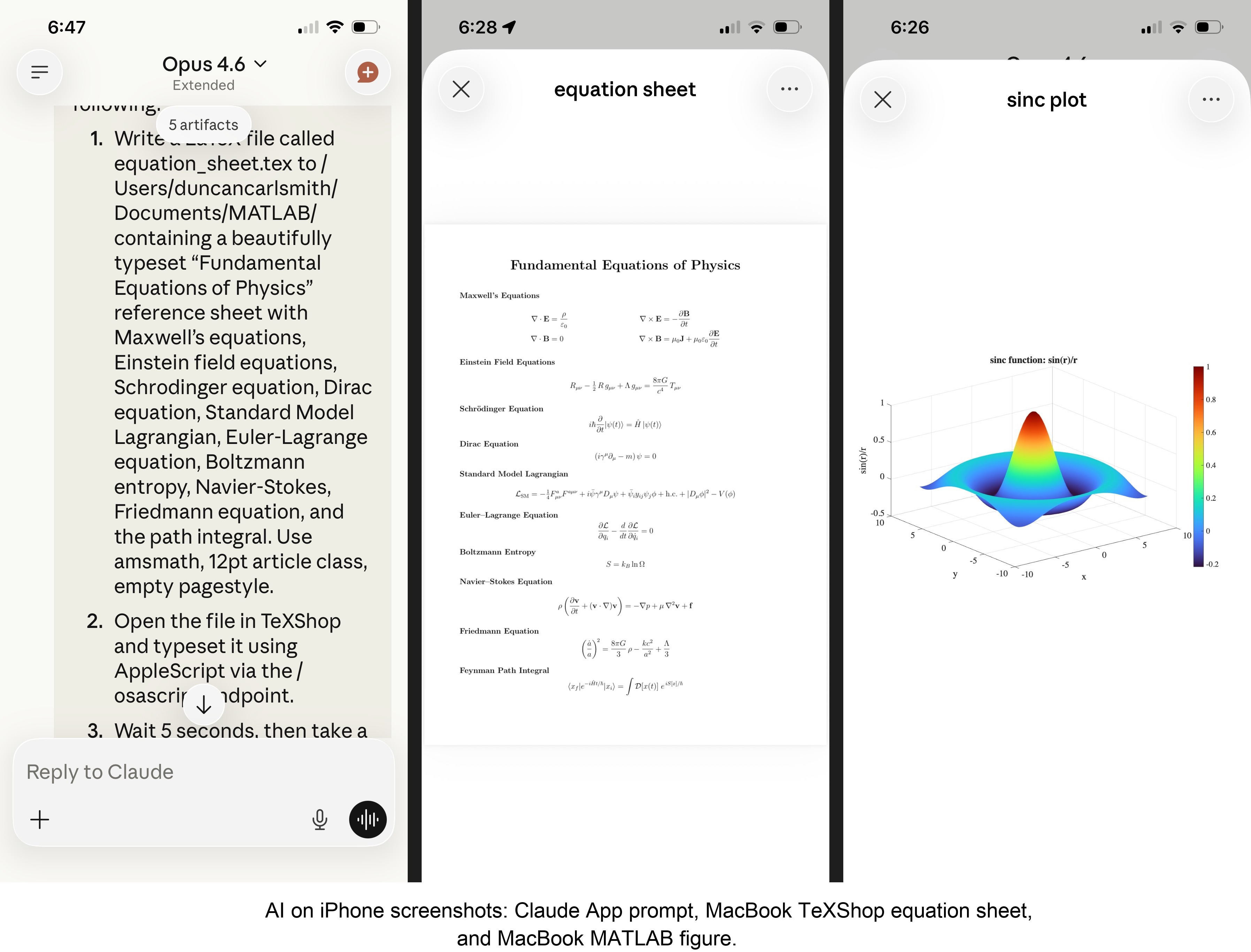
MATLAB: Computations (determinants, eigenvalues), 3D figure generation, image compression. The complete pipeline – compute on Mac, transfer figure to cloud, process with Python, send back – runs in under 5 seconds. This was previously impossible; there was no reasonable mechanism to move a binary file from the container to the Mac.
Keynote: Built multi-slide presentations via AppleScript, screenshotted the results.
TeXShop: Wrote a .tex file containing ten fundamental physics equations (Maxwell through the path integral), opened it in TeXShop, typeset via AppleScript, captured the rendered PDF. Publication-quality typesetting from a phone. I don’t know who needs this at 11 PM on a Sunday, but apparently I do.
Safari: Launched URLs on the Mac from 2,000 miles away. Or 6 feet. The internet doesn’t care.
Finder: Directory listings, file operations, the usual filesystem work.
Text-to-speech: Mac spoke “Hello from iPhone” and “Web Claude is alive” on command. Silly but satisfying proof of concept.
File Transfer: The Original Problem, Solved
Remember, this started because I wanted faster file transfers for desktop Claude. Compare:
| Method | 1 MB file | 5 MB file | Limit |
|--------|-----------|-----------|-------|
| Old (base64 in context) | painful | impossible | ~5 KB |
| Command server upload | 455ms | ~3.6s | tested to 5 MB+ |
| Command server download | 1,404ms | ~7s | tested to 5 MB+ |
The improvement is the difference between “doesn’t work” and “works in seconds.”
Cross-Device Memory
A nice bonus: iPhone and web Claudes can search Desktop conversations using the same memory tools. Context established in a Desktop session – including the server password – can be retrieved from a phone conversation. You do have to ask explicitly (“search my past conversations for the command server”) or insert information into the persistent context using settings rather than assuming Claude will look on its own.
Web Claudes
The most surprising result was web Claude. I expected it to work – same container infrastructure, same bash_tool, same curl. But “expected to work” and “just worked, first try, no special setup” are different things. I opened claude.ai in a browser, gave it the server URL and password, and it immediately ran MATLAB, took screenshots, and made my Mac speak. No configuration, no troubleshooting, no “the endpoint format is wrong” iterations. If you’re logged into claude.ai and the server is running, you have full Mac access from any browser on any device.
What This Means
MCP gave Desktop Claude the keys to my Mac. A 200-line server and a free tunnel duplicated those keys for every other Claude I use. Three interfaces, one Mac, all the same applications, all controlled in natural language.
Additional information
An appendix gives Claude’s detailed description of communications. Codes and instructions are available at the MATLAB File Exchange: Giving All Your Claudes the Keys to Everything.
Acknowledgments and disclaimer
The problem of file transfer was identified by the author. Claude suggested and implemented the method, and the author suggested the generalization to accommodate remote Claudes. This submission was created with Claude assistance. The author has no financial interest in Anthropic or MathWorks.
—————
Appendix: Architecture Comparison
Path A: Desktop Claude with a Local MCP Server
When you type a message in the Desktop Claude app, the Electron app sends it to Anthropic’s API over HTTPS. The LLM processes the message and decides it needs a tool – say, browser_navigate from Playwright. It returns a tool_use block with the tool name and arguments. That block comes back to the Desktop app over the same HTTPS connection.
Here is where the local MCP path kicks in. At startup, the Desktop app read claude_desktop_config.json, found each MCP server entry, and spawned it as a child process on your Mac. It performed a JSON-RPC initialize handshake with each one, then called tools/list to get the tool catalog – names, descriptions, parameter schemas. All those tools were merged and sent to Anthropic with your message, so the LLM knows what’s available.
When the tool_use block arrives, the Desktop app looks up which child process owns that tool and writes a JSON-RPC message to that process’s stdin. The MCP server (Playwright, MATLAB, whatever) reads the request, does the work locally, and writes the result back to stdout as JSON-RPC. The Desktop app reads the result, sends it back to Anthropic’s API, the LLM generates the final text response, and you see it.
The Desktop app is really just a process manager and JSON-RPC router. The config file is a registry of servers to spawn. You can plug in as many as you want – each is an independent child process advertising its own tools. The Desktop app doesn’t care what they do internally. The MCP execution itself adds almost no latency because it’s entirely local, process-to-process on your Mac. The time you perceive is dominated by the two HTTPS round-trips to Anthropic, which all three Claude interfaces share equally.
Path B: iPhone Claude with the Command Server
When you type a message in the Claude iOS app, the app sends it to Anthropic’s API over HTTPS, same as Desktop. The LLM processes the message. It sees bash_tool in its available tools – provided by Anthropic’s container infrastructure, not by any MCP server. It decides it needs to run a curl command and returns a tool_use block for bash_tool.
Here, the path diverges completely from Desktop. There is no iPhone app involvement in tool execution. Anthropic routes the tool_use to a Linux container running in Anthropic’s cloud, assigned to your conversation. This container is the “computer” that iPhone Claude has access to. The container runs the curl command – a real Linux process in Anthropic’s data center.
The curl request goes out over the internet to ngrok’s servers. ngrok forwards it through its persistent tunnel to the claude_command_server.py process running on localhost on your Mac. The command server authenticates the request (basic auth), then executes the requested operation – in this case, running an AppleScript via subprocess.run(['osascript', ...]). macOS receives the Apple Events, launches the target application, and does the work.
The result flows back the same way: osascript returns output to the command server, which packages it as JSON and sends the HTTP response back through the ngrok tunnel, through ngrok’s servers, back to the container’s curl process. bash_tool captures the output. The container sends the tool result back to Anthropic’s API. The LLM generates the text response, and the iPhone app displays it.
The iPhone app is a thin chat client. It never touches tool execution – it only sends and receives chat messages. The container does the curl work, and the command server bridges from Anthropic’s cloud to your Mac. The LLM has to know to use curl with the right URL, credentials, and JSON format. There is no tool discovery, no protocol handshake, no automatic routing. The knowledge of how to reach your Mac is carried entirely in the LLM’s context.
—————
Duncan Carlsmith, Department of Physics, University of Wisconsin-Madison. duncan.carlsmith@wisc.edu
Web Automation with Claude, MATLAB, Chromium, and Playwright
Duncan Carlsmith, University of Wisconsin-Madison
Introduction
Recent agentic browsers (Chrome with Claude Chrome extension and Comet by Perplexity) are marvelous but limited. This post describes two things: first, a personal agentic browser system that outperforms commercial AI browsers for complex tasks; and second, how to turn AI-discovered web workflows into free, deterministic MATLAB scripts that run without AI.
My setup is a MacBook Pro with the Claude Desktop app, MATLAB 2025b, and Chromium open-source browser. Relevant MCP servers include fetch, filesystem, MATLAB, and Playwright, with shell access via MATLAB or shell MCP. Rather than use my Desktop Chrome application, which might expose personal information, I use an independent, dedicated Chromium with a persistent login and preauthentication for protected websites. Rather than screenshots, which quickly saturate a chat context and are expensive, I use the Playwright MCP server, which accesses the browser DOM and accessibility tree directly. DOM manipulation permits error-free operation of complex web page UIs.
The toolchain required is straightforward. You need Node.js , which is the JavaScript runtime that executes Playwright scripts outside a browser. Install it, then set up a working directory and install Playwright with its bundled Chromium:
# Install Node.js via Homebrew (macOS) or download from nodejs.org
brew install node
# Create a working directory and install Playwright
mkdir MATLABWithPlaywright && cd MATLABWithPlaywright
npm init -y
npm install playwright
# Download Playwright's bundled Chromium (required for Tier 1)
npx playwright install chromium
That is sufficient for the Tier 1 examples. For Tier 2 (authenticated automation), you also need Google Chrome or the open-source Chromium browser, launched with remote debugging enabled as described below. Playwright itself is an open-source browser automation library from Microsoft that can either launch its own bundled browser or connect to an existing one -- this dual capability is the foundation of the two-tier architecture. For the AI-agentic work described in the Canvas section, you need Claude Desktop with MCP servers configured for filesystem access, MATLAB, and Playwright. The INSTALL.md in the accompanying FEX submission covers all of this in detail.
AI Browser on Steroids: Building Canvas Quizzes
An agentic browser example just completed illustrates the power of this approach. I am adding a computational thread to a Canvas LMS course in modern physics based on relevant interactive Live Scripts I have posted to the MATLAB File Exchange. For each of about 40 such Live Scripts, I wanted to build a Canvas quiz containing an introduction followed by a few multiple-choice questions and a few file-upload questions based on the "Try this" interactive suggestions (typically slider parameter adjustments) and "Challenges" (typically to extend the code to achieve some goal). The Canvas interface for quiz building is quite complex, especially since I use a lot of LaTeX, which in the LMS is rendered using MathJax with accessibility features and only a certain flavor of encoding works such that the math is rendered both in the quiz editor and when the quiz is displayed to a student.
My first prompt was essentially "Find all of my FEX submissions and categorize those relevant to modern physics.” The categories emerged as Relativity, Quantum Mechanics, Atomic Physics, and Astronomy and Astrophysics. Having preauthenticated at MathWorks with a Shibboleth university license authentication system, the next prompt was "Download and unzip the first submission in the relativity category, read the PDF of the executed script or view it under examples at FEX, then create quiz questions and answers as described above." The final prompt was essentially "Create a new quiz in my Canvas course in the Computation category with a due date at the end of the semester. Include the image and introduction from the FEX splash page and a link to FEX in the quiz instructions. Add the MC quiz questions with 4 answers each to select from, and the file upload questions. Record what you learned in a SKILL file in my MATLAB/claude/SKILLS folder on my filesystem." Claude offered a few options, and we chose to write and upload the quiz HTML from scratch via the Canvas REST API. Done. Finally, "Repeat for the other FEX File submissions." Each took a couple of minutes. The hard part was figuring out what I wanted to do exactly.
Mind you, I had tried to build a Canvas quiz including LaTeX and failed miserably with both Chrome Extension and Comet. The UI manipulations, especially to handle the LaTeX, were too complex, and often these agentic browsers would click in the wrong place, wind up on a different page, even in another tab, and potentially become destructive.
A key gotcha with LaTeX in Canvas: the equation rendering system uses double URL encoding for LaTeX expressions embedded as image tags pointing to the Canvas equation server. The LaTeX strings must use single backslashes -- double backslashes produce broken output. And Canvas Classic Quizzes and New Quizzes handle MathJax differently, so you need to know which flavor your institution uses.
From AI-Assisted to Programmatic: The Two-Tier Architecture
An agentic-AI process, like the quiz creation, can become expensive. There is a lot of context, both physics content-related and process-related, and the token load mounts up in a chat. Wouldn't it be great if, after having used the AI for what it is best at -- summarizing material, designing student exercises, and discovering a web-automation process -- one could repeat the web-related steps programmatically for free with MATLAB? Indeed, it would, and is.
In my setup, usually an AI uses MATLAB MCP to operate MATLAB as a tool to assist with, say, launching an application like Chromium or to preprocess an image. But MATLAB can also launch any browser and operate it via Playwright. (To my knowledge, MATLAB can use its own browser to view a URL but not to manipulate it.) So the following workflow emerges:
1) Use an AI, perhaps by recording the DOM steps in a manual (human) manipulation, to discover a web-automation process.
2) Use the AI to write and debug MATLAB code to perform the process repeatedly, automatically, for free.
I call this "temperature zero" automation -- the AI contributes entropy during workflow discovery, then the deterministic script is the ground state.
The architecture has three layers:
MATLAB function (.m)
|
v
Generate JavaScript/Playwright code
|
v
Write to temporary .js file
|
v
Execute: system('node script.js')
|
v
Parse output (JSON file or console)
|
v
Return structured result to MATLAB
The .js files serve double duty: they are both the runtime artifacts that MATLAB generates and executes, AND readable documentation of the exact DOM interactions Playwright performs. Someone who wants to adapt this for their own workflow can read the .js file and see every getByRole, fill, press, and click in sequence.
Tier 1: Basic Web Automation Examples
I have demonstrated this concept with three basic examples, each consisting of a MATLAB function (.m) that dynamically generates and executes a Playwright script (.js). These use Playwright's bundled Chromium in headless mode -- no authentication required, no persistent sessions.
01_ExtractTableData
extractTableData.m takes a URL and scrapes a complex Wikipedia table (List of Nearest Stars) that MATLAB's built-in webread cannot handle because the table is rendered by JavaScript. The function generates extract_table.js, which launches Playwright's bundled Chromium headlessly, waits for the full DOM to render, walks through the table rows extracting cell text, and writes the result as JSON. Back in MATLAB, the JSON is parsed and cleaned (stripping HTML tags, citation brackets, and Unicode symbols) into a standard MATLAB table.
T = extractTableData(...
'https://en.wikipedia.org/wiki/List_of_nearest_stars_and_brown_dwarfs');
disp(T(1:5, {'Star_name', 'Distance_ly_', 'Stellar_class'}))
histogram(str2double(T.Distance_ly_), 20)
xlabel('Distance (ly)'); ylabel('Count'); title('Nearest Stars')
02_ScreenshotWebpage
screenshotWebpage.m captures screenshots at configurable viewport dimensions (desktop, tablet, mobile) with full-page or viewport-only options. The physics-relevant example captures the NASA Webb Telescope page at multiple viewport sizes. This is genuinely useful for checking how your own FEX submission pages or course sites look on different devices.
03_DownloadFile
downloadFile.m is the most complex Tier 1 function because it handles two fundamentally different download mechanisms. Direct-link downloads (where navigating to the URL triggers the download immediately) throw a "Download is starting" error that is actually success:
try {
await page.goto(url, { waitUntil: 'commit' });
} catch (e) {
// Ignore "Download is starting" -- that means it WORKED!
if (!e.message.includes('Download is starting')) throw e;
}
Button-click downloads (like File Exchange) require finding and clicking a download button after page load. The critical gotcha: the download event listener must be set up BEFORE navigation, not after. Getting this ordering wrong was one of those roadblocks that cost real debugging time.
The function also supports a WaitForLogin option that pauses automation for 45 seconds to allow manual authentication -- a bridge to Tier 2's persistent-session approach.
Another lesson learned: don't use Playwright for direct CSV or JSON URLs. MATLAB's built-in websave is simpler and faster for those. Reserve Playwright for files that require JavaScript rendering, button clicks, or authentication.
Tier 2: Production Automation with Persistent Sessions
Tier 2 represents the key innovation -- the transition from "AI does the work" to "AI writes the code, MATLAB does the work." The critical architectural difference from Tier 1 is a single line of JavaScript:
// Tier 1: Fresh anonymous browser
const browser = await chromium.launch();
// Tier 2: Connect to YOUR running, authenticated Chrome
const browser = await chromium.connectOverCDP('http://localhost:9222');
CDP is the Chrome DevTools Protocol -- the same WebSocket-based interface that Chrome's built-in developer tools use internally. When you launch Chrome with a debugging port open, any external program can connect over CDP to navigate pages, inspect and manipulate the DOM, execute JavaScript, and intercept network traffic. The reason this matters is that Playwright connects to your already-running, already-authenticated Chrome session rather than launching a fresh anonymous browser. Your cookies, login sessions, and saved credentials are all available. You launch Chrome once with remote debugging enabled:
/Applications/Google\ Chrome.app/Contents/MacOS/Google\ Chrome \
--remote-debugging-port=9222 \
--user-data-dir="$HOME/chrome-automation-profile"
Log into whatever sites you need. Those sessions persist across automation runs.
addFEXTagLive.m
This is the workhorse function. It uses MATLAB's modern arguments block for input validation and does the following: (1) verifies the CDP connection to Chrome is alive with a curl check, (2) dynamically generates a complete Playwright script with embedded conditional logic -- check if tag already exists (skip if so), otherwise click "New Version", add the tag, increment the version number, add update notes, click Publish, confirm the license dialog, and verify the success message, (3) executes the script asynchronously and polls for a result JSON file, and (4) returns a structured result with action taken, version changes, and optional before/after screenshots.
result = addFEXTagLive( ...
'https://www.mathworks.com/matlabcentral/fileexchange/183228-...', ...
'interactive_examples', Screenshots=true);
% result.action is either 'skipped' or 'added_tag'
% result.oldVersion / result.newVersion show version bump
% result.screenshots.beforeImage / afterImage for display
The corresponding add_fex_tag_production.js is a standalone Node.js version that accepts command-line arguments:
node add_fex_tag_production.js 182704 interactive-script 0.01 "Added tag"
This is useful for readers who want to see the pure JavaScript logic without the MATLAB generation layer.
batch_tag_FEX_files.m
The batch controller reads a text file of URLs, loops through them calling addFEXTagLive with rate limiting (10 seconds between submissions), tracks success/skip/fail counts, and writes three output files: successful_submissions.txt, skipped_submissions.txt, and failed_submissions_to_retry.txt.
This script processed all 178 of my FEX submissions:
Total: 178 submissions processed in 2h 11m (~44 sec/submission)
Tags added: 146 (82%) | Already tagged: 32 (18%) | True failures: 0
Manual equivalent: ~7.5 hours | Token cost after initial engineering: $0
The Timeout Gotcha
An interesting gotcha emerged during the batch run. Nine submissions were reported as failures with timeout errors. The error message read:
page.textContent: Timeout 30000ms exceeded.
Call log: - waiting for locator('body')
Investigation revealed these were false negatives. The timeout occurred in the verification phase -- Playwright had successfully added the tag and clicked Publish, but the MathWorks server was slow to reload the confirmation page (>30 seconds). The tag was already saved. When a retry script ran, all nine immediately reported "Tag already exists -- SKIPPING." True success rate: 100%.
Could this have been fixed with a longer timeout or a different verification strategy? Sure. But I mention it because in a long batch process (2+ hours, 178 submissions), gotchas emerge intermittently that you never see in testing on five items. The verification-timeout pattern is a good one to watch for: your automation succeeded, but your success check failed.
Key Gotchas and Lessons Learned
A few more roadblocks worth flagging for anyone attempting this:
waitUntil options matter. Playwright's networkidle wait strategy almost never works on modern sites because analytics scripts keep firing. Use load or domcontentloaded instead. For direct downloads, use commit.
Quote escaping in MATLAB-generated JavaScript. When MATLAB's sprintf generates JavaScript containing CSS selectors with double quotes, things break. Using backticks as JavaScript template literal delimiters avoids the conflict.
The FEX license confirmation popup is accessible to Playwright as a standard DOM dialog, not a browser popup. No special handling needed, but the Publish button appears twice -- once to initiate and once to confirm -- requiring exact: true in the role selector to distinguish them:
// First Publish (has a space/icon prefix)
await page.getByRole('button', { name: ' Publish' }).click();
// Confirm Publish (exact match)
await page.getByRole('button', { name: 'Publish', exact: true }).click();
File creation from Claude's container vs. your filesystem. This caused real confusion early on. Claude's default file creation tools write to a container that MATLAB cannot see. Files must be created using MATLAB's own file operations (fopen/fprintf/fclose) or the filesystem MCP's write_file tool to land on your actual disk.
Selector strategy. Prefer getByRole (accessibility-based, most stable) over CSS selectors or XPath. The accessibility tree is what Playwright MCP uses natively, and role-based selectors survive minor UI changes that would break CSS paths.
Two Modes of Working
Looking back, the Canvas quiz creation and the FEX batch tagging represent two complementary modes of working with this architecture:
The Canvas work keeps AI in the loop because each quiz requires different physics content -- the AI reads the Live Script, understands the physics, designs questions, and crafts LaTeX. The web automation (posting to Canvas via its REST API) is incidental. This is AI-in-the-loop for content-dependent work.
The FEX tagging removes AI from the loop because the task is structurally identical across 178 submissions -- navigate, check, conditionally update, publish. The AI contributed once to discover and encode the workflow. This is AI-out-of-the-loop for repetitive structural work.
Both use the same underlying architecture: MATLAB + Playwright + Chromium + CDP. The difference is whether the AI is generating fresh content or executing a frozen script.
Reference Files and FEX Submission
All of the Tier 1 and Tier 2 MATLAB functions, JavaScript templates, example scripts, installation guide, and skill documentation described in this post are available as a File Exchange submission: Web Automation with Claude, MATLAB, Chromium, and Playwright .The package includes:
Tier 1 -- Basic Examples:
- extractTableData.m + extract_table.js -- Web table scraping
- screenshotWebpage.m + screenshot_script.js -- Webpage screenshots
- downloadFile.m -- File downloads (direct and button-click)
- Example usage scripts for each
Tier 2 -- Production Automation:
- addFEXTagLive.m -- Conditional FEX tag management
- batch_tag_FEX_files.m -- Batch processing controller
- add_fex_tag_production.js -- Standalone Node.js automation script
- test_cdp_connection.js -- CDP connection verification
Documentation and Skills:
- INSTALL.md -- Complete installation guide (Node.js, Playwright, Chromium, CDP)
- README.md -- Package overview and quick start
- SKILL.md -- Best practices, decision trees, and troubleshooting (developed iteratively through the work described here)
The SKILL.md file deserves particular mention. It captures the accumulated knowledge from building and debugging this system -- selector strategies, download handling patterns, wait strategies, error handling templates, and the critical distinction between when to use Playwright versus MATLAB's native websave. It was developed as a "memory" for the AI assistant across chat sessions, but it serves equally well as a human-readable reference.
Credits and conclusion
This synthesis of existing tools was conceived by the author, but architected (if I may borrow this jargon) by Claud.ai. This article was conceived and architected by the author, but Claude filled in the details, most of which, as a carbon-based life form, I could never remember. The author has no financial interest in MathWorks or Anthropic.
New release! MATLAB MCP Core Server v0.5.0 !
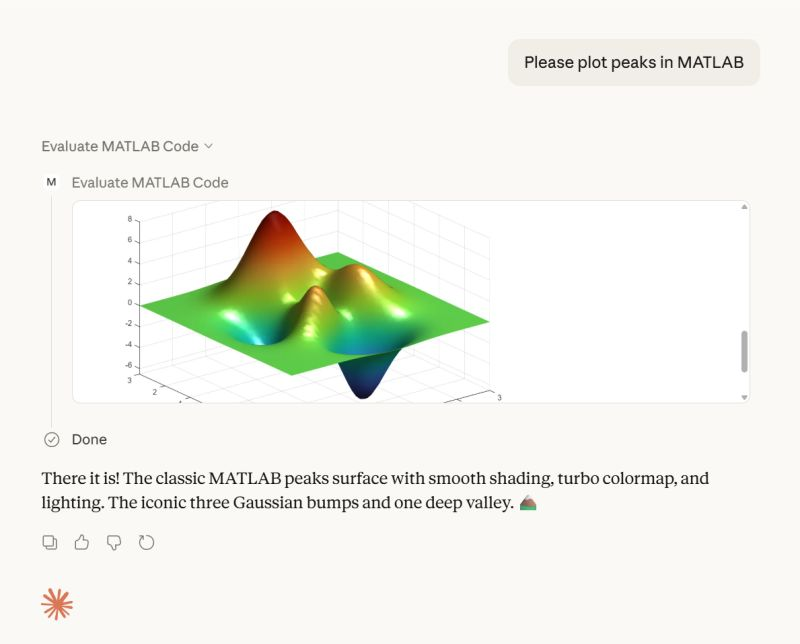
The latest version introduces MATLAB nodesktop mode — a feature that lets you run MATLAB without the Desktop UI while still sending outputs directly to your LLM or AI‑powered IDE.
Here's a screenshot from the developer of the feature.
Check out the release here Releases · matlab/matlab-mcp-core-server
Wouldn’t it be great if your laptop AI app could convert itself into an agent for everything? I mean for your laptop and for the entire web? Done.
Setup
My setup is a MacBook with MATLAB and various MCP servers. I have several equivalent Desktop AI apps configured. I will focus on the use of Claude App but fully expect Perplexity App to behave similarly. See How to set up and use AI Desktop Apps with MATLAB and MCP servers.
Warning: My setup grants Claude access to various macOS system services and may have unforeseen consequences. Try this entirely at your own risk, and carefully until comfortable.
My MacOS permissions include
Settings=>Privacy & Security=> Accessibility
where matlab-mcp-core-server and MATLAB enabled, and in
Settings=>Privacy & Security=> Automation,
matlab-mcp-core-server has been enabled to access on a case-by-case basis the applications Comet, Messages, Safari, Terminal, Keynote, Mail, System Events, Google Chrome, Microsoft Excel, Microsoft PowerPoint, and Microsoft Word. These include just a few of my 85 MacOS applications available, those presently demonstrated to be operable by Claude. Contacts remain disabled for privacy, so I am AI texting carefully.
MCP services are the following:
Server
Command
Associated Tools/Commands
ollama
npx ollama-mcp
ollama_chat, ollama_generate, ollama_list, ollama_show, ollama_pull, ollama_push, ollama_create, ollama_copy, ollama_delete, ollama_embed, ollama_ps, ollama_web_search, ollama_web_fetch
filesystem
npx @modelcontextprotocol/server-filesystem
read_file, read_text_file, read_media_file, read_multiple_files, write_file, edit_file, create_directory, list_directory, list_directory_with_sizes, directory_tree, move_file, search_files, get_file_info, list_allowed_directories
matlab
matlab-mcp-core-server
evaluate_matlab_code, run_matlab_file, run_matlab_test_file, check_matlab_code, detect_matlab_toolboxes
fetch
npx mcp-fetch-server
fetch_html, fetch_markdown, fetch_txt, fetch_json
puppeteer
npx @modelcontextprotocol/server-puppeteer
puppeteer_navigate, puppeteer_screenshot, puppeteer_click, puppeteer_fill, puppeteer_select, puppeteer_hover, puppeteer_evaluate
shell
uvx mcp-shell-server
Allowed commands: osascript, open, sleep, ls, cat, pwd, echo, screencapture, cp, mv, mkdir, touch, file, find, grep, head, tail, wc, date, which, convert, sips, zip, unzip, pbcopy, pbpaste, ps, curl, mdfind, say
Here, mcp-shell-server has been authorized for a fairly safe set of commands, while Claude inherits from MATLAB additional powers, including MacOS shortcuts. Ollama-mcp is an interface to local Ollama LLMs, filesystem reads and writes files in a limited folder Documents/MATLAB, MATLAB executes MATLAB helper codes and runs scripts, fetch fetches web pages as markdown text, puppeteer enables browser automation in a headless Chrome, and shell runs allowed shell commands, especially osascript (AppleScript to control apps).
Operation of local apps
Once rolling, the first thing you want to do is to text someone what you’ve done! A prompt to your Claude app and some fiddling demonstrates this.

Now you can use Claude to create a Keynote, Excel presentation, or Word document locally. You no longer need to access Office 365 online using a late-2025 AI-assistant-enabled slower browser like Claude Chrome Extension or Perplexity Comet, and I like Keynote better.
Let’s edit a Keynote:

Next ,you might want to operate a cloud AI model using any local browser - Safari, Chrome, or Firefox or some other favorite.

Next, let’s have a conversation with another AI using its desktop application. Hey, sometimes an AI gets a little closed-minded and need a push.

How about we ask some other agent to book us a yoga class? Delegate to Comet or Claude Chrome Extenson to do this.

How does this work?
The key to agentic AI is feedback to enable autonomous operation. This feedback can be text, information about an application state or holistic - images of the application or webpage that a human would see. Your desktop app can screensnap the application and transmit that image to the host AI (hosted by Anthropic for Claude), but faces an API bottleneck. Matlab or an OS-dependent data compression application is an important element. Your AI can help you design pathways and even write code to assist. With MATLAB in the loop, for example, image compression is a function call or two, so with common access to a part of your filesystem, your AI can create and remember a process to get ‘er done efficiently. There are multiple solutions. For my operation, Claude performed timing tests on three such paths and selected the optimal one - MATLAB.
Can one literally talk and listen, not type and read?
Yes. Various ways. On MacOS, one can simply enable dictation and use hot-keys for voice-to-text input. One can also enable audio and have the response read back to you.
How can I do this?
My advice is to build it your way bottom-up with Claude help, and the try-it. There are many details and optimizations in my setup defining how Claude responds to various instructions and confronts circumstances like the user switching or changing the size of windows while operations are on-going, some of which I expect to document along with example helper codes on File Exchange shortly but these are OS-dependent and which will evolve.

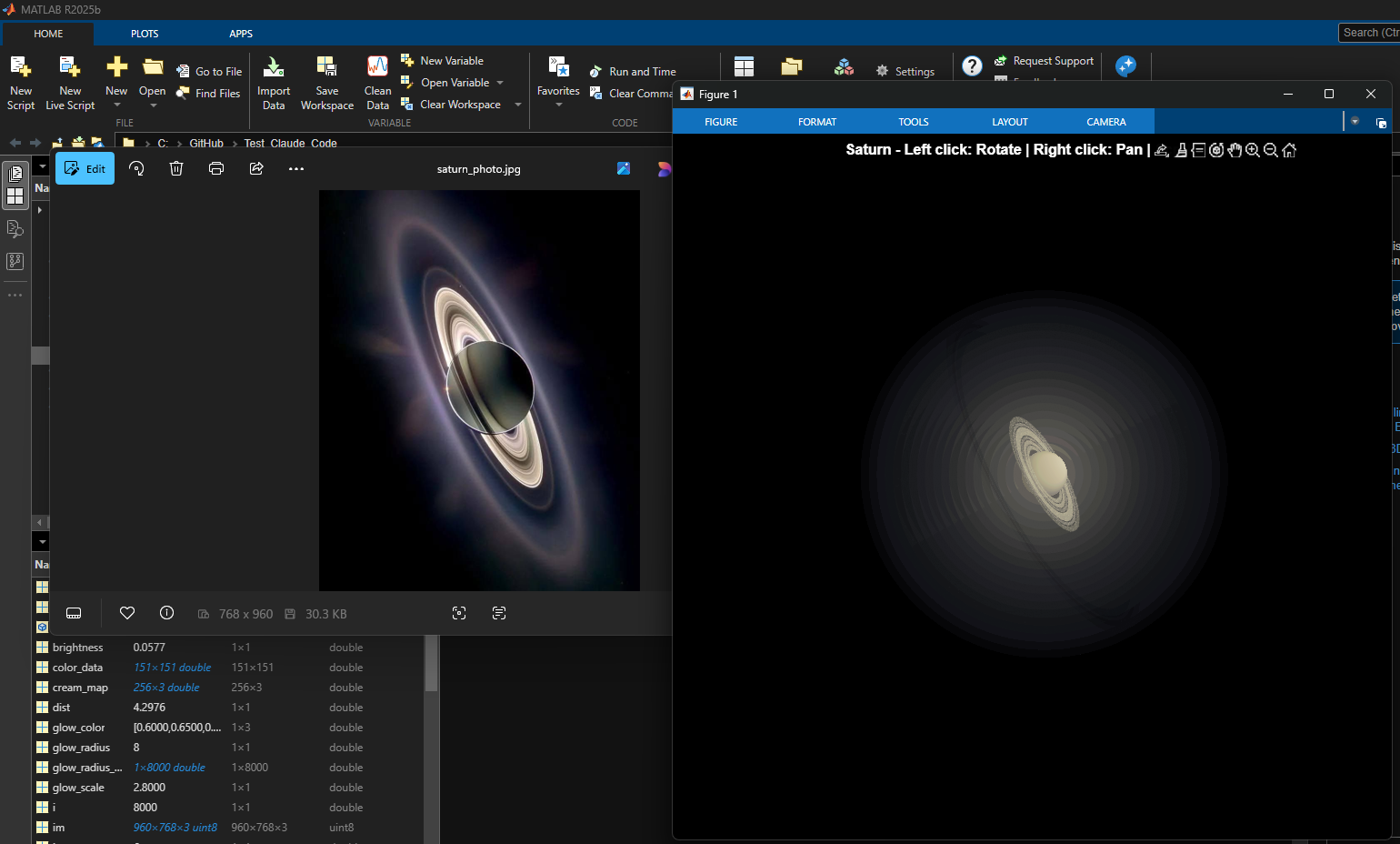
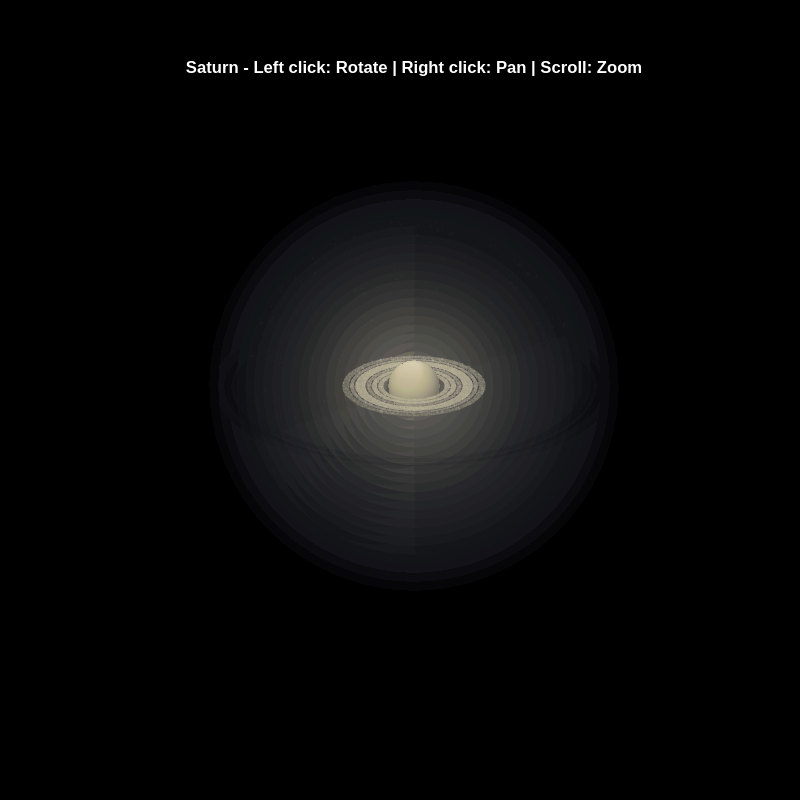
% Recreation of Saturn photo
figure('Color', 'k', 'Position', [100, 100, 800, 800]);
ax = axes('Color', 'k', 'XColor', 'none', 'YColor', 'none', 'ZColor', 'none');
hold on;
% Create the planet sphere
[x, y, z] = sphere(150);
% Saturn colors - pale yellow/cream gradient
saturn_radius = 1;
% Create color data based on latitude for gradient effect
lat = asin(z);
color_data = rescale(lat, 0.3, 0.9);
% Plot Saturn with smooth shading
planet = surf(x*saturn_radius, y*saturn_radius, z*saturn_radius, ...
color_data, ...
'EdgeColor', 'none', ...
'FaceColor', 'interp', ...
'FaceLighting', 'gouraud', ...
'AmbientStrength', 0.3, ...
'DiffuseStrength', 0.6, ...
'SpecularStrength', 0.1);
% Use a cream/pale yellow colormap for Saturn
cream_map = [linspace(0.4, 0.95, 256)', ...
linspace(0.35, 0.9, 256)', ...
linspace(0.2, 0.7, 256)'];
colormap(cream_map);
% Create the ring system
n_points = 300;
theta = linspace(0, 2*pi, n_points);
% Define ring structure (inner radius, outer radius, brightness)
rings = [
1.2, 1.4, 0.7; % Inner ring
1.45, 1.65, 0.8; % A ring
1.7, 1.85, 0.5; % Cassini division (darker)
1.9, 2.3, 0.9; % B ring (brightest)
2.35, 2.5, 0.6; % C ring
2.55, 2.8, 0.4; % Outer rings (fainter)
];
% Create rings as patches
for i = 1:size(rings, 1)
r_inner = rings(i, 1);
r_outer = rings(i, 2);
brightness = rings(i, 3);
% Create ring coordinates
x_inner = r_inner * cos(theta);
y_inner = r_inner * sin(theta);
x_outer = r_outer * cos(theta);
y_outer = r_outer * sin(theta);
% Front side of rings
ring_x = [x_inner, fliplr(x_outer)];
ring_y = [y_inner, fliplr(y_outer)];
ring_z = zeros(size(ring_x));
% Color based on brightness
ring_color = brightness * [0.9, 0.85, 0.7];
fill3(ring_x, ring_y, ring_z, ring_color, ...
'EdgeColor', 'none', ...
'FaceAlpha', 0.7, ...
'FaceLighting', 'gouraud', ...
'AmbientStrength', 0.5);
end
% Add some texture/gaps in the rings using scatter
n_particles = 3000;
r_particles = 1.2 + rand(1, n_particles) * 1.6;
theta_particles = rand(1, n_particles) * 2 * pi;
x_particles = r_particles .* cos(theta_particles);
y_particles = r_particles .* sin(theta_particles);
z_particles = (rand(1, n_particles) - 0.5) * 0.02;
% Vary particle brightness
particle_colors = repmat([0.8, 0.75, 0.6], n_particles, 1) .* ...
(0.5 + 0.5*rand(n_particles, 1));
scatter3(x_particles, y_particles, z_particles, 1, particle_colors, ...
'filled', 'MarkerFaceAlpha', 0.3);
% Add dramatic outer halo effect - multiple layers extending far out
n_glow = 20;
for i = 1:n_glow
glow_radius = 1 + i*0.35; % Extend much farther
alpha_val = 0.08 / sqrt(i); % More visible, slower falloff
% Color gradient from cream to blue/purple at outer edges
if i <= 8
glow_color = [0.9, 0.85, 0.7]; % Warm cream/yellow
else
% Gradually shift to cooler colors
mix = (i - 8) / (n_glow - 8);
glow_color = (1-mix)*[0.9, 0.85, 0.7] + mix*[0.6, 0.65, 0.85];
end
surf(x*glow_radius, y*glow_radius, z*glow_radius, ...
ones(size(x)), ...
'EdgeColor', 'none', ...
'FaceColor', glow_color, ...
'FaceAlpha', alpha_val, ...
'FaceLighting', 'none');
end
% Add extensive glow to rings - make it much more dramatic
n_ring_glow = 12;
for i = 1:n_ring_glow
glow_scale = 1 + i*0.15; % Extend farther
alpha_ring = 0.12 / sqrt(i); % More visible
for j = 1:size(rings, 1)
r_inner = rings(j, 1) * glow_scale;
r_outer = rings(j, 2) * glow_scale;
brightness = rings(j, 3) * 0.5 / sqrt(i);
x_inner = r_inner * cos(theta);
y_inner = r_inner * sin(theta);
x_outer = r_outer * cos(theta);
y_outer = r_outer * sin(theta);
ring_x = [x_inner, fliplr(x_outer)];
ring_y = [y_inner, fliplr(y_outer)];
ring_z = zeros(size(ring_x));
% Color gradient for ring glow
if i <= 6
ring_color = brightness * [0.9, 0.85, 0.7];
else
mix = (i - 6) / (n_ring_glow - 6);
ring_color = brightness * ((1-mix)*[0.9, 0.85, 0.7] + mix*[0.65, 0.7, 0.9]);
end
fill3(ring_x, ring_y, ring_z, ring_color, ...
'EdgeColor', 'none', ...
'FaceAlpha', alpha_ring, ...
'FaceLighting', 'none');
end
end
% Add diffuse glow particles for atmospheric effect
n_glow_particles = 8000;
glow_radius_particles = 1.5 + rand(1, n_glow_particles) * 5;
theta_glow = rand(1, n_glow_particles) * 2 * pi;
phi_glow = acos(2*rand(1, n_glow_particles) - 1);
x_glow = glow_radius_particles .* sin(phi_glow) .* cos(theta_glow);
y_glow = glow_radius_particles .* sin(phi_glow) .* sin(theta_glow);
z_glow = glow_radius_particles .* cos(phi_glow);
% Color particles based on distance - cooler colors farther out
particle_glow_colors = zeros(n_glow_particles, 3);
for i = 1:n_glow_particles
dist = glow_radius_particles(i);
if dist < 3
particle_glow_colors(i,:) = [0.9, 0.85, 0.7];
else
mix = (dist - 3) / 4;
particle_glow_colors(i,:) = (1-mix)*[0.9, 0.85, 0.7] + mix*[0.5, 0.6, 0.9];
end
end
scatter3(x_glow, y_glow, z_glow, rand(1, n_glow_particles)*2+0.5, ...
particle_glow_colors, 'filled', 'MarkerFaceAlpha', 0.05);
% Lighting setup
light('Position', [-3, -2, 4], 'Style', 'infinite', ...
'Color', [1, 1, 0.95]);
light('Position', [2, 3, 2], 'Style', 'infinite', ...
'Color', [0.3, 0.3, 0.4]);
% Camera and view settings
axis equal off;
view([-35, 25]); % Angle to match saturn_photo.jpg - more dramatic tilt
camva(10); % Field of view - slightly wider to show full halo
xlim([-8, 8]); % Expanded to show outer halo
ylim([-8, 8]);
zlim([-8, 8]);
% Material properties
material dull;
title('Saturn - Left click: Rotate | Right click: Pan | Scroll: Zoom', 'Color', 'w', 'FontSize', 12);
% Enable interactive camera controls
cameratoolbar('Show');
cameratoolbar('SetMode', 'orbit'); % Start in rotation mode
% Custom mouse controls
set(gcf, 'WindowButtonDownFcn', @mouseDown);
function mouseDown(src, ~)
selType = get(src, 'SelectionType');
switch selType
case 'normal' % Left click - rotate
cameratoolbar('SetMode', 'orbit');
rotate3d on;
case 'alt' % Right click - pan
cameratoolbar('SetMode', 'pan');
pan on;
end
end

Run MATLAB using AI applications by leveraging MCP. This MCP server for MATLAB supports a wide range of coding agents like Claude Code and Visual Studio Code.
Check it out and share your experiences below. Have fun!
GitHub repo: https://github.com/matlab/matlab-mcp-core-server
Yann Debray's blog post: https://blogs.mathworks.com/deep-learning/2025/11/03/releasing-the-matlab-mcp-core-server-on-github/

