Main Content

Results for

Hey AI, add computation to my modern physics course. Thanks.
Duncan Carlsmith
Department of Physics, University of Wisconsin-Madison
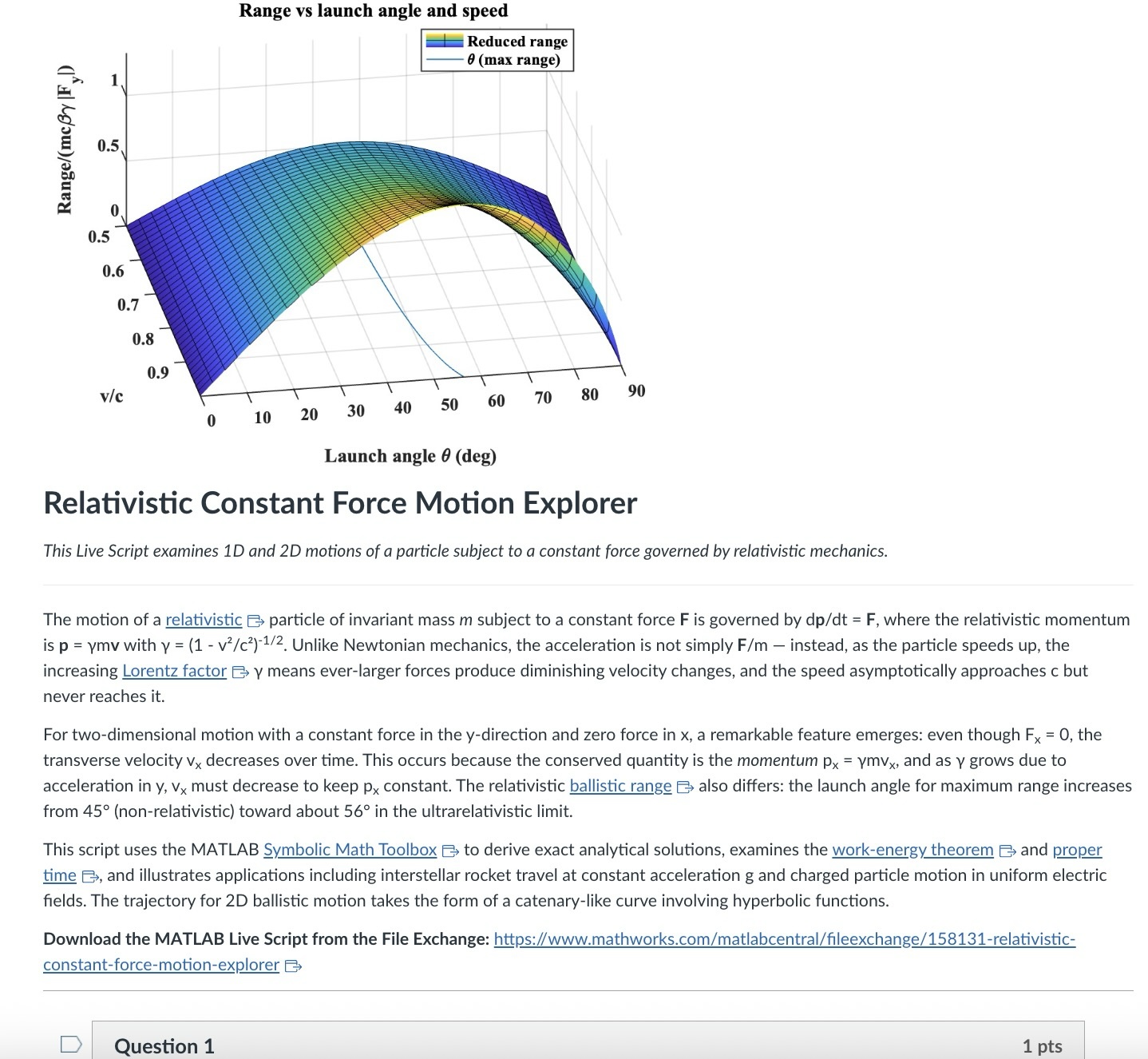
An AI-generated CANVAS quiz header based on a Live Script on relativistic motion.
Introduction
Agentic AI is disrupting higher education. An agentic AI can act on the web rather than relying solely on its training. It can research a topic and produce a credible research paper to specification with validated references. It can create, answer, or assess student work on physics questions from elementary mechanics to graduate-level quantum field theory or quantum computing. It can comprehend, generate, run, and debug a MATLAB Live Script zip package, an HTML5 interactive web application, a JavaScript-enabled website, an ADA-compliant CANVAS site with math and images, or a mobile phone app. A student can authenticate in a learning management system like CANVAS and issue a simple prompt to an agentic AI — “Complete all of my assignments in all of my courses. Thanks.” — and an instructor can, on the other side, with AI assistance and a simple prompt, assess all such submissions, even messy hand-written work. I have demonstrated these capabilities and others.
Here, I’d like to share an experiment leveraging AI to inject computation with MATLAB into a course in modern physics. This may interest the academic readers of this blog and the curious. My prior post Giving All Your Claudes the Keys to Everything introduced my personal agentic AI context.
Live Script goals
Some years back now, I started developing and introducing Live Scripts in a two-semester introductory physics course to immerse students in computation and science without sacrificing the rigor and breadth of the class. These students have essentially no background in computing and are exploring STEM majors — physics, astronomy, and engineering principally. A self-documenting Live Script allows a student to explore even a relatively advanced physics topic and data analysis trick like Fourier analysis or autocorrelation, using data like a mobile phone voice memo or a digital oscilloscope output race that they collect themselves, and then apply the same techniques to analyze big science open data from for example as gravitational wave observatory, both without being mired down in mathematics or code writing. As the course evolves, computational challenges connected to the laboratory component introduce much of the gamut of MATLAB functionality. The goal is to show why and how modeling and assessment using computation are essential in science, and to empower students with practical skills and a sense of what is possible. The traditional lecture/demonstration/homework/discussion format was largely untouched. This course sequence was a five-credit automatic honors course, so extra work was expected. Coding as a tool rather than a chore or vocation is all the more relevant in the AI age.
Assessment strategy
To flexibly direct and assess student work, each Live Script contains a variety of ‘Try this’ suggestions which require the user to adjust a parameter or two and observe the consequences. The student must study the physics described in the background information section, and the code enough to understand how the code logic works, using the supplied comments and URLs to documentation. Tackling a ‘Try this ‘ suggestion does not require any coding, just changing a parameter value, perhaps with a slider. Additionally, the Live Script contains ‘Challenges’ to extend the code in some simple or possibly advanced way. The Live Script can thus serve different customers, and an instructor can further tailor the script and embedded suggestions and challenges as they choose. The possibilities offered are only exemplary.
An associated CANVAS quiz contains a few multiple-choice questions related to the ‘Try this’ suggestions, which are auto-graded. Additional questions require the student to upload a product, like an appropriately labeled plot comparing data to a model fit, together with a written explanation. These are readily graded electronically using CANVAS SpeedGrader, with or without an e-rubric. The emphasis is on results and analysis, not on coding facility or style. By design, the burden on the instructor is minimal.
AI-generated computational thread
In teaching a 3-credit third-semester survey of modern physics (relativity, quantum mechanics, atomic, molecular, solid state, nuclear, particle, and astro physics) without a lab and again for students with little or no prior exposure to computation, I needed first to develop more advanced, relevant Live Scripts. This course offers three lecture hours per week, rife with live demonstrations of cathode ray tubes, electron diffraction, Geiger counters and sources, thermal radiation, the photoelectric effect, gas discharge tubes observed with diffraction glasses, lasers, and magnetic levitation with diamagnetic and high temperature superconductors, and so on. An additional mandatory hour per week is dedicated to small group active learning in sectional meetings. A contemporary e-text and integrated WebAssign homework system are linked via LTI to CANVAS. These components address learning goals I am loath to sacrifice. I ultimately decided to make the new computational thread an attractive extra-credit option (in parallel with a research paper option) and implemented it with AI assistance mid-stream this semester in a way that could be emulated.
The agent was Claude Desktop running with MCP servers: the Playwright browser-automation server (for CANVAS interaction via authenticated browser session), MATLAB MCP server to run MATLAB, and a filesystem server (for reading local Live Script packages and writing artifacts back to disk). I asked Claude to survey my modern physics syllabus on CANVAS and my 150+ Live Scripts on the MATLAB File Exchange (FEX), and to identify those relevant to a 3rd-semester course in relativity, quantum mechanics, atomic, molecular, solid state, nuclear, particle, and astro physics, with my Introduction to MATLAB script included as a foundations option. Claude returned an initial list of 38 candidate scripts. I removed two that were not a good fit and approved 14, including chaos in relativistic mechanics, relativistic motion in a Coulomb field, numerical solutions to the Schrödinger equation in 1D/2D/3D via the PDE Toolbox, gravitational-wave data analysis, exoplanet transit detection, and clustering in Gaia mission stellar data, among others.
For each approved script, Claude downloaded the FEX zip via MATLAB websave and unzip, converted the .mlx to readable .m text via matlab.internal.liveeditor.openAndConvert, ran the key numerical sections in MATLAB to obtain concrete answer values, and then used a single Playwright browser_evaluate call — authenticated by the CSRF token from the active CANVAS browser cookie — to POST a new quiz plus all of its questions to the CANVAS REST API in one round trip. (The MATLAB webwrite path with a CANVAS_API_TOKEN environment variable consistently returned 401 in our testing; the browser-session approach worked reliably for all 14 quizzes.)
Each quiz is structured identically: a description block with the FEX thumbnail image, a two- to three-paragraph physics introduction essentially copied from the FEX page or script itself with Wikipedia links to technical terms, a download link, and an “Open in MATLAB Online” link; followed by 4 multiple-choice questions worth 1 pt each (covering a fundamental physics fact, a physical mechanism, an experimental or computational technique, and a data-analysis concept), and 3 essay questions worth 3 pts each (a basic execution + screenshot, a quantitative comparison, and a bonus “Try this” modification). The essay type was deliberate: a CANVAS file_upload question accepts only a file, while an essay question gives the student a Rich Content Editor in which they can paste a screenshot directly from the clipboard and type their analysis in the same field. SpeedGrader then shows everything together. We also added an optional 0-credit student feedback question that we crafted jointly. Total: 13 points per quiz.
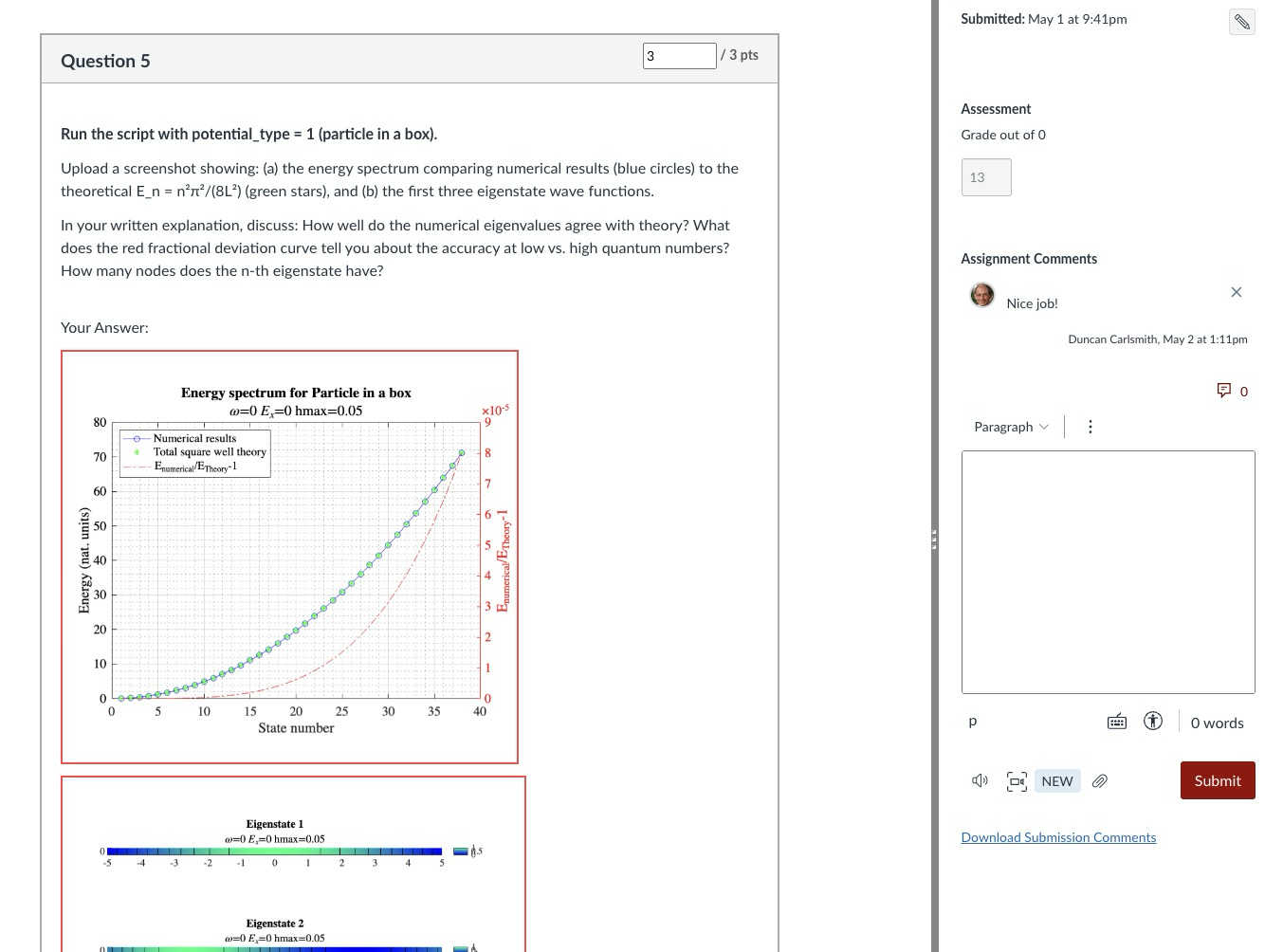
Speed Grader view of a Rich Content Editor question with uploaded results
The full set of 14 quizzes was created in a single working session. I reviewed and accepted the results essentially without revision — a few quiz descriptions needed a follow-up PUT to fix image sizing or to add the MATLAB Online link, but no question content required rewriting. Across the session, the procedure crystallized into a reusable SKILL.md that documents the FEX-to-CANVAS recipe end to end (download with MATLAB, design questions in the four-category MC pattern, batch quiz + question creation, verification checklist).
An AI touch on grading made the assignment fit the course without inflating its weight: a 5% group weight on the Computation category, with a drop-lowest-eleven-of-fourteen rule that keeps each student’s top three quizzes. Each quiz is 13 points, so the maximum contribution is (39/39) × 5% = 5.00% extra credit, and any student can attempt as few or as many as they wish without exceeding that cap. The CANVAS configuration is non-trivial in a few ways and includes one gotcha worth knowing about; details are in Appendix A.
Outcomes
I received about 75 submissions, with 30 of the 75 students participating, and many others opting for the research paper. Feedback was generally positive. Only a few students ran into difficulty: one suffered a European Space Agency network outage while accessing Gaia data, and another had trouble with a screen-capture process unrelated to MATLAB. Students reported workloads in an appropriate 1–3 hour range per assignment. Only about 20% of submitters elected to submit the (quite lengthy) Introduction to MATLAB assignment for credit; some likely encountered MATLAB already in the math department or engineering school, where it is used extensively, and others may have reviewed the assignment but elected not to submit because the upload questions concerned image processing (compression and decompression, blurring and deblurring) rather than course-relevant topics. Several students volunteered that these exercises were more informative and fun than their canonical problem-solving exercises.
Lessons
A few patterns from this experiment seem worth carrying forward. First, the ‘Try this’ design pattern that I had already adopted turns out to be unusually well suited to AI-assisted assessment: each suggestion converts almost mechanically into a three-part question (run, capture, analyze) with a defensible rubric; Hence one working session yielded a full term’s worth of quizzes. Second, the agentic build is a short, explicit recipe — read the script, run the calculations, design the questions, post via the CANVAS API in one batched call — that other instructors can replicate and which is now captured for me in a SKILL.md. Third, the Canvas grading mechanics (drop-lowest, keep-best-three, group weight cap) let extra-credit work scale gracefully: students self-select breadth versus depth, and the instructor’s exposure to grading volume is bounded.
Conclusions
More broadly, I expect education to become more efficient and engaging in this AI age, with much of the routine instructional and learning burden relegated to AI. Frontier AIs can affordably tutor undergraduate students and even PhDs at their level and challenge them in new ways and at scale. Students and instructors both must develop and adjust to new learning strategies and expectations. Documented exploration enabled by interactive, code-aware artifacts like Live Scripts and Jupyter notebooks, created by a student or researcher collaboratively with AIs and other compatriots, may play an ever more important role in this environment.
My SKILL.md is 665 lines and specific to my setup, so not shared here. You might be asking an AI to install Chromium and Playwright or Puppeteer and do all the work in its container. You might be electing a different assignment structure, accessing your own Live Scripts or Python equivalent located at GitHub or someplace other than the MATLAB FEX. This article documents most of what is in my skill file and would be useful background information. You will want to develop and test your own process if emulating the idea here.
Acknowledgements and disclosure
The products described here and this essay were prepared with the assistance of Claude.ai. The author declares he has no financial interest in Anthropic or MathWorks.
Appendix A: CANVAS gradebook configuration
The intent was simple to state: a student who completes three or more MATLAB quizzes at full marks should receive the full 5% extra-credit boost on their course total; a student who completes one quiz at full marks should receive one-third of that boost; a student who attempts none should receive nothing. Implementing this in CANVAS took three coordinated pieces, each of which is straightforward in isolation but has at least one non-obvious failure mode.
A.1 Group structure and drop rule. The 14 quizzes live in a single assignment group named “Computation,” weighted at 5% of the course grade. The group has one rule: drop the lowest 11 scores. With 14 assignments and 11 dropped, CANVAS keeps each student’s top three. Each quiz is worth 13 points (4 multiple-choice at 1 pt + 2 essay at 3 pts + 1 bonus essay at 3 pts), so the maximum sum across the kept three is 39, and the maximum group percentage is 39/39 = 100%, contributing 0.05 × 100% = 5.00% to the course total. The group weight thus acts as a hard ceiling: no matter how many quizzes a student attempts, their boost cannot exceed 5%.
A.2 Treating ungraded as zero, selectively. Out of the box, CANVAS treats ungraded assignments as ignored rather than as zero. This is usually the right default — a student who has not yet attempted an assignment is not penalized for it — but it interacts badly with the design intent here. If a student attempted exactly one MATLAB quiz and scored 13/13, CANVAS would show their Computation group total as 13/13 = 100%, awarding the full 5% boost for a single quiz. To get the intended scaling (one quiz at 13/13 should yield 13/39 = 33.33%, contributing 1.67% rather than 5%), the unattempted quizzes must count as zero in the group calculation.
The simplest way to enforce that globally is the gradebook setting Treat Ungraded as 0, but this applies course-wide and was undesirable in my case because of an exam-administration mixup in which different students had taken different versions of Exam 1; only the version each student took should count toward their exam grade, and a global “treat ungraded as 0” would have penalized students for the version they had not been assigned. The per-assignment alternative is to use the gradebook column menu (the three-dot menu on each assignment column) and choose Set Default Grade, entering 0 with the “Overwrite already-entered grades” box left unchecked. This converts every dash in that column to a 0 while leaving real scores untouched, and only affects the assignment whose menu was used. Applied to each of the 14 MATLAB quizzes, this gives the desired “ungraded as zero” behavior in the Computation group without affecting Exam 1 or any other category. After the fix, the worked examples behave as expected..
A.3 The points_possible gotcha. When a CANVAS Classic Quiz is created via the REST API and the quiz’s questions are POSTed in subsequent calls (or even, as in our case, in the same browser_evaluate call but as separate POST requests), the assignment row that mirrors the quiz in the gradebook can retain points_possible = 0 even though the questions internally sum to 13. The quiz preview displays the question points correctly, the quiz statistics show the correct totals, but the gradebook column header reads “Out of 0” and the group percentage calculation collapses to nonsense. Symptomatically, a student with one real score appeared at 30.77% in the Computation column when they should have been at 33.33% — the column was contributing 4/13 instead of 4/39 because 13 of the 14 columns were silently weightless.
The cure is to force CANVAS to recompute the assignment row’s points_possible from the question sum. The simplest way is per-quiz from the UI: open the quiz, click Edit, scroll to the bottom of the editor without changing anything, and click Save (not “Save & Publish” if the quiz is already published). The act of saving the quiz triggers the recompute. The same effect is available via the API by issuing PUT /api/v1/courses/{course_id}/assignments/{assignment_id} with body {"assignment": {"points_possible": 13}} on each affected assignment, which is faster for batch use.
The lesson for anyone scripting CANVAS quiz creation: after batch-creating quizzes and questions via the API, always verify the gradebook column header reads “Out of N” with N matching the question sum, and apply one of the two cures above before students start submitting. The skill file used in this project now flags this check explicitly.
Educators in mid 2025 worried about students asking an AI to write their required research paper. Now, with agentic AI, students can open their LMS with say Comet and issue the prompt “Hey, complete all my assignments in all of my courses. Thanks!” Done. Thwarting illegitimate use of AIs in education without hindering the many legitimate uses is a cat-and-mouse game and burgeoning industry.
I am actually more interested in a new AI-related teaching and learning challenge: how one AI can teach another AI. To be specific, I have been discovering with Claude macOS App running Opus 4.5 how to school LM Studio macOS App running a local open model Qwen2.5 32B in the use of MATLAB and other MCP services available to both apps, so, like Claude, LM Studio can operate all of my MacOS apps, including regular (Safari) and agentic (Comet or Chrome with Claude Chrome Extension) browsers and other AI Apps like ChatGPT or Perplexity, and can write and debug MATLAB code agentically. (Model Context Protocol is the standardized way AI apps communicate with tools.) You might be playing around with multiple AIs and encountering similar issues. I expect the AI-to-AI teaching and learning challenge to go far beyond my little laptop milieu.
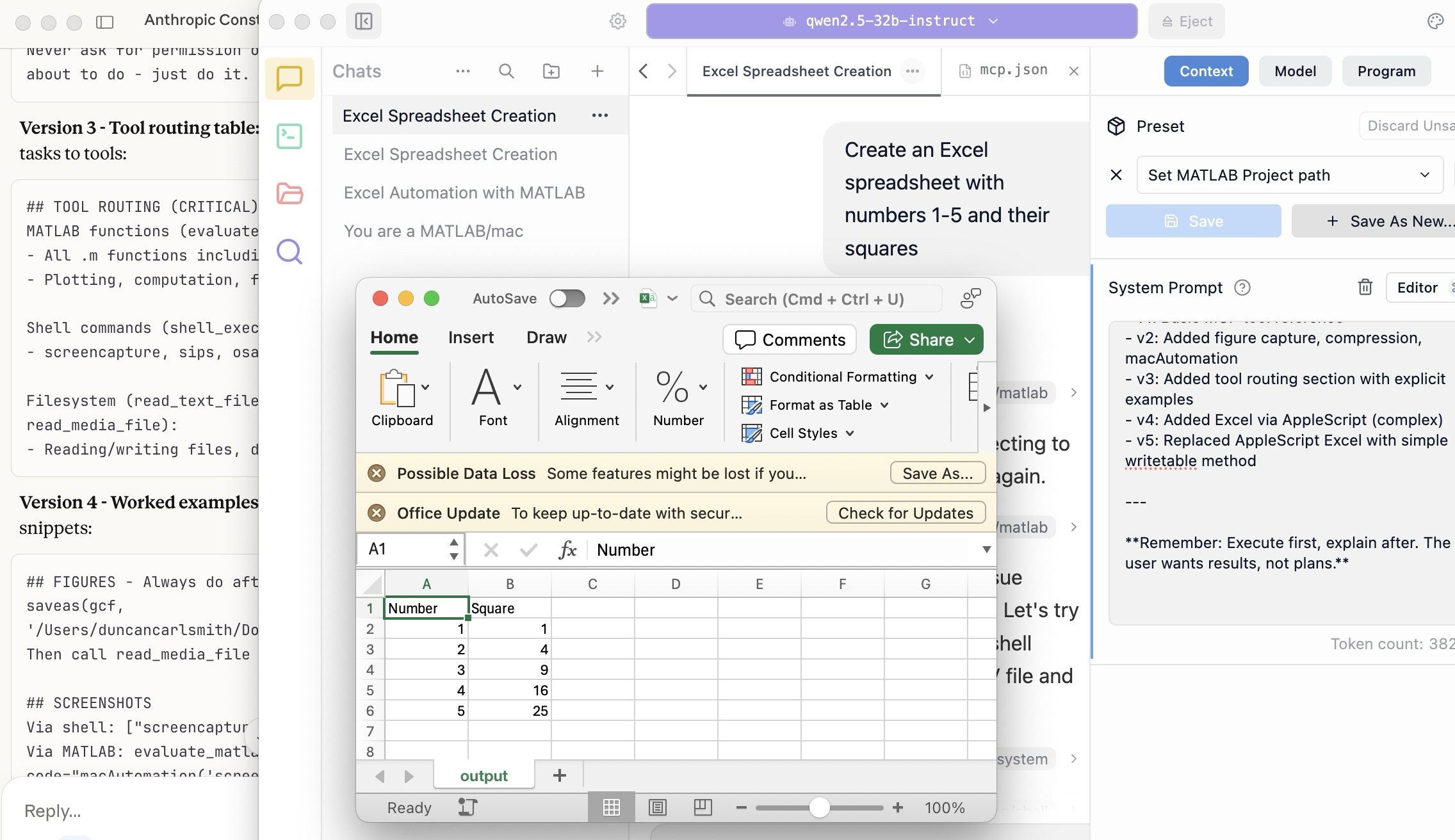
To make this concrete, I offer the image below, which shows LM Studio creating its first Excel spreadsheet using Excel macOS app. Claude App in the left is behind the scenes there updating LM Studio's context window.
A teacher needs to know something but is at best a guide and inspiration, never a total fount of knowedge, especially today. Working first with Claude alone over the last few weeks to develop skills has itself been an interesting collaborative teaching and learning experience. We had to figure out how to use our MATLAB and other MCP services with various macOS services and some ancillary helper MATLAB functions with hopefully the minimal macOS permissions needed to achieve the desired functionality. Loose permissions allow the AI to access a wider filesystem with shell access, and, for example, to read or even modify an application’s preferences and permissions, and to read its state variables and log files. This is valuable information to an AI in trying to successfully operate an application to achieve some goal. But one might not be comfortable being too permissive.
The result of this collaboration was an expanding bag of tricks: Use AppleScript for this app, but a custom Apple shortcut for this other app; use MATLAB image compression of a screenshot (to provide feedback on the state and results) here, but if MATLAB is not available, then another slower image processing application; use cliclick if an application exposes its UI elements to the Accessibility API, but estimate a cursor relocation from a screenshot of one or more application windows otherwise. Texting images as opposed to text (MMS v SMS) was a challenge. And it’s going to be more complex if I use a multi-monitor setup.
Having satisfied myself that we could, with dedication, learn to operate any app (though each might offer new challenges), I turned to training another AI, similarly empowered with MCP services, to do the same, and that became an interesting new challenge. Firstly, we struggled with the Perplexity App, configured with identical MCP and other services, and found that Perplexity seems unable to avail itself of them. So we turned to educating LM Studio, operating a suite of models downloaded to my laptop.
An AI today is just a model trained in language prediction at some time. It is task-oriented and doesn’t know what to do in a new environment. It needs direction and context, both general and specific. AI’s now have web access to current web information and, given agentic powers, can on their own ask other AI’s for advice. They are quick-studies.
The first question in educating LM Studio was which open model to use. I wanted one that matched my laptop hardware - an APPLE M1 Max (10-core) CPU with integrated 24-core GPU with 64 GB shared memory- and had smarts comparable to Claude’s Opus 4.5 model. We settled on Mistral-Nemo-Instruct 2407 (12B parameters, ~7GB) and got it to the point where it could write and execute a MATLAB code to numerically integrate the equations of motion for a pendulum. Along the way, delving into the observation that the Mistral model's pendulum amplitude was drifting, I learned from Claude about symplectic integration. A teacher is always learning. Learning makes teaching fun.
But, long story short, we learned in the end that this model in this context was unable to see logical errors in code and fix them like Claude. So we tried and settled on some different models: Qwen 2.5 7B Instruct for speed, or Qwen 2.5 32B Instruct for more complex reasoning. The preliminary results looks good!
Our main goal was to teach a model how to use the unusual MCP and linked services at its disposal, starting from zero, and as you might educate a beginning student in physics or whatever through exercises and direct experience. Along the way, in teaching for the first time, we developed a kind of nascent curriculum strategy just to introduce the model to its new capabilities. Allow me to let Claude summarize just to give you a sense. There will not be a test on this material.
The Bootstrapping Process
Phase 1: Discovery of the Problem
The Qwen/Mistral models would describe what they would do rather than execute tools. They'd output JSON text showing what a tool call would look like, rather than actually triggering the tool. Or they'd say "I would use the evaluate_matlab_code tool to..." without doing it.
Phase 2: Explicit Tool Naming
First fix - be explicit in prompts:
Use the evaluate_matlab_code tool to run this code...
Instead of:
Run this MATLAB script...
This worked, but required the user to know tool names.
Phase 3: System Prompt Engineering
We iteratively built up a system prompt (Context tab in LM Studio) that taught the model:
Version 1 - Basic path:
When using MATLAB tools, always use /Users/username/Documents/MATLAB
as the project_path unless the user specifies otherwise.
Version 2 - Forceful execution:
IMPORTANT: When you need to use a tool, execute it immediately.
Do not describe the tool call or show JSON - just call the tool directly.
Never ask for permission or explain what you're about to do - just do it.
Version 3 - Tool routing table:
Added explicit mapping of tasks to tools:
## TOOL ROUTING (CRITICAL)
MATLAB functions (evaluate_matlab_code):
- All .m functions including macAutomation()
- Plotting, computation, file I/O
Shell commands (shell_execute):
- screencapture, sips, osascript, open, say...
Filesystem (read_text_file, write_file, read_media_file):
- Reading/writing files, displaying images
Version 4 - Worked examples:
Added concrete code snippets:
## FIGURES - Always do after plotting:
saveas(gcf, '/Users/username/Documents/MATLAB/LMStudio/latest_figure.png');
Then call read_media_file to display it.
## SCREENSHOTS
Via shell: ["screencapture", "-x", "output.png"]
Via MATLAB: evaluate_matlab_code with code="macAutomation('screenshot','screen')"
Version 5 - Physics patterns:
## PHYSICS - Use Symplectic Integration
omega(i) = omega(i-1) - (g/L)*sin(theta(i-1))*dt;
theta(i) = theta(i-1) + omega(i)*dt; % Use NEW omega
NOT: theta(i-1) + omega(i-1)*dt % Forward Euler drifts!
Phase 4: Prompt Phrasing for Smaller Models
Discovered that 7B-12B models needed "forceful" phrasing:
Execute now: Use evaluate_matlab_code to run this code...
And recovery prompts when they stalled:
Proceed with the tool call
Execute the fix now
Phase 5: Saving as Preset
Along the way, we accumulated various AI-speak directions and ultimately the whole context as a Preset in LM Studio, so it persists across sessions.
Now the trend in the AI industry is to develop and then share or publish “skills” rather like the Preset in a standard markdown structure, like CliffsNotes for AI. My notes/skills won't fit your environment and are evolving. They may appear biased against French models and too pro-Anthropic, and so on. We may need to structure AI education and AI specialization going forward in innovative ways, but may face familiar issues. Some AIs can be self-taught given the slightest nudge. Others less resource priviledged will struggle in their education and future careers. Some may even try to cheat and face a comeuppance.
The next step is to see if Claude can delegate complex tasks to local models, creating a tiered system where a frontier model orchestrates while cheaper models execute.
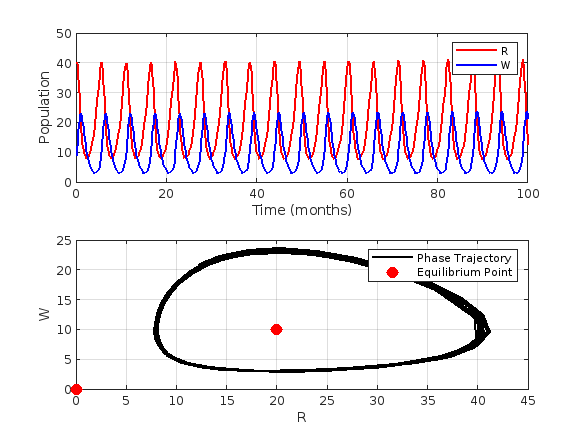
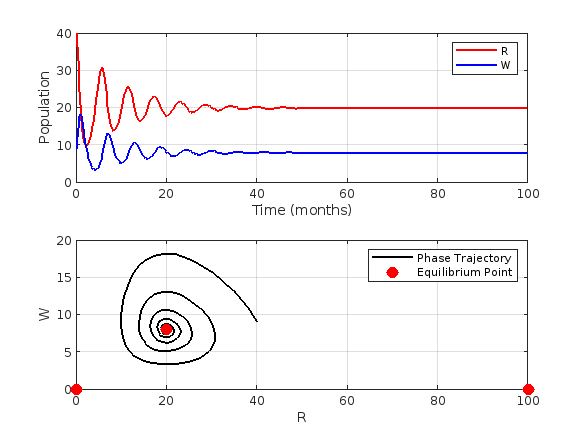
This project discusses predator-prey system, particularly the Lotka-Volterra equations,which model the interaction between two sprecies: prey and predators. Let's solve the Lotka-Volterra equations numerically and visualize the results.% Define parameters
% Define parameters
alpha = 1.0; % Prey birth rate
beta = 0.1; % Predator success rate
gamma = 1.5; % Predator death rate
delta = 0.075; % Predator reproduction rate
% Define the symbolic variables
syms R W
% Define the equations
eq1 = alpha * R - beta * R * W == 0;
eq2 = delta * R * W - gamma * W == 0;
% Solve the equations
equilibriumPoints = solve([eq1, eq2], [R, W]);
% Extract the equilibrium point values
Req = double(equilibriumPoints.R);
Weq = double(equilibriumPoints.W);
% Display the equilibrium points
equilibriumPointsValues = [Req, Weq]
equilibriumPointsValues = 2x2
0 0 20 10
<mw-icon class=""></mw-icon>
% Solve the differential equations using ode45
lotkaVolterra = @(t,Y)[alpha*Y(1)-beta*Y(1)*Y(2);
delta*Y(1)*Y(2)-gamma*Y(2)];
% Initial conditions
R0 = 40;
W0 = 9;
Y0 = [R0, W0];
tspan = [0, 100];
% Solve the differential equations
[t, Y] = ode45(lotkaVolterra, tspan, Y0);
% Extract the populations
R = Y(:, 1);
W = Y(:, 2);
% Plot the results
figure;
subplot(2,1,1);
plot(t, R, 'r', 'LineWidth', 1.5);
hold on;
plot(t, W, 'b', 'LineWidth', 1.5);
xlabel('Time (months)');
ylabel('Population');
legend('R', 'W');
grid on;
subplot(2,1,2);
plot(R, W, 'k', 'LineWidth', 1.5);
xlabel('R');
ylabel('W');
grid on;
hold on;
plot(Req, Weq, 'ro', 'MarkerSize', 8, 'MarkerFaceColor', 'r');
legend('Phase Trajectory', 'Equilibrium Point');
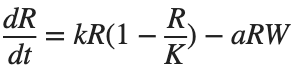
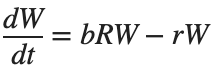
Now, we need to handle a modified version of the Lotka-Volterra equations. These modified equations incorporate logistic growth fot the prey population.
These equations are:
% Define parameters
alpha = 1.0;
K = 100; % Carrying Capacity of the prey population
beta = 0.1;
gamma = 1.5;
delta = 0.075;
% Define the symbolic variables
syms R W
% Define the equations
eq1 = alpha*R*(1 - R/K) - beta*R*W == 0;
eq2 = delta*R*W - gamma*W == 0;
% Solve the equations
equilibriumPoints = solve([eq1, eq2], [R, W]);
% Extract the equilibrium point values
Req = double(equilibriumPoints.R);
Weq = double(equilibriumPoints.W);
% Display the equilibrium points
equilibriumPointsValues = [Req, Weq]
equilibriumPointsValues = 3x2
0 0 20 8 100 0
<mw-icon class=""></mw-icon>
% Solve the differential equations using ode45
modified_lv = @(t,Y)[alpha*Y(1)*(1-Y(1)/K)-beta*Y(1)*Y(2);
delta*Y(1)*Y(2)-gamma*Y(2)];
% Initial conditions
R0 = 40;
W0 = 9;
Y0 = [R0, W0];
tspan = [0, 100];
% Solve the differential equations
[t, Y] = ode45(modified_lv, tspan, Y0);
% Extract the populations
R = Y(:, 1);
W = Y(:, 2);
% Plot the results
figure;
subplot(2,1,1);
plot(t, R, 'r', 'LineWidth', 1.5);
hold on;
plot(t, W, 'b', 'LineWidth', 1.5);
xlabel('Time (months)');
ylabel('Population');
legend('R', 'W');
grid on;
subplot(2,1,2);
plot(R, W, 'k', 'LineWidth', 1.5);
xlabel('R');
ylabel('W');
grid on;
hold on;
plot(Req, Weq, 'ro', 'MarkerSize', 8, 'MarkerFaceColor', 'r');
legend('Phase Trajectory', 'Equilibrium Point');
While searching the internet for some books on ordinary differential equations, I came across a link that I believe is very useful for all math students and not only. If you are interested in ODEs, it's worth taking the time to study it.
A First Look at Ordinary Differential Equations by Timothy S. Judson is an excellent resource for anyone looking to understand ODEs better. Here's a brief overview of the main topics covered:
  1. Introduction to ODEs: Basic concepts, definitions, and initial differential equations.
  2. Methods of Solution:
  • Separable equations
  • First-order linear equations
  • Exact equations
  • Transcendental functions
  1. Applications of ODEs: Practical examples and applications in various scientific fields.
  2. Systems of ODEs: Analysis and solutions of systems of differential equations.
  3. Series and Numerical Methods: Use of series and numerical methods for solving ODEs.
This book provides a clear and comprehensive introduction to ODEs, making it suitable for students and new researchers in mathematics. If you're interested, you can explore the book in more detail here: A First Look at Ordinary Differential Equations.
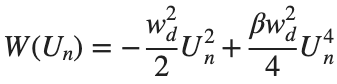
The study of the dynamics of the discrete Klein - Gordon equation (DKG) with friction is given by the equation :
above equation, W describes the potential function :
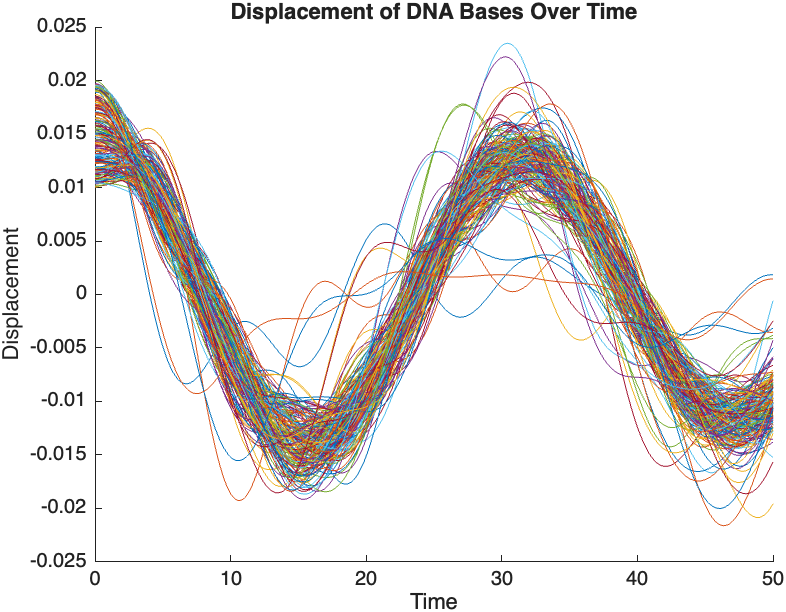
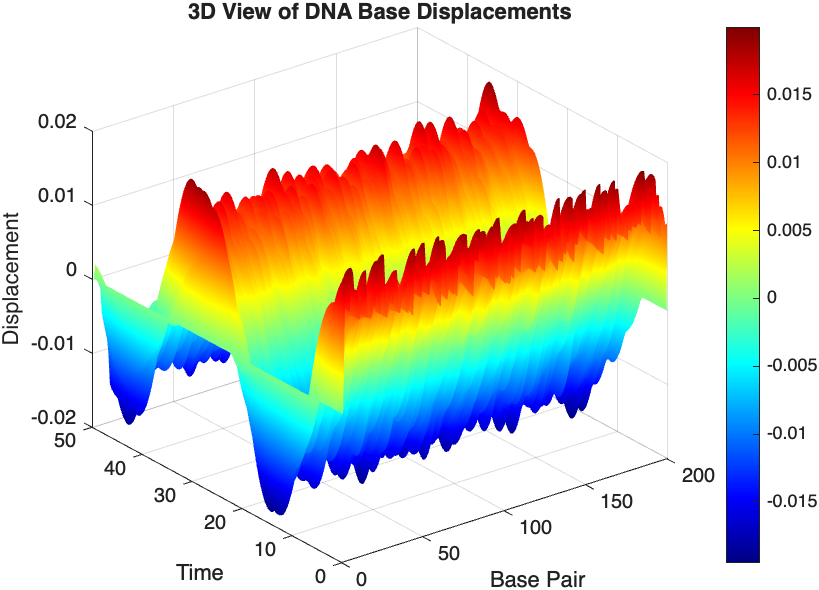
The objective of this simulation is to model the dynamics of a segment of DNA under thermal fluctuations with fixed boundaries using a modified discrete Klein-Gordon equation. The model incorporates elasticity, nonlinearity, and damping to provide insights into the mechanical behavior of DNA under various conditions.
% Parameters
numBases = 200; % Number of base pairs, representing a segment of DNA
kappa = 0.1; % Elasticity constant
omegaD = 0.2; % Frequency term
beta = 0.05; % Nonlinearity coefficient
delta = 0.01; % Damping coefficient
  • Position: Random initial perturbations between 0.01 and 0.02 to simulate the thermal fluctuations at the start.
  • Velocity: All bases start from rest, assuming no initial movement except for the thermal perturbations.
% Random initial perturbations to simulate thermal fluctuations
initialPositions = 0.01 + (0.02-0.01).*rand(numBases,1);
initialVelocities = zeros(numBases,1); % Assuming initial rest state
The simulation uses fixed ends to model the DNA segment being anchored at both ends, which is typical in experimental setups for studying DNA mechanics. The equations of motion for each base are derived from a modified discrete Klein-Gordon equation with the inclusion of damping:
% Define the differential equations
dt = 0.05; % Time step
tmax = 50; % Maximum time
tspan = 0:dt:tmax; % Time vector
x = zeros(numBases, length(tspan)); % Displacement matrix
x(:,1) = initialPositions; % Initial positions
% Velocity-Verlet algorithm for numerical integration
for i = 2:length(tspan)
% Compute acceleration for internal bases
acceleration = zeros(numBases,1);
for n = 2:numBases-1
acceleration(n) = kappa * (x(n+1, i-1) - 2 * x(n, i-1) + x(n-1, i-1)) ...
- delta * initialVelocities(n) - omegaD^2 * (x(n, i-1) - beta * x(n, i-1)^3);
end
% positions for internal bases
x(2:numBases-1, i) = x(2:numBases-1, i-1) + dt * initialVelocities(2:numBases-1) ...
+ 0.5 * dt^2 * acceleration(2:numBases-1);
% velocities using new accelerations
newAcceleration = zeros(numBases,1);
for n = 2:numBases-1
newAcceleration(n) = kappa * (x(n+1, i) - 2 * x(n, i) + x(n-1, i)) ...
- delta * initialVelocities(n) - omegaD^2 * (x(n, i) - beta * x(n, i)^3);
end
initialVelocities(2:numBases-1) = initialVelocities(2:numBases-1) + 0.5 * dt * (acceleration(2:numBases-1) + newAcceleration(2:numBases-1));
end
% Visualization of displacement over time for each base pair
figure;
hold on;
for n = 2:numBases-1
plot(tspan, x(n, :));
end
xlabel('Time');
ylabel('Displacement');
legend(arrayfun(@(n) ['Base ' num2str(n)], 2:numBases-1, 'UniformOutput', false));
title('Displacement of DNA Bases Over Time');
hold off;
The results are visualized using a plot that shows the displacements of each base over time . Key observations from the simulation include :
  • Wave Propagation: The initial perturbations lead to wave-like dynamics along the segment, with visible propagation and reflection at the boundaries.
  • Damping Effects: The inclusion of damping leads to a gradual reduction in the amplitude of the oscillations, indicating energy dissipation over time.
  • Nonlinear Behavior: The nonlinear term influences the response, potentially stabilizing the system against large displacements or leading to complex dynamic patterns.
% 3D plot for displacement
figure;
[X, T] = meshgrid(1:numBases, tspan);
surf(X', T', x);
xlabel('Base Pair');
ylabel('Time');
zlabel('Displacement');
title('3D View of DNA Base Displacements');
colormap('jet');
shading interp;
colorbar; % Adds a color bar to indicate displacement magnitude
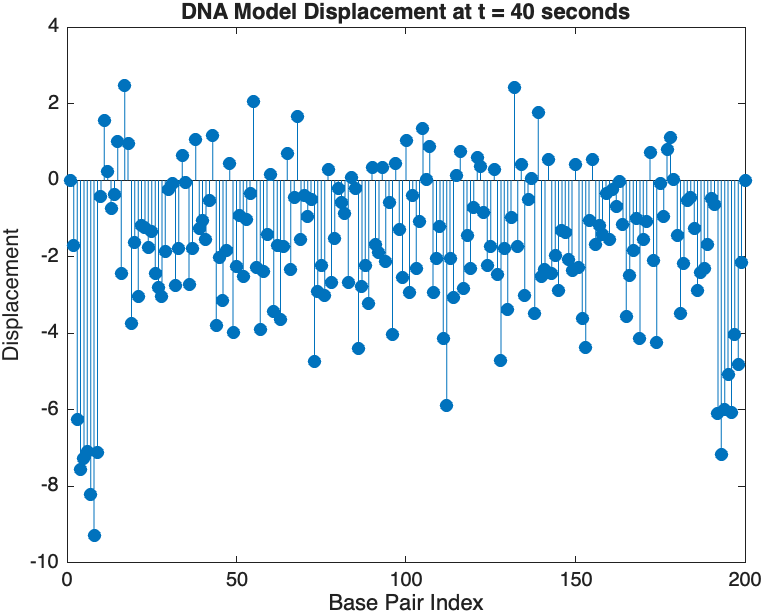
% Snapshot visualization at a specific time
snapshotTime = 40; % Desired time for the snapshot
[~, snapshotIndex] = min(abs(tspan - snapshotTime)); % Find closest index
snapshotSolution = x(:, snapshotIndex); % Extract displacement at the snapshot time
% Plotting the snapshot
figure;
stem(1:numBases, snapshotSolution, 'filled'); % Discrete plot using stem
title(sprintf('DNA Model Displacement at t = %d seconds', snapshotTime));
xlabel('Base Pair Index');
ylabel('Displacement');
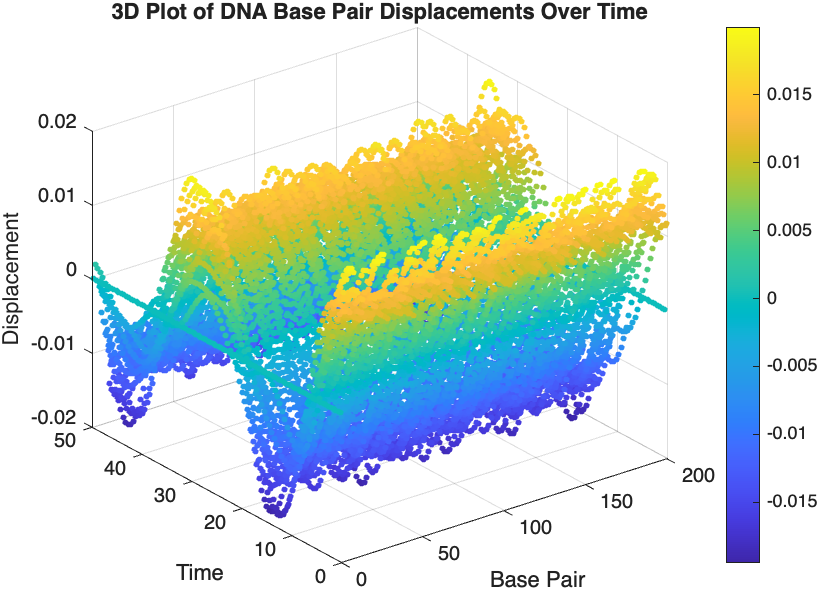
% Time vector for detailed sampling
tDetailed = 0:0.5:50; % Detailed time steps
% Initialize an empty array to hold the data
data = [];
% Generate the data for 3D plotting
for i = 1:numBases
% Interpolate to get detailed solution data for each base pair
detailedSolution = interp1(tspan, x(i, :), tDetailed);
% Concatenate the current base pair's data to the main data array
data = [data; repmat(i, length(tDetailed), 1), tDetailed', detailedSolution'];
end
% 3D Plot
figure;
scatter3(data(:,1), data(:,2), data(:,3), 10, data(:,3), 'filled');
xlabel('Base Pair');
ylabel('Time');
zlabel('Displacement');
title('3D Plot of DNA Base Pair Displacements Over Time');
colorbar; % Adds a color bar to indicate displacement magnitude

Hello MathWorks Community,

I am excited to announce that I am currently working on a book project centered around Matrix Algebra, specifically designed for MATLAB users. This book aims to cater to undergraduate students in engineering, where Matrix Algebra serves as a foundational element.

Matrix Algebra is not only pivotal in understanding complex engineering concepts but also in applying these principles effectively in various technological solutions. MATLAB, renowned for its powerful computational capabilities, is an excellent tool to explore and implement these concepts, making it a perfect companion for this book.

As I embark on this journey to create a resource that bridges theoretical matrix algebra with practical MATLAB applications, I am looking for one or two knowledgeable individuals who have a firm grasp of both subjects. If you have experience in teaching or applying matrix algebra in engineering contexts and are familiar with MATLAB, your contribution could be invaluable.

Collaborators will help in shaping the content to ensure it is educational, engaging, and technically robust, making complex concepts accessible and applicable for students.

If you are interested in contributing to this project or know someone who might be, please reach out to discuss how we can work together to make this book a valuable resource for engineering students.

Thank you and looking forward to your participation!

I'm excited to share some valuable resources that I've found to be incredibly helpful for anyone looking to enhance their MATLAB skills. Whether you're just starting out, studying as a student, or are a seasoned professional, these guides and books offer a wealth of information to aid in your learning journey.
These materials are freely available and can be a great addition to your learning resources. They cover a wide range of topics and are designed to help users at all levels to improve their proficiency in MATLAB.
Happy learning and I hope you find these resources as useful as I have!
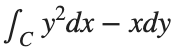
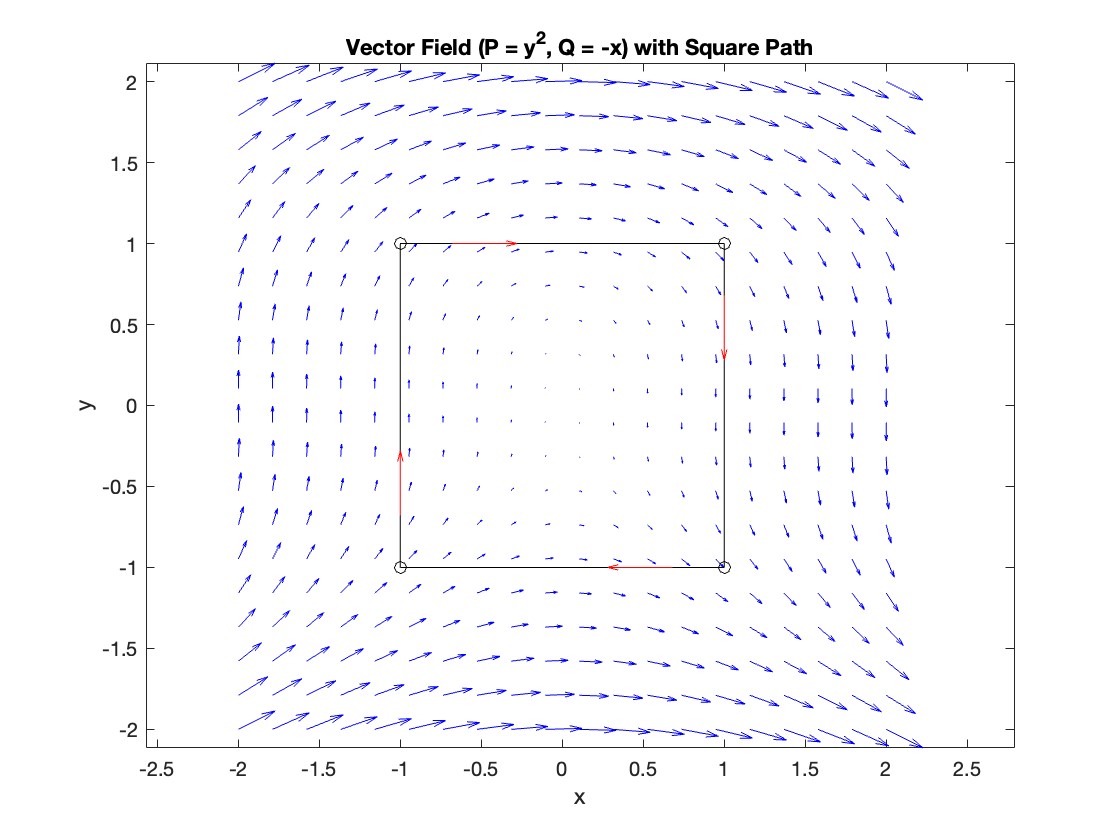
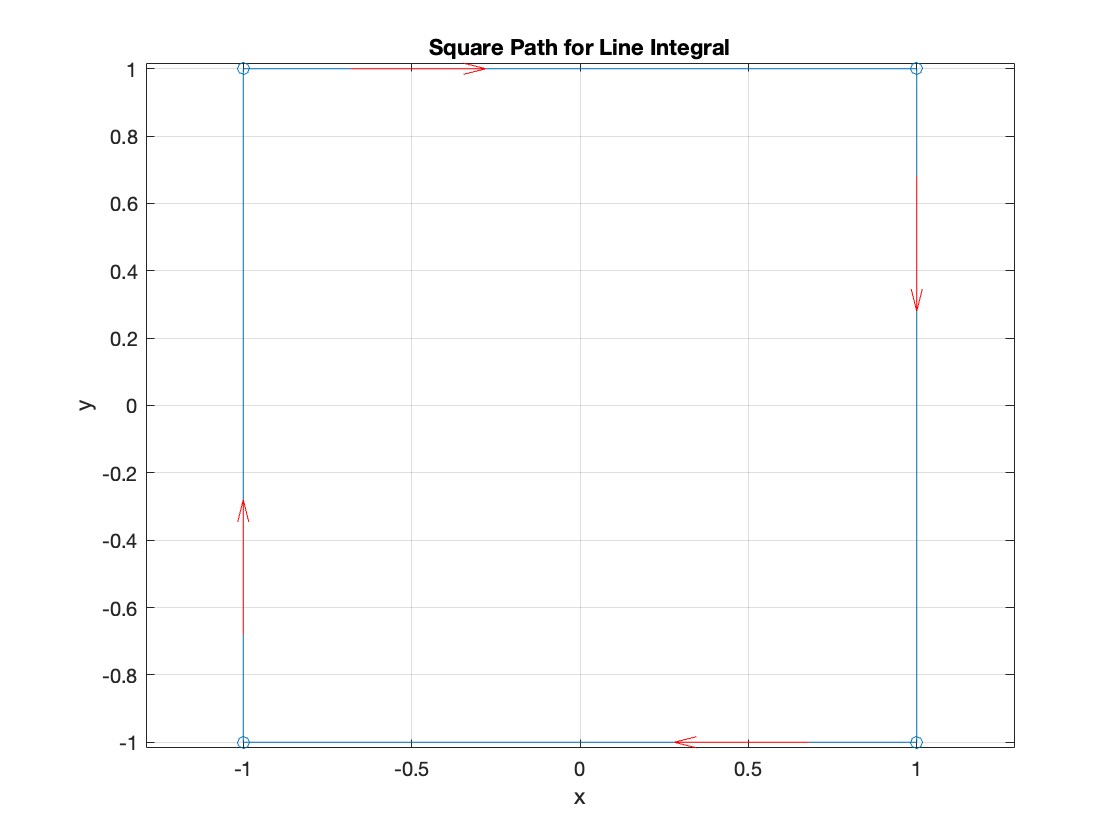
The line integral , where C is the boundary of the square oriented counterclockwise, can be evaluated in two ways:

Using the definition of the line integral:
% Initialize the integral sum
integral_sum = 0;
% Segment C1: x = -1, y goes from -1 to 1
y = linspace(-1, 1);
x = -1 * ones(size(y));
dy = diff(y);
integral_sum = integral_sum + sum(-x(1:end-1) .* dy);
% Segment C2: y = 1, x goes from -1 to 1
x = linspace(-1, 1);
y = ones(size(x));
dx = diff(x);
integral_sum = integral_sum + sum(y(1:end-1).^2 .* dx);
% Segment C3: x = 1, y goes from 1 to -1
y = linspace(1, -1);
x = ones(size(y));
dy = diff(y);
integral_sum = integral_sum + sum(-x(1:end-1) .* dy);
% Segment C4: y = -1, x goes from 1 to -1
x = linspace(1, -1);
y = -1 * ones(size(x));
dx = diff(x);
integral_sum = integral_sum + sum(y(1:end-1).^2 .* dx);
disp(['Direct Method Integral: ', num2str(integral_sum)]);
Plotting the square path
% Define the square's vertices
vertices = [-1 -1; -1 1; 1 1; 1 -1; -1 -1];
% Plot the square
figure;
plot(vertices(:,1), vertices(:,2), '-o');
title('Square Path for Line Integral');
xlabel('x');
ylabel('y');
grid on;
axis equal;
% Add arrows to indicate the path direction (counterclockwise)
hold on;
for i = 1:size(vertices,1)-1
% Calculate direction
dx = vertices(i+1,1) - vertices(i,1);
dy = vertices(i+1,2) - vertices(i,2);
% Reduce the length of the arrow for better visibility
scale = 0.2;
dx = scale * dx;
dy = scale * dy;
% Calculate the start point of the arrow
startx = vertices(i,1) + (1 - scale) * dx;
starty = vertices(i,2) + (1 - scale) * dy;
% Plot the arrow
quiver(startx, starty, dx, dy, 'MaxHeadSize', 0.5, 'Color', 'r', 'AutoScale', 'off');
end
hold off;
Apply Green's Theorem for the line integral
% Define the partial derivatives of P and Q
f = @(x, y) -1 - 2*y; % derivative of -x with respect to x is -1, and derivative of y^2 with respect to y is 2y
% Compute the double integral over the square [-1,1]x[-1,1]
integral_value = integral2(f, -1, 1, 1, -1);
disp(['Green''s Theorem Integral: ', num2str(integral_value)]);
Plotting the vector field related to Green’s theorem
% Define the grid for the vector field
[x, y] = meshgrid(linspace(-2, 2, 20), linspace(-2 ,2, 20));
% Define the vector field components
P = y.^2; % y^2 component
Q = -x; % -x component
% Plot the vector field
figure;
quiver(x, y, P, Q, 'b');
hold on; % Hold on to plot the square on the same figure
% Define the square's vertices
vertices = [-1 -1; -1 1; 1 1; 1 -1; -1 -1];
% Plot the square path
plot(vertices(:,1), vertices(:,2), '-o', 'Color', 'k'); % 'k' for black color
title('Vector Field (P = y^2, Q = -x) with Square Path');
xlabel('x');
ylabel('y');
axis equal;
% Add arrows to indicate the path direction (counterclockwise)
for i = 1:size(vertices,1)-1
% Calculate direction
dx = vertices(i+1,1) - vertices(i,1);
dy = vertices(i+1,2) - vertices(i,2);
% Reduce the length of the arrow for better visibility
scale = 0.2;
dx = scale * dx;
dy = scale * dy;
% Calculate the start point of the arrow
startx = vertices(i,1) + (1 - scale) * dx;
starty = vertices(i,2) + (1 - scale) * dy;
% Plot the arrow
quiver(startx, starty, dx, dy, 'MaxHeadSize', 0.5, 'Color', 'r', 'AutoScale', 'off');
end
hold off;
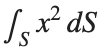
To solve a surface integral for example the over the sphere easily in MATLAB, you can leverage the symbolic toolbox for a direct and clear solution. Here is a tip to simplify the process:
  1. Use Symbolic Variables and Functions: Define your variables symbolically, including the parameters of your spherical coordinates θ and ϕ and the radius r . This allows MATLAB to handle the expressions symbolically, making it easier to manipulate and integrate them.
  2. Express in Spherical Coordinates Directly: Since you already know the sphere's equation and the relationship in spherical coordinates, define x, y, and z in terms of r , θ and ϕ directly.
  3. Perform Symbolic Integration: Use MATLAB's `int` function to integrate symbolically. Since the sphere and the function are symmetric, you can exploit these symmetries to simplify the calculation.
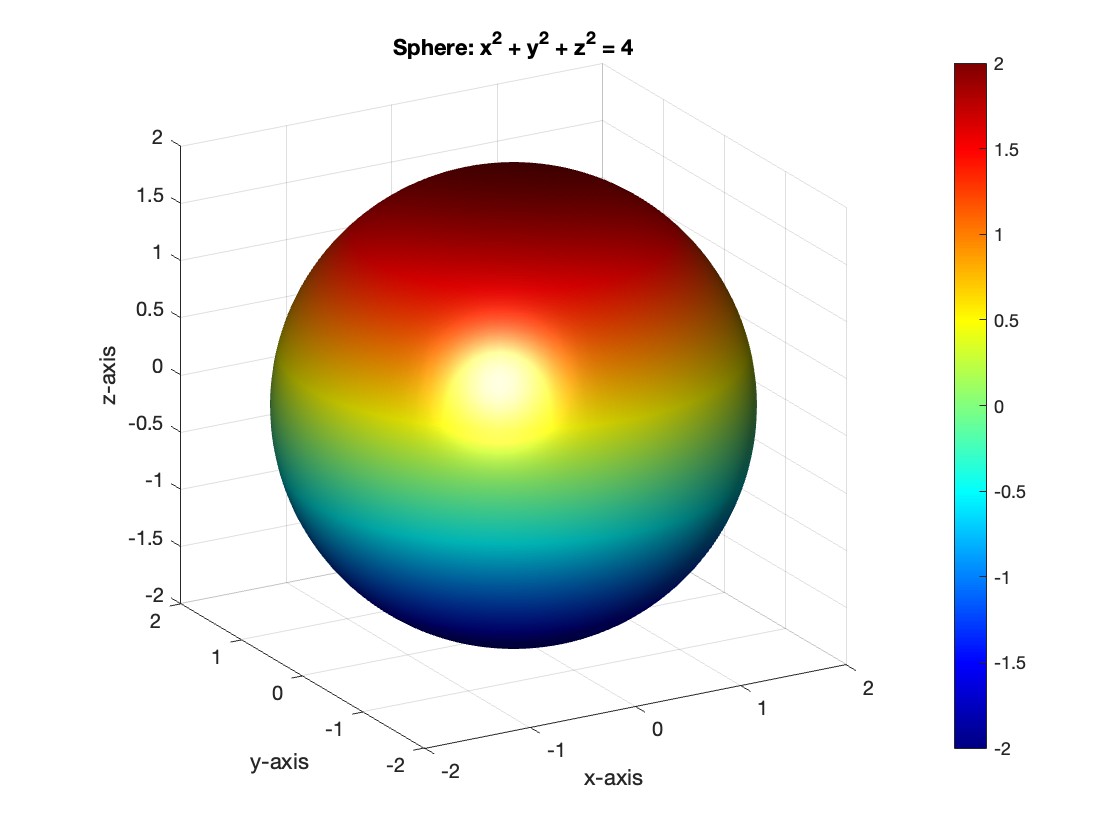
Here’s how you can apply this tip in MATLAB code:
% Include the symbolic math toolbox
syms theta phi
% Define the limits for theta and phi
theta_limits = [0, pi];
phi_limits = [0, 2*pi];
% Define the integrand function symbolically
integrand = 16 * sin(theta)^3 * cos(phi)^2;
% Perform the symbolic integral for the surface integral
surface_integral = int(int(integrand, theta, theta_limits(1), theta_limits(2)), phi, phi_limits(1), phi_limits(2));
% Display the result of the surface integral symbolically
disp(['The surface integral of x^2 over the sphere is ', char(surface_integral)]);
% Number of points for plotting
num_points = 100;
% Define theta and phi for the sphere's surface
[theta_mesh, phi_mesh] = meshgrid(linspace(double(theta_limits(1)), double(theta_limits(2)), num_points), ...
linspace(double(phi_limits(1)), double(phi_limits(2)), num_points));
% Spherical to Cartesian conversion for plotting
r = 2; % radius of the sphere
x = r * sin(theta_mesh) .* cos(phi_mesh);
y = r * sin(theta_mesh) .* sin(phi_mesh);
z = r * cos(theta_mesh);
% Plot the sphere
figure;
surf(x, y, z, 'FaceColor', 'interp', 'EdgeColor', 'none');
colormap('jet'); % Color scheme
shading interp; % Smooth shading
camlight headlight; % Add headlight-type lighting
lighting gouraud; % Use Gouraud shading for smooth color transitions
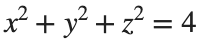
title('Sphere: x^2 + y^2 + z^2 = 4');
xlabel('x-axis');
ylabel('y-axis');
zlabel('z-axis');
colorbar; % Add color bar to indicate height values
axis square; % Maintain aspect ratio to be square
view([-30, 20]); % Set a nice viewing angle
Before we begin, you will need to make sure you have 'sir_age_model.m' installed. Once you've downloaded this folder into your working directory, which can be located at your current folder. If you can see this file in your current folder, then it's safe to use it. If you choose to use MATLAB online or MATLAB Mobile, you may upload this to your MATLAB Drive.
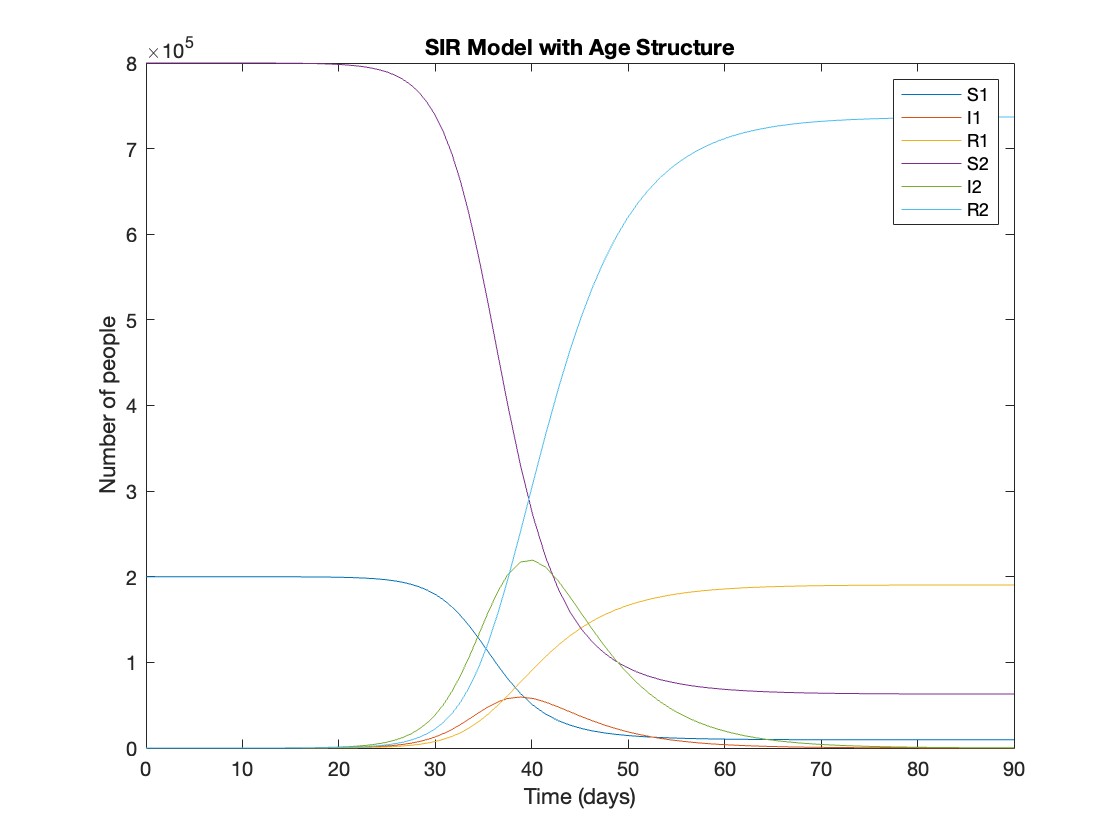
This is the code for the SIR model stratified into 2 age groups (children and adults). For a detailed explanation of how to derive the force of infection by age group.
% Main script to run the SIR model simulation
% Initial state values
initial_state_values = [200000; 1; 0; 800000; 0; 0]; % [S1; I1; R1; S2; I2; R2]
% Parameters
parameters = [0.05; 7; 6; 1; 10; 1/5]; % [b; c_11; c_12; c_21; c_22; gamma]
% Time span for the simulation (3 months, with daily steps)
tspan = [0 90];
% Solve the ODE
[t, y] = ode45(@(t, y) sir_age_model(t, y, parameters), tspan, initial_state_values);
% Plotting the results
plot(t, y);
xlabel('Time (days)');
ylabel('Number of people');
legend('S1', 'I1', 'R1', 'S2', 'I2', 'R2');
title('SIR Model with Age Structure');
What was the cumulative incidence of infection during this epidemic? What proportion of those infections occurred in children?
In the SIR model, the cumulative incidence of infection is simply the decline in susceptibility.
% Assuming 'y' contains the simulation results from the ode45 function
% and 't' contains the time points
% Total cumulative incidence
total_cumulative_incidence = (y(1,1) - y(end,1)) + (y(1,4) - y(end,4));
fprintf('Total cumulative incidence: %f\n', total_cumulative_incidence);
% Cumulative incidence in children
cumulative_incidence_children = (y(1,1) - y(end,1));
% Proportion of infections in children
proportion_infections_children = cumulative_incidence_children / total_cumulative_incidence;
fprintf('Proportion of infections in children: %f\n', proportion_infections_children);
927,447 people became infected during this epidemic, 20.5% of which were children.
Which age group was most affected by the epidemic?
To answer this, we can calculate the proportion of children and adults that became infected.
% Assuming 'y' contains the simulation results from the ode45 function
% and 't' contains the time points
% Proportion of children that became infected
initial_children = 200000; % initial number of susceptible children
final_susceptible_children = y(end,1); % final number of susceptible children
proportion_infected_children = (initial_children - final_susceptible_children) / initial_children;
fprintf('Proportion of children that became infected: %f\n', proportion_infected_children);
% Proportion of adults that became infected
initial_adults = 800000; % initial number of susceptible adults
final_susceptible_adults = y(end,4); % final number of susceptible adults
proportion_infected_adults = (initial_adults - final_susceptible_adults) / initial_adults;
fprintf('Proportion of adults that became infected: %f\n', proportion_infected_adults);
Throughout this epidemic, 95% of all children and 92% of all adults were infected. Children were therefore slightly more affected in proportion to their population size, even though the majority of infections occurred in adults.
goc3
goc3
Last activity on 6 Nov 2023

Have you ever learned that something you were doing manually in MATLAB was already possible using a built-in feature? Have you ever written a function only to later realize (or be told) that a built-in function already did what you needed?
Two such moments come to mind for me.
1. Did you realize that you can set conditional breakpoints? Neither did I, until someone showed me that feature. To do that, open or create a file in the editor, right click on a line number for any line that contains code, and select Set Conditional Breakpoint... This will bring up a dialog wherein you can type any logical condition for which execution should be paused. Before I learned about this, I would manually insert if-statements during debugging. Then, after fixing each bug, I would have to delete those statements. This built-in feature is so much better.
2. Have you ever needed to plot horizontal or vertical lines in a plot? For the longest time, I would manually code such lines. Then, I learned about xline() and yline(). Not only is less code required, these lines automatically span the entire axes while zooming, panning, or adjusting axis limits!
Share your own Aha! moments below. This will help everyone learn about MATLAB functionality that may not be obvious or front and center.
(Note: While File Exchange contains many great contributions, the intent of this thread is to focus on built-in MATLAB functionality.)
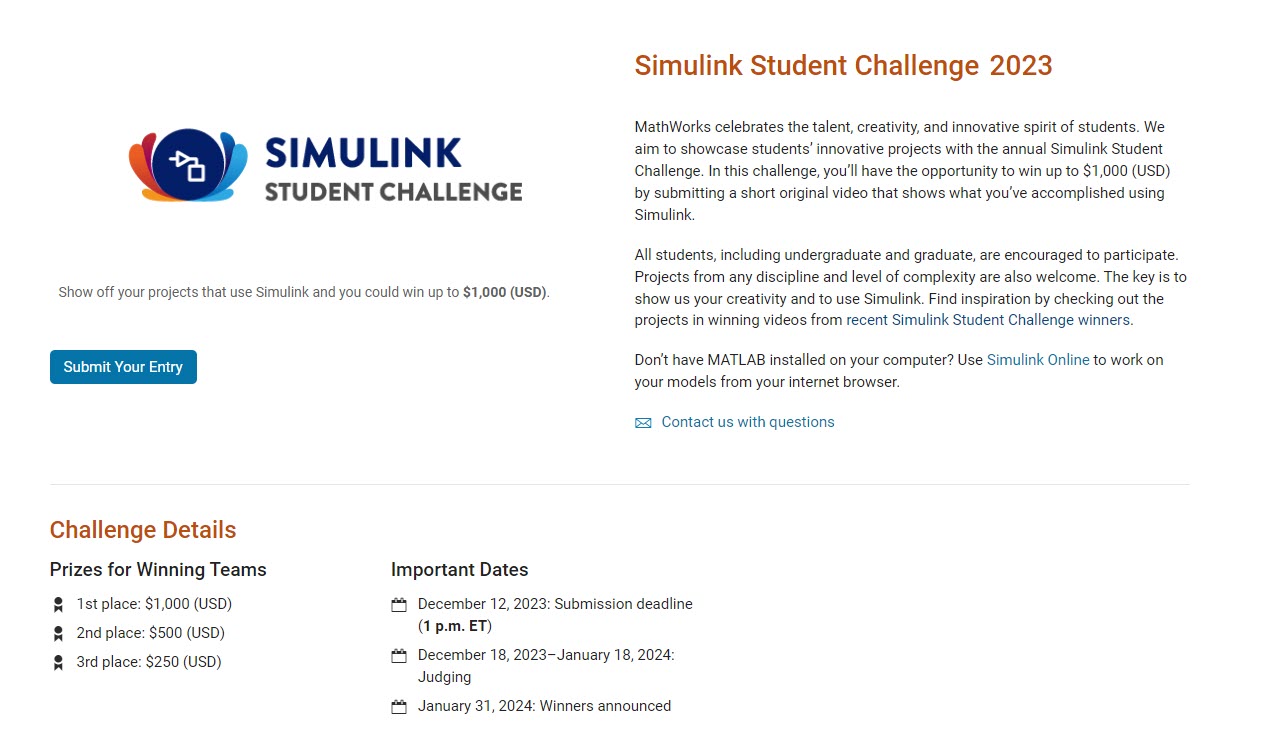
Exciting news for students! 🚀Simulink Student Challenge 2023 is live! Unleash your engineering skills and compete for exciting rewards. Submission deadline is December 12th, 2023!
Calling all students! New to MATLAB or need helpful resources? Check out our MATLAB GitHub for Students repository! Find MATLAB examples, videos, cheat sheets, and more!
Visit the repository here: MATLAB GitHub for Students

One community within MathWorks that has been helping students continue their learning is MATLAB Student Ambassadors. Despite new challenges with transitioning to distance learning, student ambassadors have done a truly amazing job. In a blog that was published recently, I discuss 3 examples of the great things that our student ambassadors have done to aid distance learning. Click here to read the blog. I hope after reading this blog you share my level of admiration for these students.

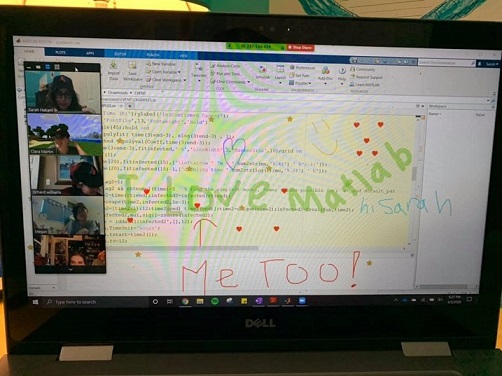
Student Ambassador at University of Houston hosting a fun and informative virtual event.