Results for

Hey, this is a safe space to share your cool projects you know. I have pet ducks, I use ThingSpeak to open the door to their house each morning. I just finished an upgrade to the LED strip lights on my driveway that are controlled via ThingSpeak. And the valves for my drip irrigation system. You got it. Controlled by ThingSpeak. Let me know your last cool project you finished or the one you keep dreaming of starting. I need some more inspiration :)

The example code below shows how to write version 7.3 MAT files directly from C++ using the HDF5 library (libhdf5) and HighFive, a header-only C++ wrapper for libhdf5. Version 7.3 MAT files are HDF5-based, but contain a proprietary header in the first 512 bytes of the file.
The implementation performs three primary tasks:
First, it creates an HDF5 file with a 512-byte userblock. After data has been added into the file, the file is closed. Then a 128-byte header is written into the userblock so that the file is recognized by MATLAB as a valid version-7.3 MAT file. This is done in function “makeMatHeader”.
Second, MATLAB-specific metadata attributes are added to each dataset. Attributes such as “MATLAB_class” and “MATLAB_int_decode” inform MATLAB how each dataset should be interpreted.
Third, MATLAB-compatible complex datasets are created by overriding HighFive's default complex-number layout. HighFive uses the field names `r` and `i` by default, while MATLAB expects `real` and `imag`. A Highfive custom compound type is therefore registered for `std::complex<double>` using the MATLAB field names.
With these changes in place, C++ code can write scalar values, vectors, structs, complex arrays, and character arrays to a file that MATLAB can read as a version 7.3 MAT file.
#include <iostream>
#include <vector>
#include <complex>
#include <cstddef>
#include <fstream>
#include <string>
#include <cstdint>
#include <utility>
#include <bitset>
#include <highfive/highfive.hpp>
#include "hdf5.h"
// Modify the 512-byte userblock at the front of the HDF5 file to make it compatible with MATLAB's v7.3 MAT file format.
void makeMatHeader(std::string filename)
{
char header[512]; // MATLAB-style header for HDF5 file
memset(header, 0, sizeof(header)); // Initialize header to all zeros
// Example header content
snprintf(header, sizeof(header), "MATLAB 7.3 MAT-file, Platform: HDF5");
header[124] = 0;
header[125] = 2;
// I/M indicate little-endian format (Intel Mac/Windows)
header[126] = 'I';
header[127] = 'M';
// Write the header to the beginning of the file
std::ofstream outFile(filename, std::ios::binary | std::ios::in | std::ios::out);
outFile.seekp(0);
outFile.write(header, sizeof(header));
outFile.close();
}
// https://www.geeksforgeeks.org/dsa/inplace-m-x-n-size-matrix-transpose/
void MatrixInplaceTranspose(int *A, int rows, int cols)
{
// Moves elements in-place to achieve the transpose.
// A is a pointer to a 2D array, rows is the number of rows, and cols is the number of columns.
int size = rows*cols - 1;
int t; // holds element to be replaced, eventually becomes next element to move
int next; // location of 't' to be moved
int cycleBegin; // holds start of cycle
int i; // iterator
const int HASH_SIZE = 8192; // define a suitable hash size for the bitset. Must be at least as large as the number of elements in the matrix.
std::bitset<HASH_SIZE> b; // hash to mark moved elements. Must be large enough to cover all indices.
if (rows <= 0 || cols <= 0) {
throw std::invalid_argument("Matrix dimensions must be positive");
}
else if ((rows * cols) > HASH_SIZE)
{
throw std::invalid_argument("Matrix size exceeds hash size for in-place transpose. Increase the HASH_SIZE constant.");
}
b.reset();
b[0] = b[size] = 1;
i = 1; // Note that A[0] and A[size-1] won't move
while (i < size)
{
cycleBegin = i;
t = A[i];
do
{
// Input matrix [rows x cols]
// Output matrix [cols x rows]
// i_new = (i*rows)%(N-1)
next = (i*rows)%size;
std::swap(A[next], t);
b[i] = 1;
i = next;
}
while (i != cycleBegin);
// Get Next Move (what about querying random location?)
for (i = 1; (i < size) && b[i]; i++)
;
}
}
template <typename T>
std::vector<std::vector<T>> transpose(const std::vector<std::vector<T>>& matrix)
{
// Performs a nonconjugate transpose on a vector of vectors
// The input matrix is a vector of vectors, where each inner vector represents a row of the matrix.
// Handle empty matrix edge case
if (matrix.empty() || matrix[0].empty()) {
return {};
}
size_t rows = matrix.size();
size_t cols = matrix[0].size();
// Initialize the transposed matrix with flipped dimensions: cols x rows
std::vector<std::vector<T>> transposed(cols, std::vector<T>(rows));
for (size_t i = 0; i < rows; ++i) {
for (size_t j = 0; j < cols; ++j) {
transposed[j][i] = matrix[i][j];
}
}
return transposed;
}
// Creates a HighFive compound type for representing MATLAB-style complex numbers
// HighFive by default uses r/i but that is not compatible with MATLAB's complex number representation, which uses real/imag.
HighFive::CompoundType matlabComplexDouble () {
return {
{"real", HighFive::AtomicType<double>{}},
{"imag", HighFive::AtomicType<double>{}}
};
}
// Register the CompoundType to represent std::complex<double>
HIGHFIVE_REGISTER_TYPE(std::complex<double>, matlabComplexDouble);
int main()
{
const std::string filename = "test.mat";
// Needed for the complex number literal suffix 'i'
using namespace std::literals;
/*
* MATLAB vs C++ array layout
*
* MATLAB stores arrays in column-major order, meaning values in the same column are
* laid out next to each other in memory. Typical C++ containers such as nested std::vector and arrays
* are written in row-major order, where values in the same row are adjacent in memory.
*
* That difference matters when something such as a 2D dataset is exchanged from C++ to MATLAB. A 2x3
* matrix written from C++ in row-major order will be interpreted by MATLAB as a 3x2 matrix, transposed relative
* to the original C++ layout. The user will have to transpose the array to view the original C++ layout
* correctly.
*
* C++ developers need to be aware of the memory layout when
* exchanging multidimensional arrays with MATLAB. To maintain the structure,
* one will need to transpose the array before writing it to the mat file.
*/
// Test data
// 2x3 Array of complex double
std::vector<std::vector<std::complex<double>>> dataComplex = {{10.0 + 1.0i, 20.0 + 2.0i, 30.0 + 3.0i},
{40.0 + 4.0i, 50.0 + 5.0i, 60.0 + 6.0i}};
// 1x3 Vector of double
std::vector<double> dataDoubleVec = {1.1, 2.2, 3.3};
// 1x5 Array of integers
int dataIntArray[5] = {1, 2, 3, 4, 5};
// 2x4 Array of integers
int dataIntArray2x4[2][4] = {{1, 2, 3, 4},
{5, 6, 7, 8}};
int dataInt = 79;
double dataDouble = 3.14;
std::string dataString = "Hello, MATLAB!!!!!";
{
// Put the highfive related code into its own block so that the file gets closed when the file object is no longer in scope.
// Create a highfive file create property, get the underlying HDF5 property ID, and set a userblock size
HighFive::FileCreateProps fcp = HighFive::FileCreateProps::Empty();
hid_t fcpl_id = fcp.getId();
H5Pset_userblock(fcpl_id, 512);
HighFive::File file(filename, HighFive::File::Truncate, fcp);
// Storing a double to the file
// For something that is only a single value, must create a 1x1 dataspace
HighFive::DataSpace scalarDoubleSpace({1, 1});
// This creates a variable in the MATLAB workspace with the name "double_value"
HighFive::DataSet doubleField = file.createDataSet<double>("double_value", scalarDoubleSpace);
doubleField.write(dataDouble);
// Metadata for MATLAB compatibility
doubleField.createAttribute("MATLAB_class", std::string("double"));
// Storing an integer to the file
// For something that is only a single value, must create a 1x1 dataspace
HighFive::DataSpace scalarIntSpace({1, 1});
// This creates a variable in the MATLAB workspace with the name "int_value"
HighFive::DataSet intField = file.createDataSet<int>("int_value", scalarIntSpace);
intField.write(dataInt);
// Metadata for MATLAB compatibility
intField.createAttribute("MATLAB_class", std::string("int32"));
// Storing a C-style 1x5 array of integers to the file
// Since it is a single dimension, there is no need to move the data, just reinterpret it as a 5x1 row-major array.
// When Matlab imports it, it will perceive it as a 1x5 column-major array.
// This line casts the 1x5 array to a 5x1 array to match MATLAB's column-major order
int (*numArrayTrans5x1)[1] = reinterpret_cast<int (*)[1]>(dataIntArray);
HighFive::DataSpace intArray5x1Space({5, 1});
// This creates a variable in the MATLAB workspace with the name "int_array"
HighFive::DataSet intArrayField = file.createDataSet<int>("int_array", intArray5x1Space);
intArrayField.write(numArrayTrans5x1);
intArrayField.createAttribute("MATLAB_class", std::string("int32"));
// Storing a C-style 2x4 array of integers to the file
// For something that is a multi-dimensional array, we need to transpose the array and create a dataspace with the dimensions swapped
// so that the data is stored in column-major order.
MatrixInplaceTranspose((int*)dataIntArray2x4, 2, 4);
// After moving the values around, we need to cast the array with the new dimensions to match the new layout
// Cast the transposed 2x4 array to a 4x2 array to match MATLAB's column-major order
int (*numArrayTrans)[2] = reinterpret_cast<int (*)[2]>(dataIntArray2x4);
HighFive::DataSpace intArray2x4Space({4, 2});
// This creates a variable in the MATLAB workspace with the name "int_array_2x4"
HighFive::DataSet intArray2x4Field = file.createDataSet<int>("int_array_2x4", intArray2x4Space);
intArray2x4Field.write(numArrayTrans);
intArray2x4Field.createAttribute("MATLAB_class", std::string("int32"));
// Creating a Matlab struct (HDF5 group)
HighFive::Group my_struct = file.createGroup("my_struct");
my_struct.createAttribute("MATLAB_class", std::string("struct"));
// The only difference between storing data into a struct or as a normal variable in the MAT file is the
// the parent object you use when you do "createDataSet".
// file.createDataSet would create a normal variable, my_struct.createDataSet creates it within the "my_struct" struct.
// Storing a string to the struct so that it will be accessible as a character array in MATLAB
// For something that is a string, we create a dataspace with dimensions [string_length, 1] and save the character data accordingly
// We create a vector that has dataString.size() elements, each of which is a char vector of size 1 to store individual characters.
std::vector<std::vector<char>> text_bytes(dataString.size(), std::vector<char>(1));
// MATLAB expects character arrays to be a row vector so we reshape it accordingly since dimensions are swapped between C++ and MATLAB
for (int i = 0; i < dataString.size(); ++i) {
text_bytes[i][0] = dataString[i];
}
HighFive::DataSpace charSpace({dataString.size(), 1});
// uint16_t is required for MATLAB character arrays
HighFive::DataSet textField = my_struct.createDataSet<uint16_t>("text_value", charSpace);
textField.write(text_bytes);
// Metadata for MATLAB compatibility
textField.createAttribute("MATLAB_class", std::string("char"));
// Tell MATLAB to interpret the data as characters rather than integers
textField.createAttribute("MATLAB_int_decode", 2);
// Storing a vector to the struct
// In order to transpose the vector correctly, we first wrap it in another vector to make it a 2D array.
std::vector<std::vector<double>> transposableDoubleVec = { dataDoubleVec };
// For vectors, we let HighFive infer the dataspace from the data itself
// Transpose the vector to match MATLAB's column-major order
HighFive::DataSet doubleVectorField = my_struct.createDataSet("double_vector", transpose(transposableDoubleVec));
// Metadata for MATLAB compatibility
doubleVectorField.createAttribute("MATLAB_class", std::string("double"));
// Storing a complex (and multi-dimensional) vector to the struct
// For multi-dimensional vectors, we need to perform a noncojugate transpose on the array to match
// MATLAB's column-major order so the data layout is consistent between C++ and MATLAB.
// For vectors, we let HighFive infer the dataspace from the data itself
HighFive::DataSet complexField = my_struct.createDataSet("complex_vector", transpose(dataComplex));
// Metadata for MATLAB compatibility
complexField.createAttribute("MATLAB_class", std::string("complex"));
}
// Finalize the MATLAB-compatible HDF5 file by writing the MATLAB header into the userblock
makeMatHeader(filename);
return 0;
}

For those using Matlab and ecountering difficulty with mex and Xcode v27
Fix for Xcode 27 breaking MATLAB MEX C++ compilation:
matlab
edit(fullfile(prefdir,'mex_C++_maca64.xml'))
% Set LINKEXPORTCPP=""
% Then rebuild normally

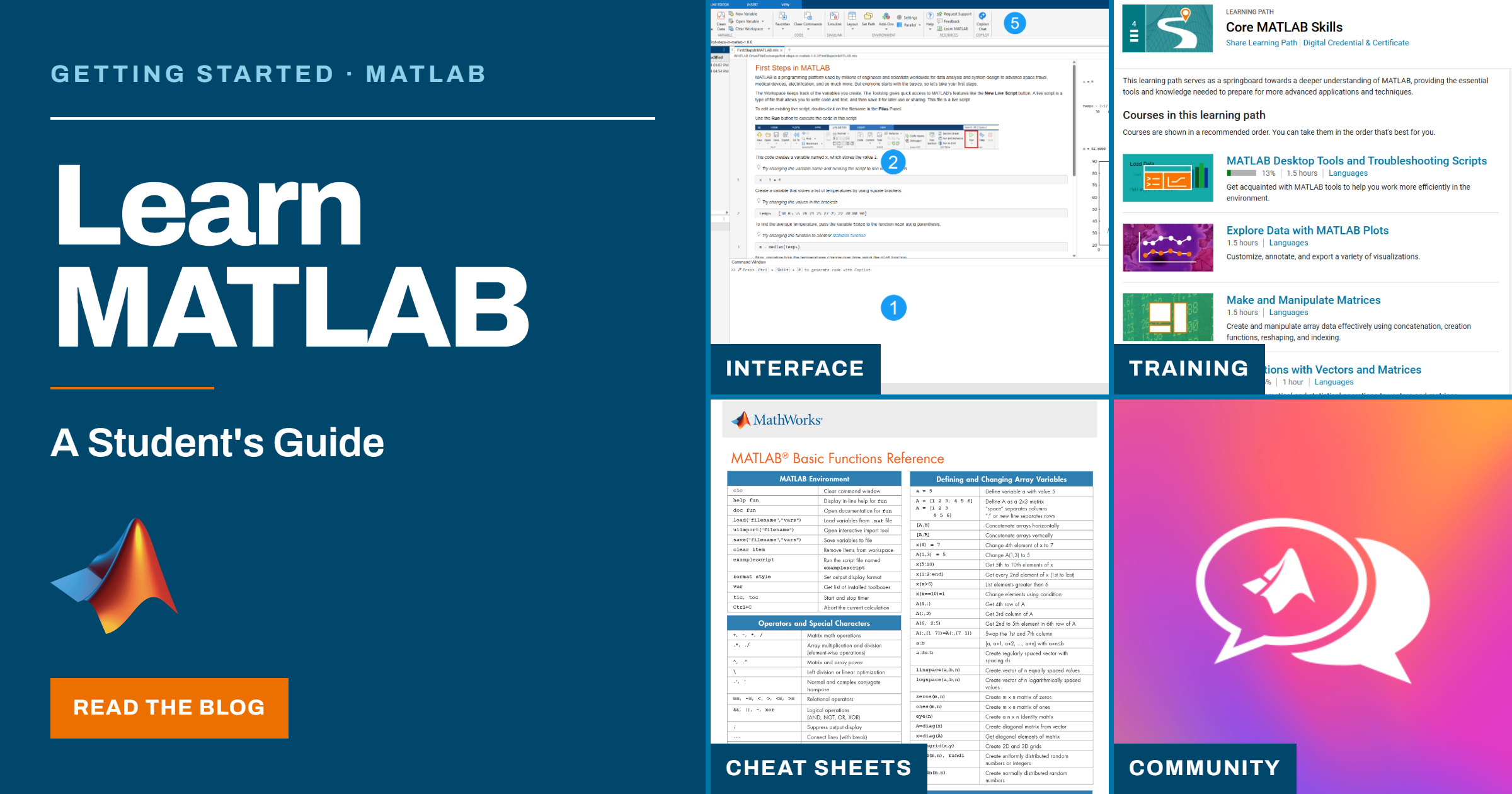
If you're a student looking for tips, resources, or guidance for learning MATLAB, check out my new blog: Learn MATLAB – A Student’s Guide
The blog highlights a variety of student resources, including getting started guides, cheat sheets, learning materials, and other helpful tools to make learning MATLAB easier. I hope you find it useful!

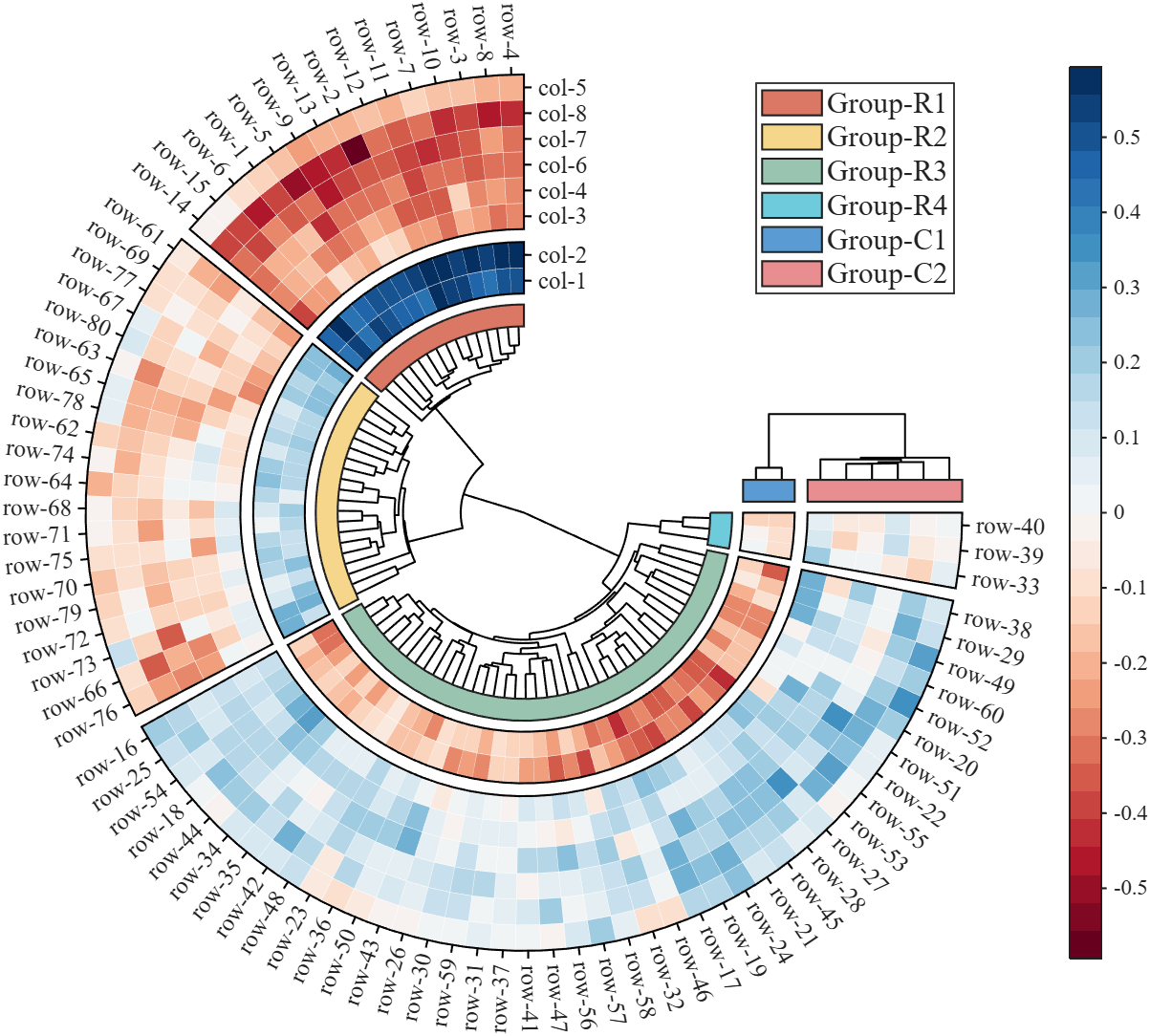
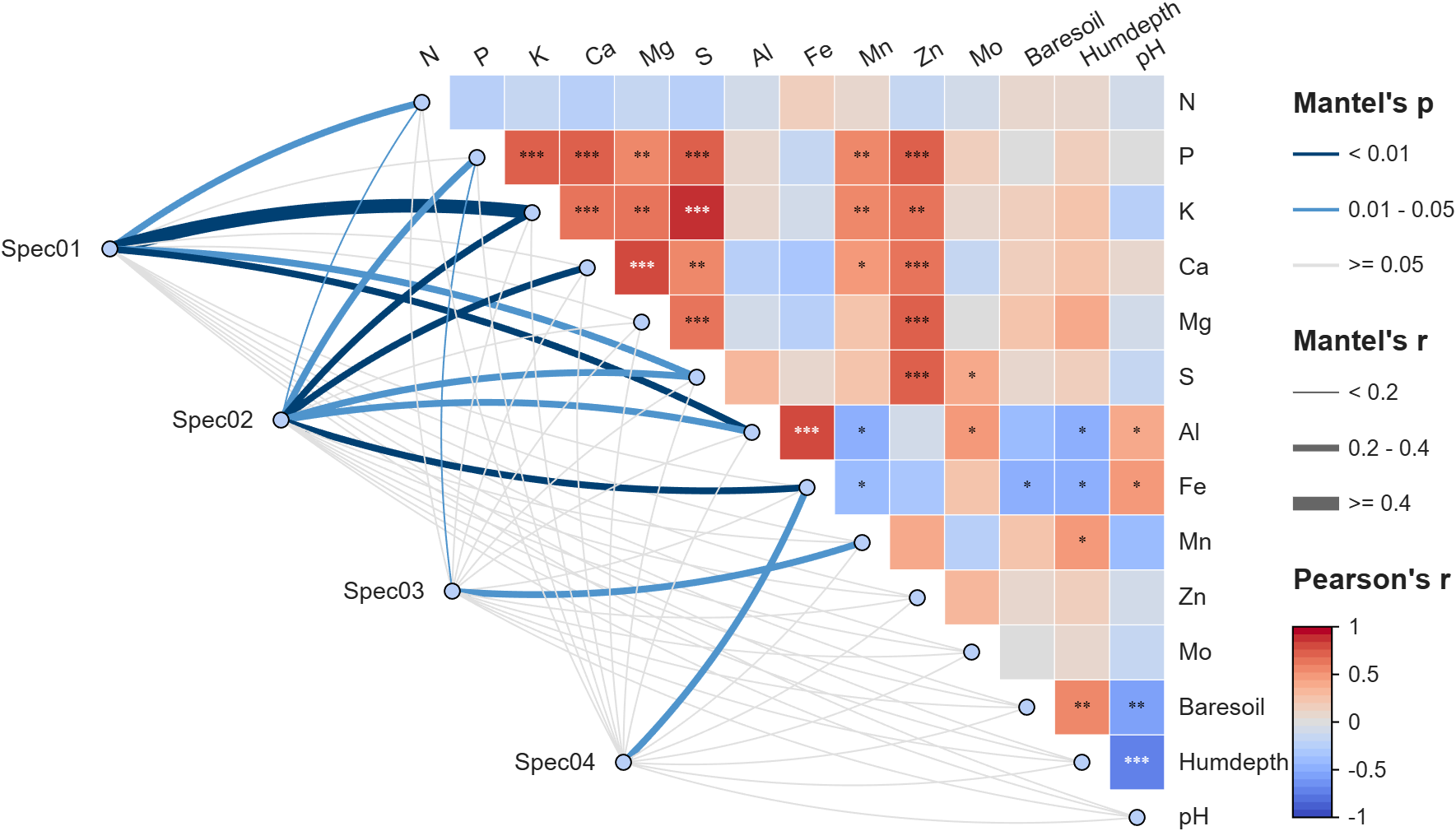
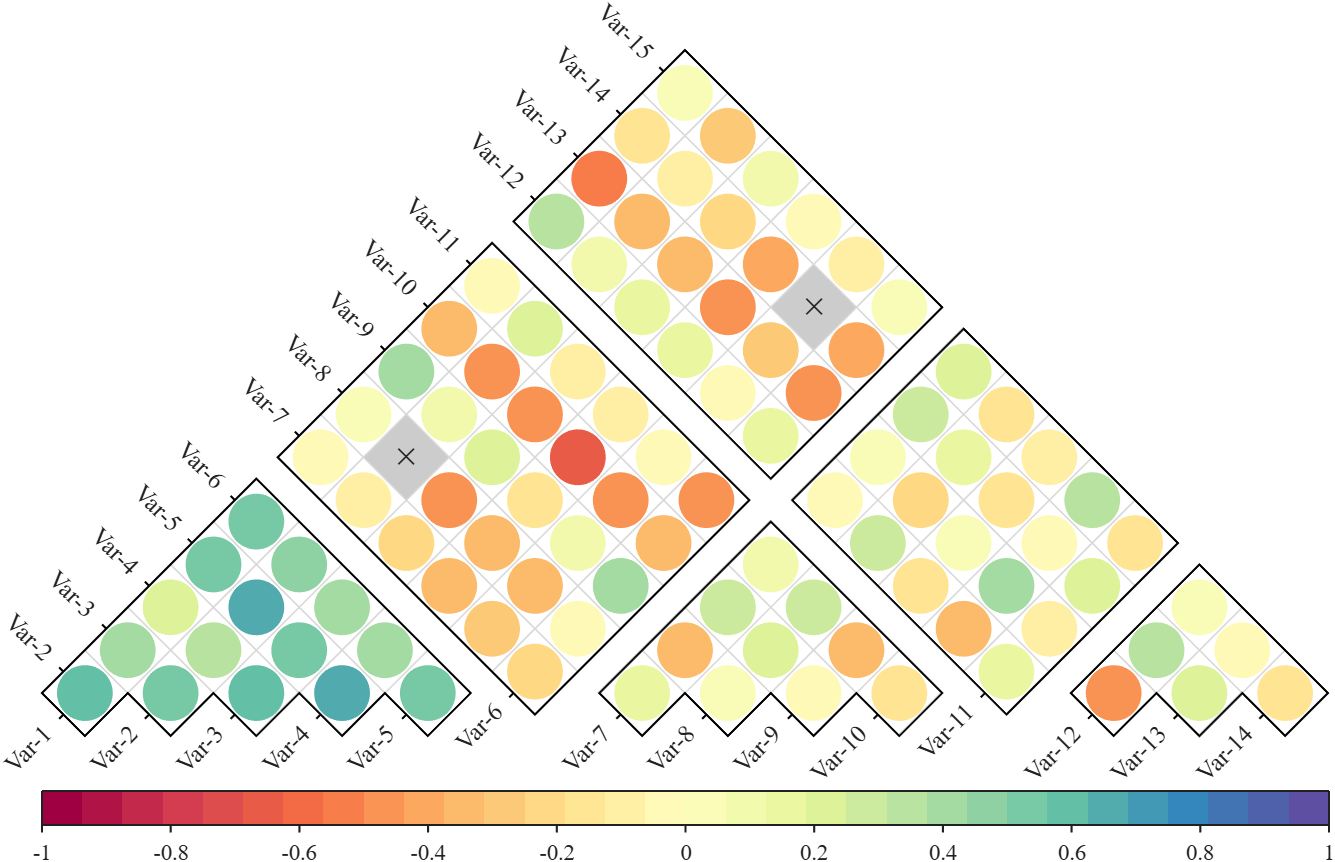
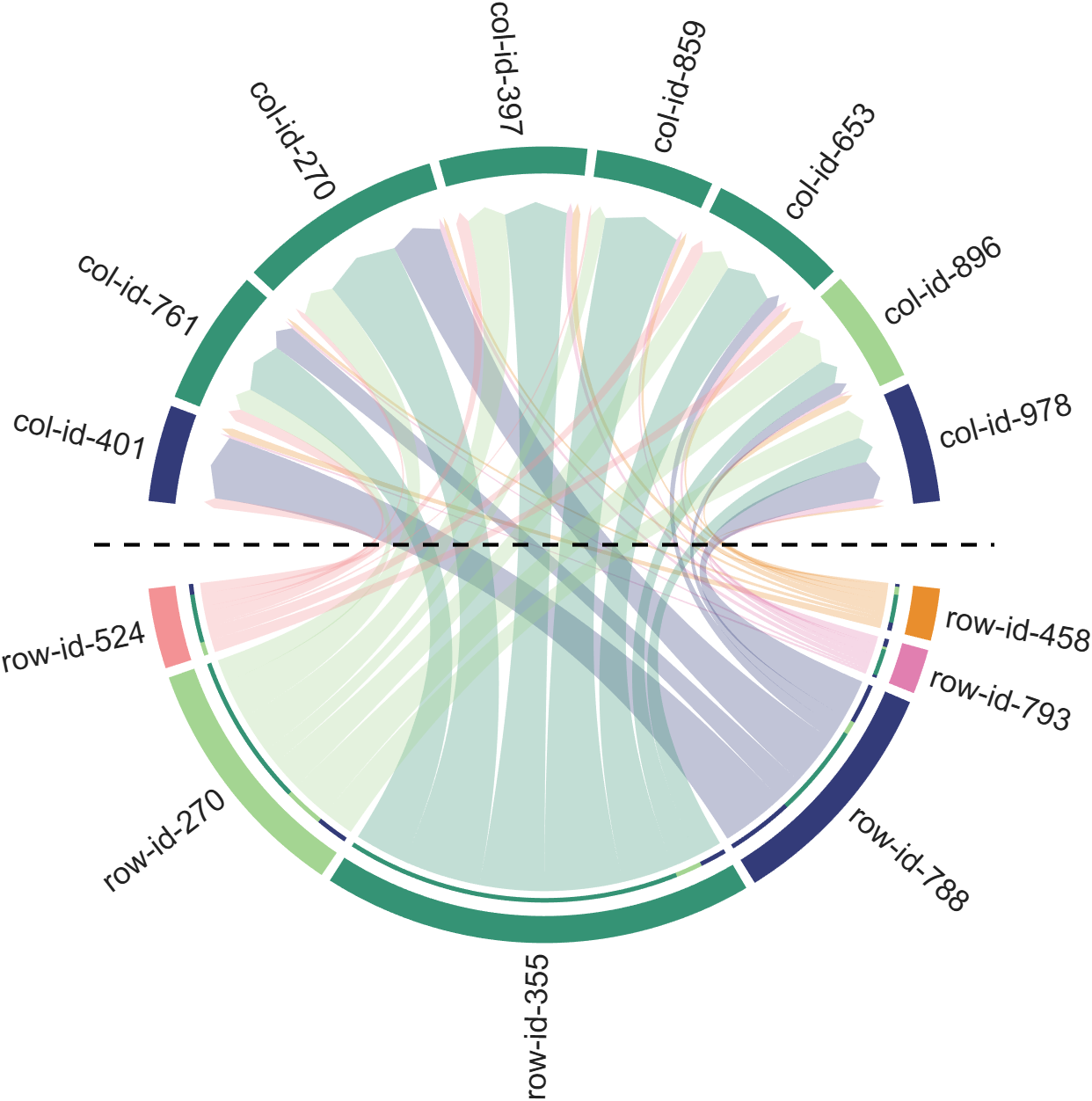
Annular, sector, triangular, and cluster heatmaps can all be produced by this tool:https://www.mathworks.com/matlabcentral/fileexchange/125520-special-heatmap
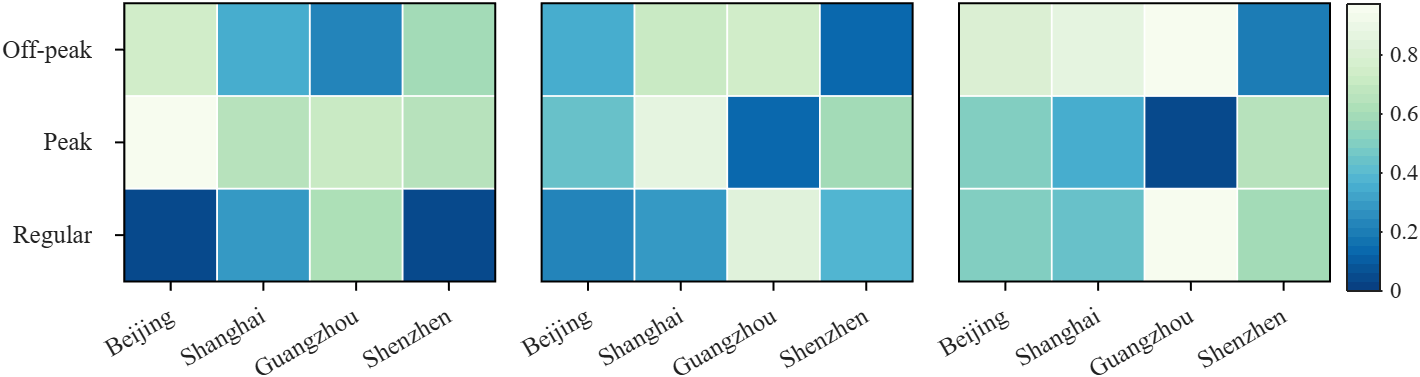
Demo: Group Sep with non-square matrix
Data = rand(3, 12);
SHM = SHeatmap(Data, 'Format','sq');
SHM.RowName = {'Off-peak', 'Peak', 'Regular'};
SHM.ColName = {'Beijing', 'Shanghai', 'Guangzhou', 'Shenzhen'};
SHM.ColGroup = [1,1,1,1, 2,2,2,2, 3,3,3,3];
SHM.draw().setFrame()
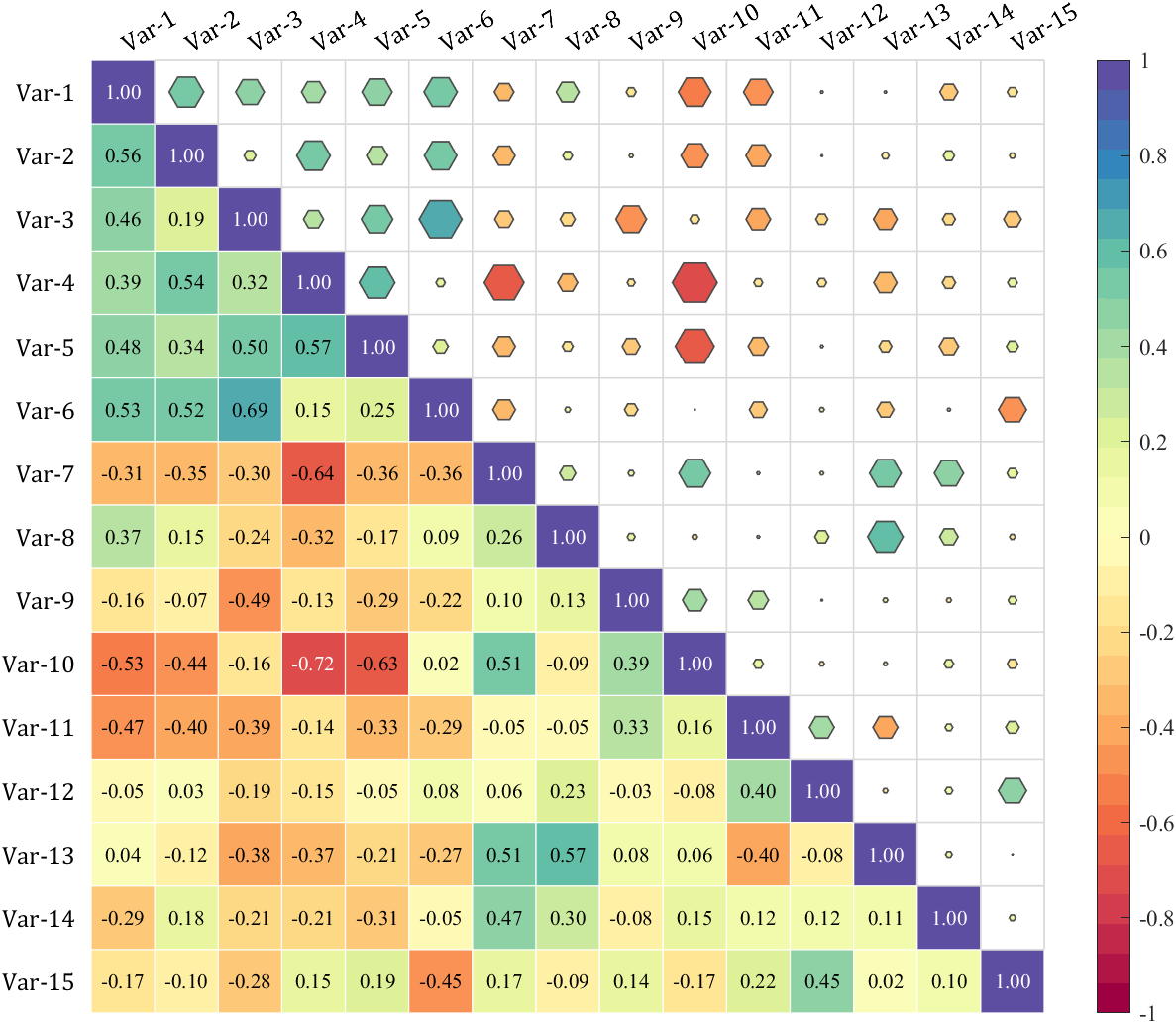
Demo: Merge two triangle heatmaps
% Made up some data casually (随便捏造了点数据)
X = randn(20,15) + [(linspace(-1,2.5,20)').*ones(1, 6), (linspace(.5,-.7,20)').*ones(1, 5), (linspace(.9,-.2,20)').*ones(1, 4)];
% Get the correlation matrix (求相关系数矩阵)
Data = corr(X);
figure()
SHM_m1 = SHeatmap(Data, 'Format','sq').draw().setType('tril');
SHM_m1.setColLabel('Visible','off').setText()
SHM_m2 = SHeatmap(Data, 'Format','hex').draw().setType('triu0');
SHM_m2.setRowLabel('Visible','off').setColLabel('Visible','on') % Show the hidden Var-1 label (显示隐藏的 Var-1 标签)
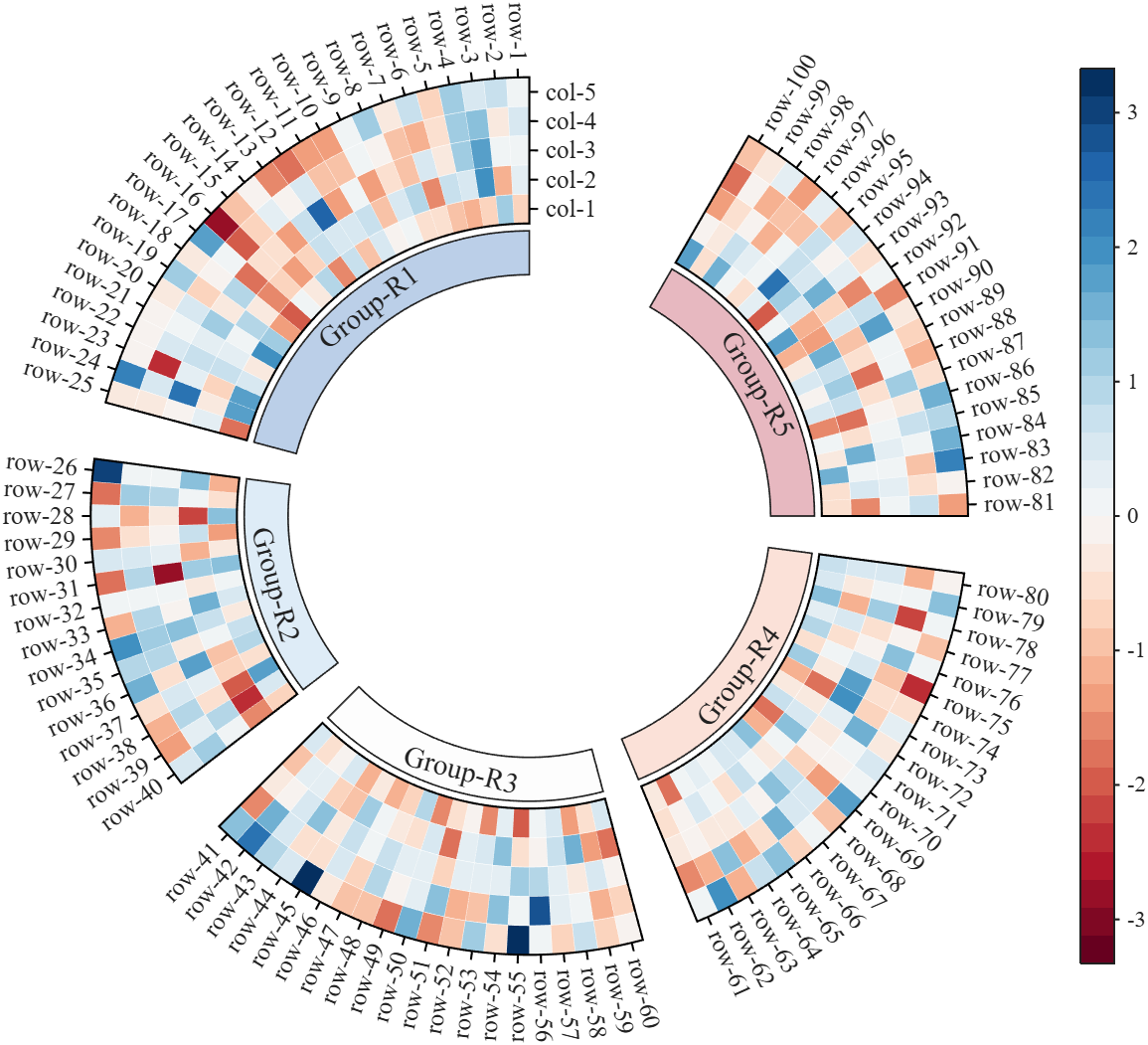
Demo: Circular heatmap with Group Block and GroupSep
% Circular heatmap is currently supported only for
% SHeatmap with 'sq' Format and 'full' Type.
rng(1)
Data = randn(100, 5);
rowName = compose('row-%d', 1:100);
colName = compose('col-%d', 1:5);
rowGroup = [ones(1, 25), 2.*ones(1, 15), 3.*ones(1, 20), 4.*ones(1, 20), 5.*ones(1, 20)];
rowColor = [187,207,232; 222,236,247; 253,253,253; 251,225,216; 231,184,192]./255;
rgnames = {'Group-R1','Group-R2','Group-R3','Group-R4','Group-R5'};
% create figure (图窗创建)
fig = figure('Units','normalized', 'Position',[.1,.05,.5,.72]);
ax = axes('Parent',fig, 'Position',[.1,.1,.75,.75]);
% Draw group block (绘制分组方块)
SCB_L = SClusterBlock(ax, rowGroup, 'Orientation','left', 'ColorList',rowColor, 'Group',rowGroup, 'GroupSep',2.5);
SCB_L.draw(); SCB_L.setXYTLim('XLim',[1.65,1.95], 'YLim',[0, 1], 'TLim',[-3*pi/2, pi/3]);
% Draw circular heatmap (绘制环形热图)
SHM = SHeatmap(ax, Data, 'Format','sq', 'RowGroup',rowGroup, 'GroupSep',2.5);
SHM.TickLength = .3;
SHM.draw();
SHM.setRowName(rowName)
SHM.setColName(colName)
SHM.setRowLabelLocation('right')
SHM.setColLabelLocation('top')
% YLim(1) -> TLim(1), YLim(2) -> TLim(2)
SHM.setXYTLim('XLim',[2, 3], 'YLim',[0, 1], 'TLim',[-3*pi/2, pi/3]);
SHM.Colorbar.Position(1) = SHM.Colorbar.Position(1) + .1;
gHdl = text(ax, SCB_L.X, SCB_L.Y, rgnames, 'FontSize',14, 'FontName','Times New Roman');
setTextPerpRadial(gHdl)
colormap(slanCM(97, 32))
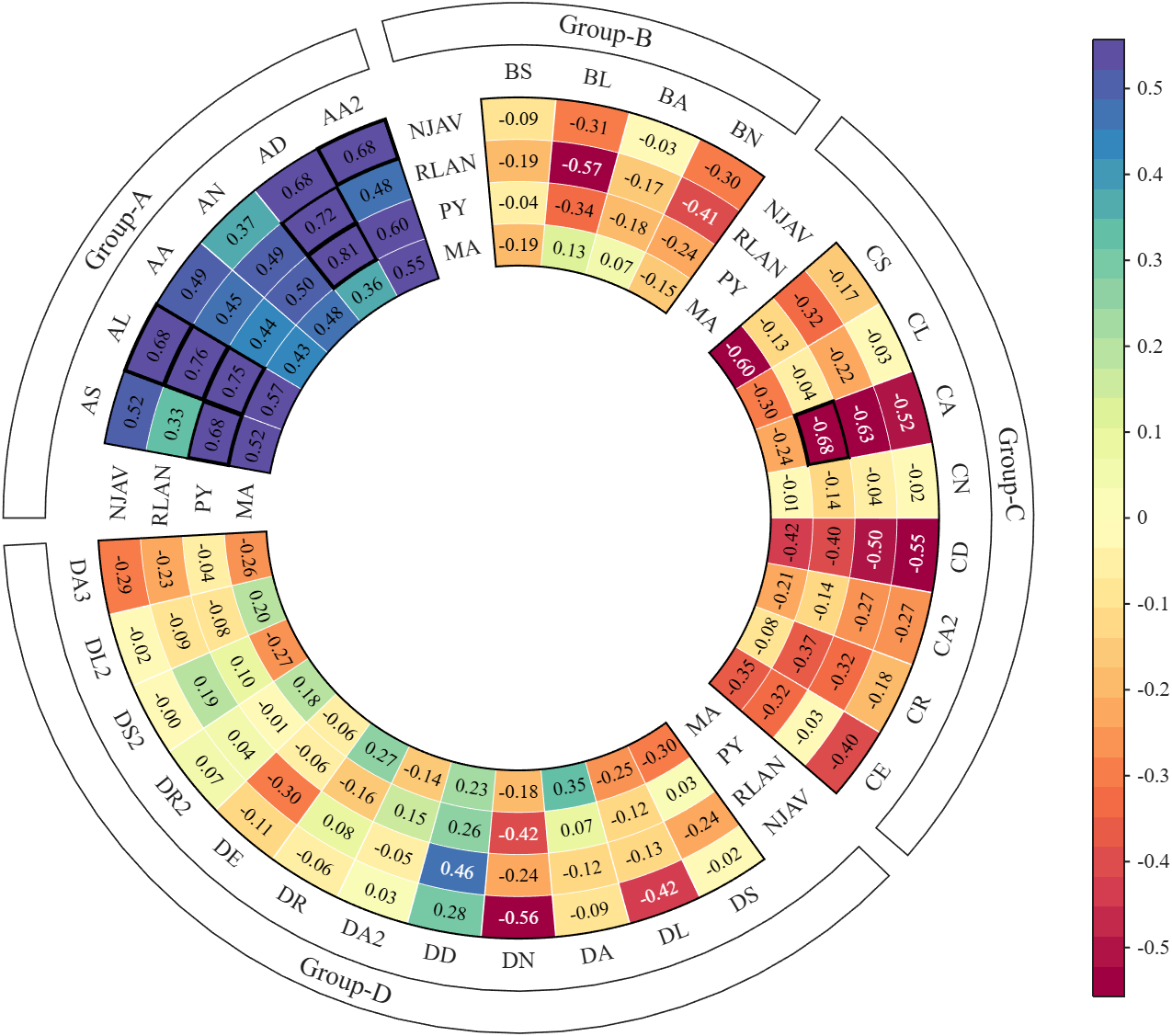
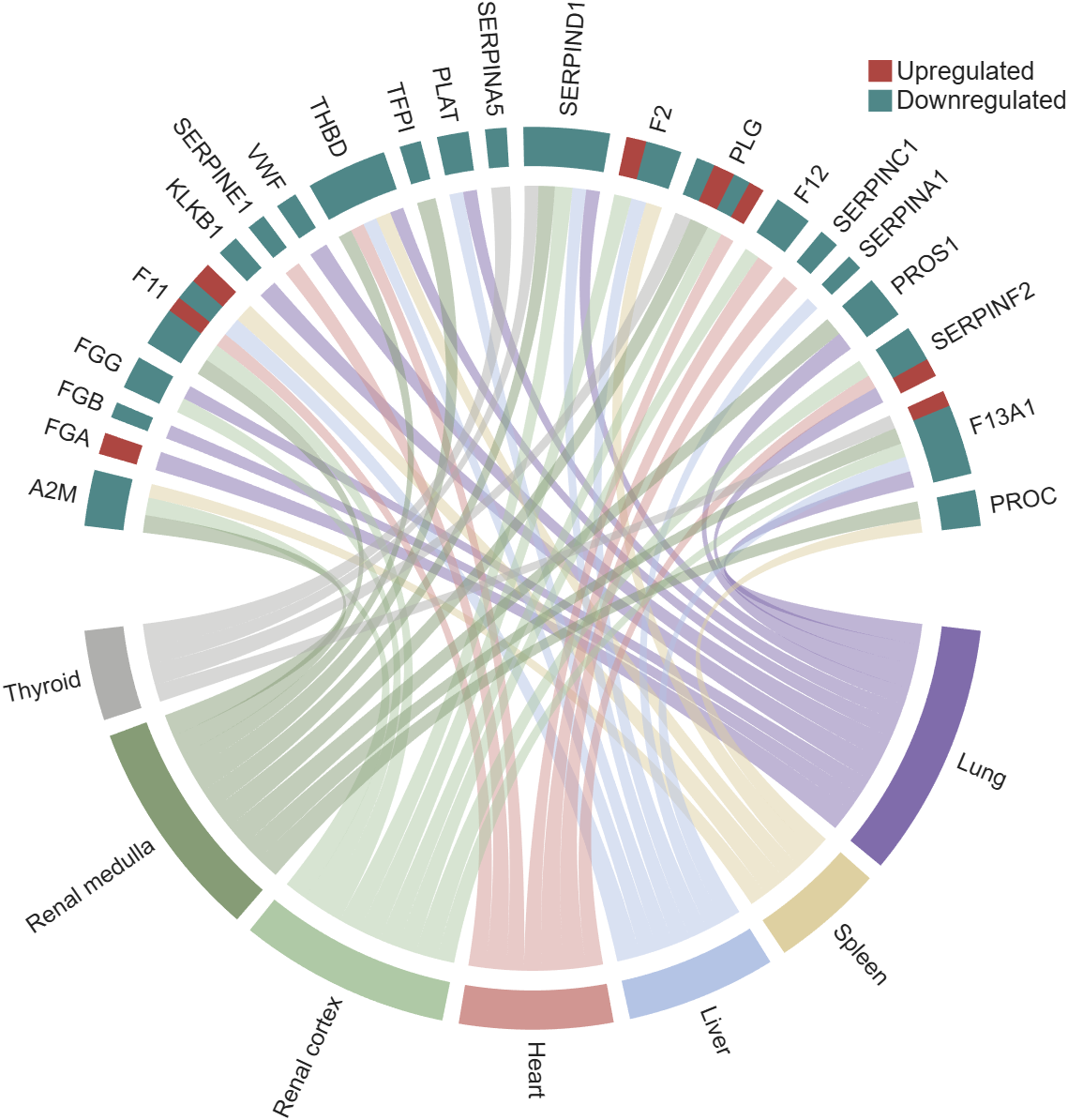
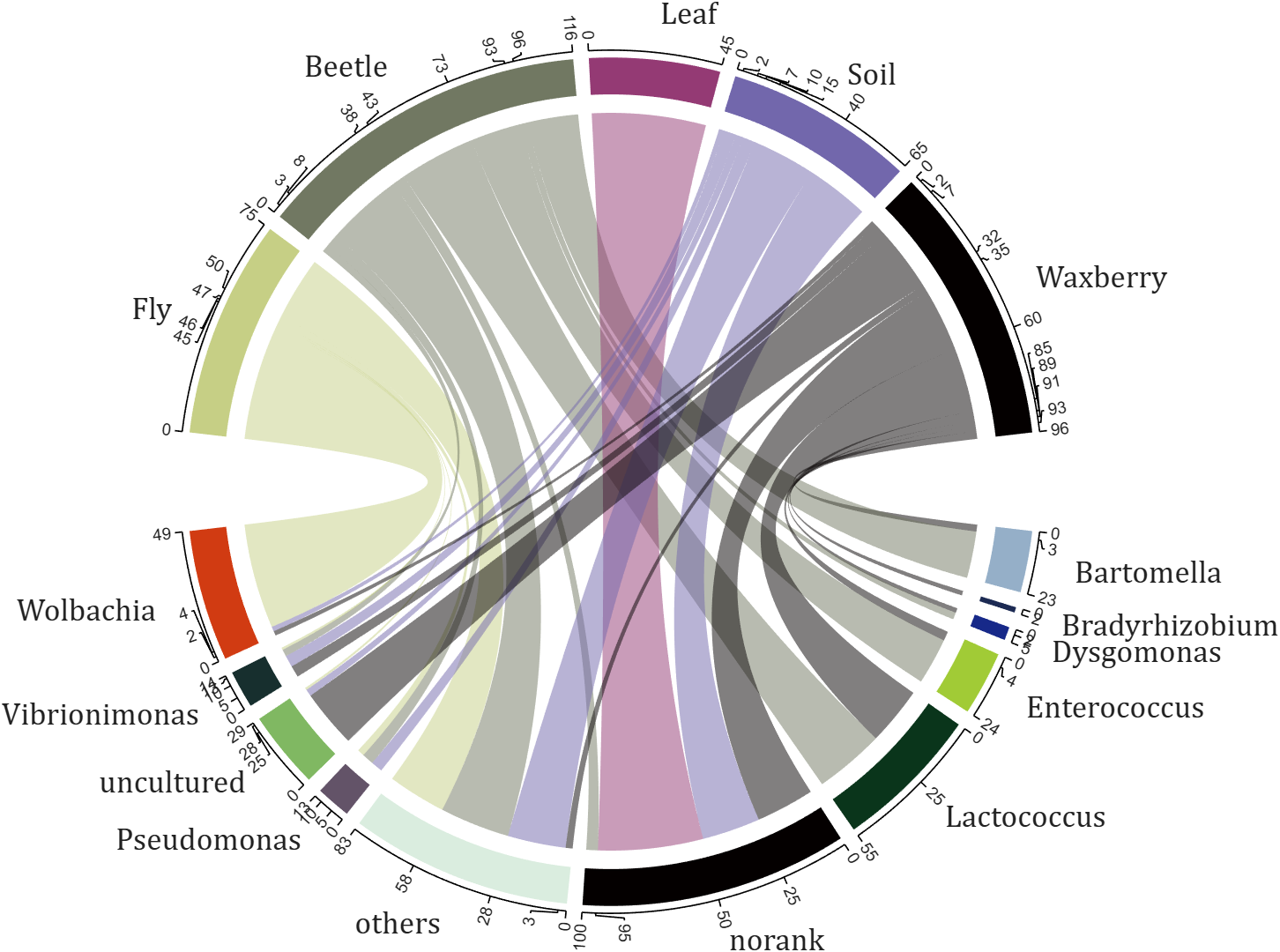
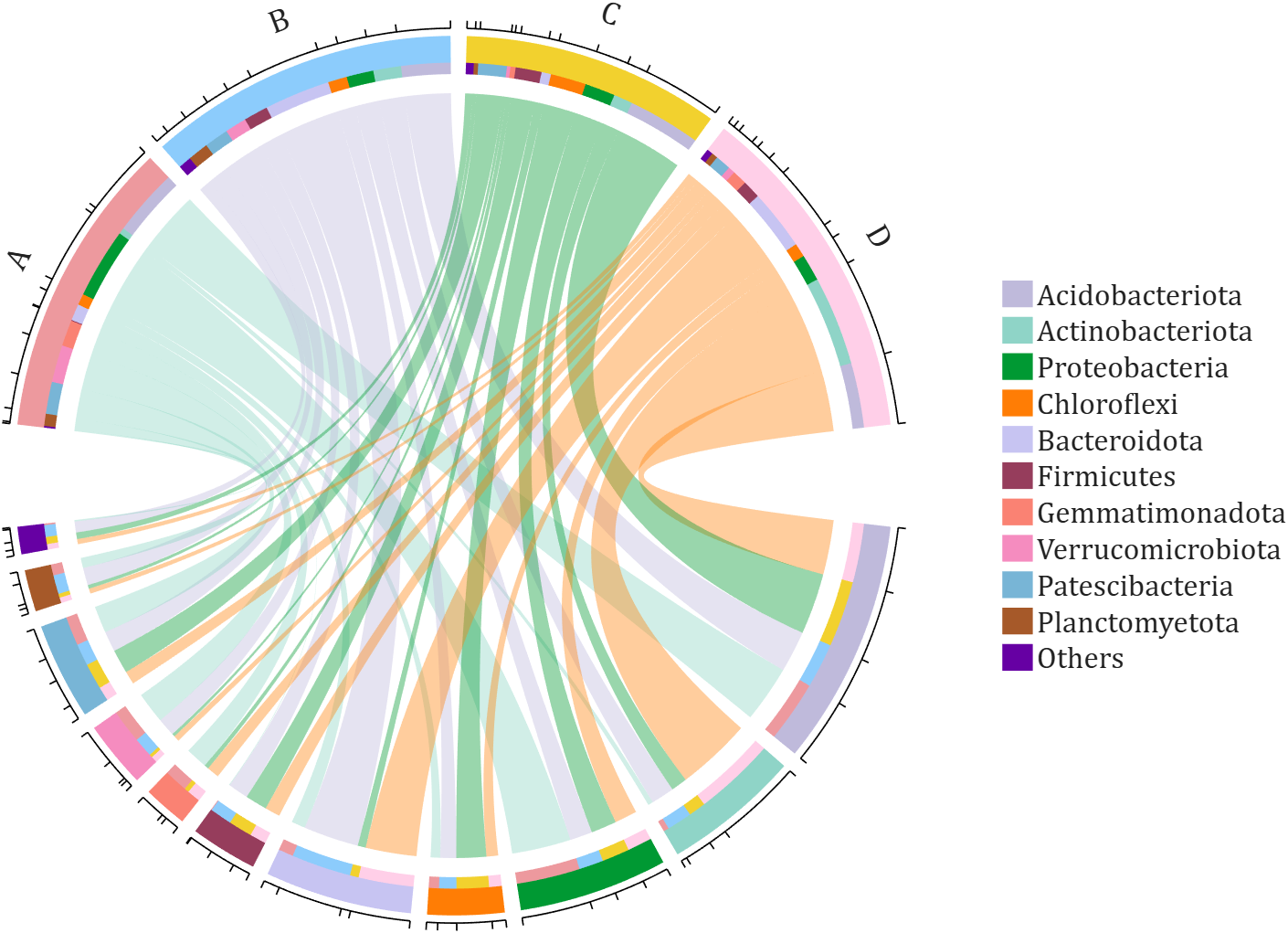
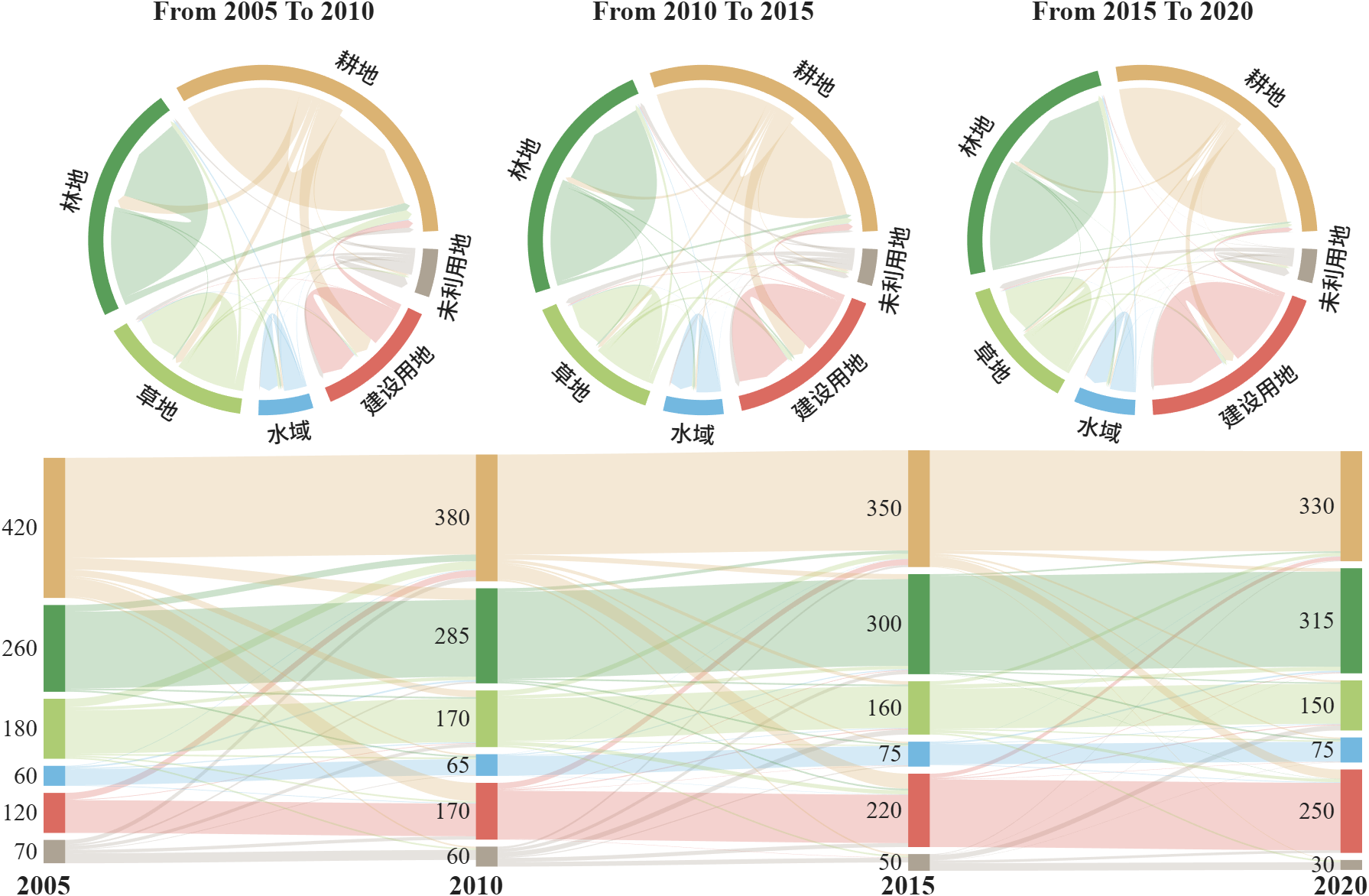
More than 50 examples are incorporated into this tool:
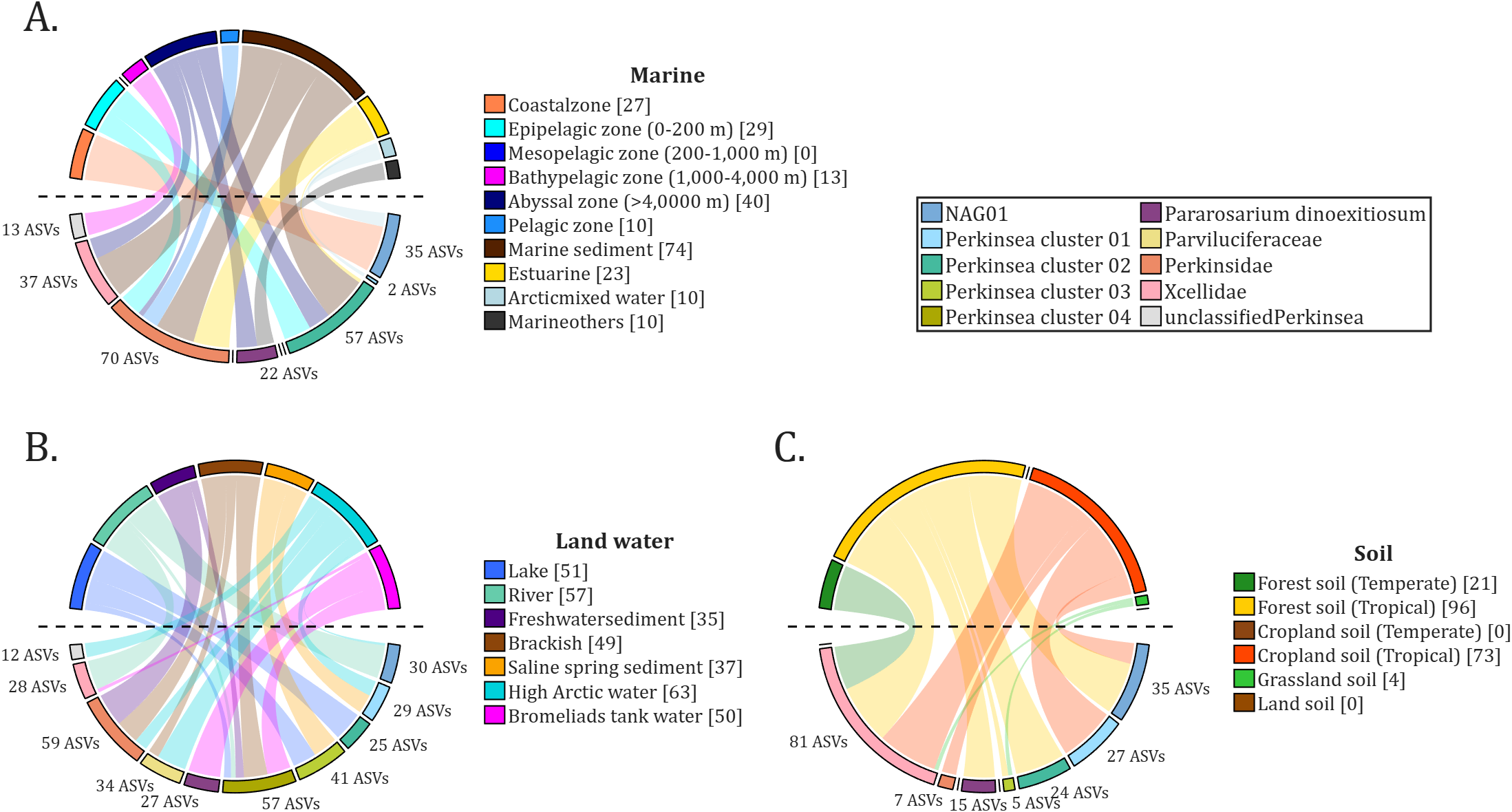
All figures presented in this Discussion were generated using MATLAB.
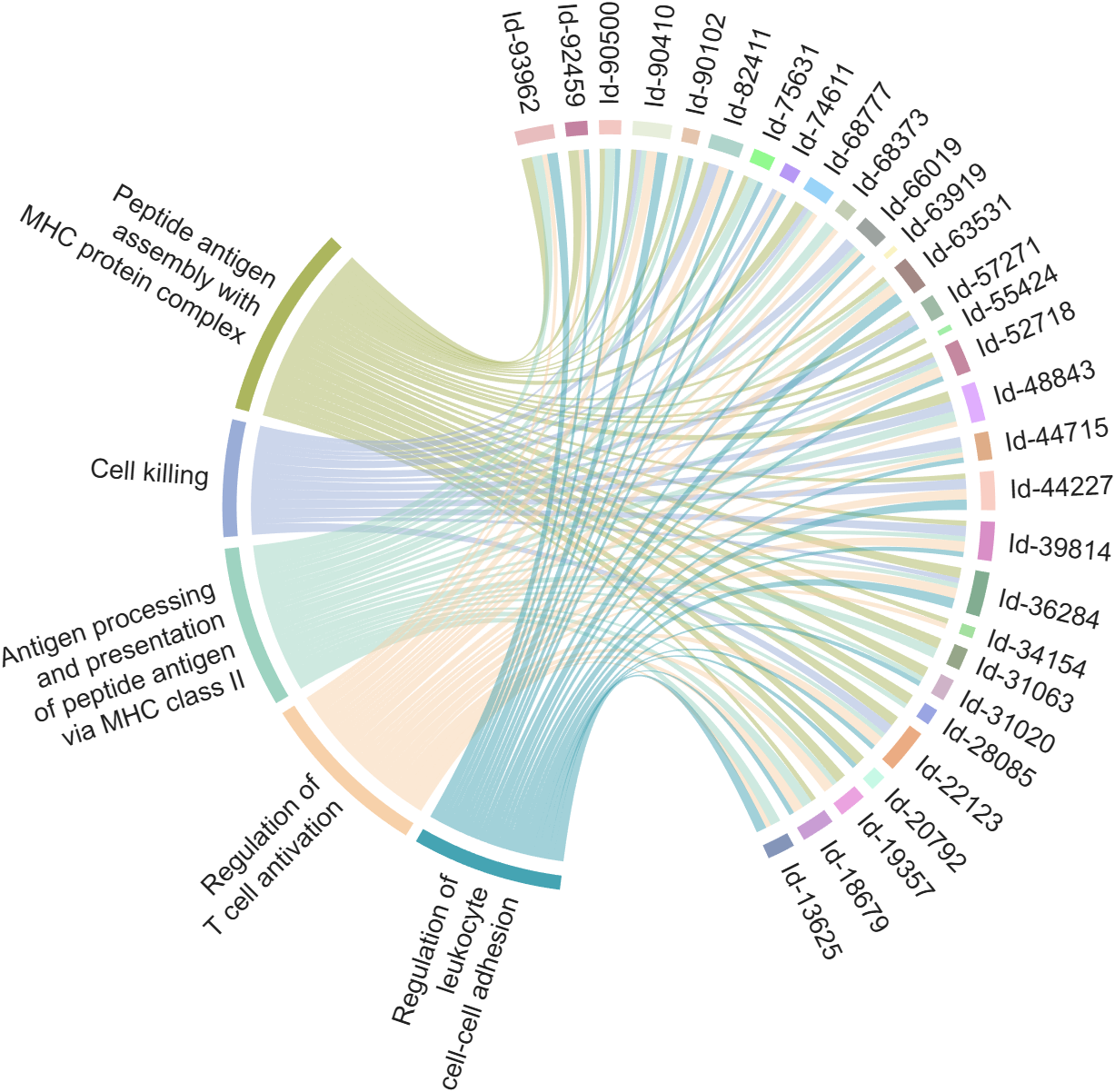
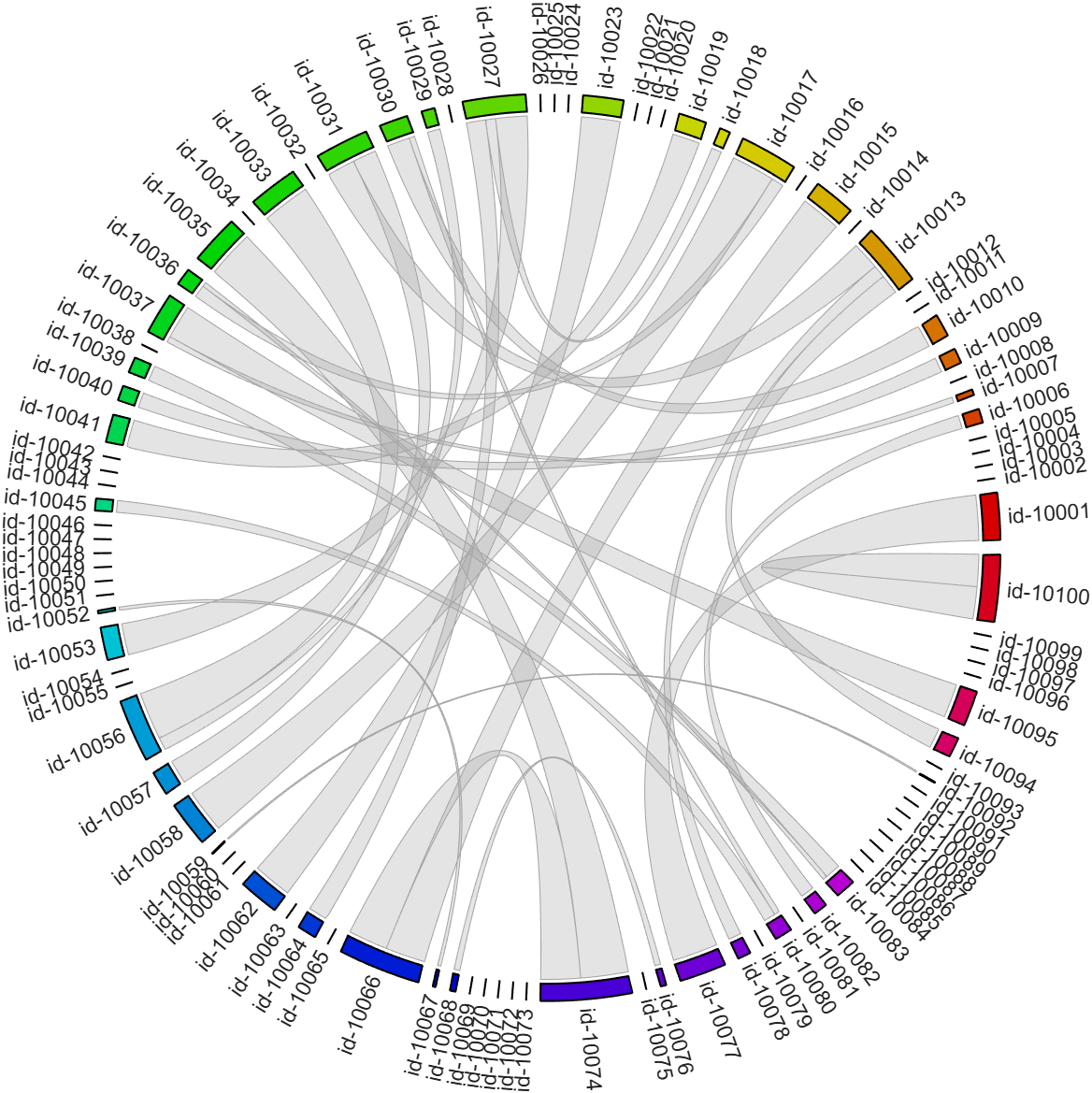
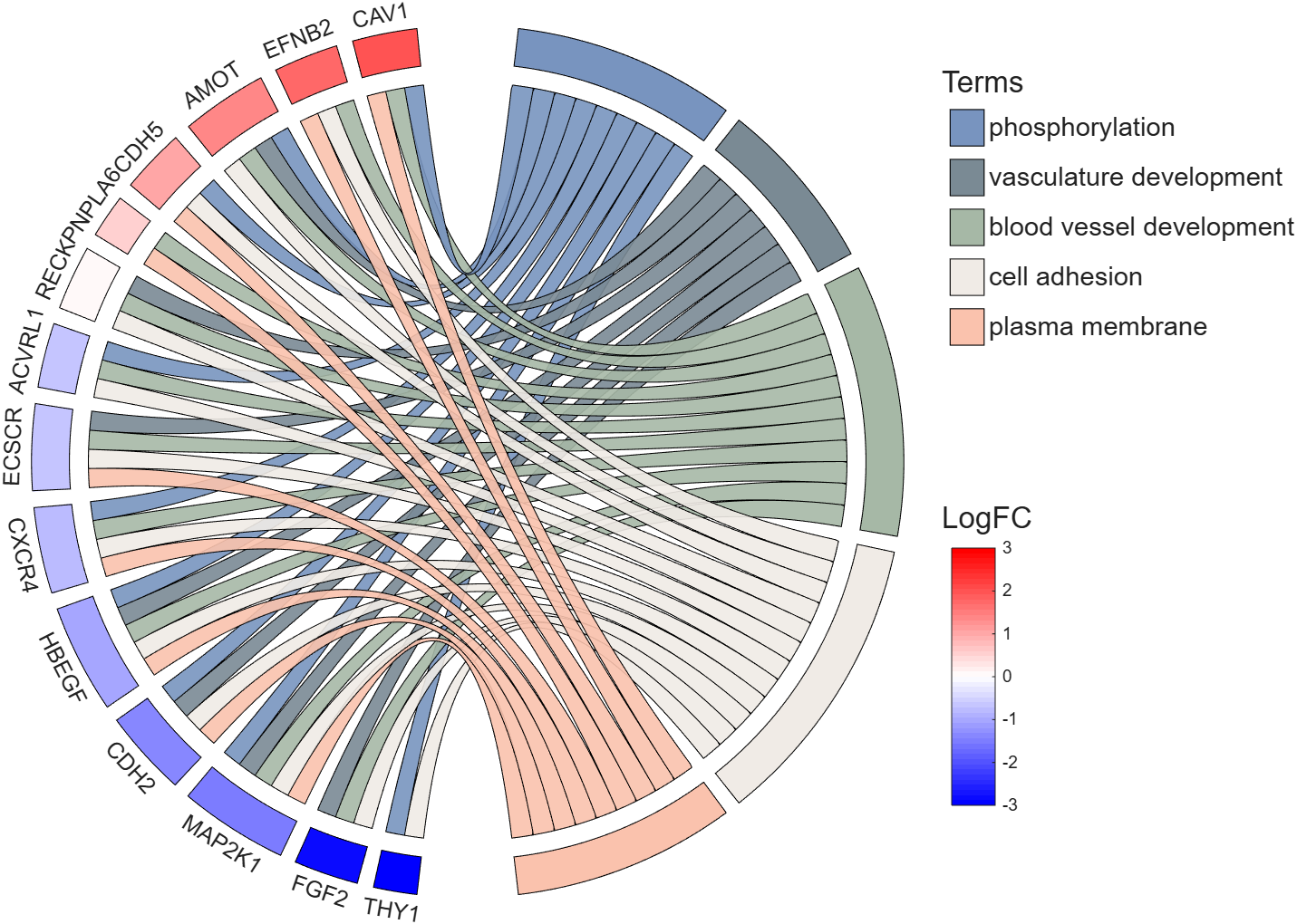
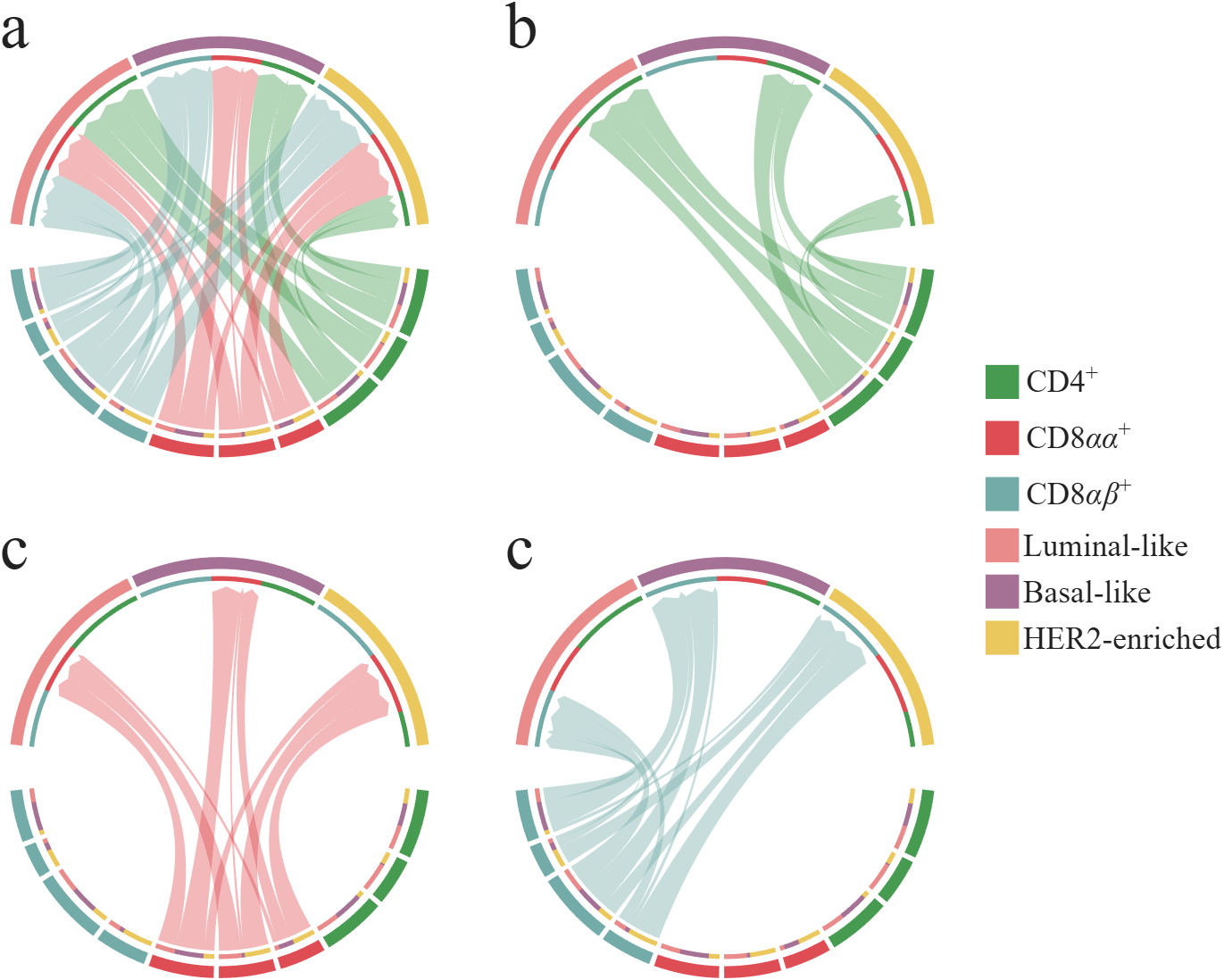
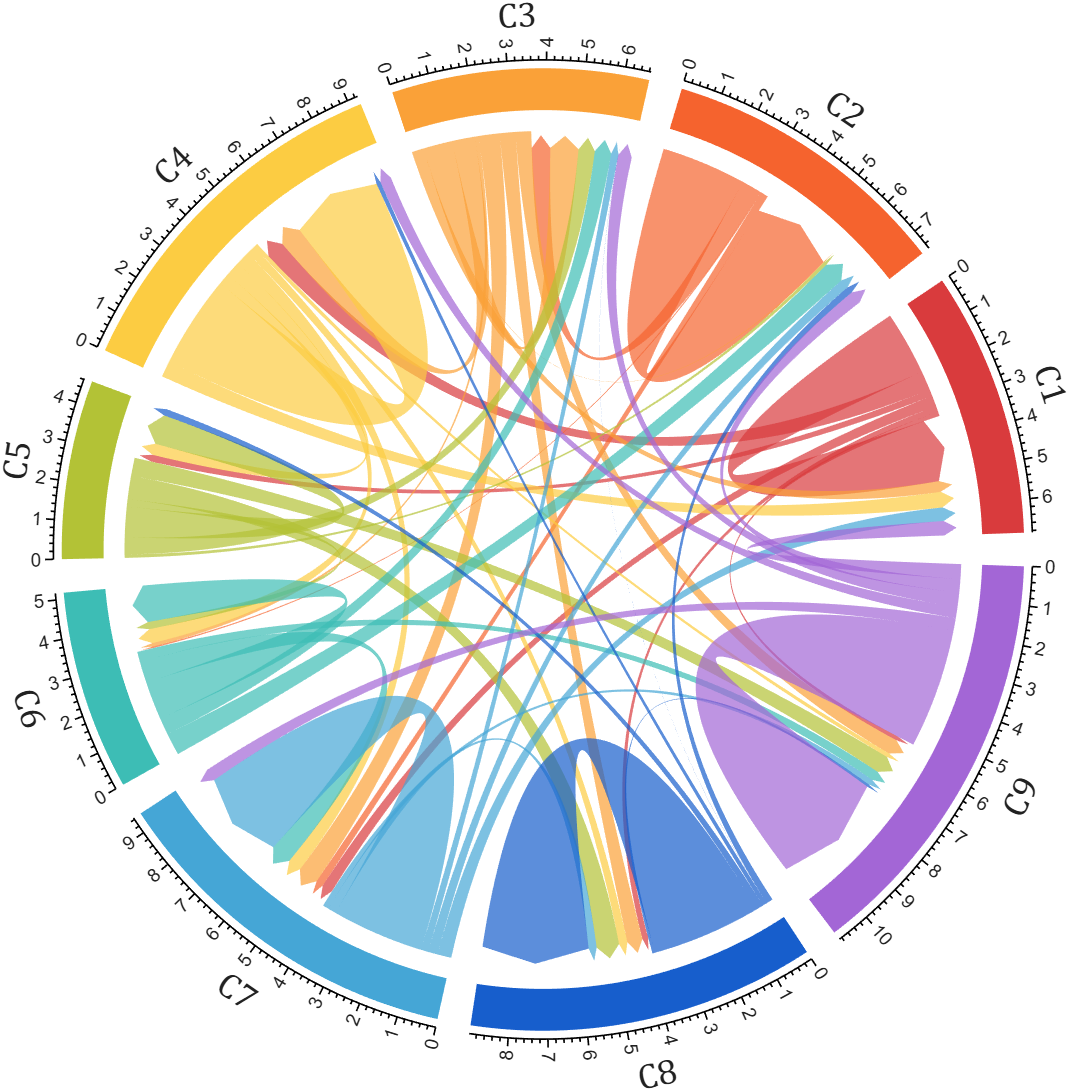
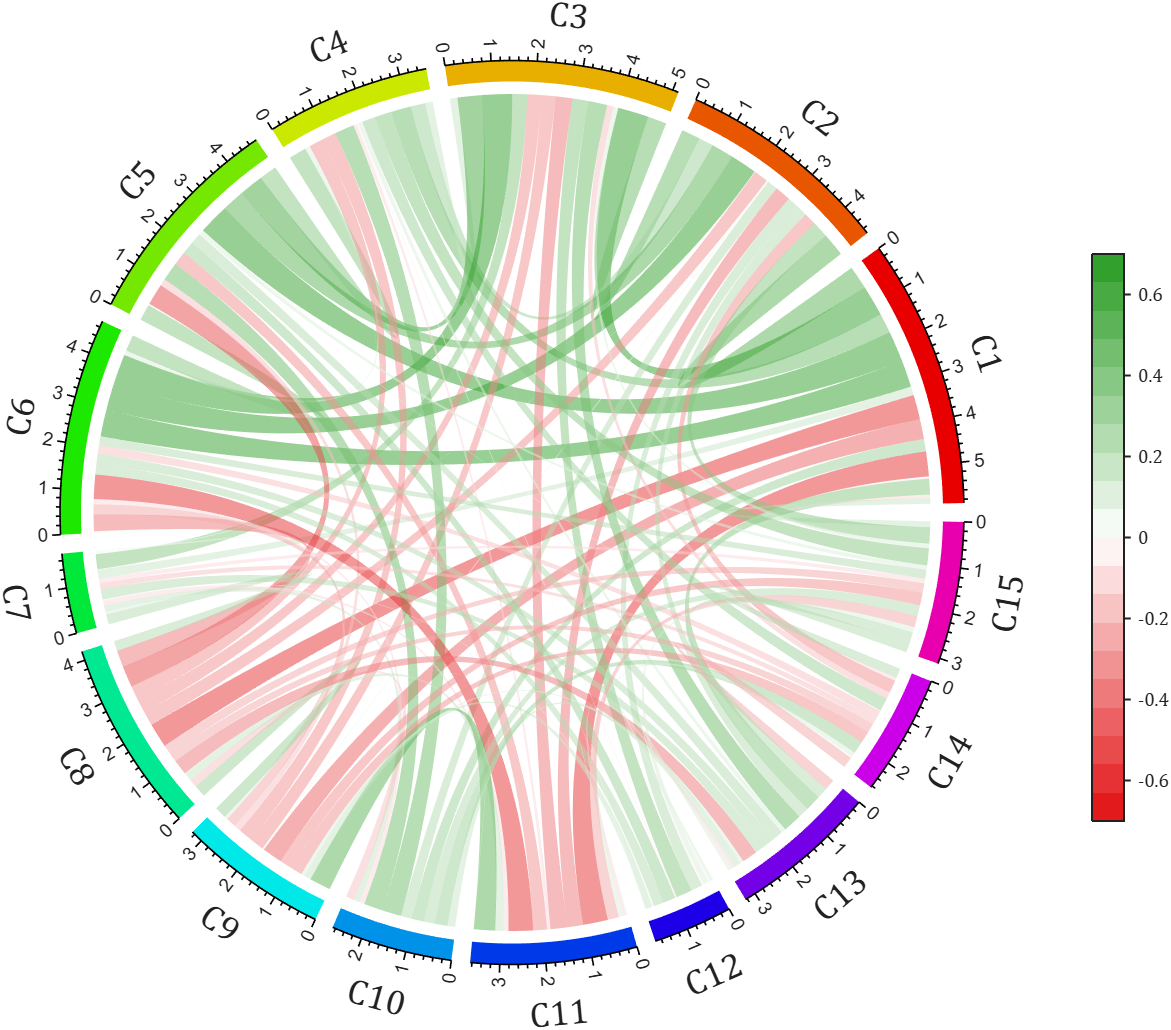
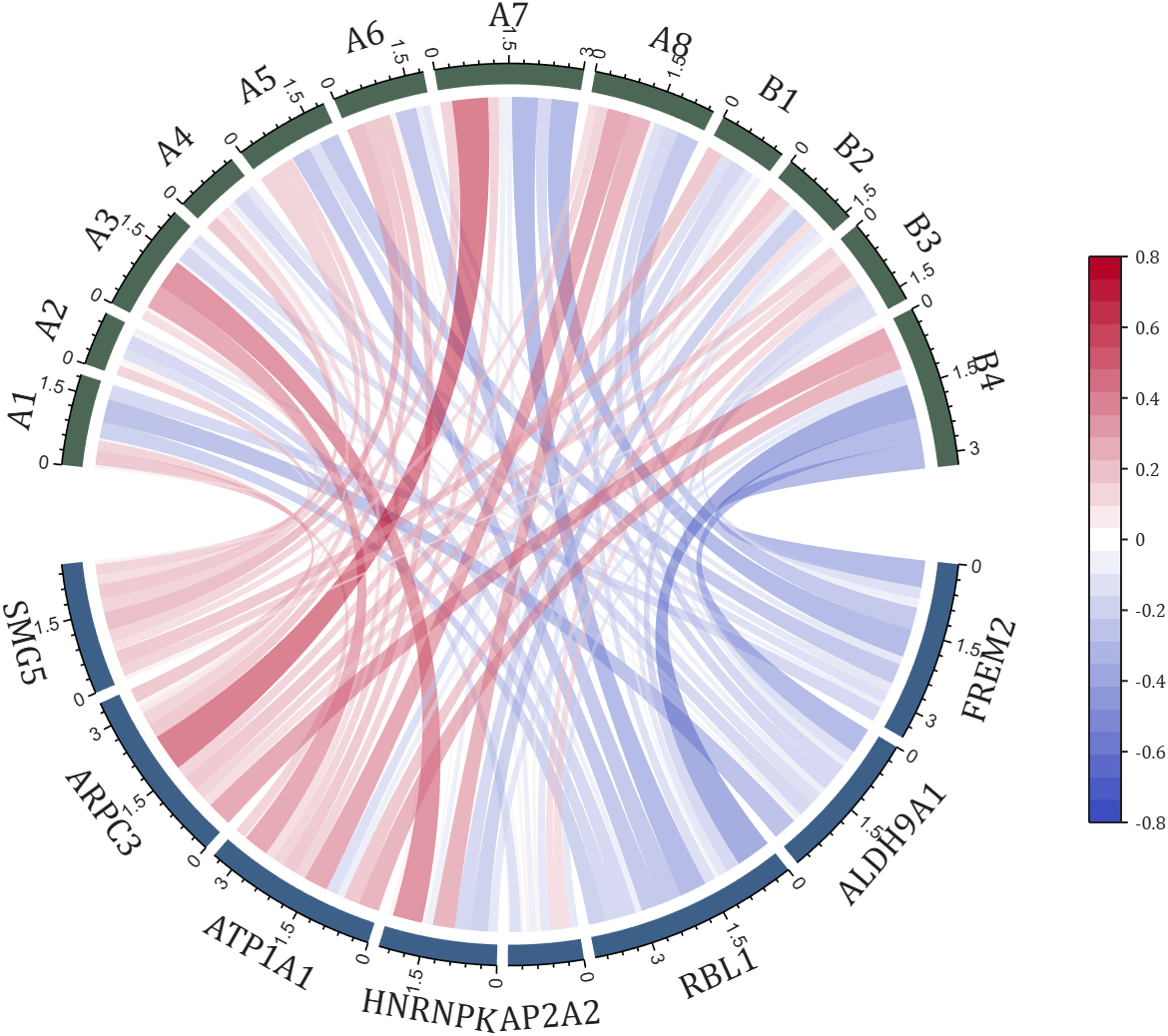
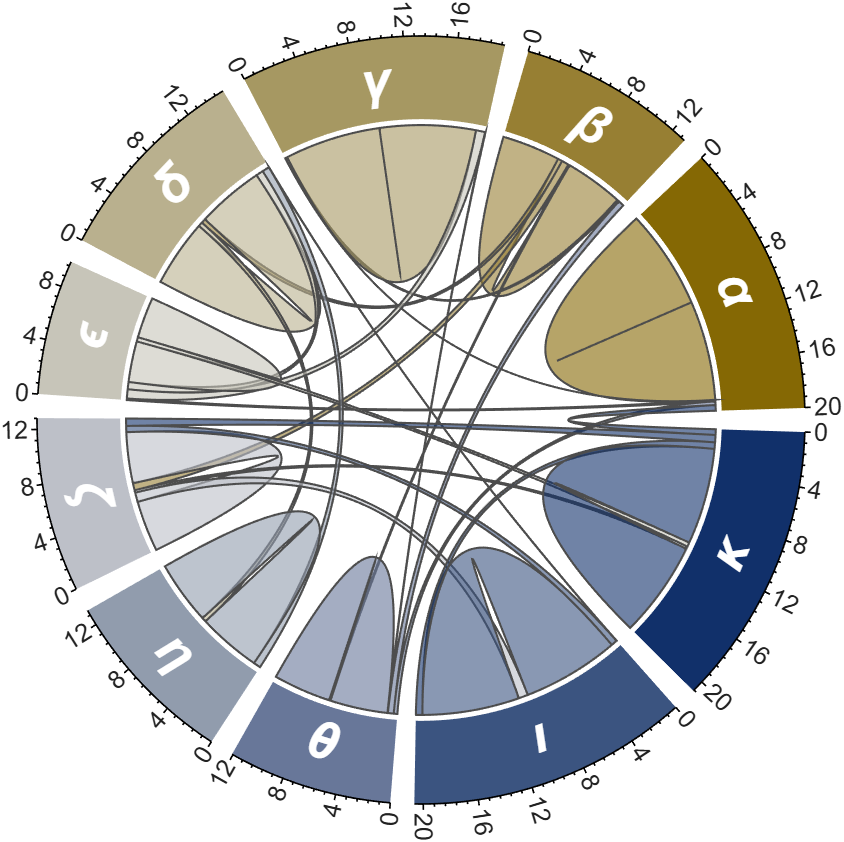
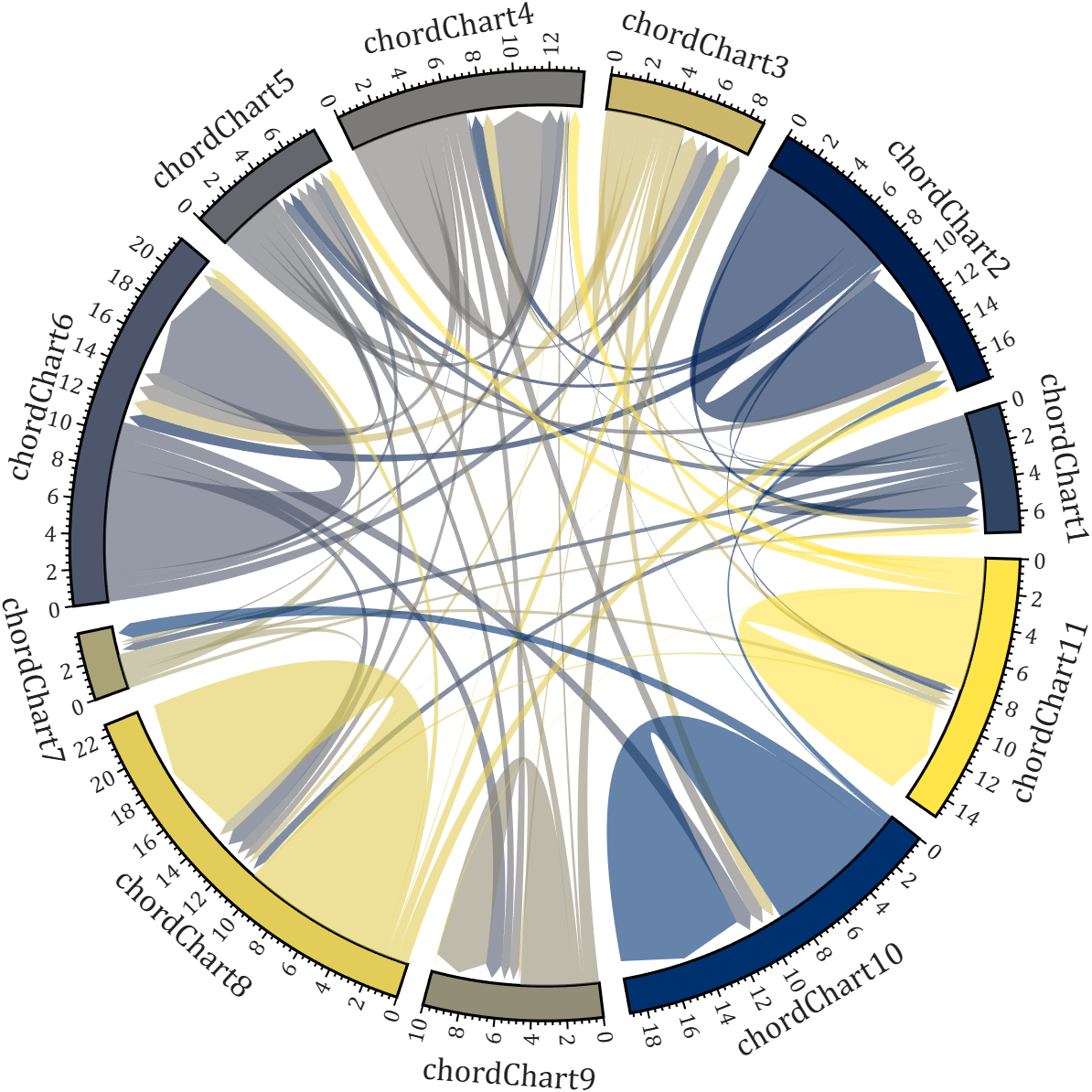
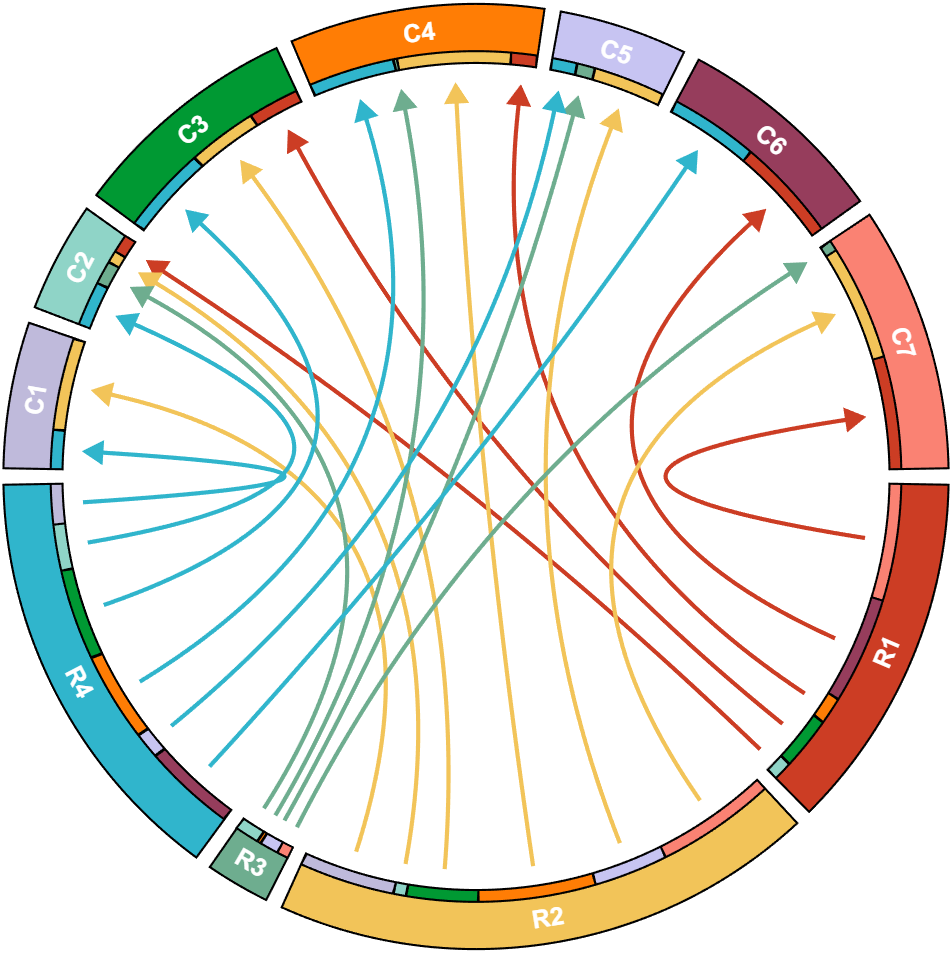
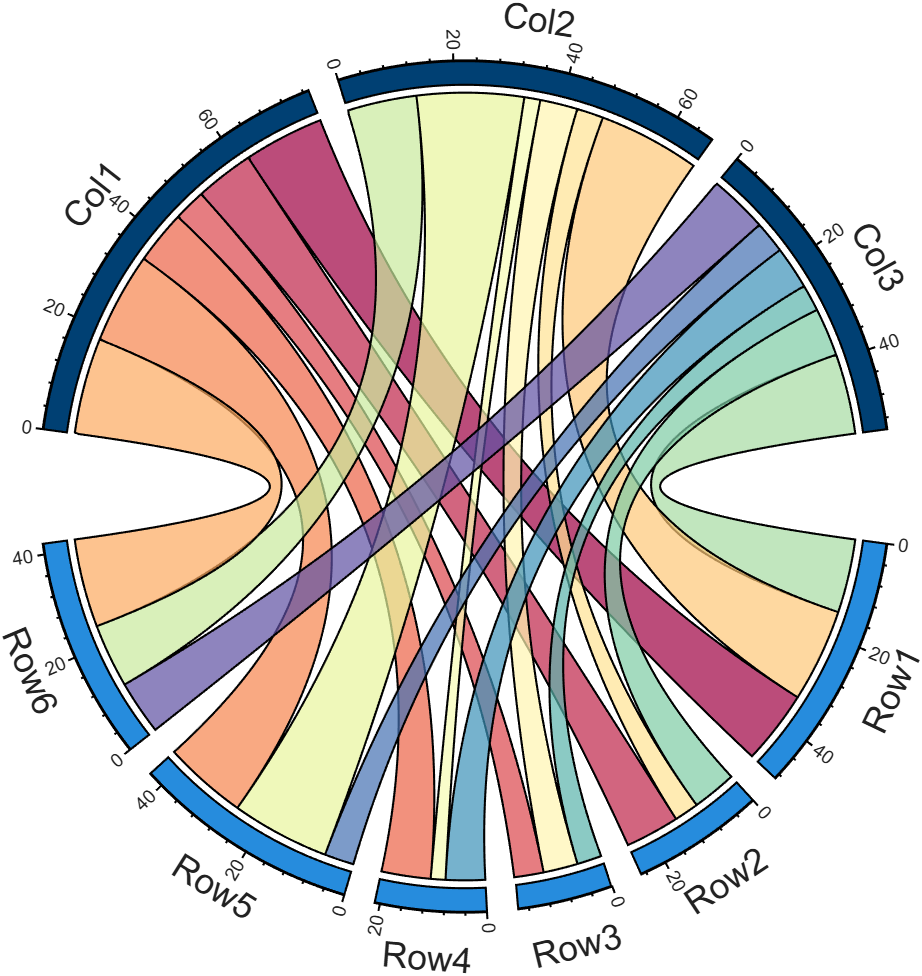
I developed two functions: one for plotting chord diagrams without self-loops, and the other for plotting chord diagrams with self-loops.
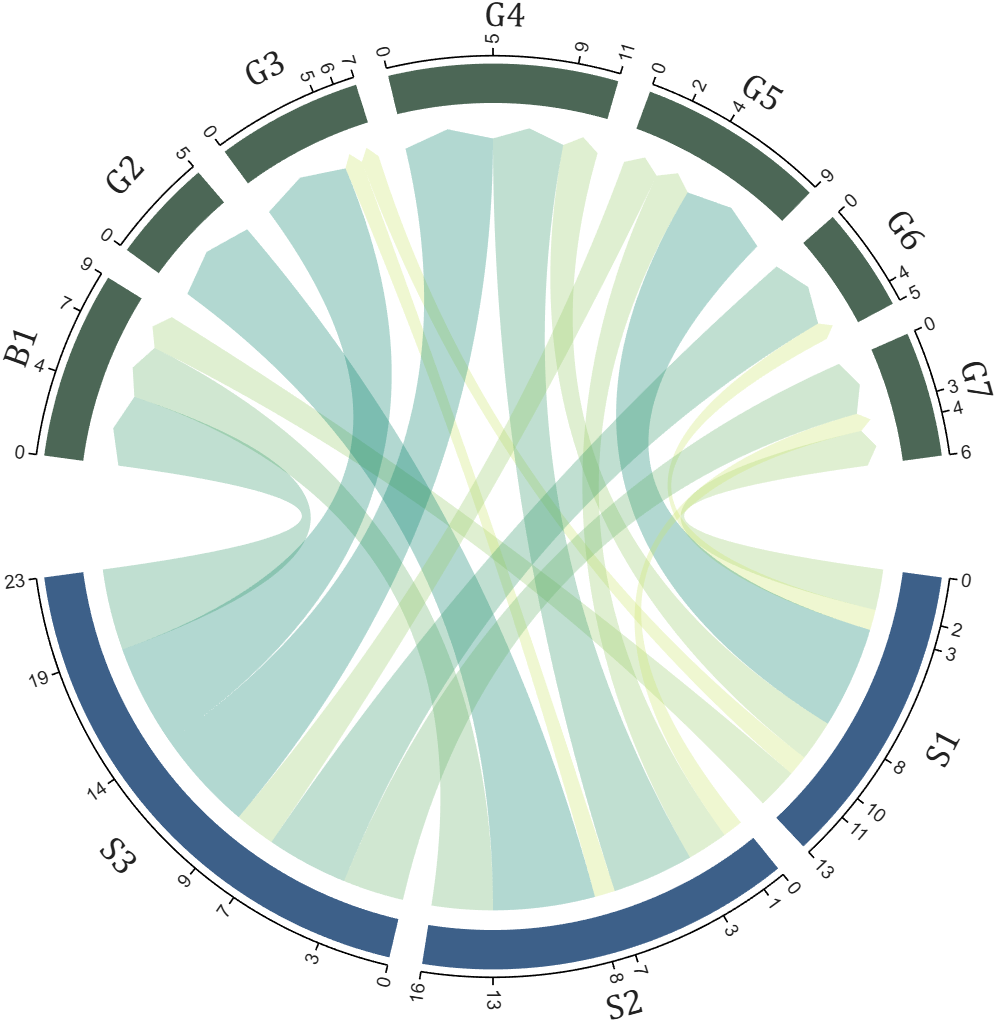
chordChart : basic usage
plotting chord diagrams without self-loops : https://www.mathworks.com/matlabcentral/fileexchange/116550-chordchart-chord-diagram
dataMat = [2 0 1 2 5 1 2;
3 5 1 4 2 0 1;
4 0 5 5 2 4 3];
colName = {'B1','G2','G3','G4','G5','G6','G7'};
rowName = {'S1','S2','S3'};
% Create and render chord diagram object (创建弦图对象并渲染)
CC = chordChart(dataMat, 'RowName',rowName, 'ColName',colName, 'Arrow','on');
CC.LinearMinorTick = 'on';
CC.draw();
% Set Font for labels and show ticks (调整字体并显示刻度)
CC.setFont('FontSize',17, 'FontName','Cambria')
CC.tickState('on')
CC.tickLabelState('on')
biChordChart : basic usage
plotting chord diagrams with self-loops : https://www.mathworks.com/matlabcentral/fileexchange/121043-bichordchart-bidirectional-chord-diagram
dataMat = randi([0,8], [5,5]);
nameList = {'AAA','BBB','CCC','DDD','EEE'};
% Create bichord chart object and draw (创建并绘制双向弦图对象)
BCC = biChordChart(dataMat, 'Arrow','on', 'Label',nameList);
BCC = BCC.draw();
% Show ticks and tick labels (添加刻度)
BCC.tickState('on')
BCC.tickLabelState('on')
% Set font properties (修改字体,字号及颜色)
BCC.setFont('FontName','Cambria','FontSize',17)
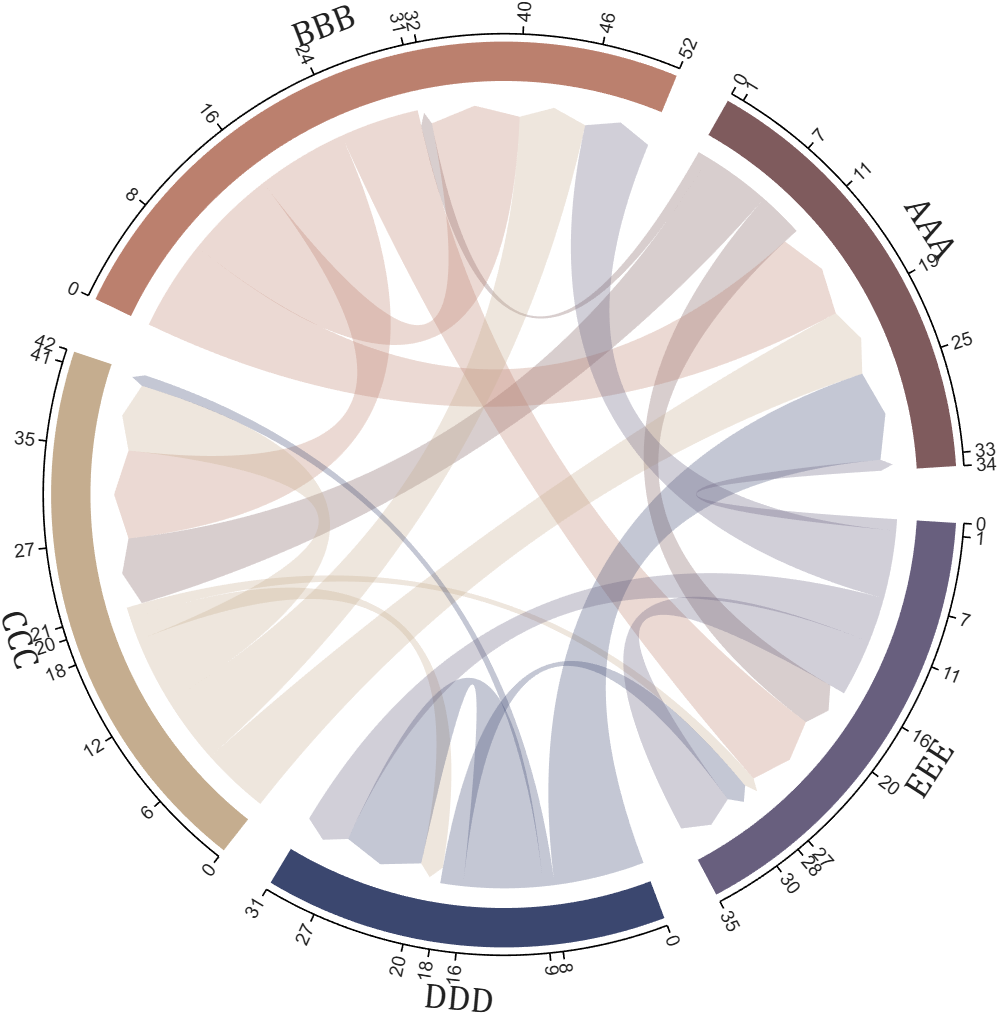
The two File Exchange submissions each provide more than a dozen basic examples. In addition, the GitHub repository listed below provides nearly 40 elaborate customized demonstration cases.

How does MATLAB ThingSpeak Work ?

Hallo zusammen,
Ich habe einen Frage zu meinen Programm. Dies will einfach nicht laufen und ich finde keinen Fehler mehr. Ich habe mein Programm bei Simulink geschriebenen den Code bei Maltab Function. Das Board ist ein Adruino Uni Board. Ein Ultrasonic Sensor soll die Füllstände ich Wäschekörben messen. Dabei wird unter voll oder halbvoll entschieden. Anschließend wird ein Motor angesprochen, der entweder 15 oder 30 Sekunden laufen soll. Überwacht wird der Motor von einem Thermistor (den habe ich hier PT100 genannt) und einen Vibrationsschalter. Dazu soll der Vibrationsschalter über einen Resetknopf zurückgesetzt werden. Ich hoffe ihr könnt mir weiterhelfen.
Vielen Dank:)
if true
% code
end

n= input('Escolhe um número inteiro postivo. ')
primo=true;
i=2;
while i<n
if mod(n,i)==0;
primo=false;
end
i= i+1;
end
if primo && n>1;
disp('É primo')
else
disp('Não é primo')
end
anterior= n-1;
while true
primo=true;
i=2;
while i< anterior
if mod(anterior,i)==0;
primo= false;
end
i= i+1;
end
if primo && anterior>1;
end
anterior= anterior-1;
end
disp(anterior)
seguinte= n+1;
while true;
primo= true;
i=2;
while i<seguinte;
if mod(seguinte,i)==0;
primo=false;
end
i=i+1;
end
if primo && seguinte>1;
end
seguinte= seguinte+1;
end
disp(seguinte)
Any ideas? It is in portuguese if you intend to translate it.
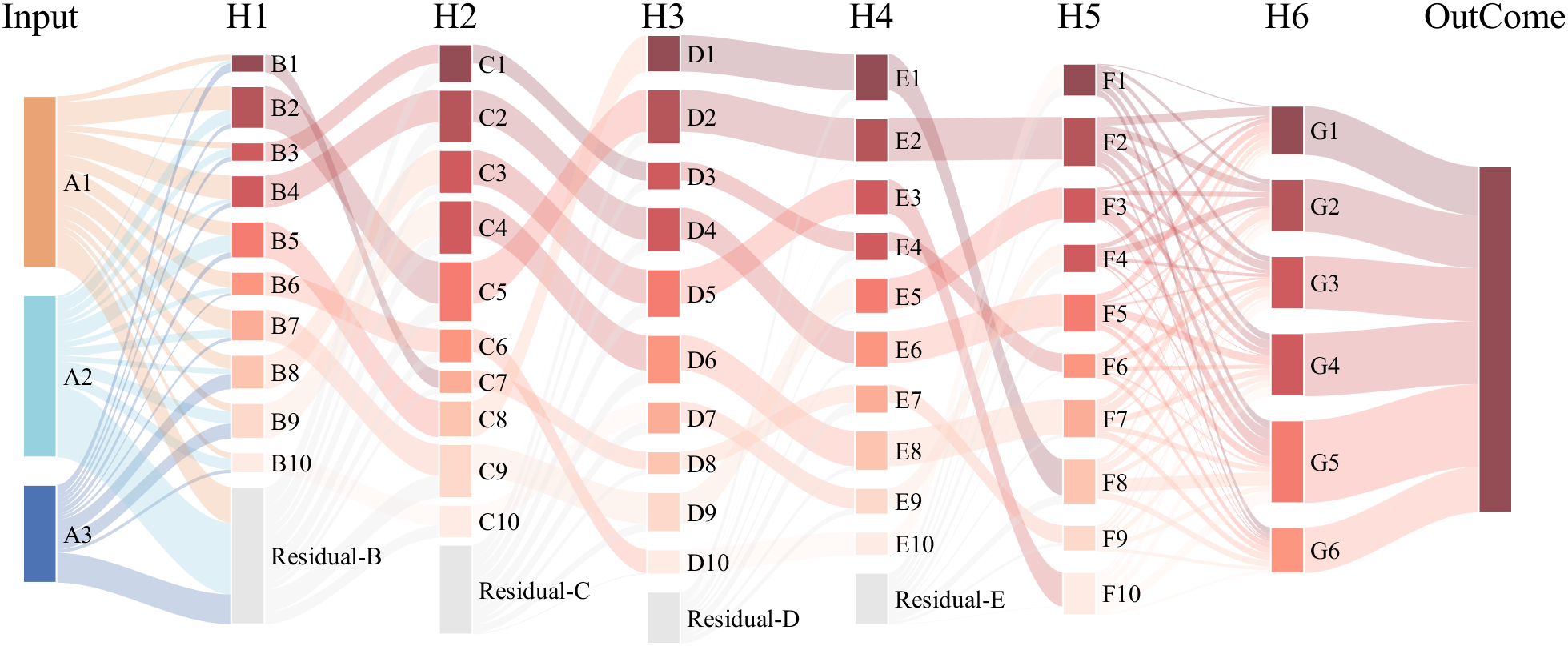
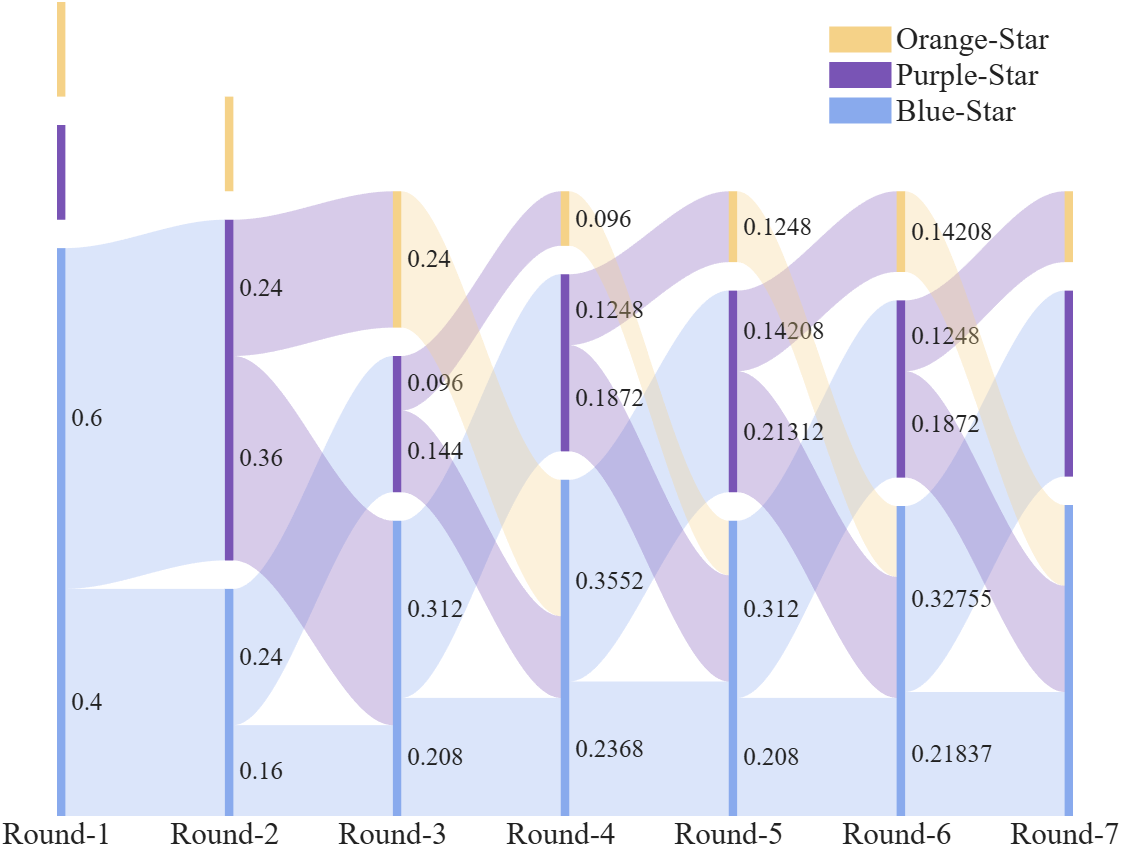
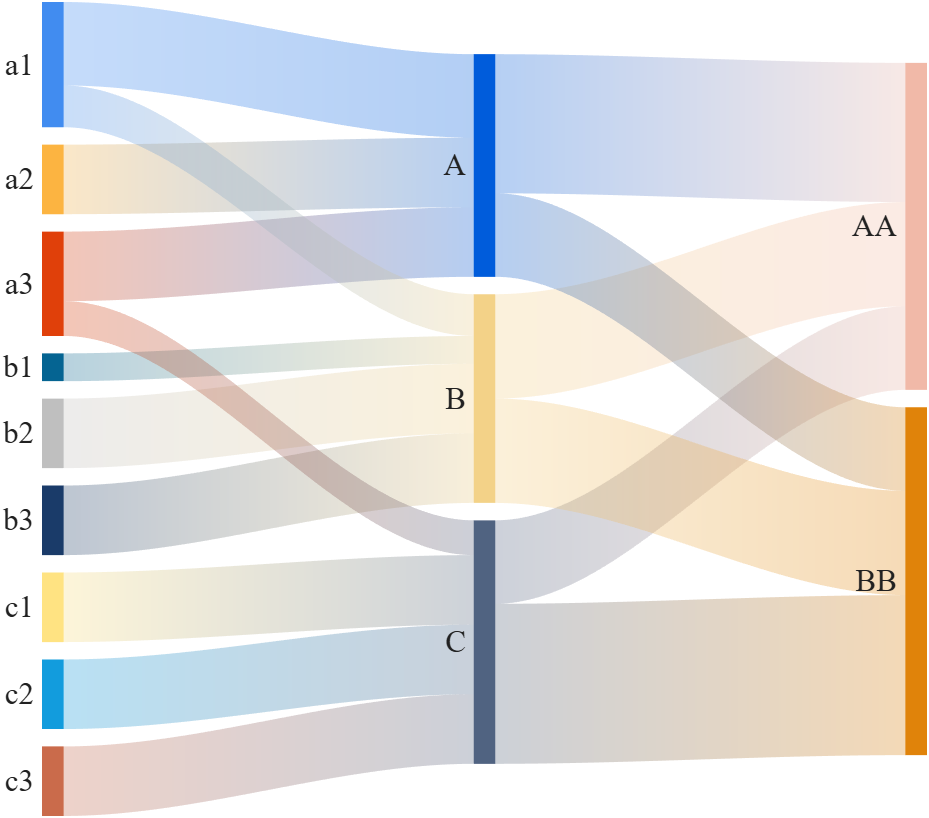
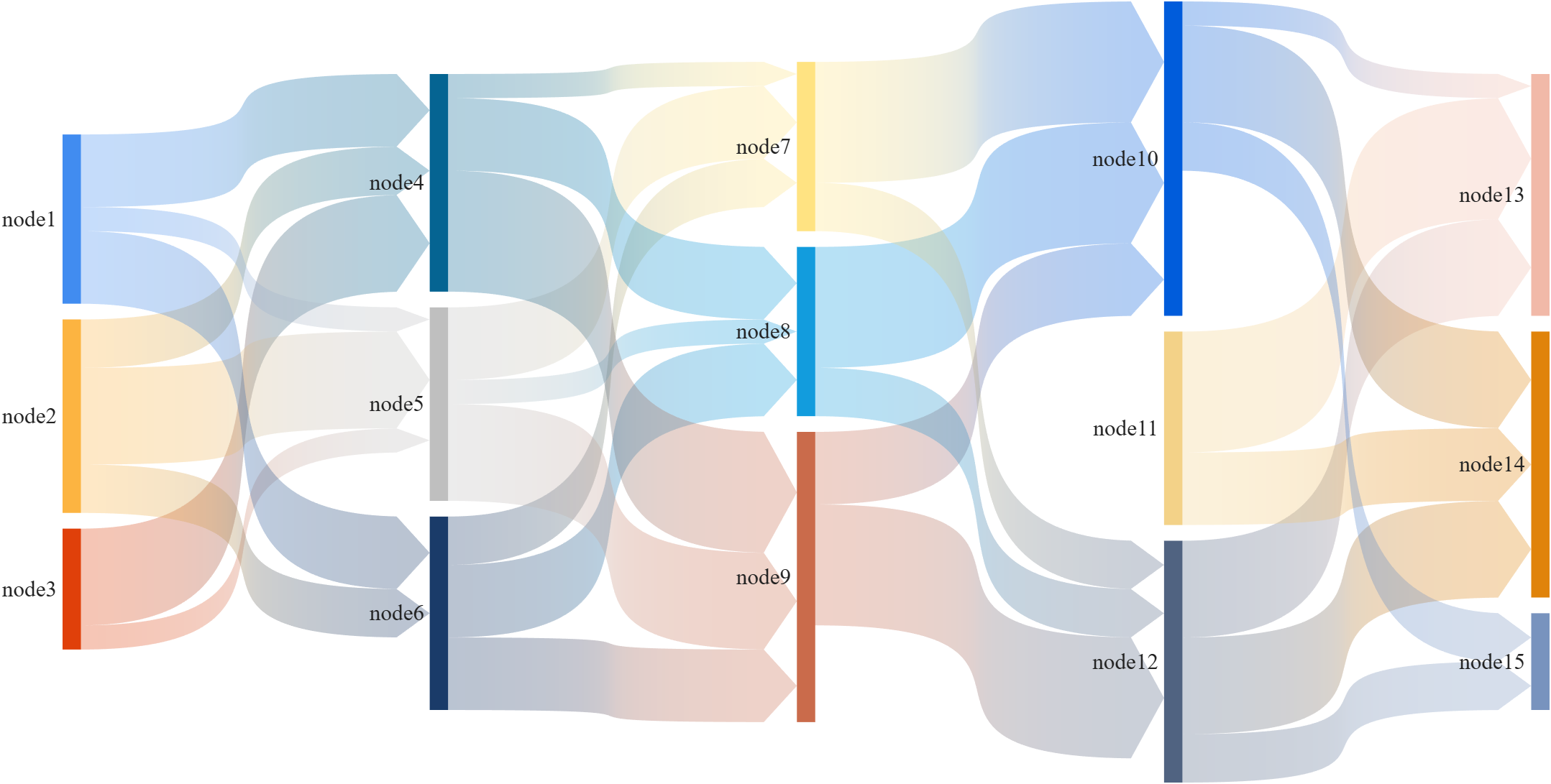
This is a brief introduction and recommendation of a Sankey diagram plotting tool:
Basic usage - links
links={'a1','A',1.2;'a2','A',1;'a1','B',.6;'a3','A',1; 'a3','C',0.5;
'b1','B',.4; 'b2','B',1;'b3','B',1; 'c1','C',1;
'c2','C',1; 'c3','C',1;'A','AA',2; 'A','BB',1.2;
'B','BB',1.5; 'B','AA',1.5; 'C','BB',2.3; 'C','AA',1.2};
% 创建桑基图对象(Create a Sankey diagram object)
SK=SSankey(links(:,1),links(:,2),links(:,3));
% 开始绘图(Start drawing)
SK.draw()
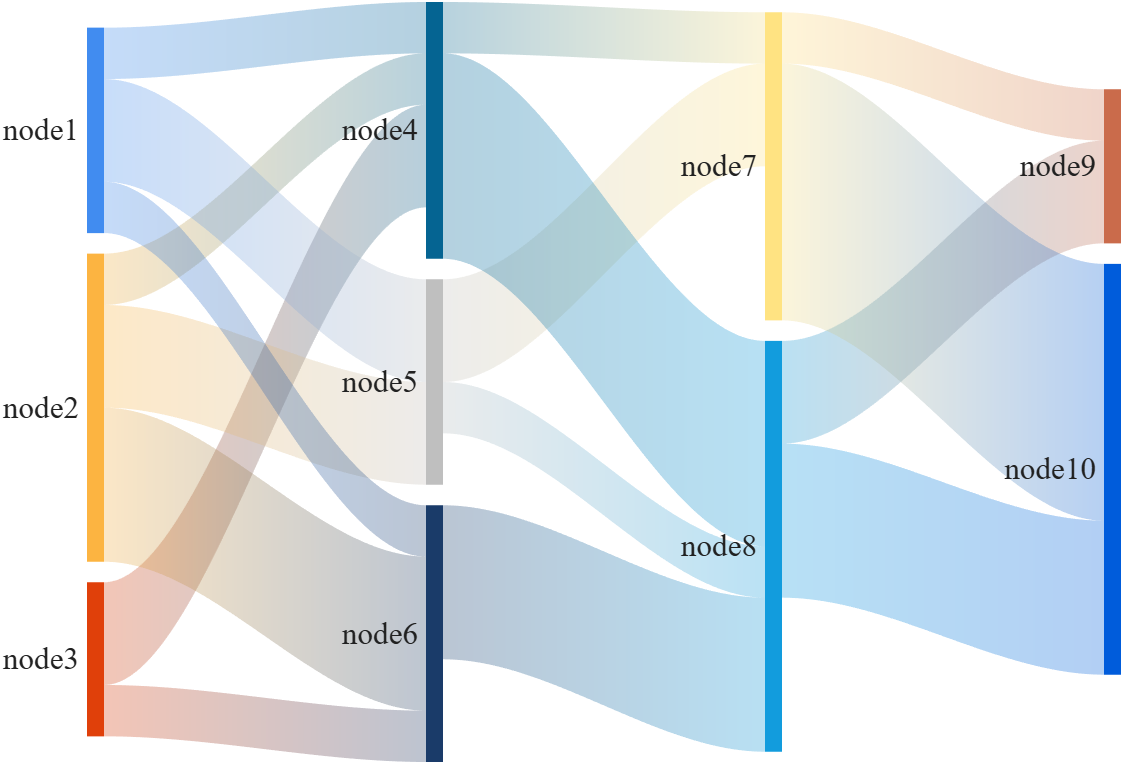
Basic usage - adjMat
% Define inter-layer adjacency matrices
% 定义层间邻接矩阵
A12 = [1,2,1; 1,2,3; 2,0,1];
A23 = [1,4; 2,1; 0,3];
A34 = [1,5; 2,3];
% Assemble global block matrix (main diagonal = zero, super-diagonal = A12, A23, A34)
% 组装全局分块矩阵(主对角线为零,上对角线为 A12, A23, A34)
adjMat = mergeAdjMat({A12, A23, A34});
SK = SSankey([],[],[], 'AdjMat',adjMat);
SK.draw()
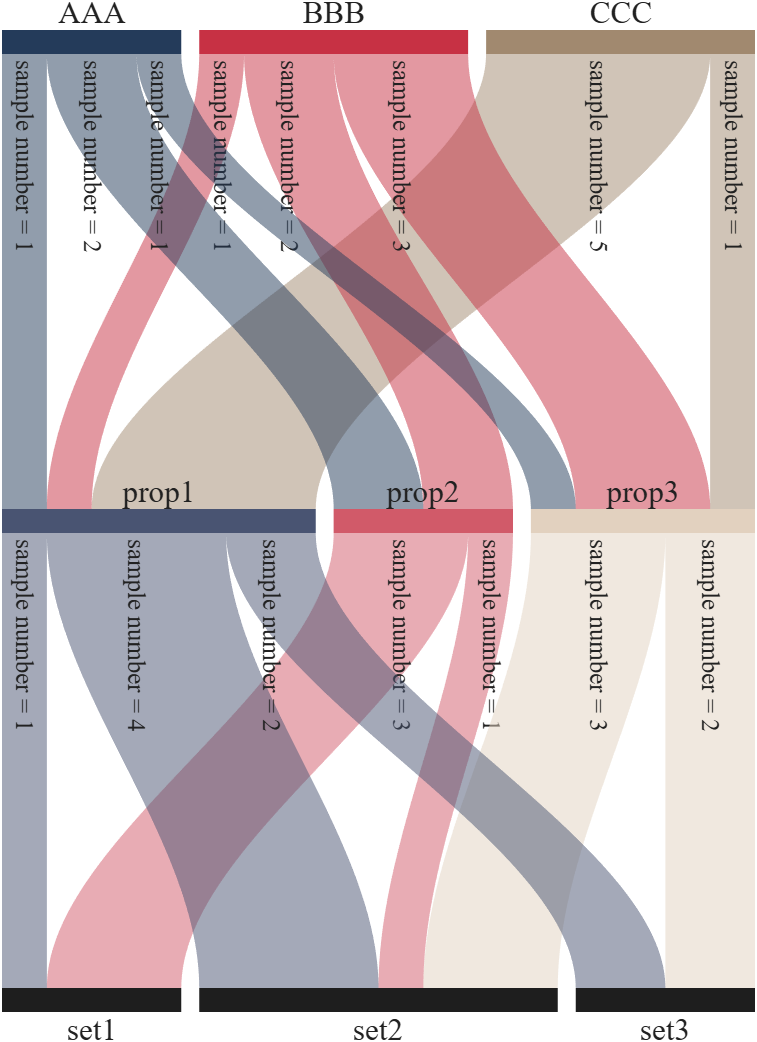
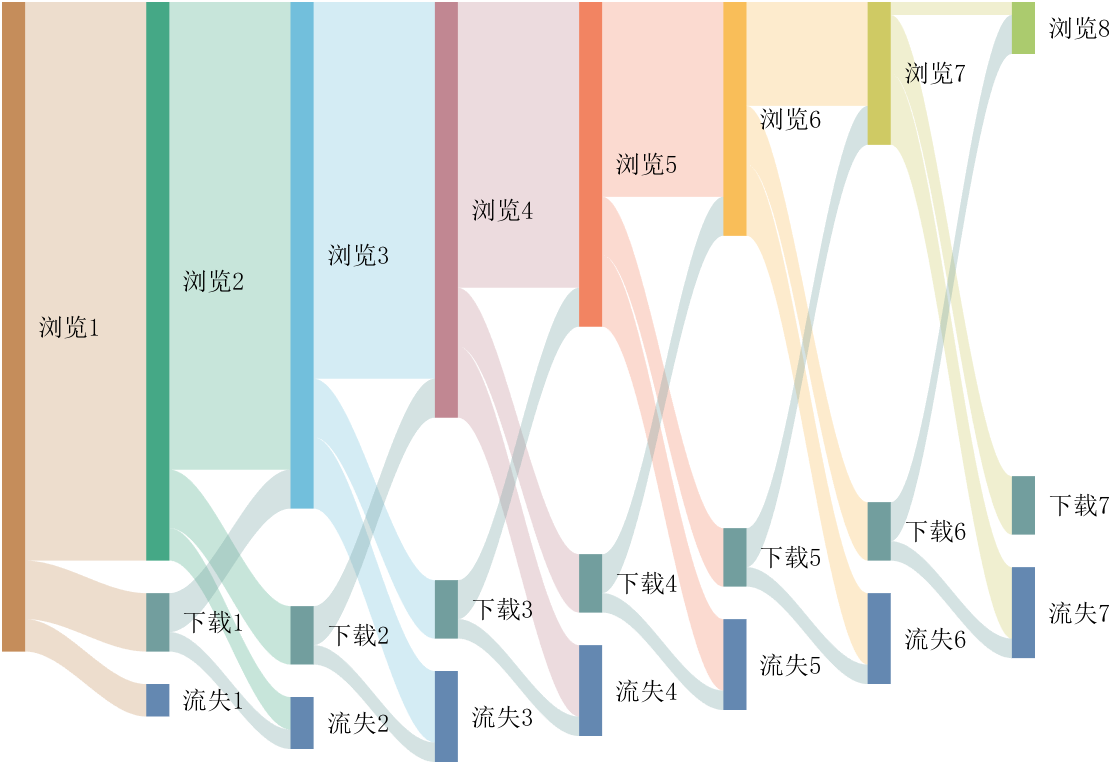
Further usage examples can be found in the demos included in the compressed package:

I've been confused trying to write (or have an AI write) the .m (Live) text format from scratch for various reasons using .mlx format exported with the IDE as .m (old) and .m (LIve). Of course, one problem is the .m and .m (Live) files have the same name,causing confusion and requiring renaming, but repeatedly, after sussing out and following all conventions for headings and latex etc in .m (LIve), my .m (Live) files would not open as .mlx in the IDE. I think I've found the answer by trial and error and comparison and don't know it is documented. Add at the end
%[appendix]{"version":"1.0"} %--- %[metadata:view] % data: {"layout":"inline"} %---
This seems to trigger the IDE to recognize this is a .m (Live). Woohoo! This is a LOT easier than writing .mlx zip packages from scratch.

Have there been some changes made to the ThinkSpeak graphs? I am unable to change the number of days displayed, nor the number of data points to display. I did have them display 5 days, but now they are showing 14 days even though the setting is 5. I tried logging out and back in, but to no avail. Thanks.

Have been using Thingspeak for a few years, suddenly I get this message relating to one of my Matlab analysis scripts, which has run for years:
Error Message:
Unrecognized function or variable 'cusum'. cusum requires Signal Processing Toolbox.
What has changed to cause this error - I've done nothing!

Hi,
I am trying to use an esp32 board with quectal ec200u LTE Modem to send sensor data to thingspeak. The board can process the sensor data however I am unable to send the data to thingspeak. I have used the same process earlier too however with a different modem from Simcom.
Can someone help me with specific commands for achieving this? I can share the code which i am trying to use.
Regards
Aditya

Good morning everyone. I’m having a problem with ThingSpeak. I’m sending data from an ESP LoRa with the RTC set to the Brasília time zone (GMT-3).
Previously, when I exported the data to CSV, it used the ThingSpeak time, which appeared 3 hours ahead. Now that I’m sending the timestamp from the ESP, the graphs are showing the data 3 hours behind. Is there a way to align the graph times while keeping the Brazilian time zone?

MATLAB EXPO India | 7 May | Bengaluru
Get inspired by the latest trends and real-world customer success stories transforming industries. Learn from trusted experts across 4 tracks.
- AI & Autonomous Systems
- Electrification
- Systems & Software Engineering
- Radar, Wireless & HDL
Register at bit.ly/matlabexpocommunity


Digital Twin Development of PEARL Autonomous Surface System Thermal Management
The top session of the countdown showcases how the PEARL engineering team used a digital twin to solve real‑world thermal challenges in a solar‑powered autonomous marine platform operating in extreme environments. After thermal shutdown events in the field, the team built a model that predicts temperatures at multiple locations with ~1% accuracy, while balancing accuracy with model complexity.
Beyond the technology, this keynote delivers practical lessons for predictive modeling and digital twins that apply well beyond marine systems.
We hope you’ve enjoyed the Top 10 countdown series—and a big thank‑you to Olivier de Weck at Massachusetts Institute of Technology, for delivering such a compelling and insightful keynote.
🎥 If you missed it live, be sure to watch the recording to see why it earned the #1 spot at MATLAB EXPO 2026.

MATLAB EXPO India is Back!
This in-person events brings together engineers, scientists, and researchers to explore the latest trends in engineering and science, and discover new MATLAB and Simulink capabilities to apply to your work.
May 7, 2026 l Bengaluru
Register at bit.ly/matlabexpocommunity
It’s no surprise this keynote landed at #2. MaryAnn Freeman, Senior Director of Engineering, AI, and Data Science explores how AI, especially generative AI, is transforming the way engineers design, build, and innovate. From accelerating the design loop with faster, data‑driven solutions, to blending human creativity with AI insights, to evolving engineering tools that turn ideas into build‑ready systems. This keynote shows how embedded intelligence helps engineers push past traditional limits and bridge imagination with real‑world impact.
If you’re curious about how AI is reshaping engineering workflows today (and what that means for the future of design), this is a must‑watch.
👉 Watch the keynote recording and see why it was one of the most popular sessions of MATLAB EXPO Online 2025.

Have you ever wondered what it takes to send live audio from one computer to another? While we use apps like Discord and Zoom every day, the core technology behind real-time voice communication is a fascinating blend of audio processing and networking. Building a simple walkie-talkie is a perfect project for demystifying these concepts, and you can do it all within the powerful environment of MATLAB.
This article will guide you through creating a functional, real-time, push-to-talk walkie-talkie. We won't be building a replacement for a commercial radio, but we will create a powerful educational tool that demonstrates the fundamentals of digital signal processing and network communication.
The Purpose: Why Build This?
The goal isn't just to talk to a colleague across the office; it's to learn by doing. By building this project, you will:
Understand Audio I/O: Learn how MATLAB interacts with your computer’s microphone and speakers.
Grasp Network Communication: See how to send data packets over a local network using the UDP protocol.
Solve Real-Time Challenges: Confront and solve issues like latency, choppy audio, and continuous data streaming.
The Core Components
Our walkie-talkie will consist of two main scripts:
Sender.m: This script will run on the transmitting computer. It listens to the microphone when a key is pressed, sending the audio data in small chunks over the network.
Receiver.m: This script runs on the receiving computer. It continuously listens for incoming data packets and plays them through the speakers as they arrive.
Step 1: Getting Audio In and Out
Before we touch networking, let's make sure we can capture and play audio. MATLAB's built-in audiorecorder and audioplayer objects make this simple.
Problem Encountered: How do you even access the microphone?
Solution: The audiorecorder object gives us straightforward control.
code
% --- Test Audio Capture and Playback ---
Fs = 8000; % Sample rate in Hz
nBits = 16; % Number of bits per sample
nChannels = 1; % Mono audio
% Create a recorder object
recObj = audiorecorder(Fs, nBits, nChannels);
disp('Start speaking for 3 seconds.');
recordblocking(recObj, 3); % Record for 3 seconds
disp('End of Recording.');
% Get the audio data
audioData = getaudiodata(recObj);
% Play it back
playObj = audioplayer(audioData, Fs);
play(playObj);
Running this script confirms that your microphone and speakers are correctly configured and accessible by MATLAB.
Step 2: Sending Voice Over the Network
Now, we need to send the audioData to another computer. For real-time applications like this, the UDP (User Datagram Protocol) is the ideal choice. It’s a "fire-and-forget" protocol that prioritizes speed over perfect reliability. Losing a tiny packet of audio is better than waiting for it to be re-sent, which would cause noticeable delays (latency).
Problem Encountered: How do you send data continuously without overwhelming the network or the receiver?
Solution: We'll send the audio in small, manageable chunks inside a loop. We need to create a UDP Port object to handle the communication.
Here's the basic structure for the Sender.m script:
code
% --- Sender.m ---
% Define network parameters
remoteIP = '192.168.1.101'; % <--- CHANGE THIS to the receiver's IP
remotePort = 3000;
localPort = 3001;
% Create UDP Port object
udpSender = udpport("LocalPort", localPort, "EnablePortSharing", true);
% Configure audio recorder
Fs = 8000;
nBits = 16;
nChannels = 1;
recObj = audiorecorder(Fs, nBits, nChannels);
disp('Press any key to start transmitting. Press Ctrl+C to stop.');
pause; % Wait for user to press a key
% Start the Push-to-Talk loop
disp('Transmitting... (Hold Ctrl+C to exit)');
while true
recordblocking(recObj, 0.1); % Record a 0.1-second chunk
audioChunk = getaudiodata(recObj);
% Send the audio chunk over UDP
write(udpSender, audioChunk, "double", remoteIP, remotePort);
end
And here is the corresponding Receiver.m script:
code
Matlab
% --- Receiver.m ---
% Define network parameters
localPort = 3000;
% Create UDP Port object
udpReceiver = udpport("LocalPort", localPort, "EnablePortSharing", true, "Timeout", 30);
% Configure audio player
Fs = 8000;
playerObj = audioplayer(zeros(Fs*0.1, 1), Fs); % Pre-buffer
disp('Listening for incoming audio...');
% Start the listening loop
while true
% Wait for and receive data
[audioChunk, ~, ~] = read(udpReceiver, Fs*0.1, "double");
if ~isempty(audioChunk)
% Play the received audio chunk
play(playerObj, audioChunk);
else
disp('No data received. Still listening...');
end
end
Step 3: Solving Real-World Hurdles
Running the code above might work, but you'll quickly notice some issues.
Problem 1: Choppy Audio and High Latency
The audio might sound robotic or delayed. This is because of the buffer size and the processing time. Sending tiny chunks frequently can cause overhead, while sending large chunks causes delay.
Solution: The key is to find a balance.
Tune the Chunk Size: The 0.1 second chunk size in the sender (recordblocking(recObj, 0.1)) is a good starting point. Experiment with values between 0.05 and 0.2. Smaller values reduce latency but increase network traffic.
Use a Buffered Player: Instead of creating a new audioplayer for every chunk, we create one at the start and feed it new data. Our receiver code already does this, which is more efficient.
Problem 2: No Real "Push-to-Talk"
Our sender script starts transmitting and doesn't stop. A real walkie-talkie only transmits when a button is held down.
Solution: Simulating this in a script requires a more advanced technique, ideally using a MATLAB App Designer GUI. However, we can create a simple command-window version using a figure's KeyPressFcn.
Here is an improved concept for the Sender that simulates radio push-to-talk, e.g. https://www.retevis.com/blog/ptt-push-to-talk-walkie-talkies-guide
% --- Advanced_Sender.m ---
function PushToTalkSender()
% -- Configuration --
remoteIP = '192.168.1.101'; % <--- CHANGE THIS
remotePort = 3000;
localPort = 3001;
Fs = 8000;
% -- Setup --
udpSender = udpport("LocalPort", localPort);
recObj = audiorecorder(Fs, 16, 1);
% -- GUI for key press detection --
fig = uifigure('Name', 'Push-to-Talk (Hold ''t'')', 'Position', [100 100 300 100]);
fig.KeyPressFcn = @KeyPress;
fig.KeyReleaseFcn = @KeyRelease;
isTransmitting = false; % Flag to control transmission
disp('Focus on the figure window. Hold the ''t'' key to transmit.');
% --- Main Loop ---
while ishandle(fig)
if isTransmitting
% Non-blocking record and send would be ideal,
% but for simplicity we use short blocking chunks.
recordblocking(recObj, 0.1);
audioChunk = getaudiodata(recObj);
write(udpSender, audioChunk, "double", remoteIP, remotePort);
disp('Transmitting...');
else
pause(0.1); % Don't burn CPU when idle
end
drawnow; % Update figure window
end
% --- Callback Functions ---
function KeyPress(~, event)
if strcmp(event.Key, 't')
isTransmitting = true;
end
end
function KeyRelease(~, event)
if strcmp(event.Key, 't')
isTransmitting = false;
disp('Transmission stopped.');
end
end
end
Conclusion and Next Steps
You've now built the foundation of a real-time voice communication tool in MATLAB! You've learned how to capture audio, send it over a network using UDP, and handle some of the fundamental challenges of real-time streaming.
This project is the perfect starting point for more advanced explorations:
Build a Full GUI: Use App Designer to create a user-friendly interface with a proper push-to-talk radio button.
Implement Noise Reduction: Apply a filter (e.g., a simple low-pass or a more advanced spectral subtraction algorithm) to the audioChunk before sending it.
Add Channels: Modify the code to use different UDP ports, allowing users to select a "channel" to talk on.

