Image Segmenter
R2026bSegment an image by refining regions
Description
The Image Segmenter app enables you to create a segmentation mask using automatic algorithms such as Segment Anything Model (SAM), semi-automatic techniques such as graph cut, and manual techniques such as drawing ROIs. You can also refine masks using morphology, SAM, or an iterative approach such as active contours (also called snakes). For more information about creating, refining, and exporting a segmentation mask, see Get Started with Image Segmenter.

Open the Image Segmenter App
MATLAB® Toolstrip: Open the Apps tab, under Image Processing and Computer Vision, click the Image Segmenter app icon.
MATLAB command prompt: Enter
imageSegmenter.
Examples
Read an image into the workspace. This example uses an MRI image of a knee.
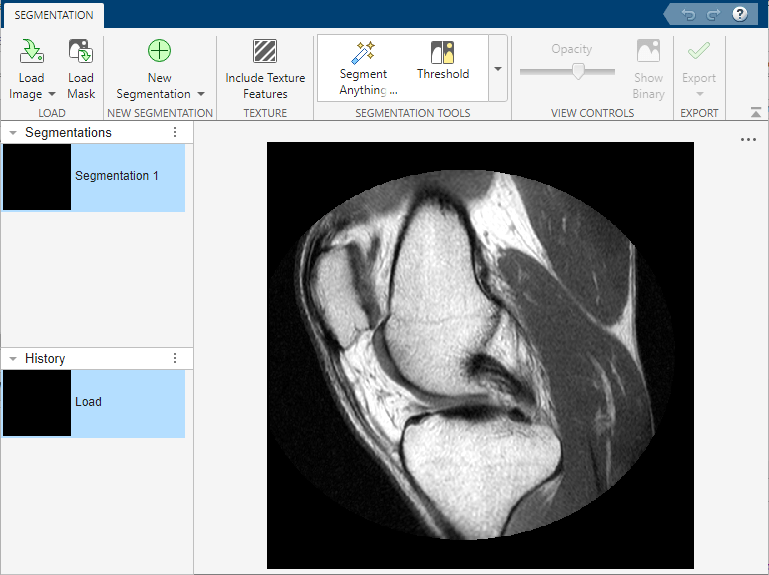
I = dicomread("knee1");Open the Image Segmenter app and load the image to be segmented.
imageSegmenter(I)
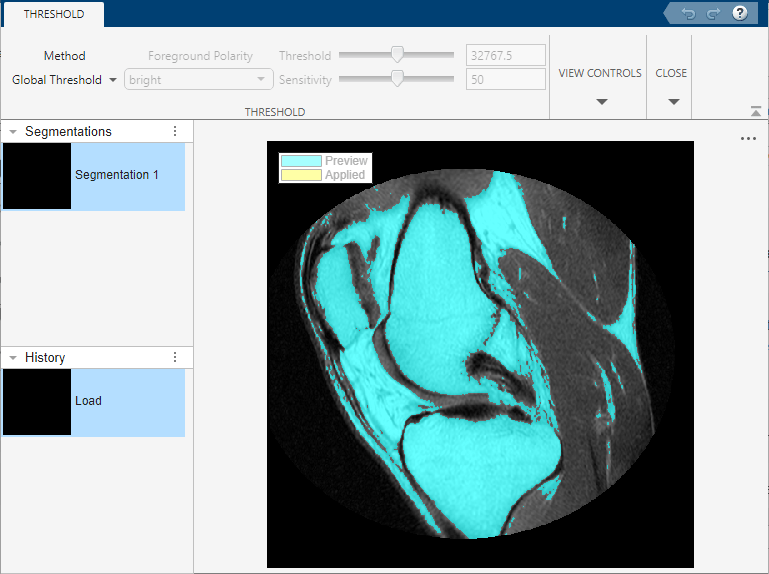
Load an image into Image Segmenter, such as the image in the previous example. Click Threshold in the Create Mask section of the Image Segmenter app toolstrip. The app displays the thresholded image in the Threshold tab. By default, the app uses global thresholding.
You can also choose Manual or Adaptive thresholding. Each thresholding option supports controls that you can use to fine-tune the thresholding. For example, with Manual thresholding, you can choose the threshold value using the slider. With Adaptive thresholding, you can choose the sensitivity using the slider. Try each option to see which thresholding method performs the best segmentation.
The following figure shows the results of using Manual thresholding.
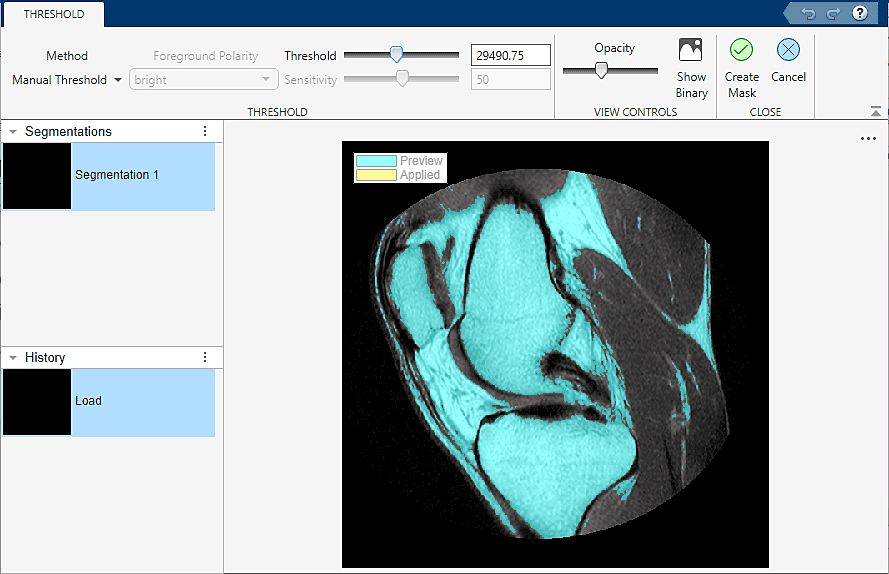
The knee image does not have well-defined pixel intensity differences between foreground and background and thresholding does not seem like the best choice to segment this image. Image Segmenter offers many different segmentation methods and using the app can be an iterative process. You might try several different methods until you achieve the results you want.
Load an image into Image Segmenter, such as the image in the previous example. Expand the Add to Mask group and click Draw ROIs. The app opens the ROI tab.Image Segmenter offers many different ROI shapes including polygons, rectangles, ellipses, and circles. In addition, you can draw freehand shapes or assisted freehand shapes that help you by following the underlying shape of the objects in the image.
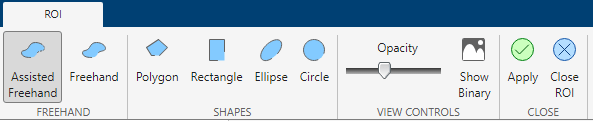
Select the type of ROI you want to draw. For this example, choose Assisted Freehand. With the Assisted Freehand ROI option, you can draw a freehand shape that automatically follows edges in the underlying image to help you draw a more accurate ROI.
As you move the cursor over the image, it changes to the crosshairs shape. Press the mouse button, and begin drawing a freehand shape over the area of the image that you want to segment. As you draw, click the mouse to create waypoints. Waypoints can help you make fine adjustments to the shape after you finish drawing. To add additional waypoints after you finish drawing, double-click on the ROI edge.
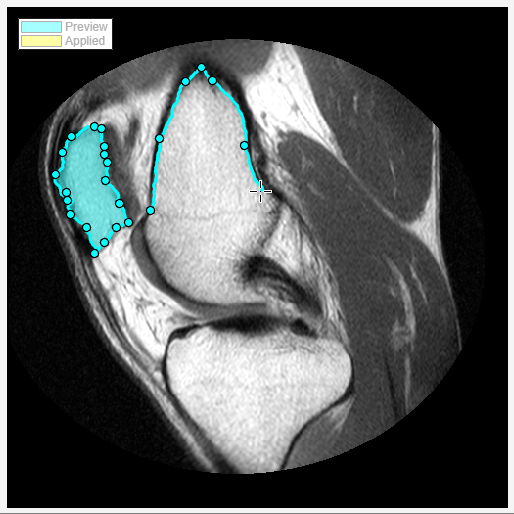
Continue drawing shapes until all the areas you want to segment are identified. To save the regions your have drawn, click Apply. The app displays the segmented regions in yellow, overlaid on the original image. To return to the Segmentation tab, click Close ROI.
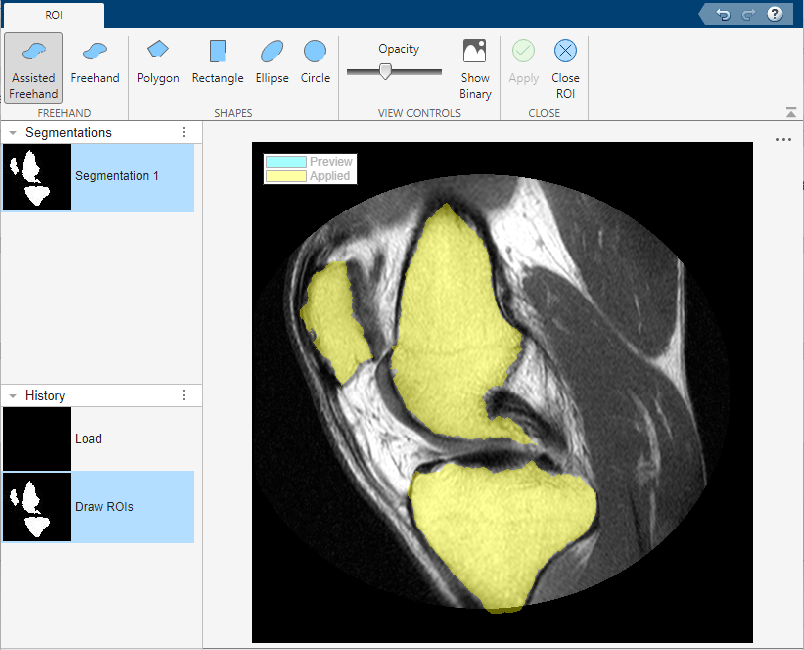
After finishing a segmentation, view the mask image by selecting Show Binary on the Segmentation tab. This example uses a mask image from the previous example.
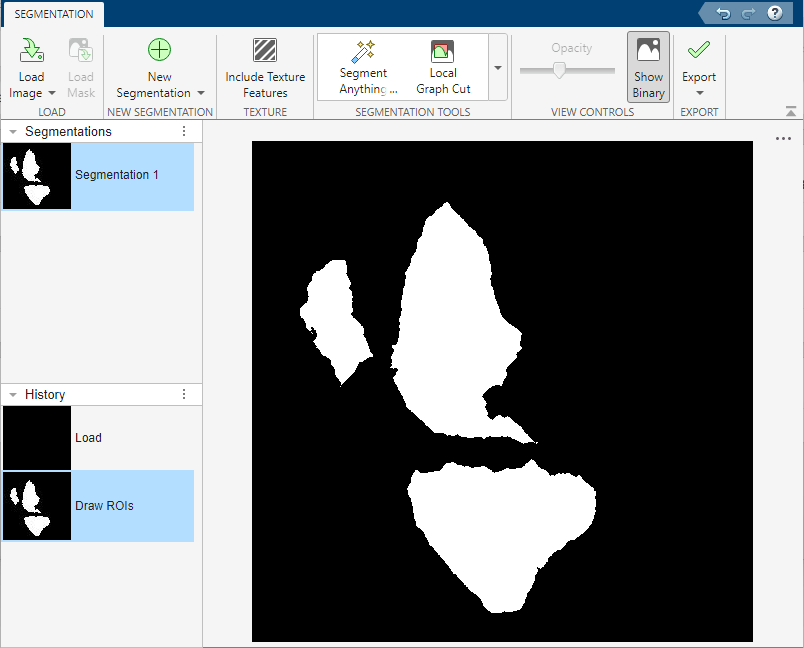
To refine the mask image, use the tools in the Refine Mask section of Image Segmenter app toolstrip, such as Clear Borders or Fill Holes. For more information, see Refine Segmentation Using Morphology in Image Segmenter.
When you are done refining the mask, click Export to save the mask image to the workspace.
Related Examples
- Segment Objects Using Segment Anything Model (SAM) in Image Segmenter
- Refine Segmentation Mask Using Active Contours in Image Segmenter
- Segment Image Using Auto Cluster in Image Segmenter
- Segment Image Using Graph Cut in Image Segmenter
- Segment Image Using Local Graph Cut (Grabcut) in Image Segmenter
- Segment Image Using Find Circles in Image Segmenter
- Refine Segmentation Using Morphology in Image Segmenter
- Use Texture Filtering in Image Segmenter
- Interactively Segment Hyperspectral Image Using Segment Anything Model
Programmatic Use
Version History
Introduced in R2014b

