CAN FD Receive
R2026bReceive messages on controller area network (CAN) bus with flexible data rate
Since R2026b
CAN FD Receive block
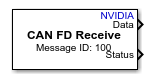
To add a block to a model, double-click the canvas and start typing the block name. Then, select the block from the list.
Libraries:
NVIDIA Jetson and NVIDIA DRIVE /
Communication
Description
Add-On Required: This feature requires the MATLAB Coder Support Package for NVIDIA Jetson and NVIDIA DRIVE Platforms add-on.
The CAN FD Receive block receives messages by using the time-triggered controller area network (TTCAN) controller on NVIDIA® Jetson™ boards. The block uses the SocketCAN interface to receive CAN frames.
You can use the CAN FD Receive block to receive messages of up to 64 bytes, compared to a maximum of 8 bytes for a CAN Receive block. Additionally, you can enable bit-rate switching on the CAN FD Transmit block so that the CAN FD Receive block receives data at a faster rate. For more information, see Bit-Rate Switching.
Examples
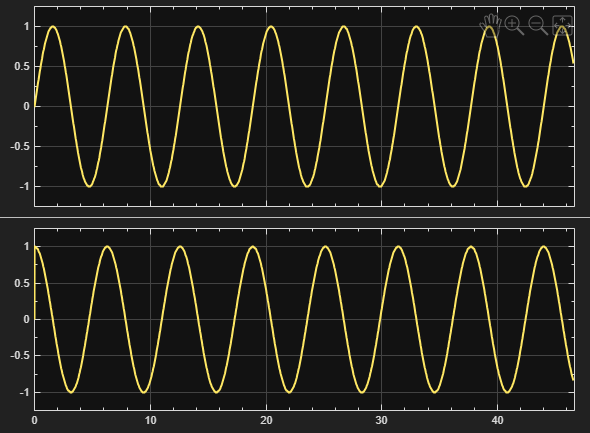
Send and Receive CAN FD Messages on NVIDIA Jetson
Use the CAN FD communication protocol on a Jetson board from Simulink®.
- Since R2026b
- Open Live Script
Ports
Output
Raw message data, returned as a uint8 vector. The Message
Length parameter determines the length of the vector.
Dependencies
To enable this port, set Data to be output as to
Raw data.
Data Types: uint8
CAN message data, returned as a CAN_FD_MESSAGE_BUS bus. To
extract data from the bus signal, use the CAN FD Unpack (Vehicle Network Toolbox)
block.
Dependencies
To enable this port, set Data to be output as to
CAN Msg.
Status of the received message, returned as a uint8 scalar. If the
block receives a message, the status is 1. Otherwise, the status is
0.
Data Types: uint8
Error codes, returned as a uint8 scalar in which each bit indicates a
specific error code. For example, if bit zero is 1, the transmission
generated an overflow on receive buffer 1. This table lists the error codes for each
bit.
| Status bit | Error Code |
|---|---|
| 0 | Receive Buffer 1 Overflow Flag (RX1OVR) |
| 1 | Receive Buffer 0 Overflow Flag (RX0OVR) |
| 2 | Receive Error-Passive Flag (RXEP) |
| 3 | Receive Error Warning Flag (RXWAR) |
| 4 | - |
| 5 | - |
| 6 | - |
| 7 | - |
Dependencies
To enable this port, select Output Error.
Parameters
To edit block parameters interactively, use the Property Inspector. From the Simulink Toolstrip, on the Simulation tab, in the Prepare gallery, select Property Inspector.
Name of the real or virtual CAN interface.
Programmatic Use
To set the block parameter value programmatically, use
the set_param (Simulink) function.
To get the block parameter value
programmatically, use the get_param (Simulink) function.
| Parameter: | DeviceID |
| Values: | "can0" (default) | interface name in quotes |
| Data Types: | string | char |
Example: set_param(gcb,DeviceID="vcan0")
Option to set up the CAN interface specified in the CAN Interface parameter on the NVIDIA target. If you select this parameter, the block configures the network interface before CAN communication.
Programmatic Use
To set the block parameter value programmatically, use
the set_param (Simulink) function.
To get the block parameter value
programmatically, use the get_param (Simulink) function.
| Parameter: | SetupCAN |
| Values: | "off" (default) | "on" |
Example: set_param(gcb,SetupCAN="on")
Select the type of CAN interface to set up on the hardware board.
Dependencies
To enable this parameter, select Set up CAN interface.
Note
If you set this parameter to Real, and the CAN
interface specified in the CAN interface parameter
already exists on the board, the CAN bus speed must match the CAN Bus
Speed (kBit/s) model configuration parameter. Otherwise, the
block does not transmit the CAN frames.
Programmatic Use
To set the block parameter value
programmatically, use the set_param (Simulink) function.
To get the block parameter value
programmatically, use the get_param (Simulink) function.
| Parameter: | TypeOfCAN |
| Values: | "Real" (default) | "Virtual" |
Example: set_param(gcb,TypeOfCAN="Virtual")
Specify the data type that the block returns:
Raw datareturns auint8vector containing the CAN data.CAN Msgreturns a Simulink bus containing the CAN frame information.
Programmatic Use
To set the block parameter value
programmatically, use the set_param (Simulink) function.
To get the block parameter value
programmatically, use the get_param (Simulink) function.
| Parameter: | OutputDataType |
| Values: | "Raw Data" (default) | "CAN Msg" |
Example: get_param(gcb,"OutputDataType")
Specify the message identifier type:
Standard (11-bit identifier)uses the standard, 11-bit identifier.Extended (29-bit identifier)uses the extended, 29-bit identifier.
Dependencies
To enable this parameter, set Data to be output as to
Raw data.
Programmatic Use
To set the block parameter value programmatically, use
the set_param (Simulink) function.
To get the block parameter value
programmatically, use the get_param (Simulink) function.
| Parameter: | IdentifierType |
| Values: | "Standard (11-bit identifier)" (default) | "Extended (29-bit identifier)" |
Example: get_param(gcb,"IdentifierType")
Message identifier for the CAN frame. For identifiers in binary or hexadecimal formats,
convert the identifier to the decimal format by using the bin2dec or hex2dec functions.
Dependencies
To enable this parameter, set Data to be output as to
Raw data.If Identifier Type is
Standard (11-bit identifier), the message identifier must be less than or equal to2047. If Identifier Type isExtended (29-bit identifier), the message identifier must be less than or equal to536870911.
Programmatic Use
To set the block parameter value programmatically, use
the set_param (Simulink) function.
To get the block parameter value
programmatically, use the get_param (Simulink) function.
| Parameter: | MessageId |
| Values: | "100" (default) | nonnegative integer in quotes |
| Data Types: | string | char |
Example: set_param(gcb,MessageId="2047");
Example: set_param(gcb,MessageId=string(bin2dec("00000001111")));
Message length. Specify the length as an integer between 1 and
8, or one of these values:
64483224201612
Dependencies
To enable this parameter, set Data to be output as to
Raw data.
Programmatic Use
To set the block parameter value programmatically, use
the set_param (Simulink) function.
To get the block parameter value
programmatically, use the get_param (Simulink) function.
| Parameter: | MsgLengthFD |
| Values: |
"64"
(default) |
"48"
|
"32"
|
"24"
| ... |
Example:
set_param(gcb,MsgLengthFD="32")
Specify the sample time at which the block reads the port buffer, in seconds. To
inherit the sample time from the model, use -1. Otherwise, enter a
value greater than 0.
Programmatic Use
To set the block parameter value programmatically, use
the set_param (Simulink) function.
To get the block parameter value
programmatically, use the get_param (Simulink) function.
| Parameter: | SampleTime |
| Values: | "-1" (default) | numeric value in quotes |
Example: get_param(gcb,"SampleTime")
Select this parameter to output error codes if the message transfer fails.
Dependencies
To enable this parameter, set Data to be output as to
Raw data.
Programmatic Use
To set the block parameter value programmatically, use
the set_param (Simulink) function.
To get the block parameter value
programmatically, use the get_param (Simulink) function.
| Parameter: | OutputError |
| Values: | "off" (default) | "on" |
Example: set_param(gcb,OutputError="on")
More About
In the CAN FD protocol, you can use bit-rate switching to switch between a nominal and data rate during transmission. During the arbitration phase of CAN transmission, nodes on the CAN network send their arbitration fields by using the nominal rate. The receiving node determines the message with the highest priority based on the message identifiers in the arbitration fields. If the Bit-Rate Switching (BRS) bit is on, the node with the highest-priority message sends message data by using a separate, faster data rate. This illustration shows which rates the CAN sender uses for different parts of a CAN FD frame.
Extended Capabilities
C/C++ Code Generation
Generate C and C++ code using Simulink® Coder™.
Version History
Introduced in R2026b
See Also
Blocks
Model Settings
External Websites
MATLAB Command
You clicked a link that corresponds to this MATLAB command:
Run the command by entering it in the MATLAB Command Window. Web browsers do not support MATLAB commands.


Select a Web Site
Choose a web site to get translated content where available and see local events and offers. Based on your location, we recommend that you select: .
You can also select a web site from the following list
How to Get Best Site Performance
Select the China site (in Chinese or English) for best site performance. Other MathWorks country sites are not optimized for visits from your location.
Americas
- América Latina (Español)
- Canada (English)
- United States (English)
Europe
- Belgium (English)
- Denmark (English)
- Deutschland (Deutsch)
- España (Español)
- Finland (English)
- France (Français)
- Ireland (English)
- Italia (Italiano)
- Luxembourg (English)
- Netherlands (English)
- Norway (English)
- Österreich (Deutsch)
- Portugal (English)
- Sweden (English)
- Switzerland
- United Kingdom (English)