Main Content

CAN Transmit

R2026b

Transmit messages on the controller area network (CAN) bus

  • NVIDIA CAN receive block

Libraries:
NVIDIA Jetson and NVIDIA DRIVE / Communication

Description

Add-On Required: This feature requires the MATLAB Coder Support Package for NVIDIA Jetson and NVIDIA DRIVE Platforms add-on.

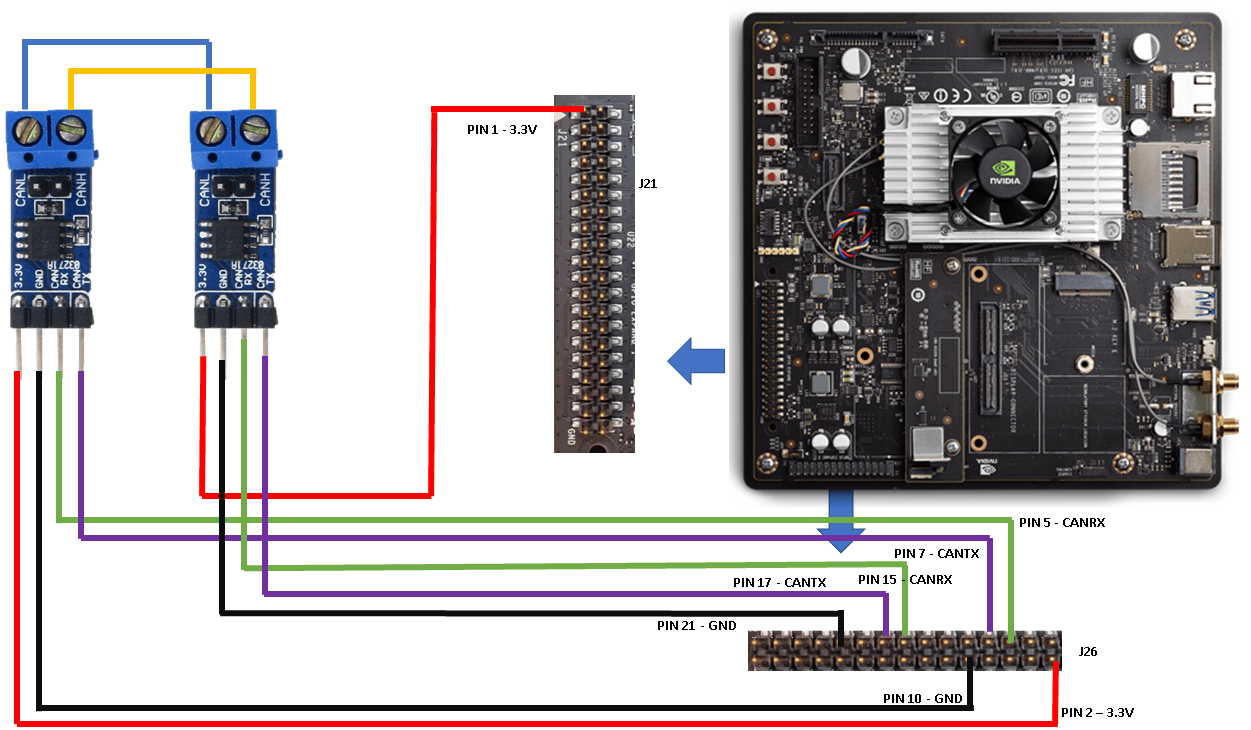
The CAN Transmit block transmits messages on the CAN bus through the time triggered CAN (TTCAN) controller available on NVIDIA® embedded boards. This block uses the SocketCAN interface to communicate with the CAN controller hardware on NVIDIA boards.

You can also use this block to interact with a virtual CAN interface. A virtual CAN interface allows transmission and reception of CAN frames without a native CAN interface associated with real hardware. For more information on how to set up a virtual CAN interface, see Setup Virtual CAN Interface.

The CAN Transmit block supports Raw data and CAN Msg as input types. To use CANdb (CAN database) file or to specify signals manually, use CAN Msg input type and CAN Pack block. The CAN Pack block is available from the Vehicle Network Toolbox™.

Examples
Ports

Input

expand all

Message data, specified as vector or scalar.

Data Types: uint8 | CAN Msg

Output

expand all

Output status, returned as a scalar. This port outputs 0 for a successful transmission. If transmission fails, the status is a uint8 value where each bit indicates a specific error code. For example, if bit zero is equal to 1, the transmission generated a transmit error warning flag. This table lists the error codes for each bit.

Status bitError Code
0Transmit Error Warning Flag (TXWAR)
1Transmit Error-Passive Flag (TXEP)
2Bus-Off Error Flag (TXBO)
3Transmission Error Detected (TXERR)
4Message Lost Arbitration (MLOA)
5Message Aborted Flag (ABTF)
6-
7-

Dependencies

To enable this port, select Output Status.

Data Types: uint8

Parameters

expand all

Name of the real or virtual CAN interface.

Programmatic Use

To set the block parameter value programmatically, use the set_param (Simulink) function.

To get the block parameter value programmatically, use the get_param (Simulink) function.

Parameter: DeviceID
Values: "can0" (default) | interface name in quotes
Data Types: string | char

Example: set_param(gcb,DeviceID="vcan0")

Option to set up the CAN interface specified in the CAN Interface parameter on the NVIDIA target. If you select this parameter, the block configures the network interface before CAN communication.

Programmatic Use

To set the block parameter value programmatically, use the set_param (Simulink) function.

To get the block parameter value programmatically, use the get_param (Simulink) function.

Parameter: SetupCAN
Values: "off" (default) | "on"

Example: set_param(gcb,SetupCAN="on")

Select the type of CAN interface to set up on the hardware board.

Dependencies

To enable this parameter, select Set up CAN interface.

Note

If you set this parameter to Real, and the CAN interface specified in the CAN interface parameter already exists on the board, the CAN bus speed must match the CAN Bus Speed (kBit/s) model configuration parameter. Otherwise, the block does not transmit the CAN frames.

Programmatic Use

To set the block parameter value programmatically, use the set_param (Simulink) function.

To get the block parameter value programmatically, use the get_param (Simulink) function.

Parameter: TypeOfCAN
Values: "Real" (default) | "Virtual"

Example: set_param(gcb,TypeOfCAN="Virtual")

Specify the data type that the block accepts. Set this parameter to Raw data to input values of the uint8 data type or CAN Msg to input CAN messages.

Programmatic Use

To set the block parameter value programmatically, use the set_param (Simulink) function.

To get the block parameter value programmatically, use the get_param (Simulink) function.

Parameter: InputDataType
Values: "Raw data" (default) | "CAN Msg"

Example: set_param(gcb,InputDataType="CAN Msg")

Select this parameter to output the status of message transfer.

Programmatic Use

To set the block parameter value programmatically, use the set_param (Simulink) function.

To get the block parameter value programmatically, use the get_param (Simulink) function.

Parameter: OutputStatus
Values: "off" (default) | "on"

Select this parameter to use the block in blocking mode. If the block receives message data to send while it is sending data from a previous time step, the block waits for the time specified in Time out in seconds to finish transmitting data. The block then sends the new message data.

When you clear this parameter, the block operates in nonblocking mode. If the block receives message data to send while it is sending data from a previous time step, the block drops the message data.

Note

If you select this parameter and the block sends data after the time specified in Time out in seconds elapses, the task overruns. To avoid overruns, increase the sample time of the block or reduce the message length.

Programmatic Use

To set the block parameter value programmatically, use the set_param (Simulink) function.

To get the block parameter value programmatically, use the get_param (Simulink) function.

Parameter: BlockingMode_
Values: "off" (default) | "on"

Example: set_param(gcb,BlockingMode_="on")

Wait time before sending additional data. After the specified amount of time, the block times out.

Dependencies

To enable this parameter, select Wait until data sent.

Programmatic Use

To set the block parameter value programmatically, use the set_param (Simulink) function.

To get the block parameter value programmatically, use the get_param (Simulink) function.

Parameter: BlockTimeout_
Values: "1" (default) | positive integer in quotes
Data Types: string | char

Example: set_param(gcb,BlockTimeout_="2")

Specify whether to use the standard or extended message identifier type. You can specify the length of the message identifier as 11 or 29 bits.

Dependencies

To enable this parameter, set Data is input as to Raw data.

Programmatic Use

To set the block parameter value programmatically, use the set_param (Simulink) function.

To get the block parameter value programmatically, use the get_param (Simulink) function.

Parameter: IdentifierType
Values: "Standard (11-bit identifier)" (default) | "Extended (29-bit identifier)"

Example: get_param(gcb,"IdentifierType")

Message identifier for the CAN frame. For identifiers in binary or hexadecimal formats, convert the identifier to the decimal format by using the bin2dec or hex2dec functions.

Dependencies

  • To enable this parameter, set Data is input as to Raw data.

  • If Identifier Type is Standard (11-bit identifier), the message identifier must be less than or equal to 2047. If Identifier Type is set to Extended (29-bit identifier), the message identifier must be less than or equal to 536870911.

Programmatic Use

To set the block parameter value programmatically, use the set_param (Simulink) function.

To get the block parameter value programmatically, use the get_param (Simulink) function.

Parameter: MessageId
Values: "100" (default) | nonnegative integer in quotes
Data Types: string | char

Example: set_param(gcb,MessageId="2047");

Example: set_param(gcb,MessageId=string(bin2dec("00000001111")));

Message length in bytes. The message length can be between 1 and 8 bytes.

Dependencies

To enable this parameter, set Data is input as to Raw data.

Programmatic Use

To set the block parameter value programmatically, use the set_param (Simulink) function.

To get the block parameter value programmatically, use the get_param (Simulink) function.

Parameter: MsgLength
Values: "8" (default) | positive integer between 1 and 8 in quotes

Example: set_param(gcb,MsgLength="2")

When selected, this block sends request for remote frames.

Dependencies

To enable this parameter, set Data is input as to Raw data.

Programmatic Use

To set the block parameter value programmatically, use the set_param (Simulink) function.

To get the block parameter value programmatically, use the get_param (Simulink) function.

Parameter: RemoteFrame
Values: "off" (default) | "on"

Tips

  • If a Simulink® model contains CAN Transmit and CAN Receive block, and the Set up CAN interface is set only on the CAN Transmit block, then a CAN receive socket might not be set up because of the order of execution of the blocks. In such cases, manually set up the CAN interfaces before executing the models or enable Set up CAN interface on all blocks.

Version History

Introduced in R2021b