uiselectboxes
Description
Add-On Required: This feature requires the Automated Visual Inspection Library for Computer Vision Toolbox add-on.
bboxes = uiselectboxes(hImage)hImage.
Note
This functionality requires the Automated Visual Inspection Library for Computer Vision Toolbox™. You can install the Automated Visual Inspection Library for Computer Vision Toolbox from Add-On Explorer. For more information about installing add-ons, see Get and Manage Add-Ons.
Examples
Load an image containing objects to count into the workspace.
I = imread("coins.png");Display the image using the imageshow function.
hImage = imageshow(I);
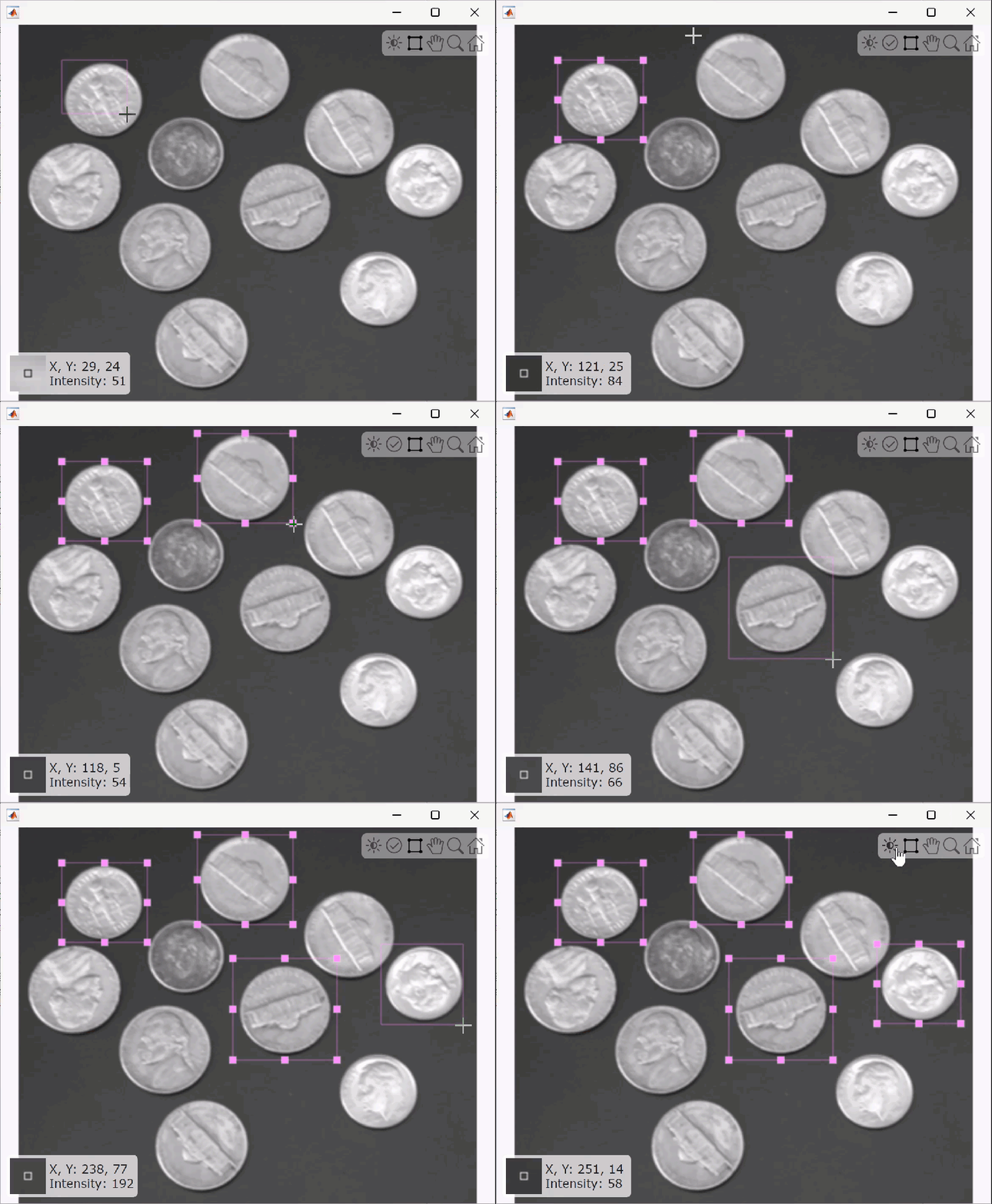
To interactively define bounding box ROIs on the image, use the uiselectboxes function. Click a start point in the image and drag boxes around the desired objects. Click Accept in the top-right corner of the figure window when you are satisfied with your selections.
bboxes = uiselectboxes(hImage)
bboxes = 4×4

    195.4484     28.4718    69.5974    63.5455
    321.0263    101.0952    55.9805    58.2500
    224.9516    116.2251    65.0584    61.2760
    165.1886     85.9653    55.2240    52.1980
This GIF shows how to interactively select bounding boxes by creating and dragging the boxes to different positions on the image.
Extract the patch tiles from the image using the extractpatches function.
tiles = extractpatches(I,bboxes)
tiles=4×1 cell array
    64×70 uint8
    58×56 uint8
    62×65 uint8
    52×55 uint8
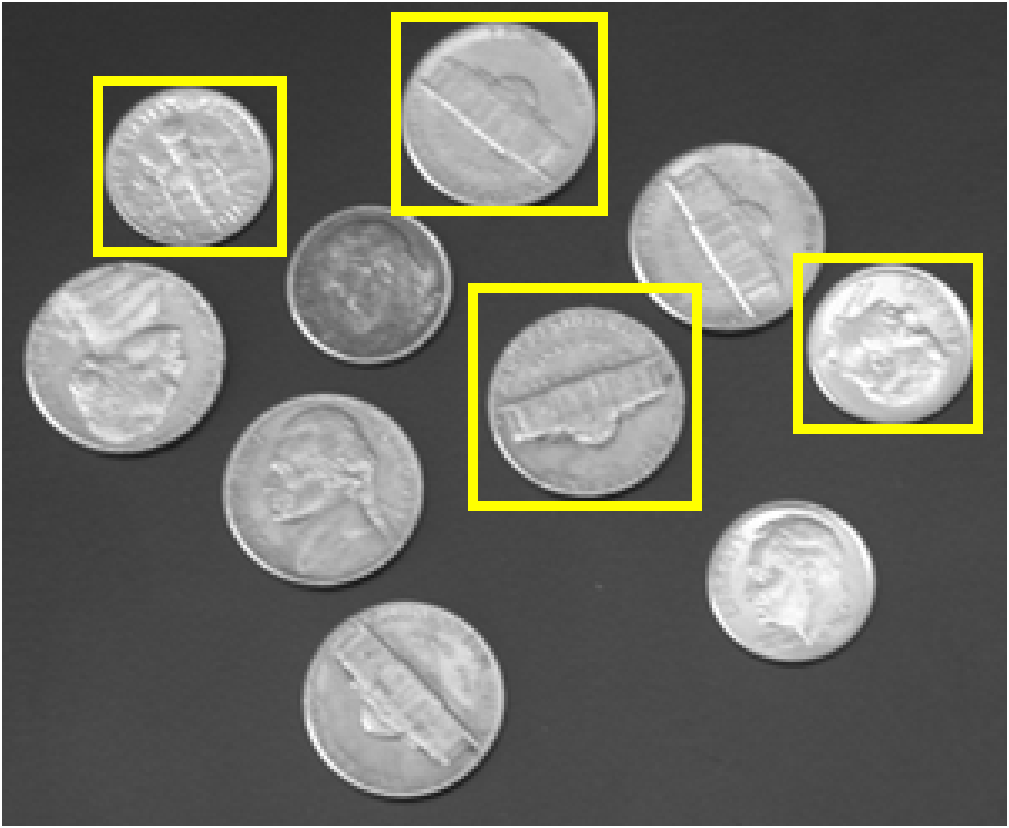
Display the bounding boxes defining the image patches overlaid on the image using the insertShape function.
annotatedImage = insertShape(I,"rectangle",bboxes,"LineWidth",3);
imshow(annotatedImage)
Input Arguments
Output Arguments
Version History
Introduced in R2026a

