Use Property Inspector in System Composer
R2026bThe Property Inspector allows you to access and edit properties for different elements in System Composer™.
To open the tool, from the System Composer toolstrip, navigate to Modeling > Property Inspector. Alternatively, press Ctrl+Shift+I. On macOS, press command+option+O instead.

Use the Property Inspector to inspect properties based on context. When you select a component, port, connector, interface, function, or requirement, the structure of the Property Inspector adapts to accommodate the given element.
Property Inspector Modes
This table explains where to find more information about authoring properties.
| Property | Section | Tool |
|---|---|---|
| Stereotypes | View and Edit Stereotypes and Parameters | Profile Editor |
| Parameters | View and Edit Stereotypes and Parameters | Parameter Editor |
| Interfaces | View and Edit Interfaces | Interface Editor |
| Requirements | View and Edit Requirements | Requirements Editor (Requirements Toolbox) |
| Functions | View and Edit Functions | Functions Editor |
View and Edit Stereotypes and Parameters
Launch the small unmanned aerial vehicle (UAV) project.
scExampleSmallUAV
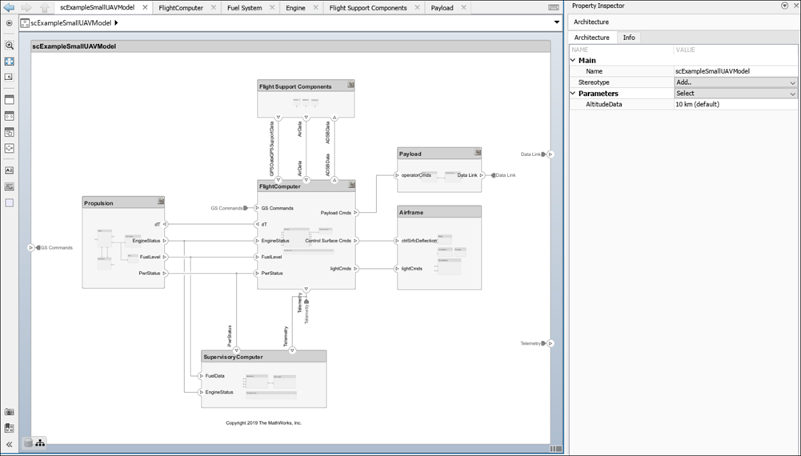
In the Property Inspector, on the root architecture layer of the architecture model, you can view and edit stereotypes and parameters.
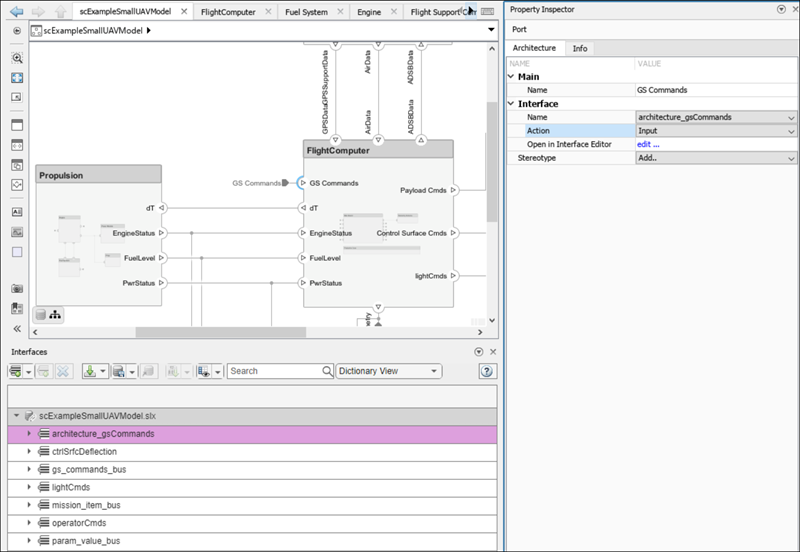
When you select a port, you can view and edit the stereotypes or interfaces
assigned to the port. You can also change the port action between
Input, Output, and
Physical.
Similarly, when you select other System Composer elements, you can view and edit the assigned stereotypes.
From the Stereotype list, choose an option to apply a
stereotype to the model element. Select the fully qualified name of a stereotype,
<profile>.<stereotype>, or create or edit new
stereotypes in the Profile
Editor. Use <Add/Edit> when no stereotypes are
applied or <New/Edit> when at least one stereotype is
applied. Choose <Remove All> from the
Stereotype list to remove all stereotypes from a model
element.
Once you choose a stereotype, select from the list next to the stereotype name.
Options include Remove to remove the stereotype from the element
and Reset to default values to reset the values of the stereotype
properties to their defaults. Expand the stereotype to view and edit its property
values.
Use the Parameters list to open the Parameter Editor using the Open Editor option. Reset
a specific parameter to its default value using the Reset to
default option. Find the source of the parameter using
Highlight source of parameter. Since parameters can be
promoted to higher parts of the hierarchy, the source of the parameter is not always
clear.
View and Edit Interfaces
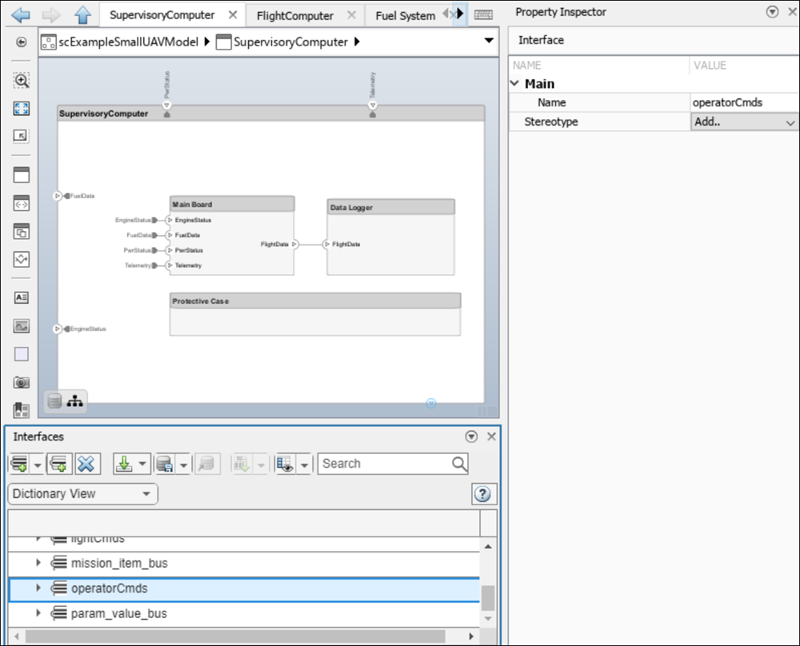
When you select a data interface on the Interface Editor, you can view and edit the stereotypes in the Property Inspector.
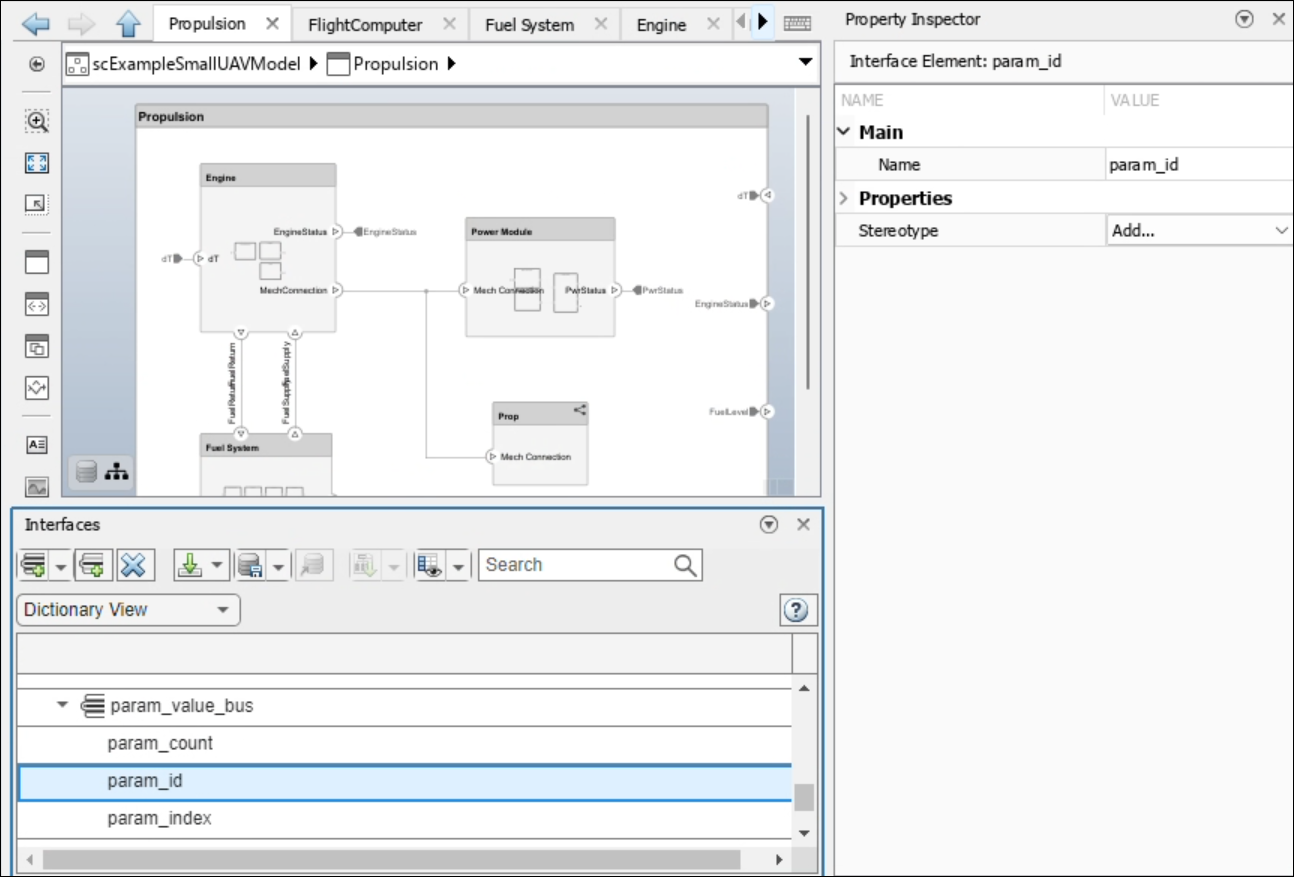
When you select an interface element on the Interface Editor, you can view and edit the name, stereotype, and parameters in the Property Inspector.
View and Edit Requirements
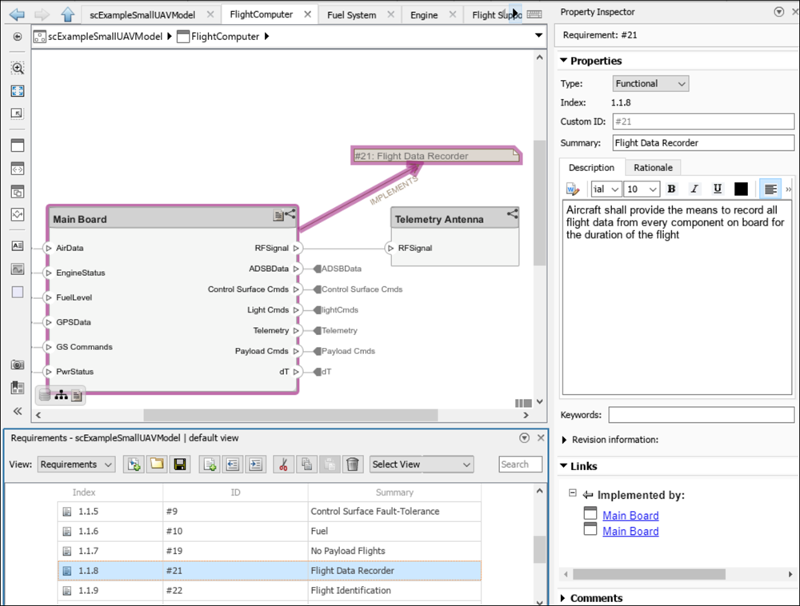
When you select a requirement with the Requirements Perspective open, you can view and edit the type, summary, description, and links for the requirement in the Property Inspector.
View and Edit Functions
Launch the adaptive cruise control example.
openExample('systemcomposer/ACCSoftwareCompositionExample')When you select a function on the Functions Editor, you can view and edit the stereotypes for the function in the Property Inspector.


