view2d
Description
Add-On Required: This feature requires the Optical Design and Simulation Library for Image Processing Toolbox add-on.
view2d( plots the optical system
opsys)opsys in 2-D in the ZY-plane. The horizontal axis,
which is the optical axis of the optical system, is the Z-axis and the
vertical axis is the Y-axis.
view2d(
specifies properties of the visualization using one or more optional name-value arguments.
For example, opsys,Name=Value)Title="CookeTriplet" sets the title of the plot to
"CookeTriplet".
returns the
osv2d = view2d(___)OpticalSystemViewer2D object osv2d, using any combination
of input arguments from previous syntaxes. You can customize the visualization by modifying
the properties of osv2d and using its object functions.
Examples
Create a simple optical system.
opsys = opticalSystem; addRefractiveSurface(opsys,Radius=9,Material=[1.74 25.4],DistanceToNext=3) addRefractiveSurface(opsys,Radius=-9,DistanceToNext=10) addImagePlane(opsys) focus(opsys);
Visualize the optical system in 2-D.
osv2d = view2d(opsys,Title="Convex Lens")
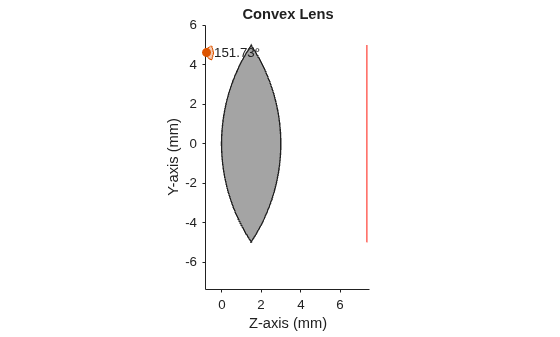
osv2d =
OpticalSystemViewer2D with properties:
Title: "Convex Lens"
OpticalSystem: [1×1 opticalSystem]
Labels: "none"
FieldPoints: "on"
Rays: [0×0 optics.ui.Rays2D]
Parent: [1×1 Figure]
Show all properties
Trace rays in the optical system to add to the visualization. Observe that rays contains three ray bundles.
rays = traceRays(opsys)
rays=1×3 RayBundle array with properties:
FieldPoint
Wavelength
Sampling
RayData
Add the rays to the visualization. Each ray bundle is represented by a different color in the visualization.
addRays(osv2d,rays)
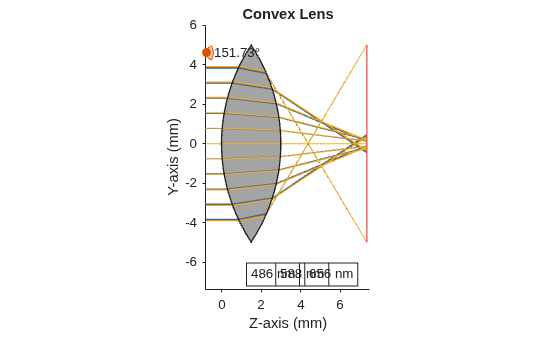
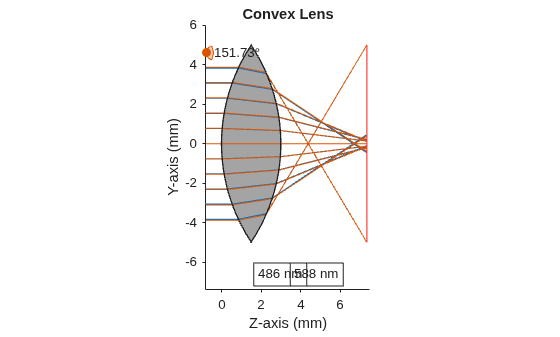
Remove the third ray bundle in the visualization.
removeRays(osv2d,3)
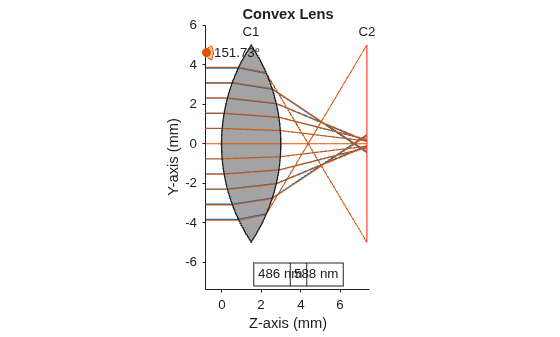
Add component labels to the visualization. The lens and image plane components are labeled as C1 and C2 in the visualization.
osv2d.Labels = "component";
Input Arguments
Optical system to view, specified as an opticalSystem
object.
Name-Value Arguments
Specify optional pairs of arguments as
Name1=Value1,...,NameN=ValueN, where Name is
the argument name and Value is the corresponding value.
Name-value arguments must appear after other arguments, but the order of the
pairs does not matter.
Example: view2d(opsys,Title="Cooke Triplet") sets the title of the
visualization to "Cooke Triplet".
Rays in the visualization, specified as an array of Rays2D
objects.
Field points in visualization, specified as an array of Rays2D
objects, specified as "on", "off",
matlab.lang.OnOffSwitchState.on or
matlab.lang.OnOffSwitchState.off, or as numeric or logical
1 (true) or 0
(false). A value of "on" is equivalent to a
logical on or true, and "off" is equivalent to a
logical off or false. Thus, you can use the value of this property
as a logical value. The value is stored as an on/off logical value of type matlab.lang.OnOffSwitchState.
By default, the function displays the field points of the optical system
opsys in the visualization. If you specify
FieldPoints as "off",
matlab.lang.OnOffSwitchState.off, or as a numeric or logical
0 (true), the function does not display the
field points in the visualization.
For more information about defining field points, see Create Field Points.
Title of the visualization, specified as a string scalar or character vector.
Data Types: char | string
Type of labels, specified as one of these options.
"component"— The visualization displays labels for only the components in the optical system."surface"— The visualization displays labels for each individual surface in the optical system."none"— The visualization does not display any labels in the optical system."both"— The visualization displays labels for each individual surface and each component in the optical system.
Data Types: char | string
Z-axis limits, specified as a 2-element numeric vector of the
form [zmin
zmax]. zmin and
zmax are the lower and upper limits of the
z-axis, respectively. The default value is adjusted to fit the
optical system.
Data Types: single | double | int8 | int16 | int32 | int64 | uint8 | uint16 | uint32 | uint64
Y-axis limits, specified as a 2-element numeric vector of the
form [ymin
ymax]. ymin and
ymax are the lower and upper limits of the
y-axis, respectively. The default value is adjusted to fit the
optical system.
Data Types: single | double | int8 | int16 | int32 | int64 | uint8 | uint16 | uint32 | uint64
Selection mode for the Z-axis limit, specified as one of these values:
Data Types: single | double | int8 | int16 | int32 | int64 | uint8 | uint16 | uint32 | uint64
Selection mode for the Y-axis limit, specified as one of these values:
Data Types: single | double | int8 | int16 | int32 | int64 | uint8 | uint16 | uint32 | uint64
Paraxial information display, specified as "on" or
"off", matlab.lang.OnOffSwitchState.on or
matlab.lang.OnOffSwitchState.off, or as numeric or logical
1 (true) or 0
(false). A value of "on" is equivalent to a
logical on or true, and "off" is equivalent to a
logical off or false. Thus, you can use the value of this property
as a logical value. The value is stored as an on/off logical value of type matlab.lang.OnOffSwitchState.
If you specify ParaxialInfo as "on",
matlab.lang.OnOffSwitchState.on, or as a numeric or logical
1 (true), the function displays the paraxial
information in the visualization.
Data Types: single | double | int8 | int16 | int32 | int64 | uint8 | uint16 | uint32 | uint64 | logical
Parent UI container, specified as a Figure,
Panel, Tab, or GridLayout
object. By default, the function creates a new Figure object. You
can create these UI containers using their respective creation functions.
Figureobject —uifigurePanelobject —uipanelTabobject —uitabGridLayoutobject —uigridlayout
Output Arguments
2-D optical system viewer chart, returned as an OpticalSystemViewer2D object. You can customize the visualization by
modifying the properties of osv2d and using its object
functions.
Version History
Introduced in R2026a
MATLAB Command
You clicked a link that corresponds to this MATLAB command:
Run the command by entering it in the MATLAB Command Window. Web browsers do not support MATLAB commands.
Select a Web Site
Choose a web site to get translated content where available and see local events and offers. Based on your location, we recommend that you select: .
You can also select a web site from the following list
How to Get Best Site Performance
Select the China site (in Chinese or English) for best site performance. Other MathWorks country sites are not optimized for visits from your location.
Americas
- América Latina (Español)
- Canada (English)
- United States (English)
Europe
- Belgium (English)
- Denmark (English)
- Deutschland (Deutsch)
- España (Español)
- Finland (English)
- France (Français)
- Ireland (English)
- Italia (Italiano)
- Luxembourg (English)
- Netherlands (English)
- Norway (English)
- Österreich (Deutsch)
- Portugal (English)
- Sweden (English)
- Switzerland
- United Kingdom (English)