802.11ax Downlink OFDMA Multinode System-Level Simulation
R2026bThis example shows how to simulate a WLAN multinode downlink (DL) orthogonal frequency-division multiple access (OFDMA) network consisting of an IEEE® 802.11ax™ (Wi-Fi® 6) [1] access point (AP) and four stations (STAs).
Using this example, you can:
Simulate DL OFDMA communication from the AP to STAs.
Visualize the packet communication for the AP and the STAs.
Capture the application layer (APP), medium access control layer (MAC) and physical layer (PHY) statistics for each node.
The simulation results show performance metrics such as MAC throughput, MAC packet loss, and application packet latency captured at each node.
Additionally, you can further explore the example by performing these tasks.
OFDM and OFDMA
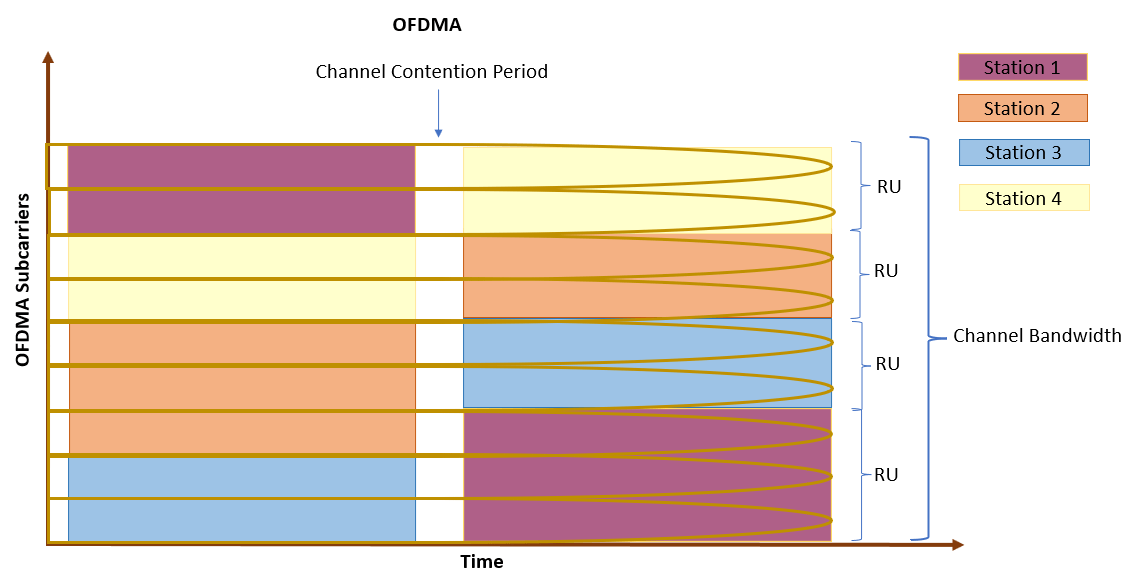
The IEEE 802.11ax standard introduces significant enhancements over the existing 802.11ac standard [2]. One of the key improvements is OFDMA, which is an extension of OFDM digital modulation technology into a multiuser (MU) environment. The fundamental objective of OFDMA is to efficiently use the available frequency space. OFDMA partitions the channel bandwidth into multiple mutually exclusive sub-bands, called resource units (RUs). By partitioning the channel bandwidth, multiple users can access the channel simultaneously. As a result, 802.11ax supports concurrent transmissions of packets to multiple users.
For example, a conventional 20 MHz channel can be partitioned into a maximum of nine subchannels. An 802.11ax AP can simultaneously transmit packets to nine 802.11ax STAs by using OFDMA. The simultaneous transmission of frames reduces excessive contention overhead at the MAC layer and minimizes the PHY layer preamble overhead. In OFDMA, the AP controls the allocation of RUs.
The 802.11ax standard specifies two types of OFDMA:
DL OFDMA - The AP transmits packets to multiple STAs simultaneously using a different RU for each STA.
Uplink (UL) OFDMA - Multiple STAs transmit packets to an AP simultaneously, with each STA using a different RU.
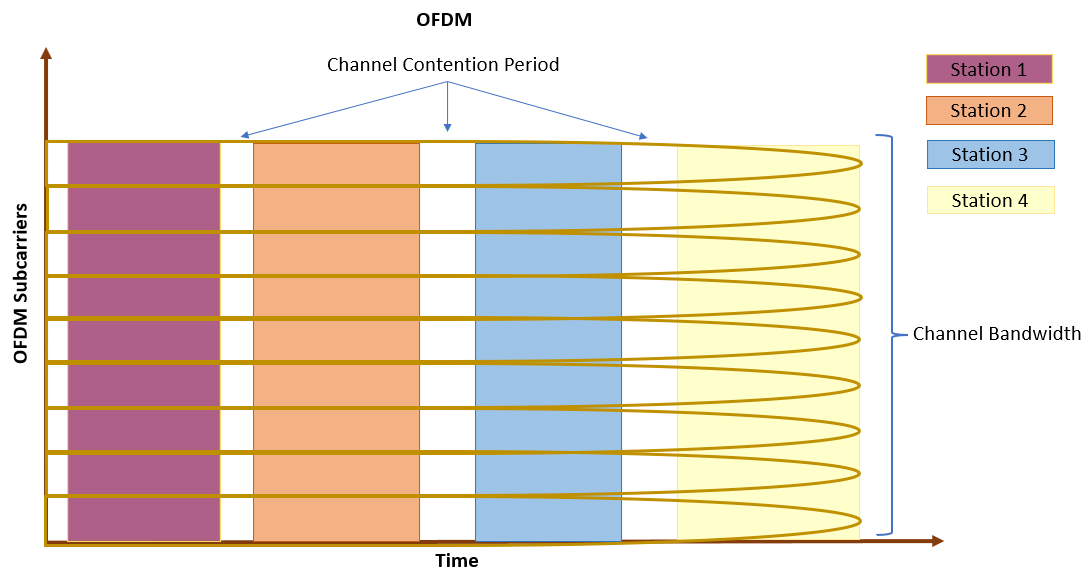
In this figure, the 802.11n/ac/ax AP transmits DL frames to four OFDM STAs independently over time. The AP uses the entire channel bandwidth to communicate with a single OFDM STA. Similarly, an OFDM STA uses the entire channel bandwidth to communicate with an 802.11n/ac/ax AP in an UL OFDM transmission.
This figure shows an OFDMA transmission. The 802.11ax AP partitions the channel bandwidth into RUs for four OFDMA STAs on a continuous basis for simultaneous DL transmissions.
For information about how to simulate a UL OFDMA multinode simulation, see the 802.11ax Uplink OFDMA Multinode System-Level Simulation example.
System-Level Simulation Scenario
The example creates, configures, and simulates this 802.11ax system-level scenario, consisting of one AP and four associated STAs.
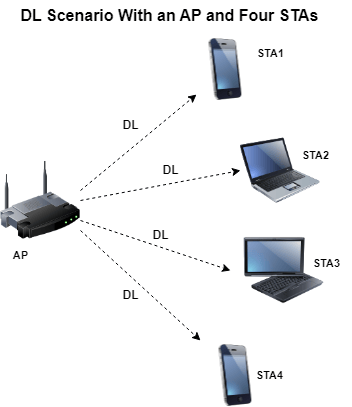
In the preceding figure:
AP transmits DL data to all the STAs simultaneously.
STAs respond with a UL acknowledgment frame upon receiving the DL data frames from the AP.
Configure Simulation Parameters
Set the seed for the random number generator to 1. The seed value controls the pattern of random number generation. The random number generated by the seed value impacts several processes within the simulation, including backoff counter selection at the MAC layer and predicting packet reception success at the physical layer. To improve the accuracy of your simulation results after running the simulation, you can change the seed value, run the simulation again, and average the results over multiple simulations.
rng(1,"combRecursive")Specify the simulation time in seconds. To visualize the packet communication for all of the nodes, set the enablePacketVisualization variable to true. To view the node performance visualization, set the enableNodePerformancePlot variable to true.
simulationTime =0.1; enablePacketVisualization =
true; enableNodePerformancePlot =
true;
This example uses abstracted MAC and PHY models at each WLAN node because OFDMA is supported only for abstracted MAC and PHY. To model abstracted PHY at each node, set the phyModel variable to "abstract-phy-tgax-evaluation-methodology" or "abstract-phy-tgax-mac-calibration". For more information about abstracted MAC and PHY, see the Get Started with WLAN System-Level Simulation in MATLAB example.
phyModel =  "abstract-phy-tgax-evaluation-methodology";
Configure WLAN Scenario
Initialize the wireless network simulator by using the wirelessNetworkSimulator (Wireless Network Toolbox) object.
networkSimulator = wirelessNetworkSimulator.init;
Nodes
Specify the number of nodes in the network. The example scenario consists of one AP and four associated STAs.
numNodes = 5;
numSTAs = numNodes-1;
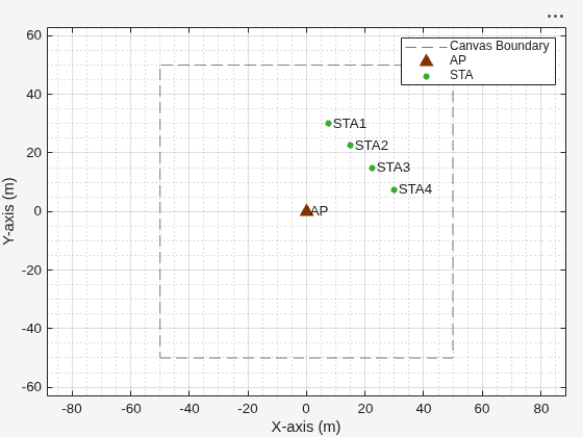
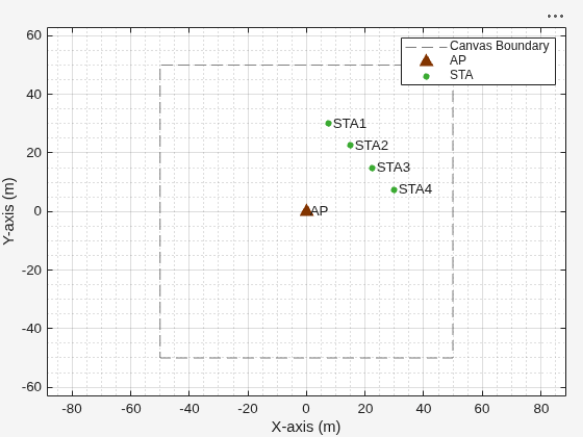
Specify the positions of the AP and STA nodes. The apPosition and staPositions vectors specify the -, -, and - Cartesian coordinates of the AP and STAs, respectively. Units are in meters.
apPosition = [0 0 0];
staPositions = [((30/numSTAs).*(1:numSTAs))' ((30/numSTAs).*(numSTAs:-1:1))' zeros(numSTAs,1)];
To model the scenario, create an AP and four STAs by using wlanNode and wlanDeviceConfig objects. The wlanDeviceConfig object enables you to specify the configuration parameters for the AP and STAs. Create two WLAN device configuration objects, one for the AP and one for the STAs. You can use the same device configuration object for all STAs.
To configure the AP and STAs, set the Mode property of the wlanDeviceConfig object to "AP" and "STA", respectively. Set the StandardCapability property of the AP and STA device configuration objects to "HE" to indicate that they comply with IEEE 802.11ax standard. Set the TransmissionFormat property of the AP to "HE-MU-OFDMA" to use the fixed "HE-MU" PHY format for all data transmissions.
Configure the MCS, DisableRTS, MPDUAggregationLimit and TransmitPower properties of the AP device configuration object.
The example simulates these DL OFDMA frame exchange sequences.
Enable DL MU frames followed by MU block ack request (BAR) trigger frame to simultaneously solicit UL acknowledgment frames from multiple scheduled STAs.
Optionally enables MU request to send request to send (RTS)/clear to send (CTS) exchanges by specifying the
DisableRTSproperty of thewlanDeviceConfigobject tofalse.
This example uses the round-robin scheduling strategy to select STAs for each transmission. The assignment of RUs is fixed for a given number of users and bandwidth.
accessPointCfg = wlanDeviceConfig(Mode="AP",StandardCapability="HE", ...                                   % AP device configuration
    TransmissionFormat="HE-MU-OFDMA", ...
    MCS=8,DisableRTS=true, ...
    MPDUAggregationLimit=5, ...
    TransmitPower=20);
stationCfg = wlanDeviceConfig(Mode="STA",StandardCapability="HE",MPDUAggregationLimit=5);                  % STAs device configuration
To create one AP and four STA nodes from the specified configuration, use the wlanNode objects. Specify the node names, node positions, and device configuration objects. You can use the wlanNode object to create multiple nodes at a time by providing multiple node positions. Specify the PHYModel and MACModel properties of the wlanNode object to configure the PHY and MAC models at the AP and the STAs.
accessPoint = wlanNode(Name="AP", ...
    Position=apPosition, ...
    DeviceConfig=accessPointCfg,...
    PHYModel=phyModel, ...
    MACModel="full-mac-with-frame-abstraction");

stations = wlanNode(Name="STA"+(1:numSTAs), ...
    Position=staPositions, ...
    DeviceConfig=stationCfg, ...
    PHYModel=phyModel, ...
    MACModel="full-mac-with-frame-abstraction");
Create a WLAN network consisting of an AP and four STAs.
nodes = [accessPoint stations];
To visualize the node positions in the Cartesian plane, use the wirelessNetworkViewer object. Initialize the object with an appropriate canvas size. Add the AP and the STAs to the wirelessNetworkViewer object by using the addNodes object function.
networkViewerObj = wirelessNetworkViewer(CanvasSize=[100 100 0]);
addNodes(networkViewerObj,accessPoint,Type="AP");
addNodes(networkViewerObj,stations,Type="STA");
Association
Associate all the STAs to the AP by using the associateStations object function of the wlanNode object.
associateStations(accessPoint,stations);
Application Traffic
Create a networkTrafficOnOff (Wireless Network Toolbox) object, to generate an On-Off application traffic pattern. Configure the On-Off application traffic by specifying the application data rate, packet size, On time, and Off time. Add application traffic from the AP node to each STA node by using the addTrafficSource object function. The addTrafficSource object function copies the application traffic object for each AP-STA pair that exchanges downlink traffic and adds it from the AP node to each STA node.
trafficSource = networkTrafficOnOff(DataRate=100000,PacketSize=100);
addTrafficSource(accessPoint,trafficSource,DestinationNode=stations,AccessCategory=0);
Wireless Channel
To model a random TGax fading channel between each node, this example uses hSLSTGaxMultiFrequencySystemChannel helper object. When you model a fading channel, the probability of packet transmission success depends on these factors.
Quality of the channel between an AP and STA for the selected RU
Modulation and coding scheme (MCS)
In this example, the RU allocation does not consider the quality of the channel between the AP and each STA. Therefore, if the channel quality between an AP and a STA is poor and the selected MCS is high, packet loss is likely to occur.
Add the channel model to the wireless network simulator by using the addChannelModel (Wireless Network Toolbox) object function of the wirelessNetworkSimulator object.
channel = hSLSTGaxMultiFrequencySystemChannel(nodes);
addChannelModel(networkSimulator,channelFunction(channel))
Simulation and Results
Add the nodes to the wireless network simulator.
addNodes(networkSimulator,nodes)
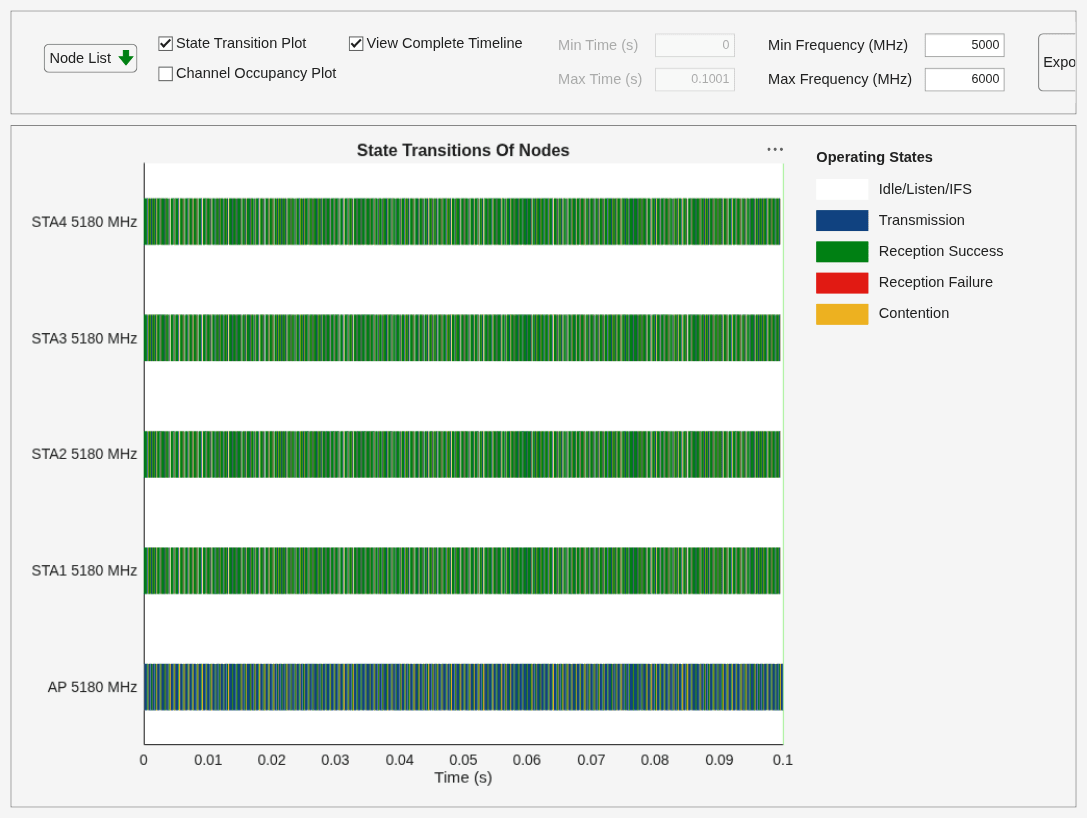
To visualize the packet communication, use the wirelessTrafficViewer object. The visualization shows these plots:
Packet communication over the time domain.
State transitions of each node over time.
To view the state transition plot, set the ViewType property of wirelessTrafficViewer object to "state-transition-plot". Add the nodes to the wirelessTrafficViewer object by using the addNodes object function.
if enablePacketVisualization
    packetVisObj = wirelessTrafficViewer(ViewType="state-transition-plot");
    addNodes(packetVisObj,nodes);
end
To view the node performance visualization, use the helperPerformanceViewer helper object.
perfViewerObj = helperPerformanceViewer(nodes,simulationTime);
Run the network simulation for the specified simulation time. The runtime visualization shows the packet communication for the AP and the STAs.
run(networkSimulator,simulationTime);
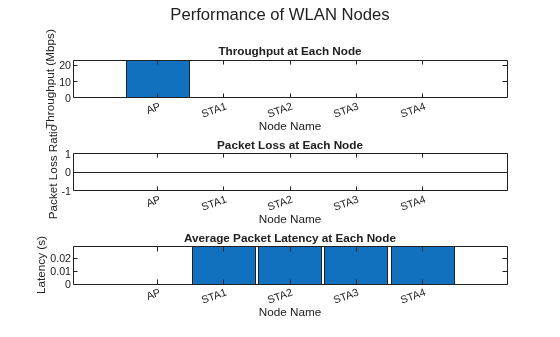
The plotNetworkStats object function displays these simulation plots.
MAC throughput (in Mbps) at each transmitter node (AP).
MAC packet loss ratio (ratio of unsuccessful data transmissions to the total data transmissions) at each transmitter node (AP).
Average application packet latency (in seconds) incurred at each receiver node (STAs). The average application packet latency shows the average latency that each STA incurs to receive the downlink traffic from the AP.
if enableNodePerformancePlot
    plotNetworkStats(perfViewerObj);
end
Retrieve the APP, MAC, and PHY statistics at each node by using the statistics object function of the wlanNode object.
stats = statistics(nodes);
Further Exploration
You can use this example to further explore these functionalities.
Throughput Comparison of OFDM and OFDMA
Generate MAC throughput results of these OFDM and OFDMA transmission scenarios by using the hCompareOFDMvsOFDMAThroughputs helper function.
An AP serving a maximum of 140 STAs with OFDM configuration.
An AP serving a maximum of 140 STAs in an OFDMA configuration.
Plot the throughput results as a function of the number of DL STAs. By default, the hCompareOFDMvsOFDMAThroughputs helper function plots the stored throughput values. To simulate the preceding scenarios again and reproduce the results, set plotStoredThroughputValues to false.
plotStoredThroughputValues =  true;
hCompareOFDMvsOFDMAThroughputs(plotStoredThroughputValues);
true;
hCompareOFDMvsOFDMAThroughputs(plotStoredThroughputValues);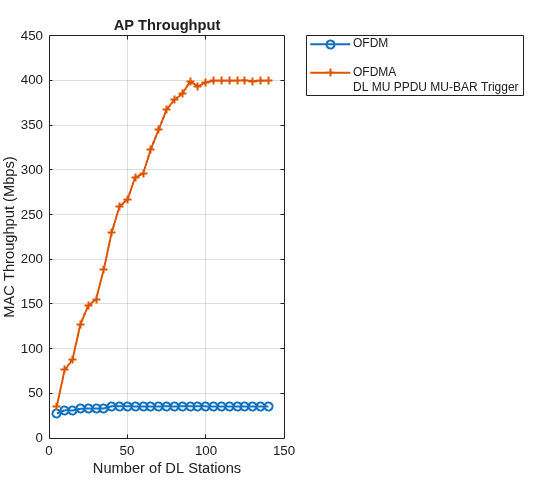
The preceding plot shows the MAC throughput comparison of OFDM and OFDMA. Because of the simultaneous transmissions to multiple users, the throughput obtained by using OFDMA transmission is greater than the throughput obtained by using OFDM transmission. Increasing the number of DL STAs has minimal impact on the OFDM throughput.
Faster Execution Using Parallel Simulation Runs
If you want to run multiple simulations, you can speed up the simulations by enabling parallel computing using the parfor loop. The parfor loop is an alternative to the for loop that enables you to execute multiple simulation runs in parallel, thereby reducing total execution time. To use parfor, you must have a Parallel Computing Toolbox™ license. For more information about running multiple simulations by using a parfor loop, see hCompareOFDMvsOFDMAThroughputs helper function.
Appendix
The example uses these helpers:
hSLSTGaxMultiFrequencySystemChannel— Return a system channel object and set the path loss modelhSLSTGaxAbstractSystemChannel— Return a channel object for abstracted PHY layerhSLSTGaxSystemChannel— Return a channel object for full PHY layerhSLSTGaxSystemChannelBase— Return the base channel objecthCompareOFDMvsOFDMAThroughputs— Retrieve MAC throughput results for OFDM and OFDMA transmission scenarioshelperPerformanceViewer— Return a performance metrics viewer object
References
1. Institute of Electrical and Electronics Engineers (IEEE). IEEE Standard for Information Technology--Telecommunications and Information Exchange between Systems Local and Metropolitan Area Networks--Specific Requirements Part 11: Wireless LAN Medium Access Control (MAC) and Physical Layer (PHY) Specifications Amendment 1: Enhancements for High-Efficiency WLAN. IEEE 802.11ax-2021. IEEE, May 19, 2021. https://doi.org/10.1109/IEEESTD.2021.9442429.
2. Institute of Electrical and Electronics Engineers (IEEE). IEEE Standard for Information Technology--Telecommunications and Information Exchange between Systems Local and Metropolitan Area Networks--Specific Requirements Part 11: Wireless LAN Medium Access Control (MAC) and Physical Layer (PHY) Specifications. IEEE 802.11-2020. IEEE, February 26, 2021. https://doi.org/10.1109/IEEESTD.2021.9363693.
See Also
Functions
Objects
wirelessNetworkSimulator(Wireless Network Toolbox) |networkTrafficOnOff(Wireless Network Toolbox) |wlanNode|wlanDeviceConfig

