Introduction to Custom OFDM on NI USRP Radio
This example shows how to deploy and verify a custom orthogonal frequency division multiplexing (OFDM) transceiver on the FPGA of an NI™ USRP™ radio.
Workflow
In this example, you follow a step-by-step guide to generate a custom FPGA image from a Simulink® model and deploy it on an NI USRP radio by using a generated MATLAB® host interface script.
For more information about how to prototype and deploy software-defined radio (SDR) algorithms on the FPGA of an NI USRP radio, see Target NI USRP Radios Workflow.
Design Overview
The example implements a transmitter and receiver for a custom OFDM communications system. It uses the algorithm from the Introduction to Custom OFDM (Wireless HDL Toolbox) example and provides an additional wrapper that enables you to generate a bitstream suitable for deployment on the FPGA of an NI USRP radio.
The algorithm sends an OFDM signal to the radio for transmission. It then receives the transmitted signal and decodes the data, which it sends to the host as a constellation through the onboard PL DDR buffer.
On the host, you visualize the constellation and calculate the error vector magnitude (EVM) to verify the accuracy of the demodulated OFDM data.
Requirements
To target NI USRP radio devices with Wireless Testbench™, you must install and configure third-party tools and additional support packages.
For details about which NI USRP radios you can target, see Supported Radio Devices.
Note
Generating a bitstream with this workflow is supported only on a Linux® operating system (OS). For details about host system requirements, see System Requirements.
For details about how to install and configure additional support packages and third-party tools, see Installation for Targeting NI USRP Radios.
Note
If you use this example with a USRP E320 radio, some verification modes are not supported due to hardware limitations.
You cannot use this example with a USRP X310 radio with TwinRX daughterboards. The design in this example requires a transmit path.
Set Up Environment and Radio
Set up a working directory for running the example by using the
openExample function in MATLAB. This function downloads the example files into a subfolder of the
Examples folder in the currently running release and then opens the
example. If a copy of the example exists, openExample opens the existing
version of the example.
openExample("wt/IntroToCustomOFDMOnNIUSRPRadioExample")The working directory contains all the files you need to use this example, including helper functions and files. The files you interact with are:
wtCustomOFDMSL.slx— The Simulink hardware generation model. This model includes the design under test (DUT) subsystem, which implements a simple gain algorithm, and additional subsystems than enable you to simulate the DUT behavior.IntroToCustomOFDMOnNIUSRPRadioExample.m— The MATLAB script that you can use to simulate the behavior of the Simulink model before you generate HDL code.VerifyCustomOFDMAlgorithmUsingMATLABExample.m— The live script that you use in MATLAB to verify the algorithm running on your radio.
To program the FPGA on your radio with the bitstream that you generate in this example, and to verify the algorithm running on your radio, use the Radio Setup wizard to connect and set up your radio.
Simulink Hardware Generation Model
The Simulink model in this example is a hardware generation model of an SDR algorithm. Using the HDL Code tab in the Simulink Toolstrip or the HDL Workflow Advisor, you can generate a custom HDL IP core from the model, then generate a bitstream and load it onto the FPGA on your radio. You can then generate a host interface script that provides the MATLAB code you need to interact with the hardware.
Open Model
The Simulink model implements the custom OFDM transceiver using a hardware modeling style and uses blocks that support HDL code generation. It uses fixed-point arithmetic and includes control signals to control the flow of data through the model.
Open the model from MATLAB.
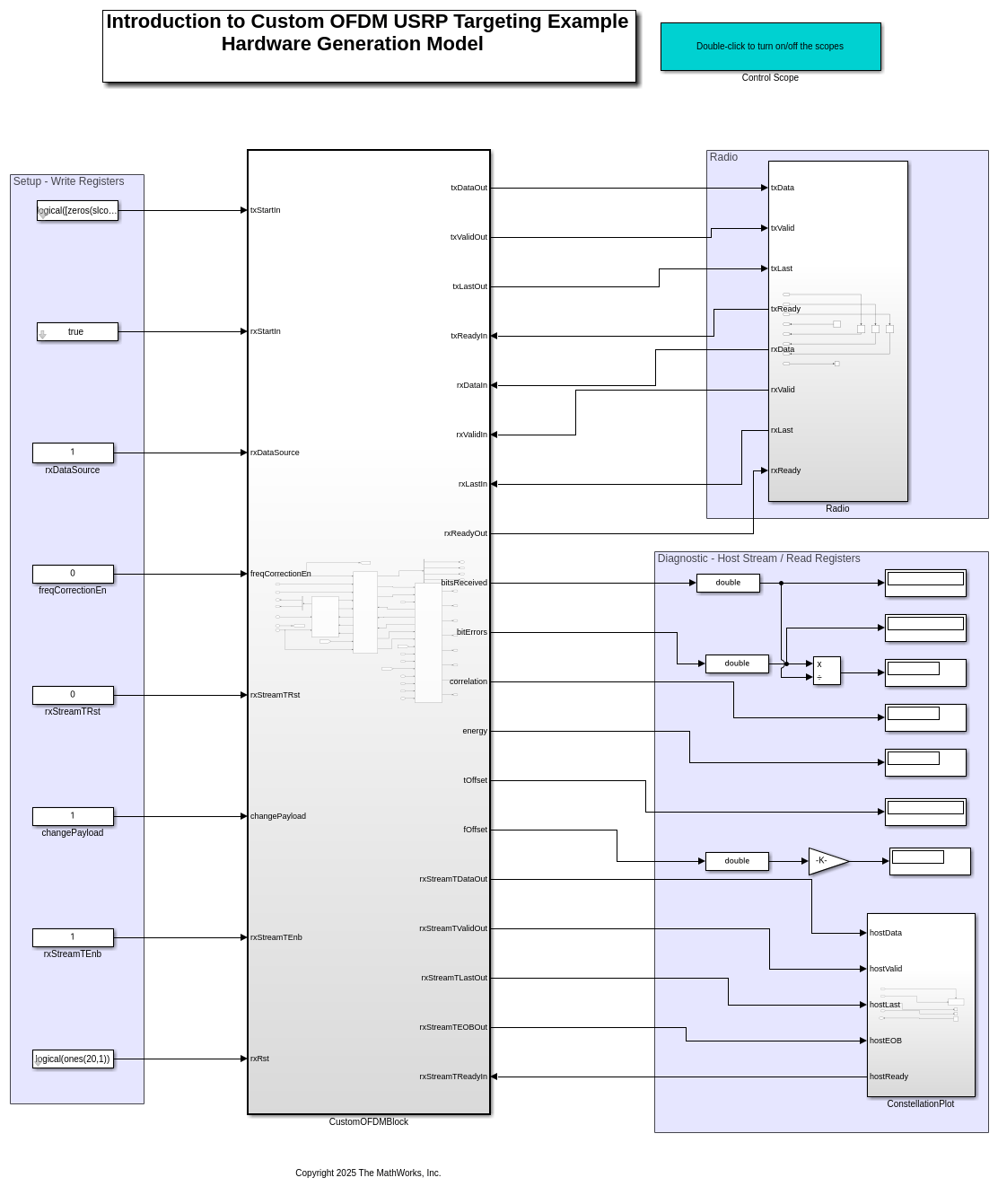
The top-level model generates input data for and reads and plots output data from the CustomOFDMBlock subsystem.
Open the CustomOFDMBlock subsystem. This subsystem is the DUT that you generate HDL code for in this example.
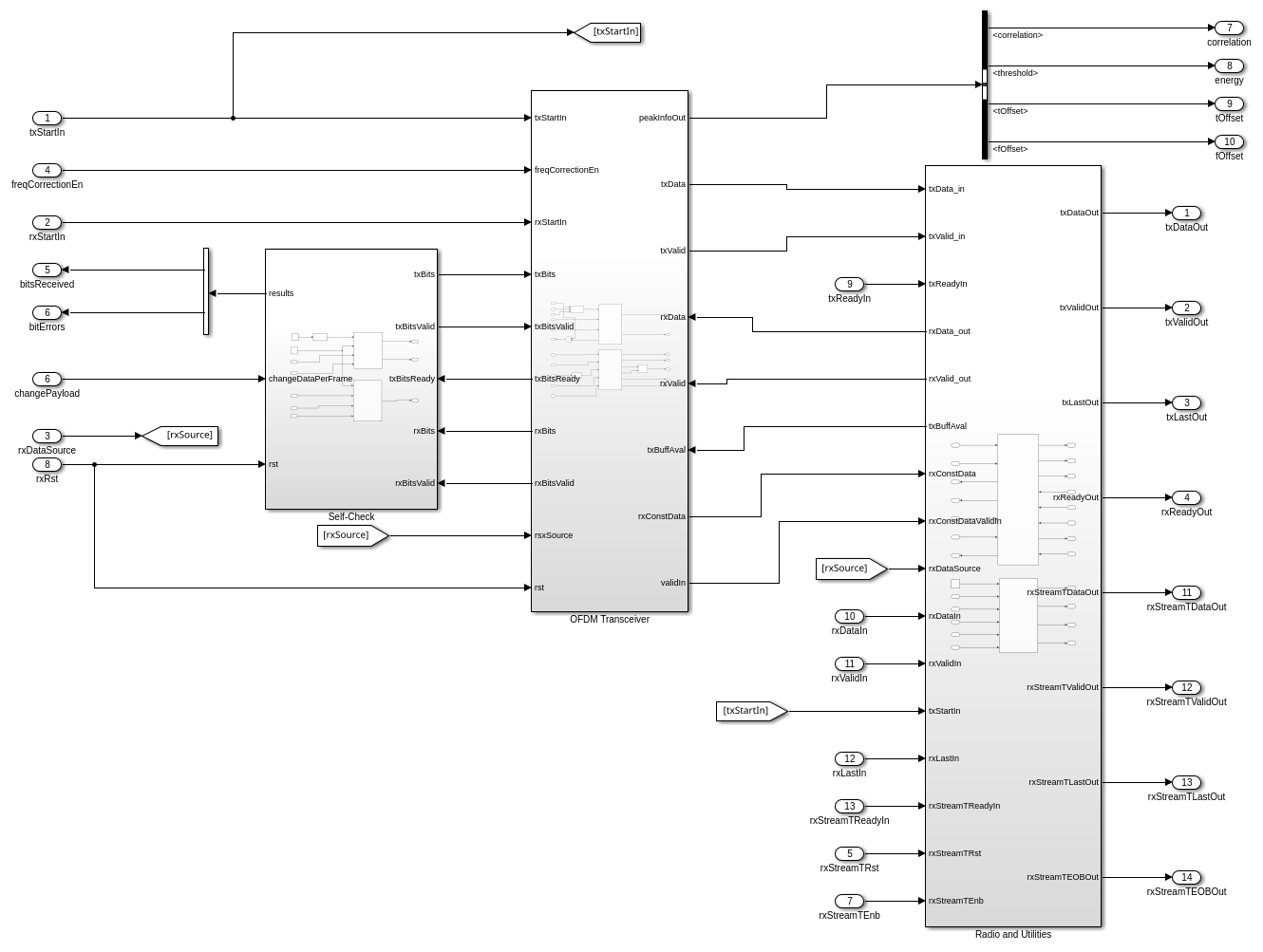
The CustomOFDMBlock subsystem contains three subsystems:
The
OFDM Transceiversubsystem implements the algorithm from the Introduction to Custom OFDM (Wireless HDL Toolbox) example, which includes an OFDM transmitter and receiver.The
Radio and Utilitiessubsystem manages the transmission and reception of data to and from the radio by buffering and controlling data flow to prevent overflows or underflows.The
Self-Checksubsystem checks if the OFDM data is decoded correctly. You can check how many bits are received from the bitsReceived register and number of error bits from the bitErrors register.
Open the Radio and Utilities subsystem.
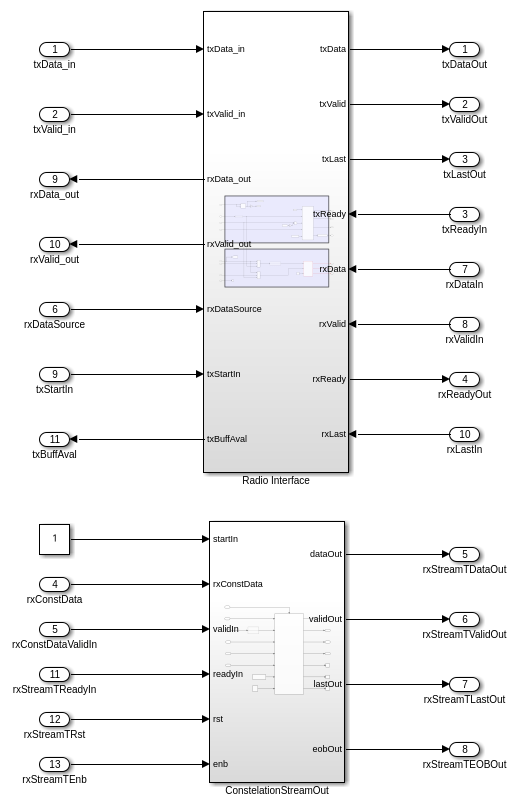
The Radio and Utilities subsystem contains the Radio Interface subsystem and the ConstellationStreamOut block.
The Radio Interface| subsystem contains a transmit path and a receive path.
In the transmit path, the generated OFDM signal is sent to the RadioOutputController block. This block buffers the data and sends it to the radio transmitter. The block monitors the amount of data in the buffer and controls the speed of the transmitted data to avoid overflows or underflows at the radio transmitter.
In the receive path, you can select to either loop back data directly from the output of the transmitter, or to transmit and capture the data over the air. The Prebuffer block buffers and reshapes the input samples for processing in the DUT.
The ConstellationStreamOut block in the Radio and Utilities subsystem uses the Data Packager block to format the constellation data into packets that conform with the simplified AXI-stream protocol. For more information, see Simplified AXI-Stream Protocol. The packetized data is sent to the host.
The Prebuffer and Data Packager blocks are in the targetingLib library. To locate this library, use the which function.
Configure IP Core
When you are satisfied with the simulated behavior of the model, you can proceed to integrate your design into a custom IP core by generating HDL code and mapping the model inputs and outputs to the hardware interfaces.
First, use the hdlsetuptoolpath (HDL Coder) function to set up the
tool chain. Specify the path to your Vivado® bin directory. For more information, see Set Up Third-Party Tools.
hdlsetuptoolpath('ToolName','Xilinx Vivado', ...
    'ToolPath','/opt/Xilinx/Vivado/2021.1/bin');
From the Apps tab in the Simulink Toolstrip, select HDL Coder. Then open the HDL Code tab.
Configure Output Options
In the HDL Code tab, configure the output options:
Ensure the
CustomOFDMBlocksubsystem is pinned in the Code for option. To pin this selection, select theCustomOFDMBlocksubsystem in the Simulink model and click the pin icon.Select IP Core as the Output > IP Core option.

Configure HDL Code Generation Settings
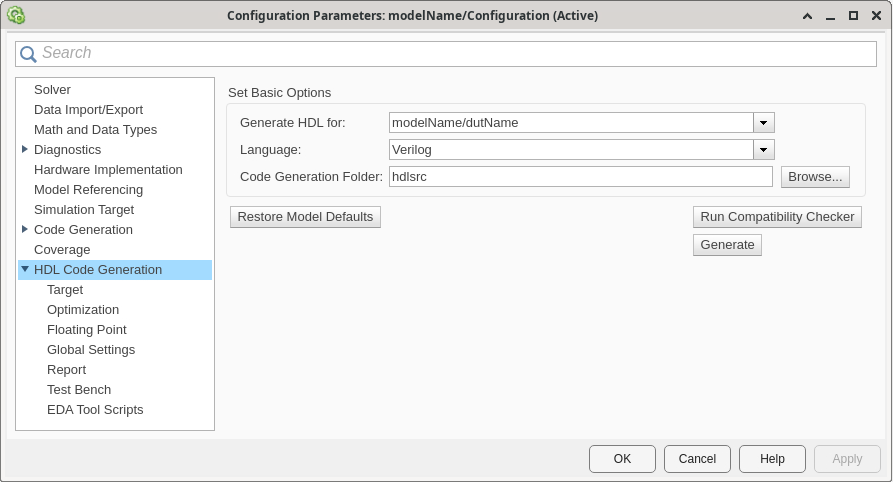
Open the Configuration Parameters dialog box by clicking Settings in the HDL Code tab.
In the HDL Code Generation pane, ensure that Language is set to Verilog. By default, HDL Coder generates the Verilog® files in the hdlsrc folder. You can select an alternative location. If you make any changes, click Apply.
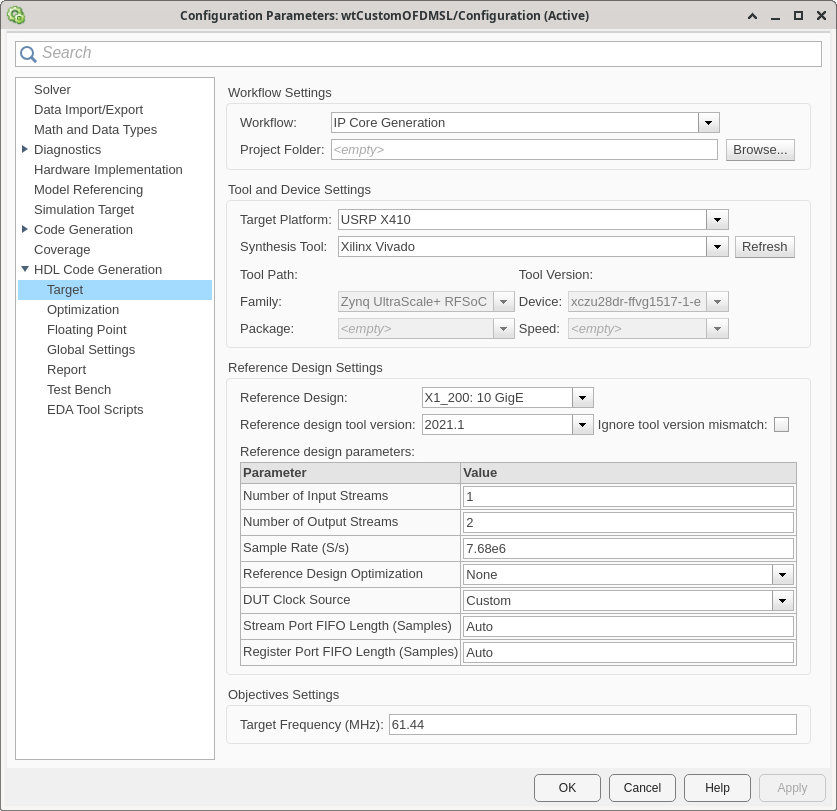
In the Target pane, configure these settings:
Under Workflow Settings, select the
IP Core
                        Generation
workflow. To set Project Folder, click Browse and select a target location for saving the generated project files. If you do not specify a project folder, the software saves the generated project files in the working directory.Under Tool and Device Settings, select your radio from the Target Platform list. This example uses a USRP X410 radio. If you are using a different radio, adjust the reference design parameters accordingly.
Under Reference Design Settings, set Reference Design to the desired reference FPGA image for your design, based on how you set up your hardware. For a USRP X410 radio, you have one option:
X1_200: 10GigE.Set the reference design parameters to these values:
Number of Input Streams — Set to
1because the DUT is connected to one data input streams.Number of Output Streams — Set to
2because the DUT is connected to one transmit antenna and one data output stream to the host.Sample Rate (S/s) — Set to
7.68e6, which is the bandwidth of the custom OFDM signal. To determine which sample rates are available for your radio, see Determine Radio Device Capabilities.Reference Design Optimization — Set to
None. The design in this example does not require optimizations to meet timing constraints.DUT Clock Source — Set to
Customso that you can set a custom Target Frequency of 61.44 MHz under Objectives Settings. For more information, see Configure HDL Code Generation Settings. If you are using a USRP E320 radio, set this value toRadiobecause the master clock rate is 61.44 MHz.Stream Port FIFO Length (Samples) — Set to
Auto. This setting automatically calculates the buffer length for each DUT input and output data streaming port.Register Port FIFO Length (Samples) — Set to
Auto. This setting automatically calculates the buffer length for each DUT register port.
Under Objective Settings, set Target Frequency to
61.44.
Click Apply.
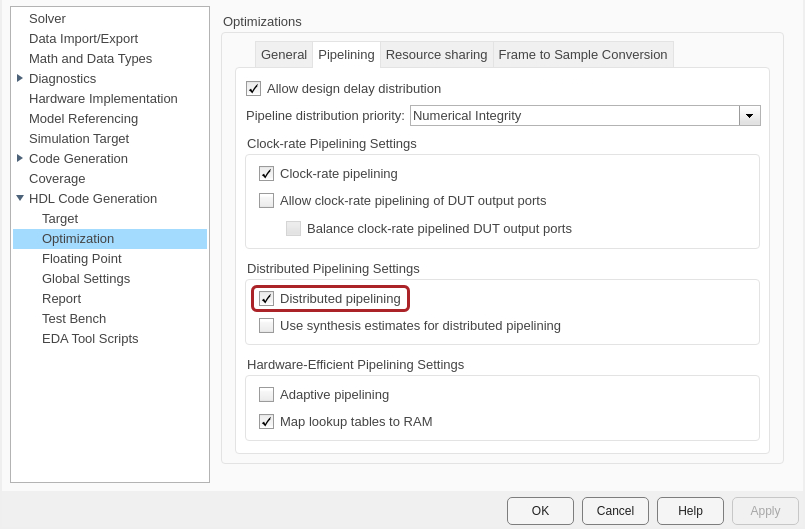
In the Optimization pane, select Distributed pipelining.
To apply these settings and close the Configuration Parameters window, click OK.
For more information, see Configure HDL Code Generation Settings.
Map Target Interfaces
In the HDL Code tab, click Target Interface
to open the Interface Mapping table in the IP Core editor. To
populate the table with your user logic, click the Reload IP core settings button:  .
.
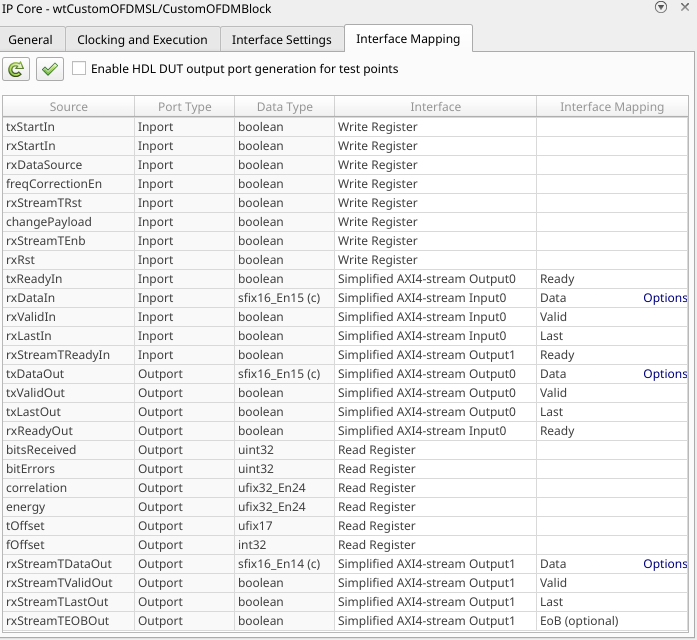
The Source, Port Type, and Data Type columns are populated based on the Simulink model. The Interface column automatically populates based on the port names in your model:
The input register ports map to
Write Registerinterfaces.The output register ports map to
Read Registerinterfaces.The
rxDataIn,rxValidIn,rxLastIn, andrxReadyOutports map to aSimplified AXI4-stream Input0interface.The
txDataOut,txValidOut,txLastOut, andtxReadyInports map to aSimplified AXI4-stream Output0interface.The
rxStreamTDataOut,rxStreamTValidOut,rxStreamTLastOut,rxStreamTEOBOut, andrxStreamTReadyInports map to aSimplified AXI4-stream Output1interface.
The Interface Mapping column is populated automatically based on the port names in the model.
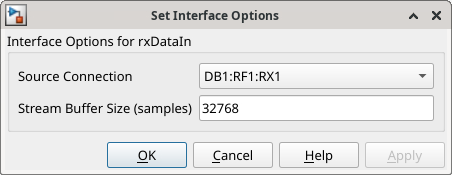
To set the interface options for the streaming interfaces, open the Set Interface Options window by clicking Options in the far right of the table.
For the rxDataIn options, select a receive antenna as the source
connection. The DUT receives input samples from this antenna on the radio. Set the
stream buffer size to 32768, which is the default setting. The buffer
size must be a power of two to ensure optimal use of the FPGA RAM resources. The buffer
size is specified in terms of the number of samples, with each sample having a size of 4
bytes.
For the txDataOut options, select a transmit antenna as the sink
connection.
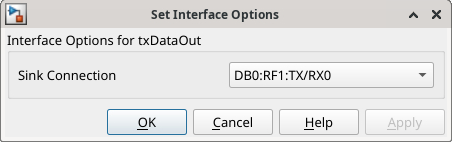
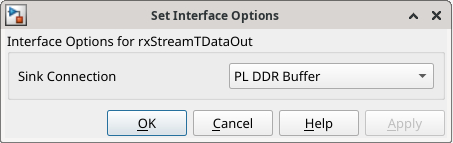
For the rxStreamTDataOut options, select the PL DDR buffer as the
sink connection. The DUT streams samples first to the onboard radio memory buffer, then
to MATLAB for post-processing.
When you have populated the table, validate the interface mapping by clicking the
Validate IP core settings button:  .
.
For more information, see Map Target Interfaces.
Generate and Load Bitstream
To generate a bitstream from the configured IP core, first open the deployment settings from the Build Bitstream button.
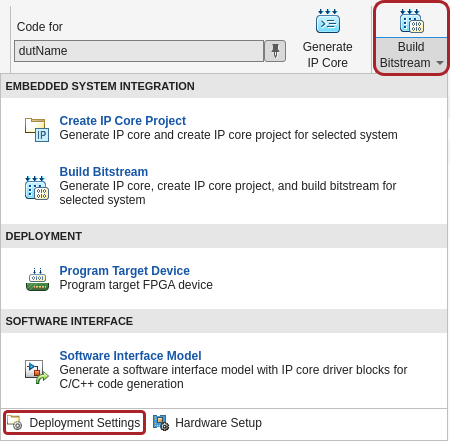
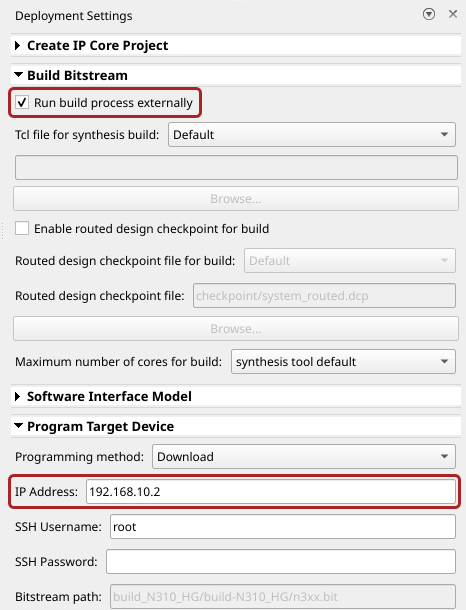
Ensure that the Run build process externally option is selected. This setting is the default and it ensures that the bitstream build executes in an external shell, which allows you to continue using MATLAB while building the FPGA image.
In the Program Target Device settings, set the IP address. The default is
192.168.10.2. If your radio has a different IP address, update this field with the correct value.
Click Build Bitstream to create a Vivado IP core project and build the bitstream. After the basic project checks
complete, the Diagnostic Viewer displays a Build Bitstream Successful
message along with warning messages. However, you must wait until the external shell
displays a successful bitstream build before moving to the next step. Closing the external
shell before this time terminates the build.
The bitstream for this project generates with the name x4xx.bit and
is located in the build_X410_X1_200/build-X410_X1_200 folder of the
working directory after a successful bitstream build. If you are using a different radio,
the name and location reflects your radio.
To load the bitstream onto the device now, click Program Target
Device from the Build Bitstream button.
Alternatively, you can load the bitstream later by using the programFPGA
function in the generated host interface script.
For more information, see Generate Bitstream and Program FPGA.
Generate Host Interface Scripts
To generate MATLAB scripts that enable you to connect to and run your deployed design on your radio, in the HDL Code tab, click Host Interface Script. This step generates two scripts in your working directory based on the target interface mapping that you configured for your IP core.
gs_wtCustomOFDMSL_interface.m— Host interface script that creates anfpgaobject for interfacing with your DUT running on the FPGA from MATLAB. The script contains code that connects to your hardware and programs the FPGA and code samples to get you started with running the algorithm on your radio. For more information, see Interface Script File.gs_wtCustomOFDMSL_setup.m— Setup function that configures thefpgaobject with the hardware interfaces and ports from your DUT algorithm. The function contains DUT port objects that have the port name, direction, data type, and interface mapping information, which it maps to the corresponding interfaces. For more information, see Setup Function File.
Edit Setup Function File
In the generated setup function file, the streaming interfaces are configured with
the default frame, which is 1e5 samples. Before you run the host interface script,
manually update the frame size to 3e5 by following these steps.
Open the setup function file for edit.
edit gs_wtCustomOFDMSL_setup.mIdentify the call to the
addRFNoCStreamInterfacefunction for the data output port.Update the
FrameSizevalue to3e5.
RX_STREAM0_FrameSize = 3e5;
Verify Custom OFDM Algorithm Using MATLAB
To verify the algorithm running on your radio, use this modified version of the host interface script to transmit test data from MATLAB, loop back the data to the DUT on the FPGA, then plot the output.
Open Live Script
You can open this live script in MATLAB from the example working directory and use it interactively. In the Files panel, navigate to your example working directory and open VerifyCustomOFDMAlgorithmUsingMATLABExample.m.
Select Radio
Call the radioConfigurations function. The function returns all available radio setup configurations that you saved using the Radio Setup wizard.
savedRadioConfigurations = radioConfigurations;
To update the menu with your saved radio setup configuration names, click Update. Then select the radio to use with this example.
savedRadioConfigurationNames = [string({savedRadioConfigurations.Name})];
radio =  savedRadioConfigurationNames(1)
 ;
;Evaluate the transmit and capture antennas available on your radio device. You select DUT input and output antenna connections from the available options later in the script.
transmitAntennas = hTransmitAntennas(radio);
receiveAntennas = hCaptureAntennas(radio);
Create usrp System Object
Create a usrp System object™ with the specified radio. This System object controls the radio hardware. Store the System object in a structure named deviceConfig.
deviceConfig.hDevice = usrp(radio);
Program FPGA
If you have not yet programmed your device with the bitstream, select the load bitstream option to use the programFPGA function. Update the code with your bitstream and device tree file. You can find these files in the programFPGA call in the generated host interface script, gs_wtCustomOFDMSL_interface. If your radio is a USRP X310, you need only a bitstream file to program the FPGA.
loadBitstream =false; if(loadBitstream) programFPGA(deviceConfig.hDevice, ... "build_X410_X1_200/build-X410_X1_200/x4xx.bit", ... % replace with your .bit file "build_X410_X1_200/build/usrp_x410_fpga_X1_200.dts"); % replace with your .dts file end
To configure the DUT interfaces according to the hand-off information file, use the describeFPGA function. Calling this function additionally sets the default values for the SampleRate, DUTInputAntennas, and DUTOutputAntennas properties based on the selections you made in Simulink.
% Replace with your hand-off information file
describeFPGA(deviceConfig.hDevice, ...
    "wtCustomOFDMSL_wthandoffinfo.mat");
Configure Device
Configure the sample rate, center frequency, gains, and antennas on the usrp System object .
Set the sample rate, center frequency, and transmit and receive gain. The design requires an input sample rate of 7.68 MS/s.
deviceConfig.hDevice.SampleRate = 7.68e6;
deviceConfig.hDevice.ReceiveCenterFrequency = 2.45e9;
deviceConfig.hDevice.TransmitRadioGain = 25;
deviceConfig.hDevice.ReceiveRadioGain = 25;
Select transmit and receive antennas from the dropdown menus.
deviceConfig.hDevice.DUTInputAntennas =receiveAntennas(1); deviceConfig.hDevice.DUTOutputAntennas =
transmitAntennas(1);
Create and Set Up FPGA Object
To connect to the DUT on the FPGA of your radio, create an fpga object with the your usrp System object device.
deviceConfig.hFPGA = fpga(deviceConfig.hDevice);
Set up the fpga object using the generated setup function, gs_wtCustomOFDMSL_setup. If you have not updated this file to set the frame size to 3e5, return to Edit Setup Function File.
gs_wtCustomOFDMSL_setup(deviceConfig.hFPGA);
Verify Design
Four verification modes enable you to verify different configurations of the hardware implementation.
Deploy Transmitter and Post Process In MATLAB – Use this setup to verify the transmitter implementation.
Transmit Repeat and Deploy Receiver – Use this setup to verify the receiver implementation.
Deploy Transmitter and Receiver – Use this setup to verify the transmitter and receiver implementation in the presence of real-world impairments. This is the verification mode used in this example.
Deploy Transmitter and Receiver in Internal Loopback – Use this setup to verify the transmitter and receiver design only on hardware.
To run these verification modes, use the hVerifyCustomOFDM helper function with the verification mode as the first input argument.
Deploy Transmitter and Post-Process in MATLAB
To verify the transmitter alone running in real-time on the FPGA, set the verification mode to Tx Only. In this configuration, the transmitted data is read directly from the receiver to MATLAB for post-processing.
This verification mode is not supported on USRP E320 radios.
Transmit Repeat and Deploy Receiver
To verify the receiver alone running in real-time on the FPGA, set the verification mode to Rx Only. In this configuration, the host transmits data continuously and the radio receives data to the DUT, where the algorithm demodulates the OFDM data and sends it to MATLAB for post-processing.
This verification mode is not supported on USRP E320 radios.
Deploy Transmitter and Receiver
To verify the full transceiver design running in real-time on the FPGA, set the verification mode to Tx and Rx. In this configuration, the DUT sends OFDM data to the radio for transmission, the radio receives the data and sends it back to the DUT, where the algorithm demodulates the data and sends it back to the host for post-processing.
Deploy Transmitter and Receiver with Internal Loopback
To verify the full transceiver design running in real-time on the FPGA without sending and receiving data to and from the radio, set the verificationMode value to Internal Loopback. In this configuration, the DUT transmitter output is connected directly back to the receiver input, where the algorithm demodulates the OFDM data and sends it to MATLAB for post-processing. The radio is not used.
Apply Verification Mode
Select a verification mode. For example, to verify both the transmitter and receiver running in real time on the FPGA, set the verification mode to Tx and Rx.
verificationMode =  "Tx and Rx" ;
Set the loopback mode to FPGA. This means that the data is not transmitted and receiver over the air from the radio antennas, avoiding noise from the analog to digital converter (ADC) and any other environmental noise.
deviceConfig.LoopbackMode =  "FPGA";
Use the hApplyVerifyMode helper function to configure the control registers for this verification setup based on the verification mode you select in the verificationMode variable.
deviceConfig = hApplyVerifyMode(verificationMode,deviceConfig,radio);

Run Verification and Plot Constellation Diagram
Use the hVerifyCustomOFDM helper function to verify the results from hardware. This function does the following:
Configures the transmitter and receiver connections based on the selected verification mode.
Runs the algorithm on your radio.
Sends and receives signals to the radio or algorithm, or both, depending on the verification mode.
Displays the number of bits received and the number of error bits.
Returns the constellation data to the workspace.
data = hVerifyCustomOFDM(verificationMode,deviceConfig);
Number of bits received: 10963626
Number of error bits: 0
Plot the constellation diagram.
constDiagram = comm.ConstellationDiagram( ...
    ShowReferenceConstellation=true,EnableMeasurements=true);
constDiagram(data);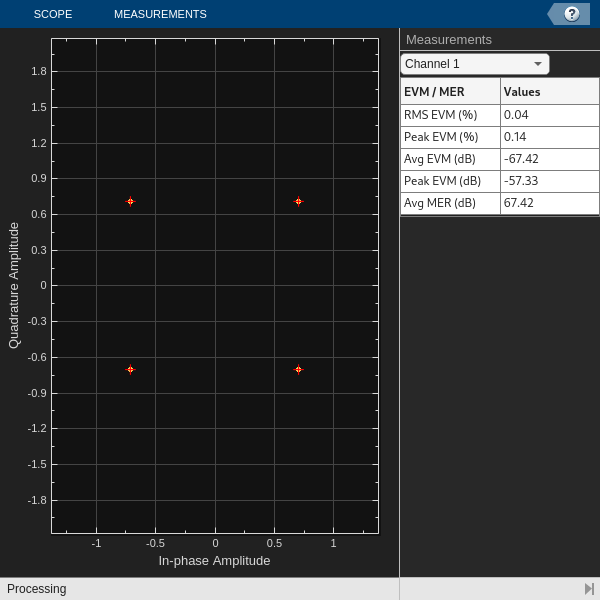
Release Hardware Resources
Release the device System object and the fpga object to disconnect from the hardware.
release(deviceConfig.hFPGA);
release(deviceConfig.hDevice);

