Convert Tire Model for Use in Supported Simulink Block
R2026bUse the Tire Manager app to convert a tire model for use in a Simulink® block. In this example, you convert a Magic Formula 5.2 example tire model to Magic Formula 6.2, and then export the converted tire model parameters to a Combined Slip Wheel 2DOF block.
Download Example Tire Model File
The mf52_example_model.tir file contains the tire model to import to the Tire Manager app.
Launch Tire Manager
Open the Tire Manager app in MATLAB®. On the Apps tab, under Automotive, click the Tire Manager icon. Alternatively, enter this command in the MATLAB Command Window.
tireManager
Import and Convert Tire Model
Import the Magic Formula 5.2 example tire model and convert it to Magic Formula 6.2.
Navigate to the Main tab in the Tire Manager app toolstrip and click Import. Then, to import the tire model, click Import TIR file.
Import the
mf52_example_model.tirfile.Select the tire model in the Workspace tree.
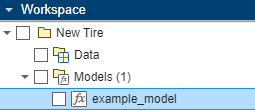
Click Convert, and then select Convert to MF6.2 Model.
Click Convert.
Compare Original Tire Model to Converted Tire Model
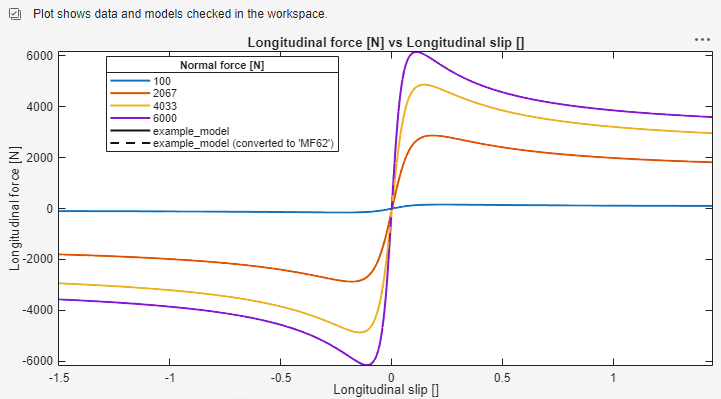
Compare the longitudinal force versus longitudinal slip plots for the original and converted tire models to verify that the results match expectations.
Select the tire model folder in the Workspace tree.
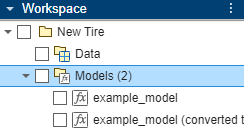
Click New Plot. Then, in the Combined Slip: Common 2-D Plot Templates section, select Fx vs Kappa. The plot document opens with the tire models selected in the Workspace tree and overlaid on the plot.
Verify the output. In this example, the model responses for each tire model are identical, so the original and converted responses are directly overlaid on the plot.
Export to Simulink Block
Export the converted tire model parameter values to the Combined Slip Wheel 2DOF block.
Open the
tm62_export_to_block.slxmodel file containing the Combined Slip Wheel 2DOF block.Select the Combined Slip Wheel 2DOF block in the model.
Select the converted tire model in the Workspace tree.
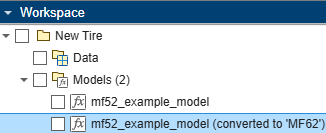
In the Tire Manager app toolstrip, click Set to Block. The block path automatically populates in the Set to Block dialog box.
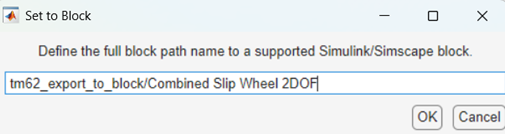
Click OK.
See Also
tireData | tireModel | convert

