Direct File Log Import into the Simulation Data Inspector Using Simulink Real-Time
R2026bThis example shows how to directly import Simulink® Real-Time™ file log data into the Simulation Data Inspector by using the Import File Log user interface or by using the import function.
This approach is useful when importing file log data after reconnecting a standalone target computer to a development computer or when more control is needed compared to automatic file log import. For an overview of all ways to import file log data, see Import File Log Data from Speedgoat Target Computer.
Generate File Logs for Import
Create a Target object for the default target computer and connect to the target computer. In the MATLAB® Command Window, type:
tg = slrealtime;
connect(tg);
Open the model slrt_ex_osc. Configure the model for the connected target computer.
model = 'slrt_ex_osc';
open_system(model);
modelSTF = getSTFName(tg);
set_param(model,'SystemTargetFile',modelSTF);
Build the model.
evalc('slbuild(model)');Rather than use the default, automatic import of file logs into the Simulation Data Inspector at the end of a real-time application simulation run, this example disables the automatic import to imitate a situation in which a standalone target computer is not connected to a development computer.
Using the Target object tg, load and start the real-time application for multiple runs runs with different values for the Transfer Fcn block C parameter. Set the maximum number of logs to be retained, and suppress automatic import of the generated file logs.
load(tg,model);
start(tg,AutoImportFileLog=false,FileLogMaxRuns=4);
while ~strcmp(tg.status,'stopped')
    pause(0.1);
end
load(tg,model);
setparam(tg,'slrt_ex_osc/Transfer Fcn','C',-100);
start(tg,AutoImportFileLog=false,FileLogMaxRuns=4);
while ~strcmp(tg.status,'stopped')
    pause(0.1);
end
load(tg,model);
setparam(tg,'slrt_ex_osc/Transfer Fcn','C',-50);
start(tg,AutoImportFileLog=false,FileLogMaxRuns=4);
while ~strcmp(tg.status,'stopped')
    pause(0.1);
end
List and Inspect Available File Logs on Target
Open the Import File Log dialog box. In the Simulink editor, click Import File Log from the Review Results section of the Real-Time tab. Or, in the MATLAB Command Window, type openImportDialog(tg.FileLog).
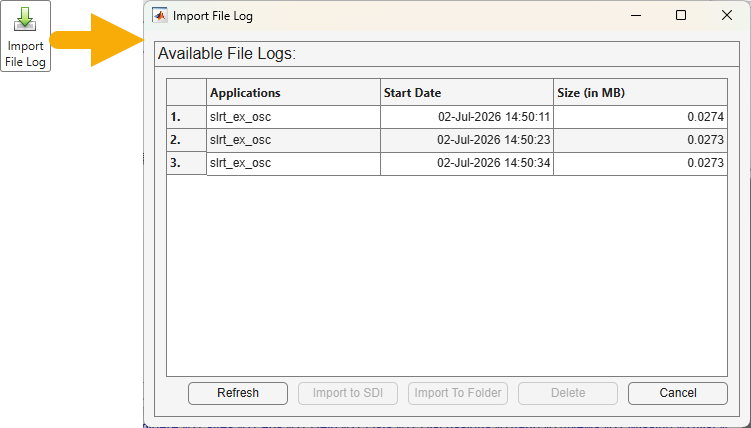
The Import Log File dialog box displays the available log files, including their recording start date and size. Alternatively, inspect the file logs available on the target by using the list function:
my_run_info = list(tg.FileLog)
my_run_info = 3×3 table
           Application          StartDate          Size (in MB)
          _____________    ____________________    ____________

    1.    "slrt_ex_osc"    08-Jul-2026 19:50:24      0.040672
    2.    "slrt_ex_osc"    08-Jul-2026 19:51:11      0.040639
    3.    "slrt_ex_osc"    08-Jul-2026 19:51:22      0.040648
Import File Logs into the Simulation Data Inspector
To import logs into the Simulation Data Inspector using the Import Log File dialog box, select one or more logs to import and click Import to SDI. The logs are imported to the Simulation Data Inspector.
Alternatively, import file logs for the real-time application slrt_ex_oscinto the Simulation Data Inspector by using the import function.
import(tg.FileLog,'slrt_ex_osc');Importing Log file 1 of 3 ... Importing Log file 2 of 3 ... Importing Log file 3 of 3 ...
Open the Simulation Data Inspector to view the imported data.
Simulink.sdi.view
By default, the Simulation Data Inspector only shows the latest file log run and moves older file log runs to the archive. You can use Simulink.sdi.setAutoArchiveMode to change this behavior.
Note: No local copy of the Parquet format files is retained when using direct import into the Simulation Data Inspector. To import Parquet format files, use an import to folder operation, as shown in Import File Log Data as Parquet Format Files Using Simulink Real-Time.
Delete File Logs from Target Computer
This example set the maximum number of logs to retain on the target computer by using the start(tg) command FileLogMaxRuns option. To delete specific file logs from the target file system, select one or more logs in the Import Log File dialog box and click Delete. Alternatively, you could remove all file logs for the real-time application slrt_ex_osc by using the discard function:
discard(tg.FileLog,'slrt_ex_osc');
See Also
import | openImportDialog | parquetread | start

