Prepare Model for Test Generation Analysis
R2026bPrepare the model sldvexCruiseControl for test generation analysis by configuring model settings with Simulink® Design Verifier™ analysis.
Configure Model Settings
1. Open the model.
open_system("sldvexCruiseControl");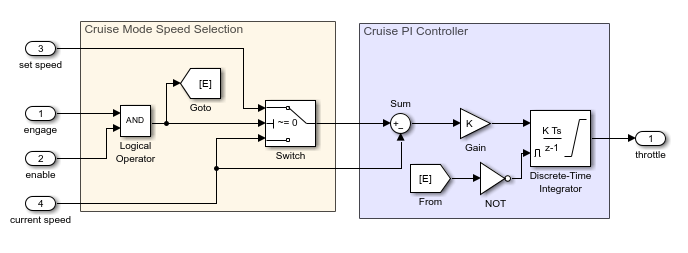
2. On the Apps tab, in the Apps gallery, select Design Verifier.
3. On the Design Verifier tab, in the Prepare section, from the drop-down menu for the mode settings, click Settings.
4. In the Configuration Parameters dialog box, select Solver pane. In the Solver selection section:
Set the Type option to
Fixed-step.Set the Solver option to
discrete (no continuous states).
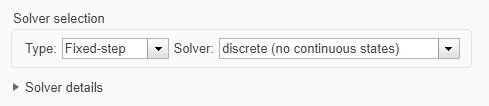
Simulink Design Verifier analyzes only models that use a fixed-step solver. For more information, see Fixed-Step Solvers in Simulink.
Check Compatibility of Model
When you analyze a model, Simulink Design Verifier performs a compatibility check first. The model is compatible for the analysis when compiles with no errors. If your model is not compatible, the software cannot analyze it.
You can check the compatibility of model before the analysis. In the Simulink Editor, on the Design Verifier tab, click Check Compatibility.
You can analyze a model that contains at least one object that Simulink Design Verifier does not support. By default, Simulink Design Verifier analysis stubbed out the incompatible block, and the results of the analysis might be incomplete. For detailed information about automatic stubbing, see Handle Model Complexities with Automatic Stubbing.
If the model is incompatible with Simulink Design Verifier, you can identify and fix the incompatibilities through the Diagnostic Viewer messages. For more information, see Systematic Diagnosis of Errors and Warnings.

