Import, Export, and Share Simulation Data
R2026bYou can import data into the Simulation Data Inspector from files or from the MATLAB workspace to visualize, compare, and analyze data alongside logged simulation results. The Simulation Data Inspector supports import from files such as CSV files, Microsoft® Excel® files, MDF files, MLDATX files, and Parquet files (since R2026b). You can also write custom file and workspace readers to import data in other formats.
To save and share your data and analysis results, export run data and signal data to MAT files, Microsoft Excel files, Parquet files (since R2026a), CSV files (since R2026b), or VCD files (since R2026b). You can also save and load Simulation Data Inspector sessions to preserve both your data and plot appearance.
To share results with collaborators who do not have MATLAB, create a Simulation Data Inspector report. Viewing the report requires only a web browser. For comparison results, you can also create an interactive comparison report, which allows you to analyze the comparison similarly to how you would in the Simulation Data Inspector.
Tools
Functions
Objects
matlab.io.datastore.MLDATXSignalDatastore | Datastore for data saved in MLDATX file (Since R2026a) |
mldatx.io.File | Reference to runs in MLDATX file (Since R2026a) |
mldatx.io.Signal | Reference to signal in MLDATX file (Since R2026a) |
io.reader | Base class used to define custom variable or file reader for Simulation Data Inspector |
matlab.io.datastore.sdidatastore | Datastore for Simulation Data Inspector signals |
Simulink.sdi.DatasetRef | Access data in Simulation Data Inspector repository |
Simulink.HMI.InstrumentedSignals | Save and restore signal logging specification |
Simulink.sdi.WorkerRun | Access simulation data from parallel workers |
Topics
Import Data into Simulation Data Inspector
- Import Data from Workspace or File into Simulation Data Inspector
You can import data into the Simulation Data Inspector from the base workspace or from a file. - Import Data Using Custom File Reader
Write a custom file reader to import data from a file saved using a proprietary data or file format. - Import Workspace Variables Using a Custom Data Reader
Write a custom reader to import workspace data in a proprietary format. - Incrementally Read Data Too Large to Fit into Memory from MLDATX File to Workspace
Read data that is too large to fit into memory from an MLDATX file into the workspace incrementally.
Export Data from Simulation Data Inspector
- Save and Share Simulation Data Inspector Data and Views
Share exported data, Simulation Data Inspector sessions and views, and plot images and figures. - Export Data From Simulation Data Inspector to Workspace or File
Export a selection of runs and signals from the Simulation Data Inspector to the workspace or a MAT, Microsoft Excel, Parquet, CSV, or VCD file. - Create Interactive Comparison Reports
Save and share Simulation Data Inspector comparison results in an interactive web report. - Export Data from Simulation Data Inspector to Parquet File
Interactively or programmatically export big data from Simulation Data Inspector to a Parquet file. (Since R2026a)
File Logging Formats
- Microsoft Excel Import, Export, and Logging Format
Understand the Microsoft Excel file format used by the Simulation Data Inspector, the Record block, and Simulink® Test™. - Parquet File Format for Simulation Data
Format used when importing and exporting simulation data as Parquet files. (Since R2026a) - CSV File Format for Simulation Data
Format requirements for importing and exporting simulation data as CSV files. (Since R2026b) - VCD File Format for Exported Simulation Data
How simulation data maps to VCD file structure. (Since R2026b)
Related Information
Featured Examples
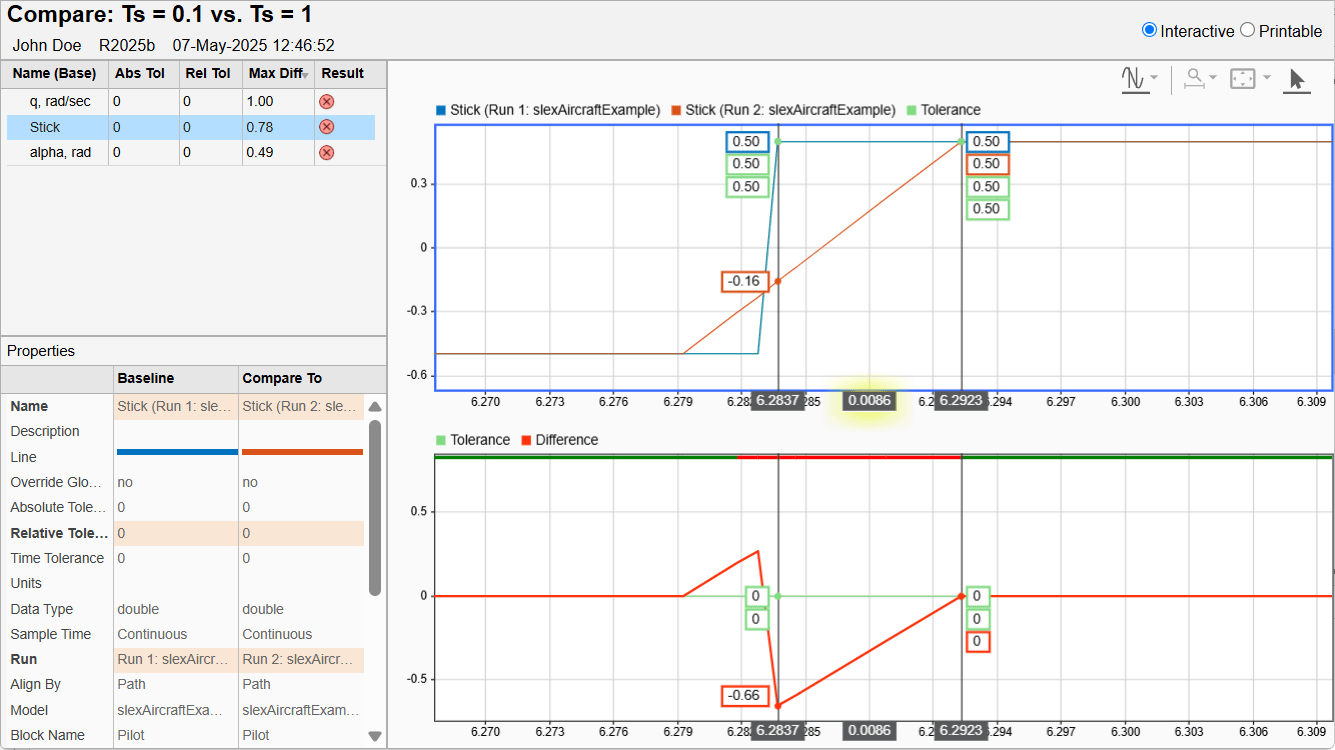
Create Interactive Comparison Reports
Save and share Simulation Data Inspector comparison results in an interactive web report.

