Write a ROS Image Message in Simulink
R2026bThis example shows how to write an image message and publish it to a ROS network in Simulink®.
Start a ROS network.
rosinit
The value of the ROS_MASTER_URI environment variable, http://172.23.95.241:53040, will be used to connect to the ROS master.
Initializing global node /matlab_global_node_64850 with NodeURI http://172.23.95.241:40405/ and MasterURI http://172.23.95.241:53040.
Load a sample image. Create a subscriber to receive a ROS Image message on the /image topic. Specify the message type as sensor_msgs/Image and the data format as struct.
exampleHelperROSLoadImageData
sub = rossubscriber("/image","sensor_msgs/Image",DataFormat="struct");
Open the Simulink model for writing and publishing ROS Image message.
open_system("write_image_example_model.slx");
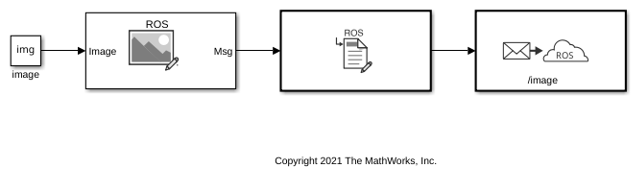
Ensure that the Publish block is publishing to the /image topic. Under the Simulation tab, select ROS Toolbox > Variable Size Arrays and verify the Data array has a maximum length greater than the length of the Data field in img (921,600).
The model writes the input img to a ROS Image message. Using a Header Assignment block, the frame ID of the message header is set to /camera_depth_optical_frame.
Run the model to publish the message.
sim("write_image_example_model.slx");
The image message is published to the ROS network and received by the subscriber created earlier. You can use the rosReadImage function to retrieve the image in a format that is compatible with MATLAB®.
imageFormatted = rosReadImage(sub.LatestMessage);
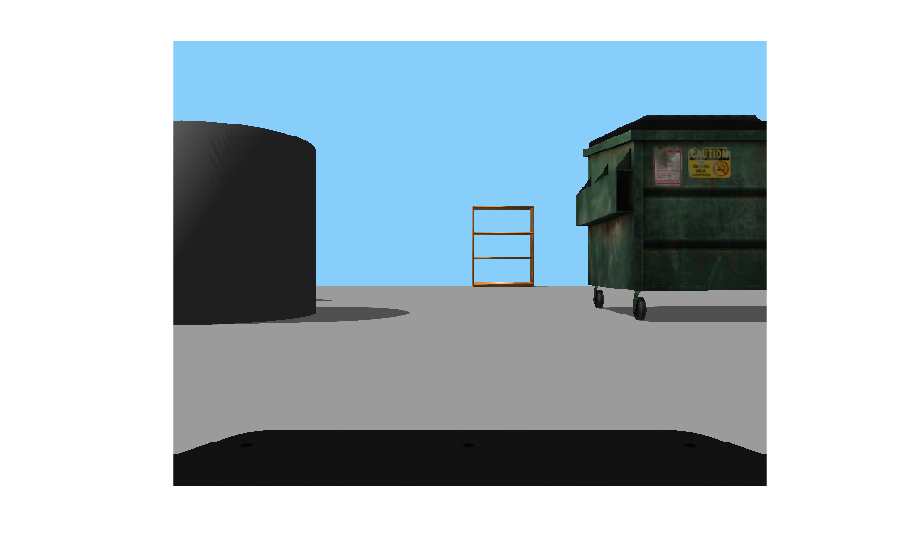
The sample image has an rgb8 encoding. By default, rosReadImage returns the image in a standard 480-by-640-by-3 uint8 format. View this image using the imshow function.
figure
imshow(imageFormatted)
Close the model and shut down the ROS network.
close_system("write_image_example_model.slx",0);
rosshutdown
Shutting down global node /matlab_global_node_64850 with NodeURI http://172.23.95.241:40405/ and MasterURI http://172.23.95.241:53040.

