Compare and Merge MAT Files
R2026bYou can use the Comparison Tool to compare two MAT files. Compare two MAT files to:
Determine which variables are common to both files and which appear in only one file.
Identify differences between individual variables. For example, you can determine which fields of a structure are different or which elements of an array differ.
You can select MAT files on disk to compare using one of these methods:
Files or Project panel — To compare two MAT files on disk, select both files. Then, right-click and select Compare Selected Files/Folders. The Comparison Tool opens the file you select first on the left.
Command Window — Use the
visdifffunction.
Explore Differences
When you perform a MAT file comparison, a new window opens and displays the two
files side by side. For example, suppose that you have two MAT files,
data1.mat and data2.mat. When you compare
the two files, the Comparison Tool displays the resulting report.

When you select a node in the report, the Comparison Tool displays the details in a pane at the bottom of the report. For individual array elements, you can further investigate differences by double-click the element in the details pane.
You can view the MAT version of the compared files by expanding the down arrow
next to the filename  .
.
The Comparison Tool highlights changes in variables using these colors.
| Highlighting | Description |
|---|---|
| Purple | Values of the variable differ between the two files. |
| Blue | The variable only exists in the right file. |
| Yellow | The variable only exists in the left file. |
| None | The variables in both files are equivalent. The tool ignores
differences in NaN patterns, field ordering in
structs, and the difference between negative zero or positive
zero. |
To save a copy of the comparison report, select Publish > Publish to HTML, Publish to Word, Publish to PDF, or Publish to PDF/A.
PDF/A comparison reports are not supported on Linux®.
Merge Changes
When comparing MAT files, you can merge changes from one file to the other. If you want to resolve conflicts in MAT files, see Resolve Conflicts in MAT Files instead.
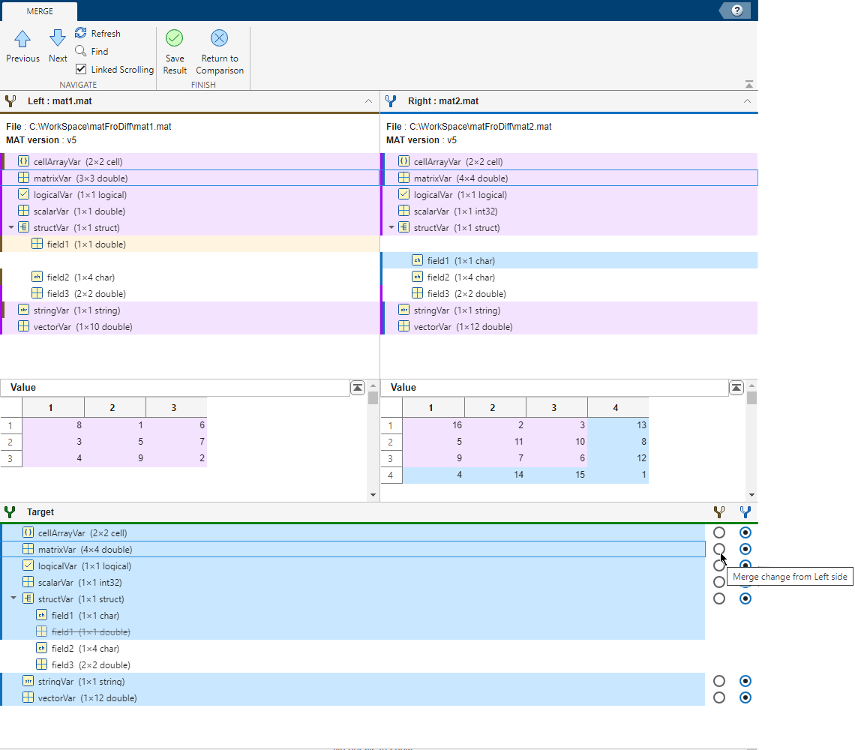
To copy modified variables from one file to the other, follow these steps:
In the Comparison toolstrip, click Merge Mode. The Comparison Tool opens a Target pane at the bottom of the report.
Use the option buttons in every row of the Target pane to select the changes you want to keep in the merged file.
In this example report, suppose you want to restore the value of
matrixVarto the one in the Left model. In the Target pane, click the left button in thematrixVarrow.Save your choices in the merged file using the Save Result button.
If you want to cancel all operations instead, click Return to Comparison without saving the merged file.
Resolve Conflicts in MAT Files
Since R2026a
When you are collaborating on files under source control, conflicts might occur when you merge branches.
You can resolve conflicts in MAT files using the Three-Way Merge tool.
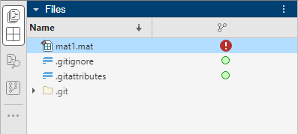
In the Files or Project panel, right-click the MAT file that has a conflict and select Source Control > View Conflicts.
The Three-Way Merge Tool opens three panes at the top. From left to right, the panes display:
The changes another user made, in this example, in a branch called improveMAT.
The Base pane, which is the common ancestor version.
The changes you made, in this example, in a branch called updateMAT.
Below, the tool automatically resolves differences when possible and opens a Target pane. The Target pane contains a copy of your changes from the updateMAT branch and automatic merges. The tool colors unresolved conflicts in red. The tool also colors automatically resolved items with the color of the corresponding revision.
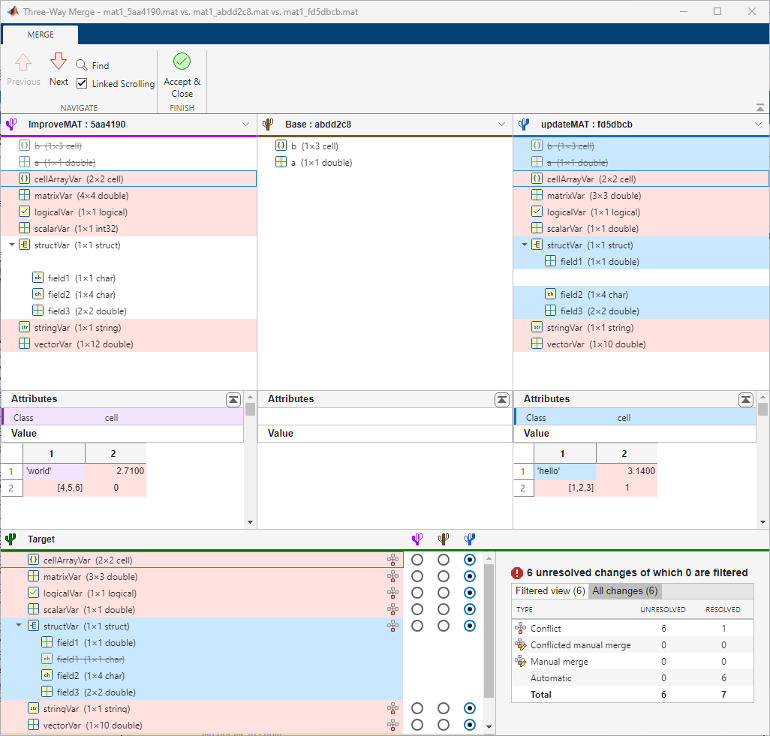
Use the arrows in the toolstrip to navigate between unresolved items.
The summary table in the right bottom corner shows how many unresolved conflicts remain.
Review the automerge choices, edit if desired, and decide how to resolve any remaining conflicts by selecting the option buttons in the Target pane.

If you want to keep the default selection, in the pane, click the conflict icon
 next to the item you want to resolve and click
Mark as Resolved. Alternatively, right-click
the row and select Mark as Resolved.
next to the item you want to resolve and click
Mark as Resolved. Alternatively, right-click
the row and select Mark as Resolved.After you review and resolve all items that require your attention, save the target file by clicking Accept & Close. The tool marks the conflicted file as resolved in the source control tool.

