Low-Altitude Target Tracking with Terrain-Aware Multi-Radar Fusion
This example demonstrates how to track targets in a mountainous region, where the terrain can obscure low-flying targets from surveillance sensors. You will learn how to configure and run a Joint Probabilistic Data Association (JPDA) tracker to monitor these targets using multiple radar systems. Additionally, you will explore how incorporating terrain information from a Digital Terrain Elevation Data (DTED) file can enhance tracking performance in such challenging environments.
Introduction
Low-altitude targets flying in mountainous regions pose a significant challenge for radar surveillance. Terrain features such as ridgelines and valleys can obstruct the radar's line of sight, creating blind spots that may cause the system to temporarily lose track of the target. To minimize the number and size of these blind spots, multiple radars are typically deployed in strategic locations to enhance coverage.
In this example, you will learn how to fuse data from multiple radars to improve surveillance in mountainous terrain. You will also explore how providing terrain data enhances the tracker's ability to fuse information from multiple sources and maintain track continuity during periods of occlusion.
To define and configure a multi-object tracker, you will use the task-oriented framework provided by the toolbox. This approach allows you to set up and run an effective tracking algorithm without requiring deep expertise in the field. The task-oriented workflow guides you through five structured steps, simplifying the process of configuring and executing a tracking system.
Step 1 - Specify what you want to track
In this step, you specify the type and characteristics of the objects you intend to track. This information helps the tracker choose appropriate models and parameters to define the target. You use the trackerTargetSpec function to create the target specification. This function provides access to a library of prebuilt specifications included in the toolbox. To view the complete library of target specifications, refer to the documentation for the trackerTargetSpec function.
In this example, you define the target specification for low-flying targets using a specification designed for general aviation targets. You set the IsGeographic property of the specification to true to indicate that the scene takes place in a geo-referenced environment. You also configure the maximum speeds and accelerations in the specification to reflect the motion characteristics of the targets in this application.
targetSpec = trackerTargetSpec('aerospace','aircraft','general-aviation');
targetSpec.IsGeographic = true;
targetSpec.MaxHorizontalSpeed = 30;
targetSpec.MaxVerticalSpeed = 10;
targetSpec.MaxHorizontalAcceleration = 4;
targetSpec.MaxVerticalAcceleration = 4;
disp(targetSpec)
  GeneralAviation with properties:

                 IsGeographic: 1
     GeographicReferenceFrame: 'NED'
           MaxHorizontalSpeed: 30       m/s
             MaxVerticalSpeed: 10       m/s
    MaxHorizontalAcceleration: 4        m/s²
      MaxVerticalAcceleration: 4        m/s²
Step 2 - Specify what sensors you have
In this step, you provide a detailed description of the sensors that will be used for tracking. This information helps the tracker select appropriate models and parameters to define each sensor. Similar to target specifications, the toolbox includes a library of prebuilt sensor models commonly used in tracking applications. To view the complete library of sensor specifications, refer to the documentation for the trackerSensorSpec function.
In this example, you will use data from three stationary radar platforms. The locations of these radar platforms are specified in a geo-referenced environment using their geodetic coordinates and orientations relative to the north-east-down (NED) frame at each site.
% Platform LLAs of ground radars
lla = [39.535591191800  -105.562100691140   3428.197929095278;
       39.530007794748  -105.468785474542   3113.342755087332;
       39.555179553197  -105.480873344899   3480.213243636723];

% Reference frames of ground-based radars
refFrames = ["NED","NED","NED"];

% The radars are oriented with NED frame
platformOrient = repmat(eye(3),[1 1 3]);
You specify a radar in a geo-referenced environment by creating a specification for a monostatic radar and setting its IsGeographic property to true. Specifying the radar in a geo-referenced environment also enables you to provide position and orientation of the radar using geodetic information without the need for manual coordinate transforms. You also specify the characteristics of each radar such as its field of view, and resolutions on the specification. You repeat these for all three sensors employed for tracking in this example using a for loop.
To use terrain information using a DTED file, you set the Terrain property of the specification the DTED file name. This terrain data enables the sensor model to determine when a target's line of sight is blocked by terrain features, helping the tracker make more informed decisions about data association and track maintenance.
To evaluate the impact of terrain information on tracking performance, you create an additional set of radar specifications that do not include terrain data. You will use both sets of specifications to build two tracking algorithms and compare their performance.
% Allocate specifications for each ground radar as a cell
numRadars = size(lla,1);
sensorSpecs = cell(1,numRadars);
sensorSpecsNoTerrain = cell(1,numRadars);

% Fill in the specifications
for i = 1:numRadars
    % Create georeferenced ground-based radar
    radarSpec = trackerSensorSpec('aerospace','radar','monostatic');
    radarSpec.IsGeographic = true;
    radarSpec.IsPlatformStationary = true;

    % Define the reference frame for platform data
    radarSpec.GeographicReferenceFrame = refFrames(i);

    % Define the platform pose using geo-referenced data
    radarSpec.PlatformPosition = lla(i,:);
    radarSpec.PlatformOrientation = platformOrient(:,:,i);

    % The radar is mounted 50 meters above the platform center and is
    % aligned with the platform axes
    radarSpec.MountingLocation = [0 0 -50];
    radarSpec.MountingAngles = [0 0 0];

    % Maximum number of look angles from the radar per update to the tracker
    radarSpec.MaxNumLooksPerUpdate = 1;

    % Maximum number of measurements reported per update to the tracker
    radarSpec.MaxNumMeasurementsPerUpdate = 25;

    % Radar characteristics
    radarSpec.FieldOfView = [360 30];
    radarSpec.RangeLimits = [0 10e3];
    radarSpec.HasRangeRate = false;
    radarSpec.RangeRateLimits = [-50 50];
    radarSpec.ElevationResolution = 2;
    radarSpec.AzimuthResolution = 1;
    radarSpec.RangeResolution = 50;
    radarSpec.DetectionProbability = 0.98;
    radarSpec.FalseAlarmRate = 1e-6;

    % Spec without terrain data
    radarSpecNoTerrain = radarSpec;
    radarSpecNoTerrain.Terrain = 'none';

    % Use terrain data
    radarSpec.Terrain = 'n39_w106_3arc_v2.dt1';

    % Assign to ground radar specs
    sensorSpecs{i} = radarSpec;
    sensorSpecsNoTerrain{i} = radarSpecNoTerrain;
end
Step 3 - Configure the tracker
In this step, you use the defined target and sensor specifications to configure a multi-object JIPDA tracker using the multiSensorTargetTracker function. The tracker uses target and sensor specifications to infer all the necessary target and sensor models for track estimation. You create two trackers: one that uses terrain data and another that does not. You will compare their performance later in the example.
% Tracker with terrain data
tracker = multiSensorTargetTracker(targetSpec, sensorSpecs, 'jipda');

% Tracker without terrain data
trackerNoTerrain = multiSensorTargetTracker(targetSpec, sensorSpecsNoTerrain, 'jipda');
Step 4 - Understand Data Format
In this step, you learn about the data format required by the tracker. The data format represents the structure of the input needed by the tracker to update it with new information from the sensing platforms. You use the dataFormat function to understand the expected inputs from each sensor. In this example, the tracker is configured with three sensors, so it requires three inputs.
trackerDataFormat = dataFormat(tracker)
trackerDataFormat=1×3 cell array
    1×1 struct    1×1 struct    1×1 struct
Note the format of the data from radar contains fields like azimuth, elevation to provide measurement data from each radar in the radar's reference frame. The size of each field is determined by the sensor specification. In this example, the sensor specification was configured to report data from a single look, with a maximum of 25 measurements per update.
disp(trackerDataFormat{1}); LookTime: 0
LookAzimuth: 0
LookElevation: 0
DetectionTime: [0 0 0 0 0 0 0 0 0 0 0 0 0 0 0 0 0 0 0 0 0 0 0 0 0]
Azimuth: [0 0 0 0 0 0 0 0 0 0 0 0 0 0 0 0 0 0 0 0 0 0 0 0 0]
Elevation: [0 0 0 0 0 0 0 0 0 0 0 0 0 0 0 0 0 0 0 0 0 0 0 0 0]
Range: [0 0 0 0 0 0 0 0 0 0 0 0 0 0 0 0 0 0 0 0 0 0 0 0 0]
AzimuthAccuracy: [0 0 0 0 0 0 0 0 0 0 0 0 0 0 0 0 0 0 0 0 0 0 0 0 0]
ElevationAccuracy: [0 0 0 0 0 0 0 0 0 0 0 0 0 0 0 0 0 0 0 0 0 0 0 0 0]
RangeAccuracy: [0 0 0 0 0 0 0 0 0 0 0 0 0 0 0 0 0 0 0 0 0 0 0 0 0]
Step 5 - Update the tracker
In this section, you update the tracker with recorded data from each sensor. The recorded data is generated using trackingScenario and radarDataGenerator (Radar Toolbox). To record a different scenario, you can use the following code using helper functions attached with this example. If you modify the sensing platforms in your scenario, you must update the corresponding information in the sensor specifications defined in the previous sections.
scenario = helperCreateTerrainOcclusionScenario();
[sensorDataLog, truthDataLog] = helperRecordTerrainOcclusionScenario(scenario)
% Load data from MAT file
load('dTerrainOcclusionRecordedData.mat','sensorDataLog', 'truthDataLog');
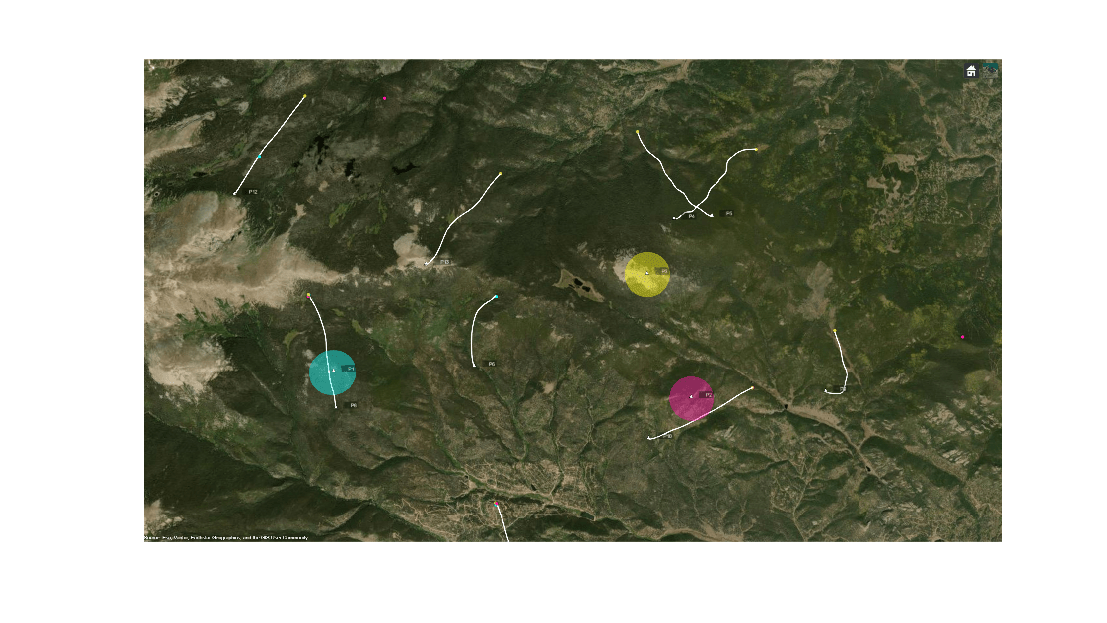
You visualize the recorded sensor data, truth data, and the tracker's estimates on a globe using the trackingGlobeViewer. The viewer is created using a supporting function, createDisplay, defined at the bottom of this example. In this example, you create two viewers, one to display tracking results with terrain information, and another to display results without terrain data.
The image below shows the ground truth and spatial locations of each sensor along with a coverage representing their fields of view. Note that the range of the coverage is truncated for enhance the visibility of truth and detection data.
% Create globe viewer
[viewer, f] = createDisplay(sensorSpecs, sensorDataLog, truthDataLog);
f.Name = 'Viewer (Tracking with Terrain Data)';

[viewerNoTerrain, f] = createDisplay(sensorSpecs, sensorDataLog, truthDataLog);
f.Name = 'Viewer (Tracking without Terrain Data)';

figure('Units','normalized','Position',[0.1 0.1 0.9 0.9]);
imshow(snapshot(viewer));
Now, you loop through the sensor data and iteratively update the tracker to obtain estimated tracks.
for i = 1:numel(sensorDataLog)
    % Sensor data in current time interval
    sensorData = sensorDataLog{i};

    % Truth data in current time interval
    truthData = truthDataLog{i};

    % Update tracker with sensor data
    tracks = tracker(sensorData{:});

    % % Update the second tracker with sensor data
    tracksNoTerrain = trackerNoTerrain(sensorData{:});

    % Display
    updateDisplay(viewer, sensorSpecs, sensorData, tracks, truthData, UpdateBuffer=true);
    updateDisplay(viewerNoTerrain, sensorSpecs, sensorData, tracksNoTerrain, truthData, UpdateBuffer=false);
end
Results
In the visualization, the ground truth data is plotted in white, while the detections from each sensor are shown in the same color as their respective coverage cones. The estimated tracks are represented by green lines. The image below displays all the data captured by the radars during the scenario. Note that the sensors reported several false alarms in addition to valid target measurements throughout the scenario.
snapshot(viewer);
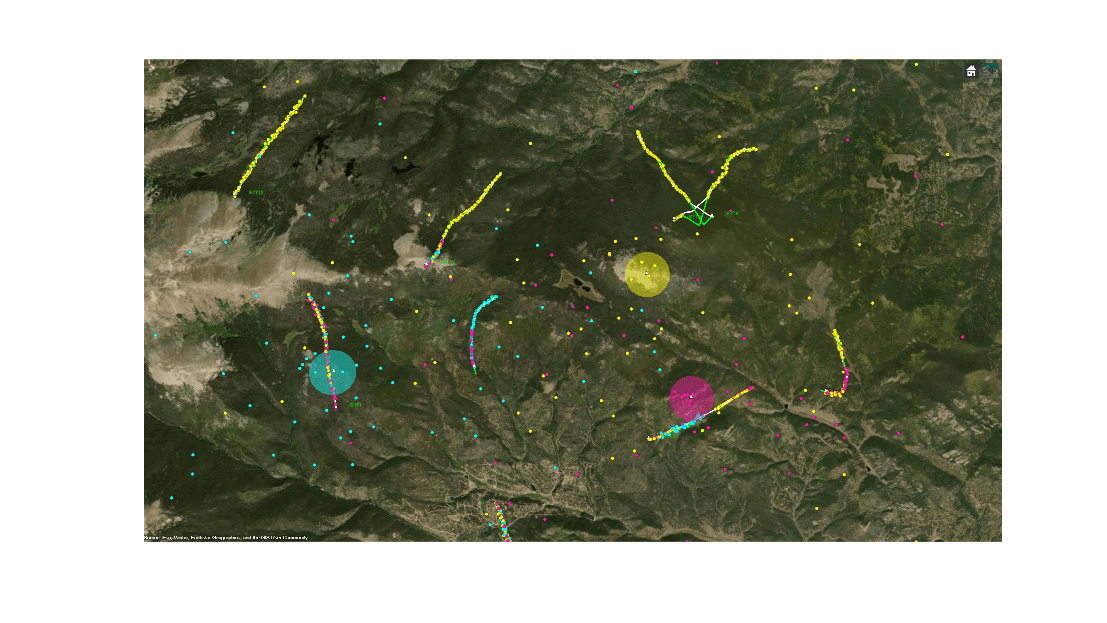
In the following images, you will examine the detections, true trajectories, and estimated trajectories of a few targets in a close-up view for both trackers. This comparison will help highlight the differences in tracking performance with and without terrain information.
Maintaining track continuity during occlusion
The image below provides a close-up view of two targets crossing paths. During the occlusion phase, the sensors did not report any detections for the targets. However, the tracker that utilized terrain data continued to predict their trajectories using a constant-velocity motion model, maintaining evidence that both targets were still present in the region. Once the targets emerged from the blind spot, this tracker quickly converged its estimates to their true locations. In contrast, the tracker without terrain data lost track of both targets during the occlusion and initiated new tracks when the targets reappeared
% Place camera for both viewers
pos = [39.57549, -105.46626 7233.99];
orient = 1e2*[1.048415461358780  -0.870223784357002   0.000166589489339];
compareSnapshots(viewer, viewerNoTerrain, pos, orient);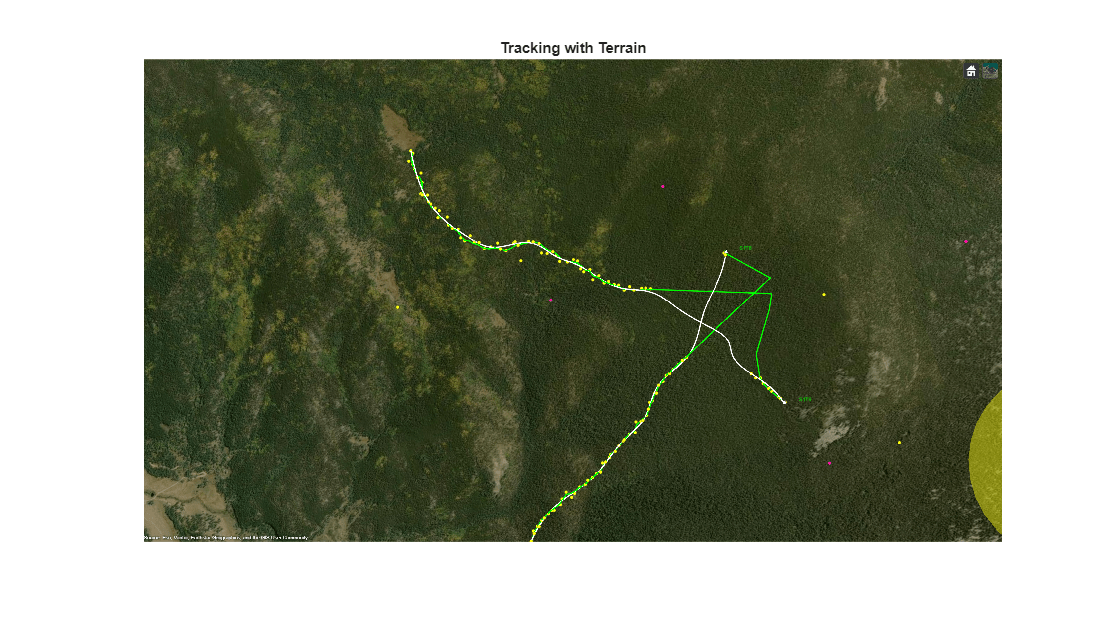
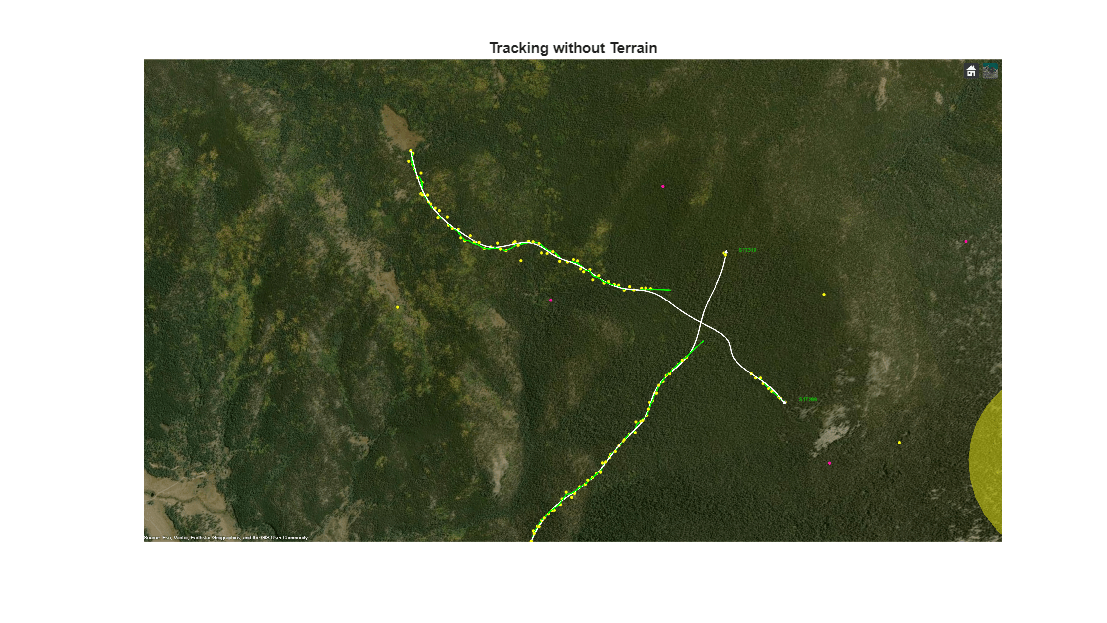
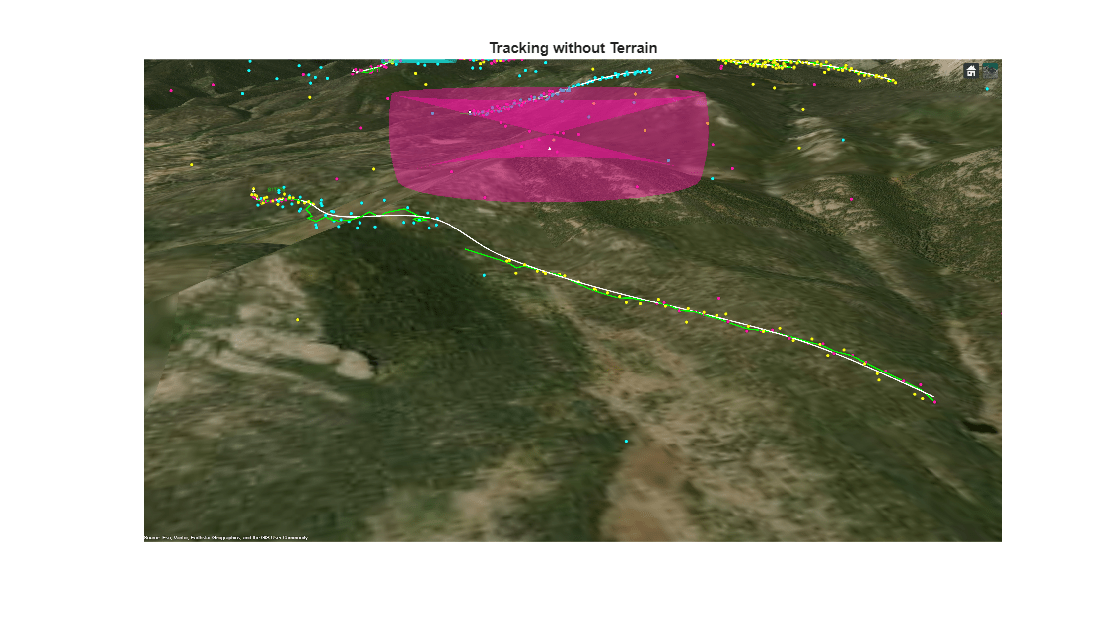
A similar analysis is shown for a different target located near the sensor. During the occlusion phase, when no detections were reported by any sensor, the tracker with terrain information successfully maintained the track and predicted the target's position close to its true trajectory. In contrast, the tracker without terrain data lost the track and initiated a new one once the target reappeared.
% Place camera for both viewers
pos = 1e3*[0.039523775968691  -0.105441836312000   3.393437920581632];
orient = 1e2*[2.884138701890259  -0.180474825587505   3.599967275746616];
compareSnapshots(viewer, viewerNoTerrain, pos, orient);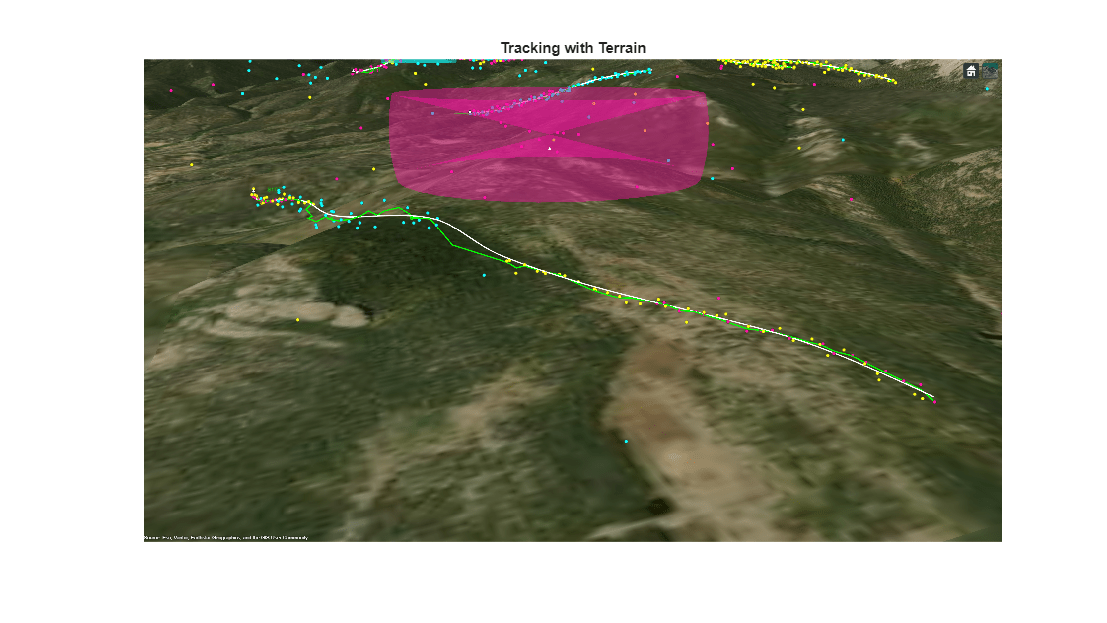
Confirmation delay in partial coverage
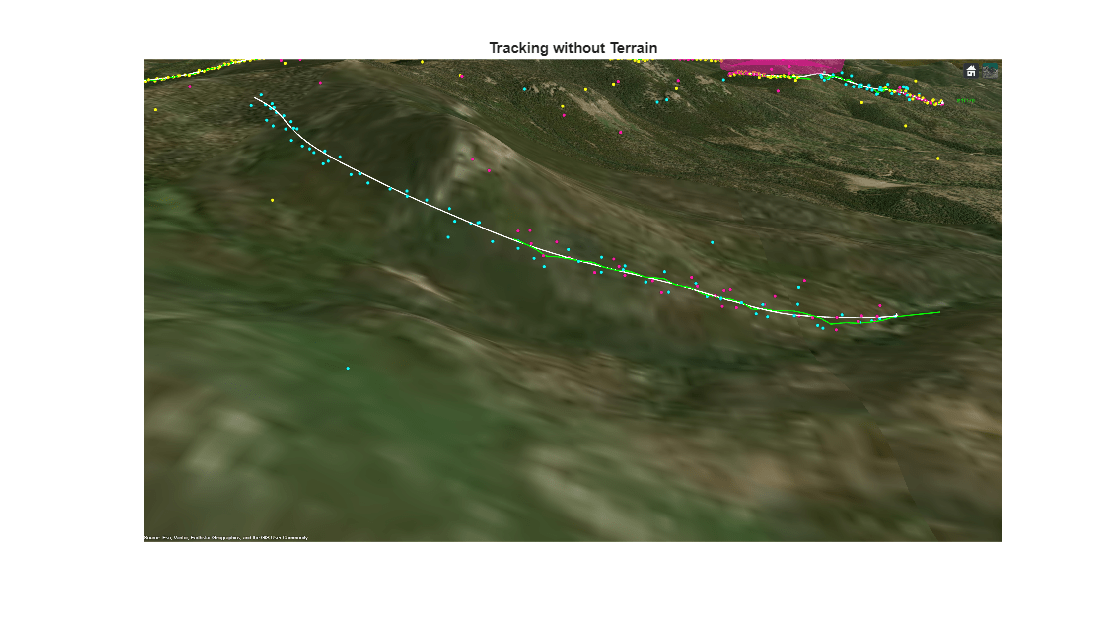
In the images below, you examine a target that was observable by only one sensor due to terrain-induced occlusions affecting the others. The tracker without terrain data was initially unable to confirm the target's track. This occurred because the tracker, lacking awareness of the occlusions, assumed the target should have been detected by all sensors. As a result, it hypothesized that the target was missed by two sensors, leading to low confidence in the target's existence and ultimately causing it to be missed.
In contrast, the tracker with terrain data quickly established a track for the target. By accounting for terrain occlusions, it correctly inferred that the target was not visible to the other sensors, allowing it to maintain confidence in the target's presence and successfully track it.
% Place camera for both viewers
pos = 1e3*[0.039541749867426  -0.105544587298836   3.540992090345616];
orient = [86.348185420270553 -21.838472712378962   0.001266797234293];

compareSnapshots(viewer, viewerNoTerrain, pos, orient);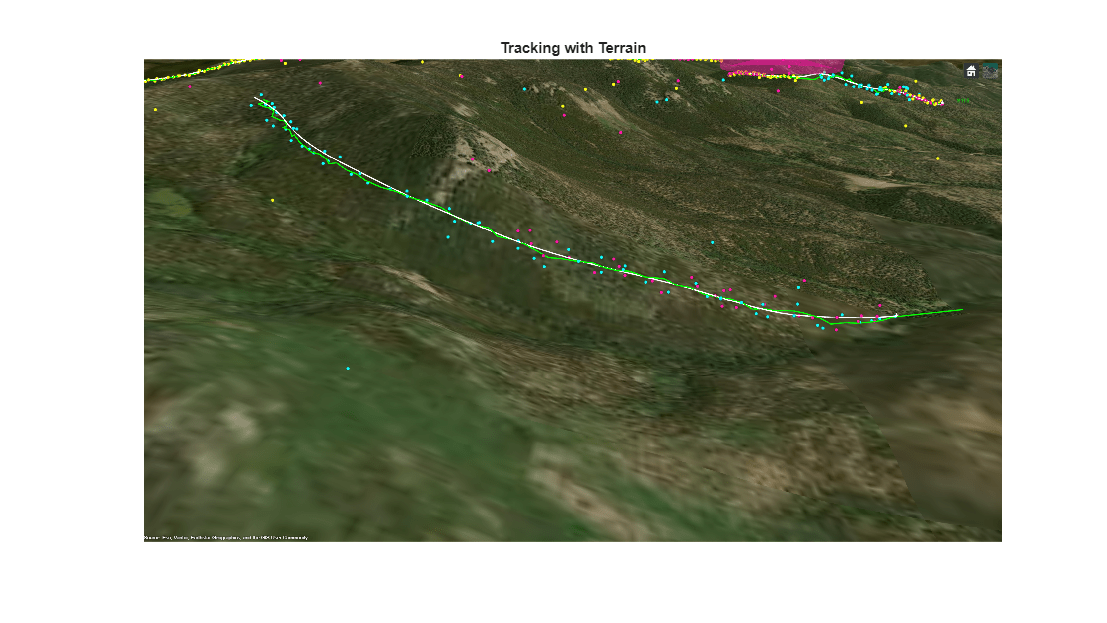
Summary
In this example, you explored how to configure and implement a Joint Integrated Probabilistic Data Association (JIPDA) tracker using a task-oriented approach for tracking low-altitude targets in complex, mountainous terrain. By leveraging a structured workflow, you defined target and sensor specifications, incorporated terrain data from a Digital Terrain Elevation Data (DTED) file, and fused measurements from three geo-referenced, ground-based radar platforms. You also compared the performance of the tracking algorithm with and without terrain information during challenging scenarios.
Supporting Functions
function [viewer, f] = createDisplay(sensorSpecs, sensorDataLog, truthDataLog)

try
    addCustomTerrain("southboulder",'n39_w106_3arc_v2.dt1');
catch
    % Custom terrain already added
end

f = uifigure('Units','normalized','Position',[0.1 0.1 0.9 0.9]);

% Create globe viewer
viewer = trackingGlobeViewer(f, 'NumCovarianceSigma',0, 'Terrain', 'southboulder');

% Position the camera
campos(viewer,[39.55 -105.50 2e4]);

% Plot truth log to visualize entire trajectories beforehand
for k = 1:numel(truthDataLog)
    plotPlatform(viewer, truthDataLog{k}, 'ECEF', 'Color',[1 1 1],'LineWidth',2, 'TrajectoryMode','History');
end

% Create sensor data plotter to remove persistent detections
clear('helperPlotTerrainOcclusionSensorData');

helperPlotTerrainOcclusionSensorData(viewer, sensorSpecs, sensorDataLog{1},...
    PersistentDetections=false,...
    PlotCoverage=true,...
    DetectionHistoryTime=inf);

drawnow;
end

function updateDisplay(viewer, sensorSpecs, sensorData, tracks, truthData, varargin)

% Plot track data
plotTrack(viewer, tracks, 'ECEF','Color',[0 1 0],'LineWidth',2, 'MarkerSize',2);

% Plot truth data
plotPlatform(viewer, truthData, 'ECEF', 'Color',[1 1 1],'LineWidth',2,'TrajectoryMode','None', 'LabelStyle','None');

% Plot sensor measurements and coverage
helperPlotTerrainOcclusionSensorData(viewer, sensorSpecs, sensorData,...
    varargin{:}, ...
    PersistentDetections=true,...
    PlotCoverage=true,...
    DetectionHistoryTime=inf);
end

function compareSnapshots(viewer, viewerNoTerrain, pos, orient)

% Orient the viewers
campos(viewer, pos);
camorient(viewer, orient);
campos(viewerNoTerrain, pos);
camorient(viewerNoTerrain, orient);
drawnow;
pause(2);

% Take snapshots for both viewers
snap = snapshot(viewer);
snapNoTerrain = snapshot(viewerNoTerrain);

% Display side-by-side
figure('Units','normalized','Position',[0.1 0.1 0.9 0.9]);
imshow(snap);
title('Tracking with Terrain');

figure('Units','normalized','Position',[0.1 0.1 0.9 0.9]);
imshow(snapNoTerrain);
title('Tracking without Terrain');

end

