Export Polyspace Analysis Results
R2026bYou can export your analysis results to a tab separated values (TSV) text file, a MATLAB® table, or to a standard JSON format. Using the exported content, you can:
Generate graphs or statistics about your results that you cannot readily obtain from the user interface by using MATLAB or Microsoft® Excel®. For instance, for each Code Prover check type (Division by zero, Overflow), you can calculate how many checks are red, orange, or green.
Integrate the analysis results with other checks you perform on your code.
Export Results to Text File
You can export results to a tab delimited text file (TSV) from the user interface or command line.
The exported text file uses the character encoding on your operating system. If special characters from your comments are not exported correctly in the text file, change the character encoding on your operating system before exporting.
Export Results from the Polyspace Platform User Interface
Open your analysis results in the Review perspective.
Export all results. Select Report > Export All Results.
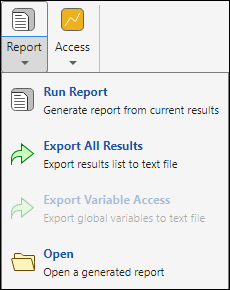
Select a location to save the text file. You can save your file in CSV, JSON, or TSV format by selecting file type
All Files (*.*)and manually editing the file extension. Click Save.
Export Results from Command Line
Use the option -format csv with the polyspace-results-export command. For example, to generate a csv file from
results file C:\Polyspace_Workspace\myProject\Module_1\BF_Result\ps_results.psbf, run this command:
polyspace-results-export -format csv -results-dir C:\Polyspace_Workspace\myProject\Module_1\BF_Result
Export Results to MATLAB Table
If you write MATLAB scripts to run Polyspace®, you can read your Polyspace analysis results into a MATLAB table for further processing. See:
Export Results to JSON Format
You can export Polyspace results to a JSON object. The JSON format follows the standard notation provided by the OASIS Static Analysis Results Interchange Format (SARIF).
Use the option -format json-sarif with the polyspace-results-export command. For more information, see polyspace-results-export.
The JSON format contains some additional information such as the checker short name and the full message that accompanies a result. Use the JSON format if you want to use this short name or message. You can also use this format for a more standardized reporting of results. For instance, if you use several static analysis tools and want to report their results in one interface by using a single parsing algorithm, you can export all the results to the standard SARIF JSON format.
View Exported Results
The exported results include the information available on the Results List pane in the Polyspace Platform user interface or Polyspace Access™ web interface. See:
Note that some Results List column headers might be labeled differently in the exported results file.
Some other differences in presentation between the Results List pane and exported results are listed below.
The TSV file and MATLAB table contain these additional columns compared to the Results List:
New column — Shows whether a result is new compared to the previous run.
Key column — The entry in this column is based on the result family, result acronym, and the location of the result in the file. See also Compare Merged Results Using Exported Keys.
URL column (Polyspace Access results only) — Click the URL to open the corresponding result in the Polyspace Access interface.
The JSON file stores the results as objects contained in a
resultsarray. Each object has a list of key-value pairs that store the results information, including whether the result is new compared to the last run ("baselineState"), the result key, and the URL ("hostedViewerUri"). For more on the JSON file see SARIF-v2.1.0.In exported results, if a coding standard result does not occur inside a function, such as a violation reported on a macro definition, the Function column shows
Not computed. In the JSON format, thelogicalLocationsarray for such findings is empty.
You cannot identify the location of a Bug Finder result in your source code via the text file. However, you can still parse the file and generate graphs or statistics about your results.
Export Results with a Large Number of Findings
Polyspace does not support the export of more than 500,000 findings at a time. If the number of findings in your analysis results exceeds this upper limit, Polyspace attempts to reduce the number of findings to export by omitting findings in this order:
Omit all code metrics findings.
If the number of findings is still over the threshold, omit all low impact defects (Bug Finder) or green checks (Code Prover).
If the number of findings is still over the threshold, export only the first 500,000 findings.
A project with a large number of findings might indicate a suboptimal analysis configuration. If your analysis produces a large number of findings, modify your configuration to check for a smaller set of high priority defects and coding rule violations. See also Troubleshoot Uploads to Polyspace Access That Exceed Size Limit (Polyspace Access).
Compare Merged Results Using Exported Keys
When you merge exported analysis results from multiple projects that contain common files, you can use the Key and other fields from the exported results to eliminate duplicates. For instance, if you run coding-rule checking on two different projects and merge the results, coding rule violations in common header files appear twice in the results.
To eliminate duplicates, compare the Key and File values of the results. If two results have the same Key and File values, one is a duplicate of the other.
By default, each result key is based on the result family (for instance numerical), result short name (for instance float_ovfl), and the location of the result in the file. To generate more localized keys for results that are located inside a function body, use the -key-mode function-scope option with the polyspace-results-export or the polyspace-report-generator commands. The commands generate keys that are based on the result family, result short name, and the location of the result within the function body. You can then identify duplicates more accurately by also comparing the
Function values.
In rare instances, results that have the same key and the same location inside a file or function body might not be duplicates. In those instances you need to compare the results manually, for instance by comparing the result messages in the user interface, to determine whether the results are duplicates or not.
Enable Function Scope for Exported Keys
To enable the function scope for exported keys at the command line, enter either of these commands to export locally stored results:
polyspace-results-export -results-dir folderPath -key-mode function-scope -format csv
polyspace-report-generator -generate-results-list-file -results-dir folderPath -key-mode function-scope
folderPath is the path of the folder that contains the Polyspace analysis results.Make sure that you run these commands from a location where you have write permissions, or use option -output-name to specify a location to store the generated file of exported results.
When you export results with the function scope enabled, the key entries for results that are inside a function have a FN prefix.

