Update Existing Test Cases When Model Interface Changes
When working with Simulink® Design Verifier™, it is common to generate test cases for a model and then later modify the model’s interface as the design evolves. Changes to input signals or their properties can invalidate previously generated test cases.
This example shows how to adapt existing generated test cases to the new interface when the model interface changes.
View Existing Test Cases for Cruise Controller
The model crs_controller_basic represents a cruise control system. It receives two categories input of signals: commands from the driver's dashboard button and data from vehicle sensors. The cruise controller sends status indication signals and throttle control commands.
Open the cruise controller model:
model = "crs_controller_basic";
open_system(model);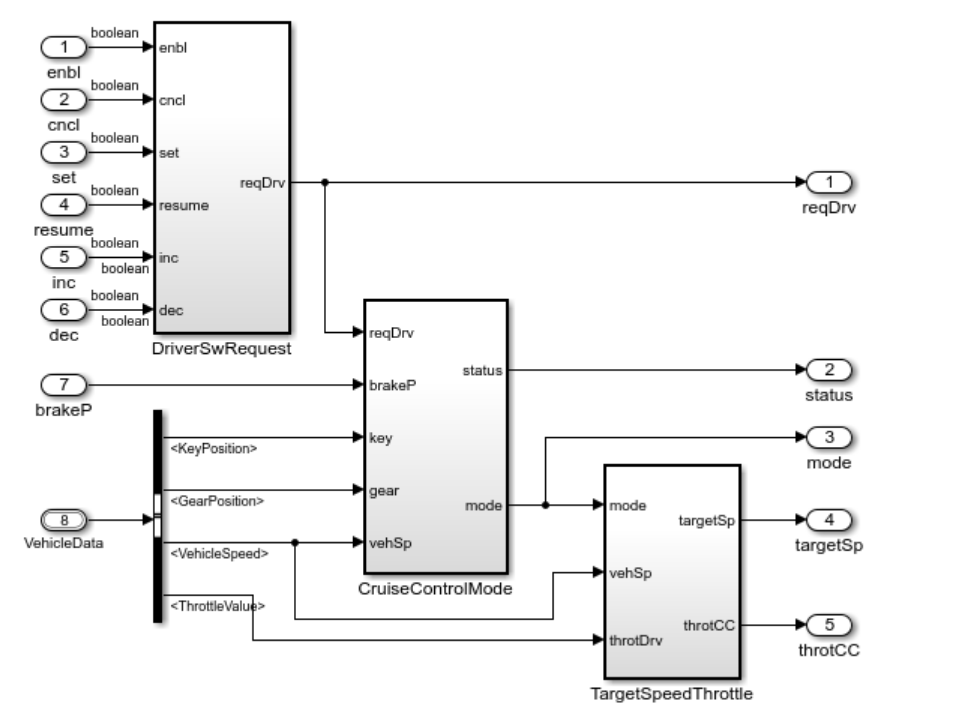
You need to see the existing test cases before updating them. Hence, view the Simulink Design Verifier report for the results stored in crs_controller_basic_sldvdata.mat:
sldvreport("crs_controller_basic_sldvdata.mat");Enhance the Cruise Controller Model
An adaptive cruise control (ACC) system maintains a safe distance (as shown in the image) from the lead vehicle and keeps the host vehicle within a set speed limit by using a long-range radar (LRR) to estimate the distance.

You want to enhance the crs_controller_basic model into an ACC system. Add an element named RelativeDistance to the VehicleData bus to record the distance from the leading vehicle. See the image.
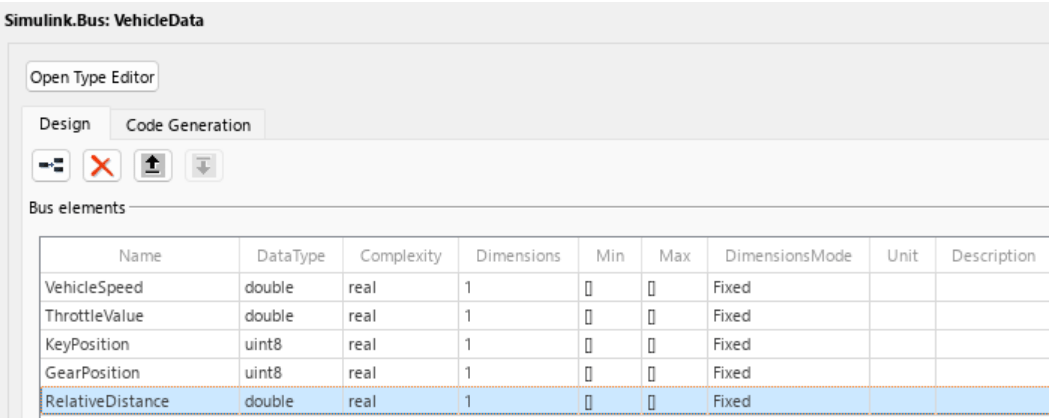
In this example, use the model crs_controller_adaptive for ACC. Check the Bus Selector block to confirm the presence of the RelativeDistance field.
updatedModel = "crs_controller_adaptive";
open_system(updatedModel);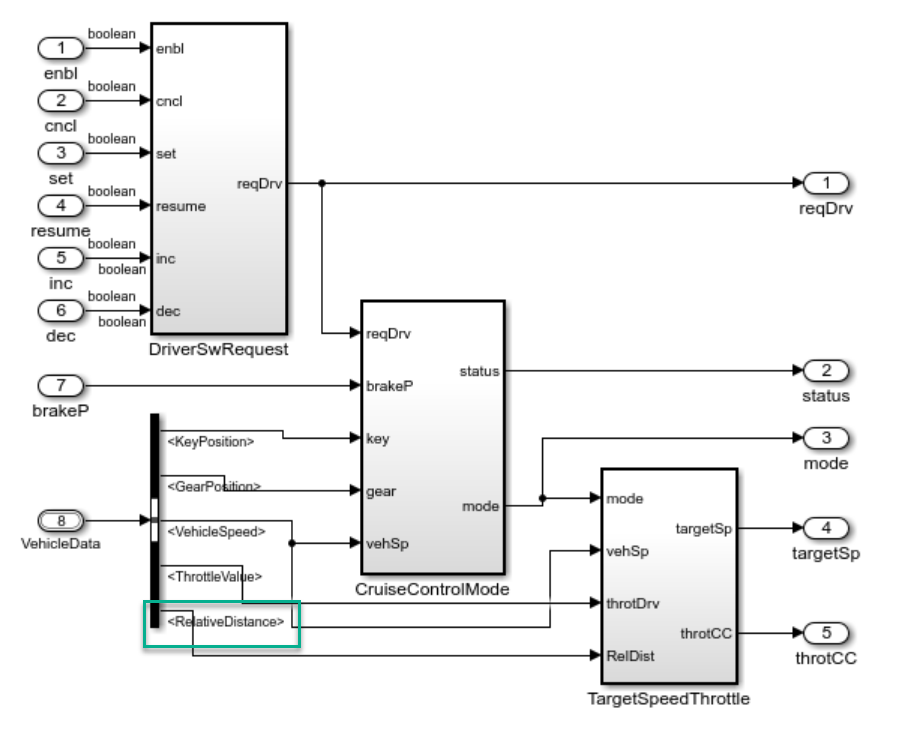
The model adds the RelativeDistance field, highlighted in green, to the VehicleData bus to record the distance from the lead vehicle.
Update the control law in the subsystem crs_controller_adaptive/TargetSpeedThrottle/activated/getThrottleValue/PI controller to use RelativeDistance.
open_system("crs_controller_adaptive/TargetSpeedThrottle/activated/getThrottleValue/PI controller");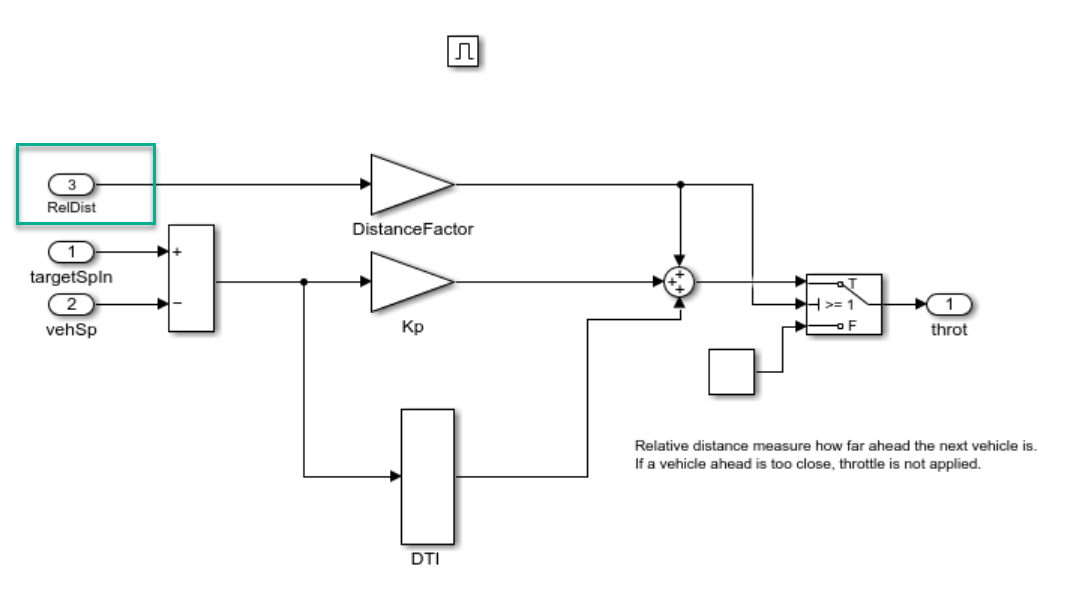
Observe that when you add the RelativeDistance field to the bus highlighted in green, you make all previously generated test cases in crs_controller_basic_sldvdata.mat incompatible with simulation.
The input interface assumed by the earlier test cases no longer matches crs_controller_adaptive.
Update Test Cases for the New Model Interface
Use sldvoptions to update test cases in crs_controller_basic_sldvdata.mat file.
opts = sldvoptions(updatedModel);
opts.ExtendExistingTests = "on";    % Enable loading of existing test cases
opts.ExistingTestFile = "crs_controller_basic_sldvdata.mat";  % Specify file containing existing test cases
Alternatively, use the Simulink Design Verifier configuration parameters in the model Configuration Parameters dialog box.
In the Modeling tab of the Simulink Toolstrip, click Model Settings
In the Design Verifier > Test Generation pane, expand Advanced Parameters. Select Extend using existing test data and specify crs_controller_basic_sldvdata.mat for Test data.
Select Extend using existing test data and specify the MAT file in the Test data field.
Run Simulink Design Verifier on the updated model using the specified options and it returns the analysis status and generated output files.
[status,updatedFiles] = sldvrun(updatedModel,opts);
04-Aug-2026 08:14:31
Checking compatibility for test generation: model 'crs_controller_adaptive'
Compiling model...done
Building model representation...done

04-Aug-2026 08:14:41

'crs_controller_adaptive' is compatible for test generation with Simulink Design Verifier.

04-Aug-2026 08:14:42
Loading initial test data...done
Generating tests...


Generating output files:

04-Aug-2026 08:15:33
Results generation completed.

    Data file:
    /tmp/Bdoc26a_3347282_2332871/tpc0a5a126/sldv-ex95711172/sldv_output/crs_controller_adaptive/crs_controller_adaptive_sldvdata.mat
View Relationship Between Original and Updated Test Cases
Review the updated test cases in Simulink Design Verifier report.
sldvreport(updatedFiles.DataFile);
The updated Test Case 1 appears in the report.
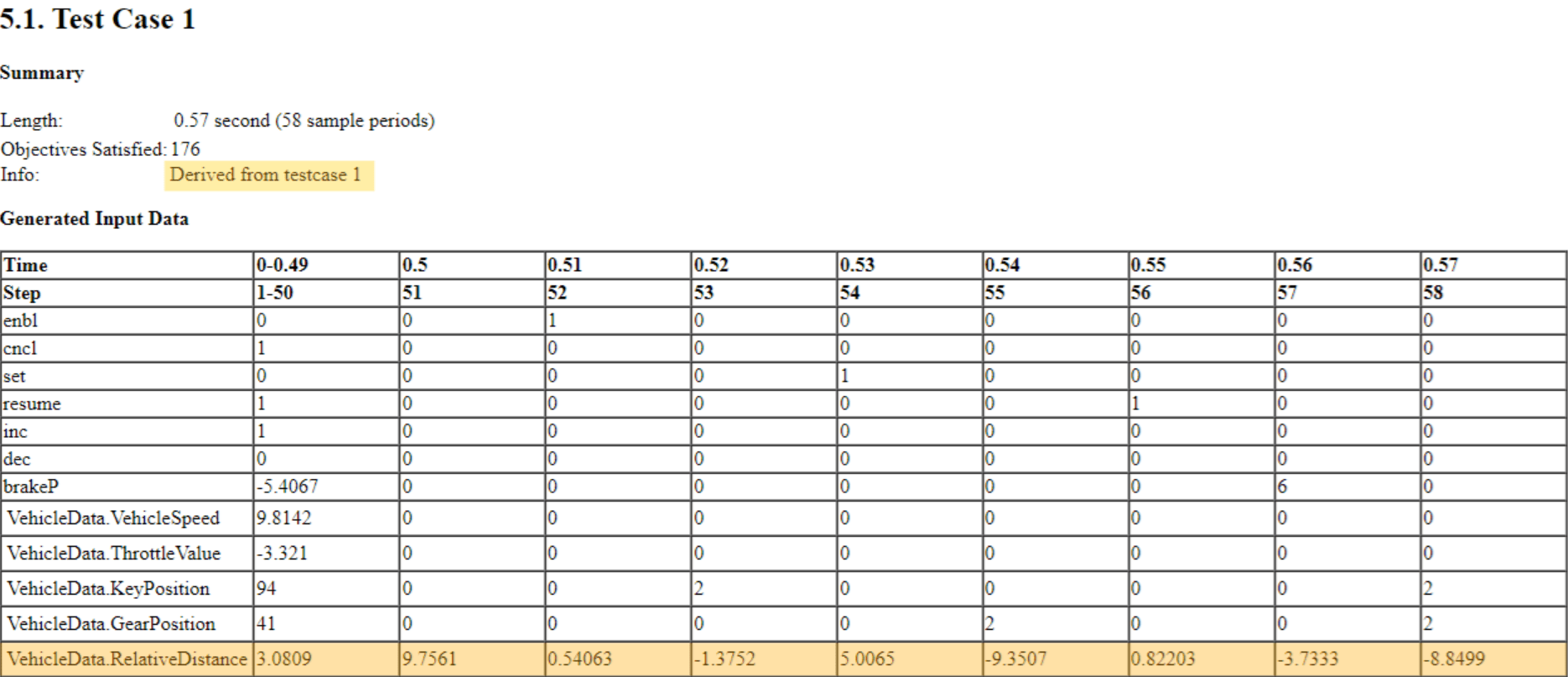
Updated Test Case 1 includes this information:
The Info field that specifies metadata about each test case or counterexample. For more information on Info field
,see the table that describes the TestCases and CounterExamples fields in View and Understand Analysis Results from Data Files.A row that contains generated data for input
VehicleData.RelativeDistance.Data copied from the source test case in all other rows, including Time and Step.
In this example, the Info field in the Summary section shows that updated Test Case 1 was derived from the original Test Case 1. When you update test cases, Simulink Design Verifier preserves time, steps, and data for all unchanged inputs, and generates values only for newly added or modified signals. If existing test cases do not satisfy all objectives in the updated model, Simulink Design Verifier creates additional test cases as needed.
Simulink Design Verifier identifies added, deleted, or modified signals by matching their exact names from the generated input data file. If you change a signal name, data type, or size in the updated model, the test case data of the signal is not preserved. If signal properties remain unchanged or you only reorder signals, Simulink Design Verifier retains their test data.
close_system(model,0);
close_system(updatedModel,0);

