App Designer App to Run Real-Time Van der Pol Simulation
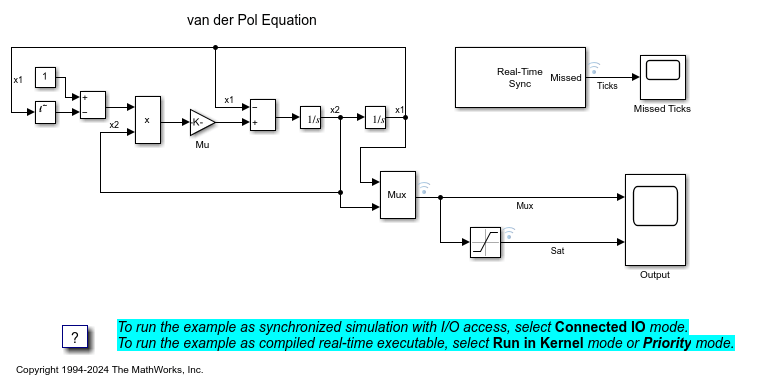
R2026bThis example shows how to develop an App Designer app that runs a real-time version of the Simulink® Van der Pol simulation model.
This model does not need any external signals, so it does not need any data acquisition hardware or driver. The model is useful for the first time that you work with Simulink Desktop Real-Time™ because you do not have to configure I/O hardware.
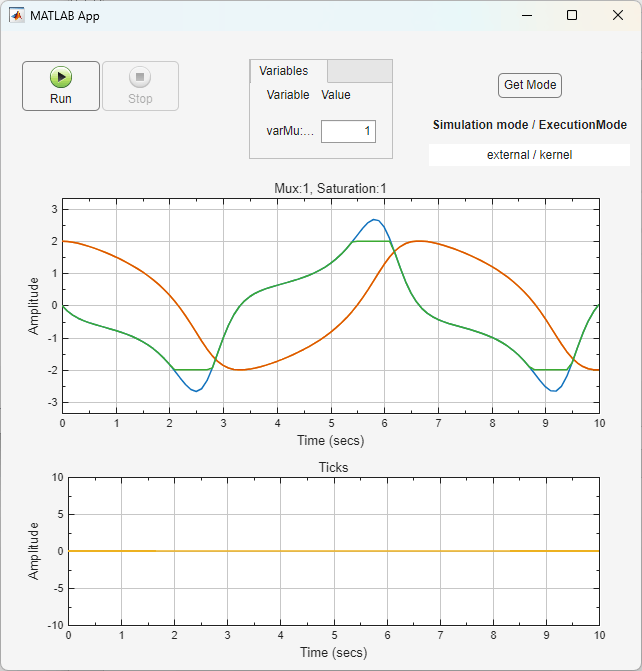
The App Designer app provides control to start and stop the simulation. Also, the app displays the simulation mode and execution mode of the simulation.
Open Model
model = 'sldrtex_vdp';
open_system(model);
Mark Signals for Logging
To view signals from the App Designer app, you mark the signals for logging. This marking makes the signals accessible for binding the signals to components in the app. After marking the signals, update the model. In the sldrtex_vdp model, the Mux signal, the Sat signal, and the Ticks signal are marked for logging. To mark these signals and update the model, run these commands in the MATLAB Command Window:
Simulink.sdi.markSignalForStreaming('sldrtex_vdp/Mux',1,'on');
Simulink.sdi.markSignalForStreaming('sldrtex_vdp/Saturation',1,'on');
Simulink.sdi.markSignalForStreaming('sldrtex_vdp/Real-Time Synchronization',1,'on');
set_param(gcs,'SimulationCommand','Update');
Add Model Workspace Variable for Tunable Parameter
To view and tune parameters from the App Designer app, you create a variable in the model workspace and replace the block parameter value with the variable. After creating the variable, update the model. In the sldrtex_vdp model, the value for the Mu block is represented by the variable varMu.
Set Simulation Mode and Execution Mode
For Simulink Desktop Real-Time models, you can set the simulation mode and execution mode for a model by using the Mode selection from the Desktop Real-Time tab in the Simulink editor. The modes and the corresponding model configuration parameter values are:
Run Model in Kernel Mode -
SimulationModeparameter value is'external'.RealTimeExecutionparameter value is'kernel'.Run Model in Priority Mode -
SimulationModeparameter value is'external'.RealTimeExecutionparameter value is'priority'.Run Model in Connected IO Mode -
SimulationModeparameter value is'normal'.RealTimeExecutionparameter value is ignored.
Add Base Workspace Variables for Modes
To view the simulation mode and execution mode when the App Designer app runs the model simulation, add base workspace variables for the simulation mode and execution mode. The app can get the values from these global variables and use these as the app runs.
In the Simulink editor Modeling tab, select Design > Property Inspector.
In the Properties tab, scroll to the Callbacks section.
Add commands to create the variables as part of the model
startfcnthat runs when model simulation starts.
In the sldrtex_vdp model startfcn, these commands create the base workspace variables with the simulation mode and execution mode values.
varSimulationMode = get_param('sldrtex_vdp', 'SimulationMode');
varRealTimeExecution = get_param('sldrtex_vdp','RealTimeExecution');
Create App Designer App
To create an app that runs a Simulink model, in App Designer, select New then select Blank App for Simulink Model from the Simulink Apps group. App Designer opens the Associate Simulink Model dialog box. Select the model to associate it with the app.
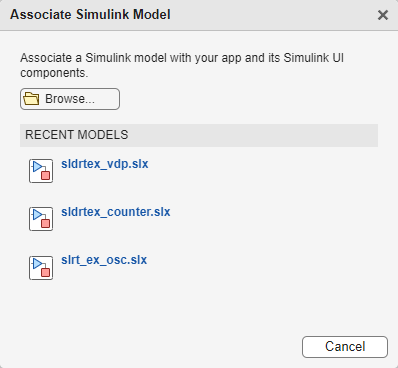
When you are developing an app in App Designer, this dialog box is accessible from the Simulink tab by clicking the Select a Simulink model icon (pencil) or by selecting the Simulink > Model selection from the App node in the Component Browser.
After associated the model to the app, you can add components. To run model simulation from the app, add the Simulation Controls component from the Simulink group in the Component Library to the app.
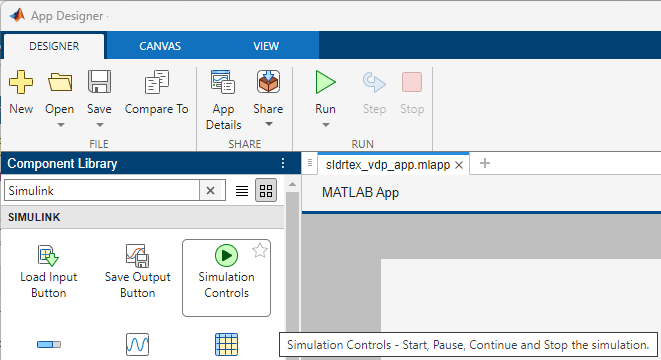
To view model signals in the app, add a component that displays signal data such as the Time Scope component from the Simulink group to the app. Right-click on the component in the app and select Add Binding to bind signals to the component. The signals in the model that are marked for logging are available for binding.

To tune model parameters in the app, add the Variable Tuner component from the Simulink group to the app. The block parameter variable from the associated model are bound to the component.
Add Callback Functions, Display Execution Mode
For many components, you can add callback functions that provide functionality in the app.
In this example app, the GetModeButton uses a ButtonPushedFcn callback to evaluate the varSimulationMode and varRealTimeExecution base workspace variable values. When the app runs, pressing the Get Mode button displays the model simulation mode and real-time execution mode. The callback function is:
function GetModeButtonPushed(app, event)
  modelSimulationMode = evalin('base', 'varSimulationMode');
  modelRealTimeExecution = evalin('base', 'varRealTimeExecution');
  formatSpec = "%s / %s";
  text = sprintf(formatSpec,modelSimulationMode,modelRealTimeExecution);
  app.Label.Text=text;
end
View Example App
This command opens the example App Designer app.
appdesigner('sldrtex_vdp_app.mlapp')
Run Model in Run in Kernel Mode
In the model, select the Mode. Run the App Designer app and run the model. During the run, click the Get Mode button to display the mode.
To switch to Run in Kernel mode if needed, on the Desktop Real-Time tab, select Mode > Run in Kernel Mode.
To start the real-time execution from the app, click Run in Real Time. The model builds, connects to Simulink in Run in Kernel mode, and starts.
Observe that Missed Ticks is zero.
Run Model in Priority Mode
In the model, select the Mode. Run the App Designer app and run the model. During the run, click the Get Mode button to display the mode.
To switch to Priority mode if needed, on the Desktop Real-Time tab, select Mode > Run in Priority Mode.
To start the real-time execution, click Run in Real-Time.
Observe any missed ticks on the Missed Ticks scope.
Close Open Scopes
close_system(find_system(gcs ,'BlockType', 'Scope'));
Close Model and Clear Workspace
bdclose(model);
clear;

