Compose Variant Configurations and Constraints for Top Model Using Referenced Configurations
R2026bA variant configuration represents a combination of variant choices across a Simulink® model hierarchy. It contains a set of variant control variables and their values, which you can use to activate a specific variation in the model hierarchy. You can also define constraints for variant configurations, which are user-defined checks that must be satisfied by all variant configurations created for the model. Variant Manager allows you to create and manage the variant configurations and constraints for a model.
In Variant Manager, a variant configuration for a top-level model must also define the variant control variables used by any referenced components in the model hierarchy, such as referenced models. This approach helps to maintain a single consistent definition for a variant control across the hierarchy. You can either directly add the variant control variables used by a referenced component to the top-level model configuration, or if the referenced component has named variant configurations of its own, you can use them to set up the control variables in the top-level configuration.
You can also use referenced configurations to define constraints on the top-level model hierarchy. This helps you to define the condition expression of a constraint as a combination of variant control variables and referenced configurations. (since R2025a)
This topic explains how to use referenced configurations to initialize a top-level configuration and to define a model-wide constraint.
Set Up Configurations by Using Referenced Configurations View
Use the Referenced Configurations view to initialize a top-level configuration.
Open Referenced Configurations View from ConfigurationsTab
Open Variant Manager for the top-level model. On the Modeling tab, open the Design section and click Variant Manager.
In the Configurations section, right-click a variant configuration or click the Open context menu button
 , and select Referenced component
configurations. Alternatively, in the Control
Variables section for the selected variant configuration, click the
Show referenced component configurations button
, and select Referenced component
configurations. Alternatively, in the Control
Variables section for the selected variant configuration, click the
Show referenced component configurations button  . This action opens the Referenced
Configurations view as a tab in the model hierarchy pane.
. This action opens the Referenced
Configurations view as a tab in the model hierarchy pane.
This image shows the Referenced Configurations tab for the
slexVariantManagerOverview model.
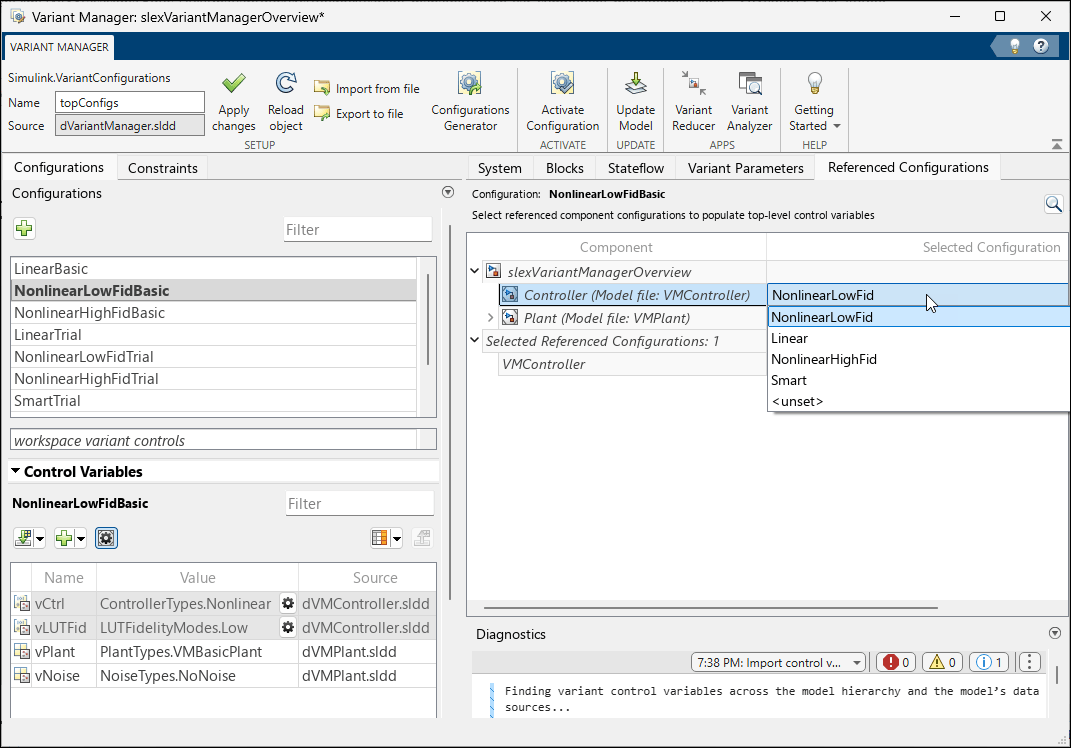
To add or remove referenced configurations programmatically, use the addReferencedConfiguration and removeReferencedConfiguration functions.
Select Variant Configuration for Referenced Component
Expand the model hierarchy in the Referenced Configurations tab.
Locate the required referenced component in the Component column of the hierarchy.
The Selected Configuration field for the component is set to
<unset>by default. With this setting, you can directly add the control variables required by the component in the Control Variables table of the top-level configuration and update them with any valid custom value.To use an existing named configuration, select it from the list in the Selected Configuration column. This action adds the control variables defined in that configuration to the top-level model configuration.
Note
In the Control Variables table of a top-level variant configuration, the control variables that are populated using a referenced configuration are read-only and appear with a gray background color.
To close the tab, click the Show referenced component configurations button
in the Control Variables
section.After selecting component configurations, you can use any of these options in the Manage tab to save or revert your changes:
To apply the changes to the base workspace or data dictionary of the model, click Apply changes.
To reload the variant configurations object from the base workspace or data dictionary used by the model, click Reload object. This allows you to revert the changes that are not yet exported to the data sources used by the model.
To permanently save the changes in the variant configurations object to a file, click Export to file.
Tip
A  icon for a component in the Selected
Configuration column indicates that it has predefined variant
configurations.
icon for a component in the Selected
Configuration column indicates that it has predefined variant
configurations.
To get the name of the referenced configuration used within a top-level variant
configuration programmatically, use the getReferencedConfigurationName method.
Clear Selected Variant Configuration
You can unset the variant configuration that you specified for a referenced component from the Referenced Configurations tab. This action does not remove the control variables added to the top-level configuration previously.
To unset the variant configuration for a referenced component, in the
Referenced Configurations tab, in the Selected
Configuration column, select <unset>. In the
Control Variables table, the control variables populated from this
configuration become editable.
Referenced Configurations View Example
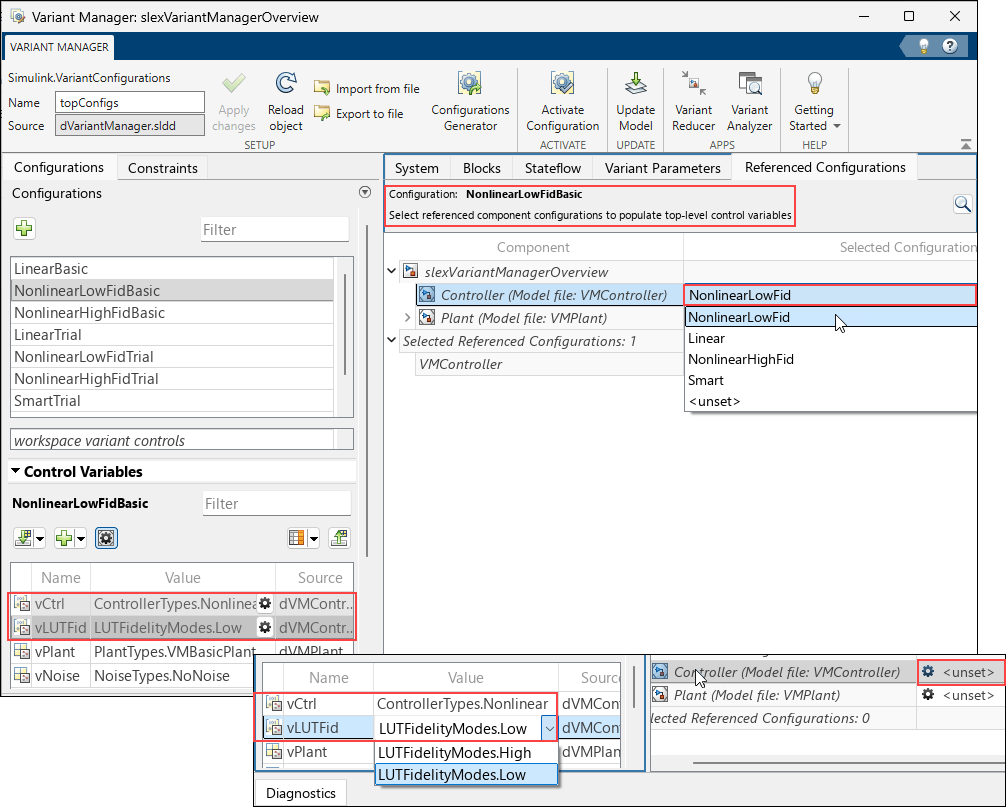
In this example, the Controller component has multiple predefined
configurations. Selecting one of them from the list adds or updates the corresponding
control variables, vCtrl and vLUTFid in the
top-level model configuration, NonlinearLowFidBasic. Selecting
<unset> allows you to provide custom values for these
control variables.
Validate That Top-Level Model Uses Referenced Configuration
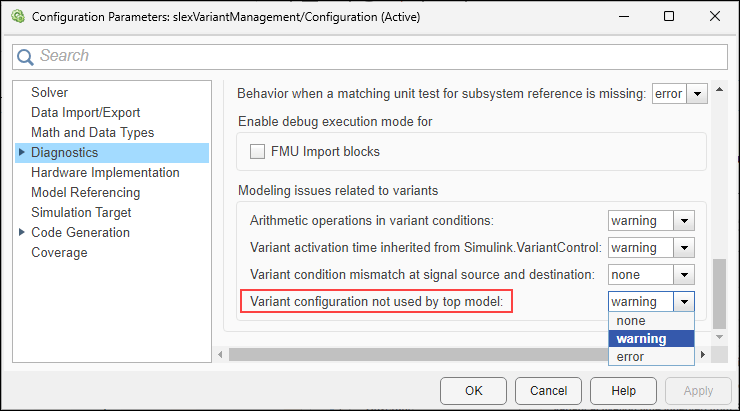
For a referenced model that has predefined variant configurations of its own, you can detect when a top-level model does not use one of these configurations to set up its own variant configurations. You can use the model configuration parameter Variant configuration not used by top model for a referenced model to specify the diagnostic action to take for such a scenario. This setting helps you to verify that the referenced model is used only for its tested variant configurations.
To open the Configuration Parameters dialog box, in the Simulink Editor, on the Modeling tab, click Model Settings
 .
.Click the Diagnostics pane in the tree on the left side of the dialog box.
Toward the bottom of the dialog box, click Advanced parameters.
In the Modeling issues related to variants section, select the required option for the Variant configuration not used by top model parameter.
Set Up Constraints by Using Referenced Configurations View
Use the Referenced Configurations view to define a model-wide constraint.
Open Variant Manager for the top-level model. On the Modeling tab, open the Design section and click Variant Manager.
Open the Constraints tab and add a new constraint.
Click the Show referenced component configurations button
to open the Referenced
Configurations view as a tab in the model hierarchy pane. Alternatively,
right-click the constraint or click the Open context menu button
, and select Referenced component
configurations.For a referenced component in the model hierarchy, select the configuration that you want to include in the constraint from the list in the Selected Configuration column.
Click the add button
 to append an expression with the configuration name to
the Condition field. The expression uses the
to append an expression with the configuration name to
the Condition field. The expression uses the isConfigActivefunction to specify the configuration name. Modify the expression manually as needed by adjusting operators or adding more conditions.To apply the changes to the base workspace or data dictionary of the model, click Apply changes. To close the tab, click the Show referenced component configurations button
.
Selecting a configuration in this step does not affect referenced configurations used in top-level configurations. The selection operation only helps to add the configuration name to the constraint condition.
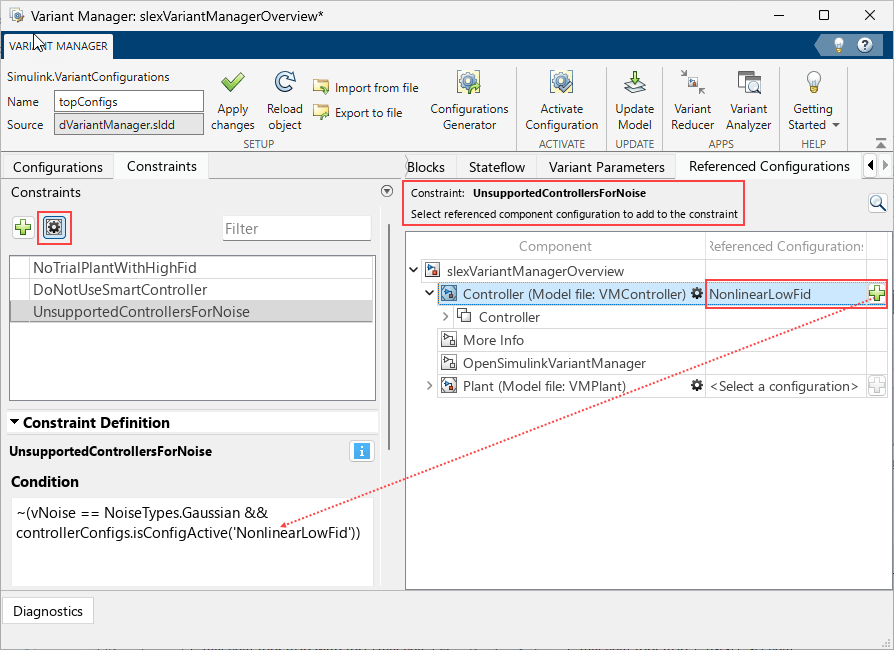
This image shows the Referenced Configurations tab for the
slexVariantManagerOverview model. For the constraint
FidelityConstraint, the Condition field shows an
expression that uses referenced configurations.
To programmatically add a constraint that uses referenced configurations, use the
addConstraint function with the
isConfigActive function.
See Also
addReferencedConfiguration | Simulink.VariantManager.validateConstraint

