Grid-Based Tracking in Urban Environments Using Multiple Radars
This example shows how to track moving objects with multiple high-resolution radars using a grid-based tracker. A grid-based tracker enables early fusion of data from high-resolution sensors such as radars and lidars to estimate a dynamic occupancy grid map and a global object list. For grid-based tracking with lidar sensors refer to the Grid-Based Tracking in Urban Environments Using Multiple Lidars (Sensor Fusion and Tracking Toolbox)
Introduction
Most multi-object tracking approaches represent the environment as a set of discrete and unknown number of objects. The job of the tracker is to then estimate the number of objects and their corresponding states, such as position, velocity, and dimensions, using the sensor measurements. With high-resolution sensors such as radar or lidar, the tracking algorithm can be configured using point-object trackers or extended object trackers.
Point-Object Trackers
Point-object trackers assume that each object may give rise to at most one detection per sensor in a single scan. Therefore, when using point-target trackers for tracking extended objects, features like bounding box detections are first extracted from the sensor measurements at the object-level. These object-level features then get fused with object-level hypothesis from the tracker. A poor object-level extraction algorithm at the sensor level (such as imperfect clustering) thus greatly impacts the performance of the tracker.
Extended Object Trackers
On the other hand, extended object trackers process the detections without extracting object-level hypothesis at the sensor level. Extended object trackers associate sensor measurements directly with the object-level hypothesis maintained by tracker. To do this, a class of algorithms typically requires complex measurement models of the object extents specific to each sensor modality. For example, refer to Extended Object Tracking of Highway Vehicles with Radar and Camera (Automated Driving Toolbox) to learn how to configure a multi-object PHD tracker for radar sensors.
A grid-based tracker can be considered as a type of extended object tracking algorithm which uses a dynamic occupancy grid map as an intermediate representation of the environment. In a dynamic occupancy grid map, the environment is discretized using a set of 2-D grid cells. The dynamic map represents the occupancy as well as kinematics of the space represented by a grid cell. Using the estimate of the dynamic map and further classification of grid cells as static and dynamic serves as a preprocessing step to filter out measurements from static objects and to reduce the computational complexity for object extraction. For trackers which represent the environment at the object-level such as the PHD tracker, returns from environments much be filtered out before processing them with the tracker. For an example showing such radar pre-processing, refer to Highway Vehicle Tracking with Multipath Radar Reflections (Sensor Fusion and Tracking Toolbox) example.
In this example, you use the trackerGridRFS (Sensor Fusion and Tracking Toolbox) System object™ to configure the grid-based tracker. This tracker uses the Random Finite Set (RFS) formulation with Dempster-Shafer approximation [1] to estimate the dynamic map. Further, it uses a nearest neighbor cell-to-track association [2] scheme to track dynamic objects in the scene. To initialize new tracks, the tracker uses the DBSCAN algorithm to cluster unassigned dynamic grid cells.
Set Up Scenario and Radar Sensor Models
The scenario used in this example was created using the Driving Scenario Designer (Automated Driving Toolbox) app and was exported to a MATLAB® function. This MATLAB function was extended to include radar sensors was wrapped as a helper function helperCreateGridRadarDrivingScenario. The scenario represents an urban intersection scene and contains a variety of objects that include pedestrians, bicyclists, cars, and trucks.
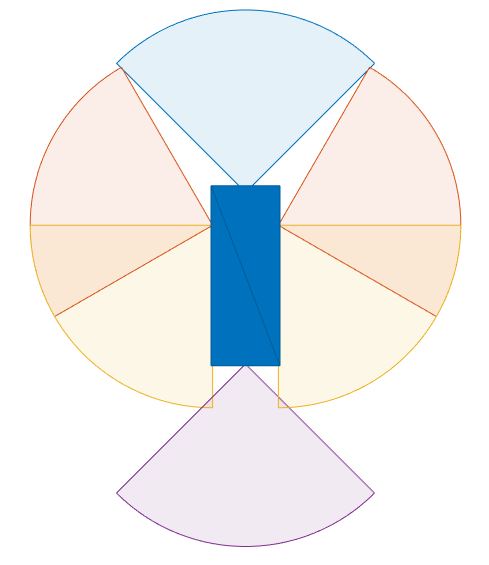
The ego vehicle is equipped with 6 homogeneous radars, each with a horizontal field of view of 90 degrees, a vertical field of view of 40 degrees, and a maximum range of 100 meters. The radars are simulated using the radarDataGenerator System object. Each radar has an azimuth resolution of 2 degrees, an elevation resolution of 10 degrees, and a range resolution of 2.5 meters. To simulate a different configuration of the radar, you can change the properties of the radar model in the helper function helperCreateGridRadarDrivingScenario.
% For reproducible results
rng(2);

% Create scenario
[scenario, egoVehicle, radars] = helperCreateGridBasedRadarDrivingScenario;
The data set obtained by sensor simulation is recorded in a MAT file that contains returns from the radar. To record the data for a different scenario or sensor configuration, you can use the following command:
helperRecordGridBasedDrivingScenario(scenario,egoVehicle,sensors,fName);
% Load the recorded data
load('MultiRadarGridBasedTrackingData.mat','radarPointCloudLog','egoPoseLog','radarSpecification');
Visualization
The visualization used for this example is defined using a helper class, helperRadarGridTrackingDisplay, attached with this example. The visualization contains three parts.
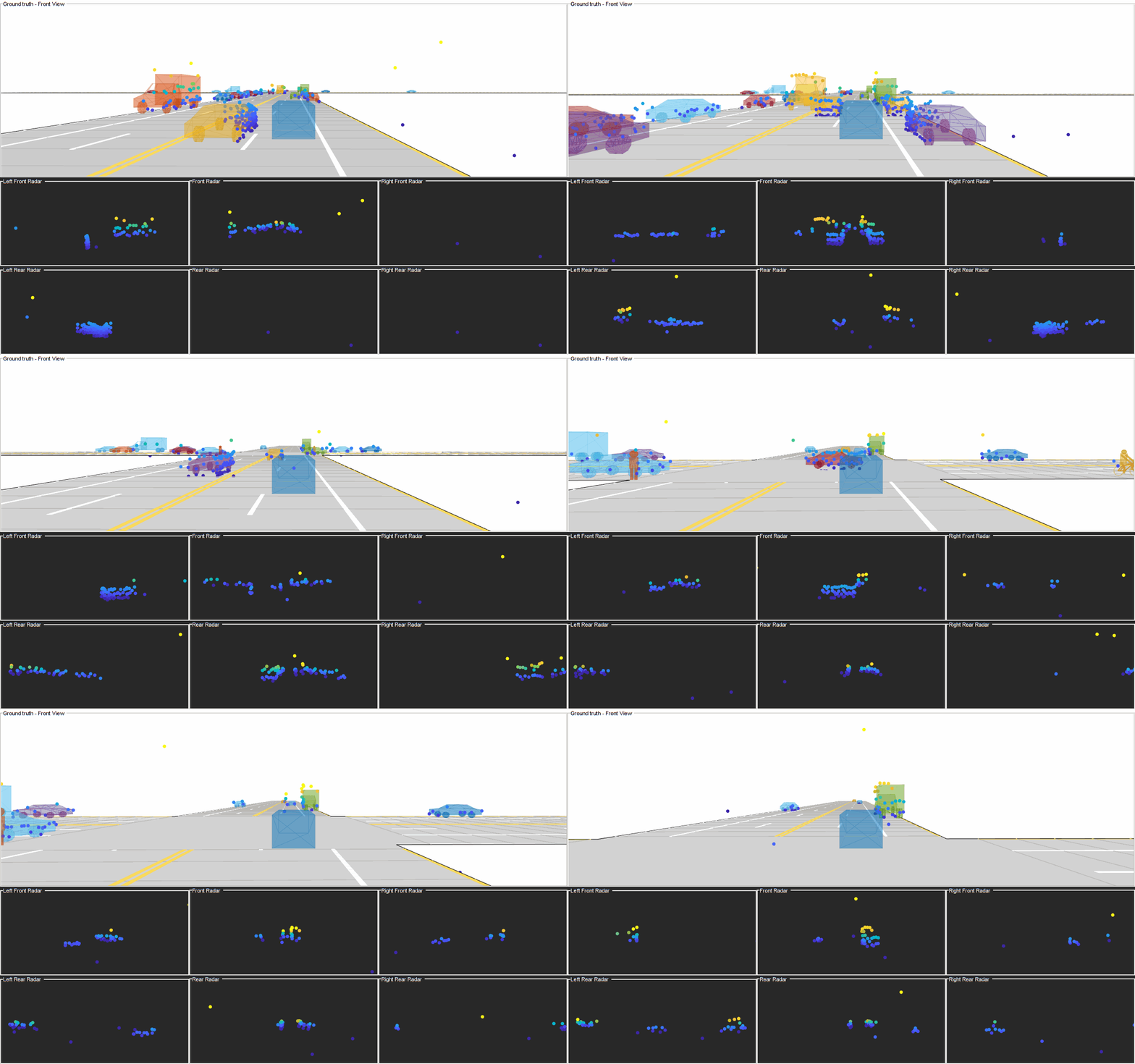
Ground truth - Front View: This panel shows the front-view of the ground truth using a chase plot from the ego vehicle. To emphasize dynamic actors in the scene, the static objects are shown in gray. In addition to ground truth, the panel also shows point cloud returns from each radar sensor. The color of the point in the point cloud represent the height of the point with respect to the ego vehicle.
Radar Views: These panels show the point cloud returns from each radar sensor in a projected frame similar to the front view.
Grid-based tracker: This panel shows the grid-based tracker outputs. The tracks are shown as boxes, each annotated by their identity. The tracks are overlaid on the dynamic grid map. The colors of the dynamic grid cells are defined according to the color wheel, which represents the direction of motion in the scenario frame. The static grid cells are represented using a grayscale according to their occupancy. The degree of grayness denotes the probability of the space occupied by the grid cell as free. The positions of the tracks are shown in the ego vehicle coordinate system, while the velocity vector corresponds to the velocity of the track in the scenario frame.
display = helperRadarGridTrackingDisplay;
The scenario and the data from the different radars overlaid on ground truth can be visualized in the animation below.
Set Up Grid-Based Tracker
You define a grid-based tracker using trackerGridRFS to track dynamic objects in the scene. The first step of defining the tracker is setting up sensor configurations as trackingSensorConfiguration objects. The sensor configurations allow you to specify the mounting of each sensor with respect to the tracking coordinate frame. The sensor configurations also allow you to specify the detection limits - field of view and maximum range - of each sensor. In this example, you use the specifications of the radar sensors to define these properties. An example of radar specification is shown below. You can configure the tracker with recorded data by modifying the specifications of the sensors. The helperPackData supporting function converts the point cloud into the input format required by the tracker. The trackerGridRFS consumes azimuth, elevation, range, and doppler measurements.
disp(radarSpecification{1}); SensorIndex: 1
MountingLocation: [3.7000 0 0.6000]
MountingAngles: [0 0 0]
FieldOfView: [90 40]
RangeLimits: [0 100]
RangeRateLimits: [-100 100]
DetectionProbability: 0.9500
The utility function helperGetRadarConfig uses the specification of the radar sensor and returns its respective configuration in a format required by the tracker. In this example, the targets are tracked in the global or world coordinate system by using the simulated pose of the vehicle. This information is typically obtained via an inertial navigation system. As the sensors move in the scenario coordinate system, their configuration must be updated each time by specifying the configurations as an input to the tracker.
% Store configurations of all sensor
sensorConfigs = cell(numel(radarSpecification),1);

% Fill in sensor configurations
for i = 1:numel(sensorConfigs)
    sensorConfigs{i} = helperGetRadarConfig(radarSpecification{i},egoPoseLog{1});
end

% Construct tracker using sensor configurations. You can define the rest of
% the properties before using the tracker.
tracker = trackerGridRFS(SensorConfigurations=sensorConfigs,...
    HasSensorConfigurationsInput=true);
The tracker uses a two-dimensional grid for the intermediate representation of the environment. The grid is defined by 3 attributes: its length, its width, and the resolution. The length and width describe the span of the grid in local X and local Y direction of the ego vehicle respectively. The resolution defines the number of cells per meter of the grid. In this example, you use a 120 m by 120 m grid with a resolution of 1.5 cells per meter.
tracker.GridLength = 120; % meters
tracker.GridWidth = 120; % meters
tracker.GridResolution = 1.5; % 1/meters
In addition to defining the grid, you also define the relative position of the ego vehicle by specifying the origin of the grid (left corner) with respect to the origin of the ego vehicle. In this example, the ego vehicle is located at the center of the grid because the sensors provide surround coverage.
tracker.GridOriginInLocal = [-tracker.GridLength/2 -tracker.GridWidth/2];
The tracker uses particle-based methods to estimate the state of each grid cell and further classify them as dynamic or static. It uses a fixed number of persistent particles on the grid which defines the distribution of existing targets. It also uses a fixed number of particles to sample the distribution for newborn targets. These birth particles get sampled in different grid cells based on the probability of birth. Further, the velocity and other unknown states like turn-rate and acceleration (applicable when MotionModel of the tracker is not constant-velocity) of the particles is sampled uniformly using prior information supplied using prior limits. A resampling step ensures that the number of particles on the grid remain constant.
tracker.NumParticles = 2e5; % Number of persistent particles
tracker.NumBirthParticles = 2e4; % Number of birth particles
tracker.VelocityLimits = [-15 15;-15 15]; % To sample velocity of birth particles (m/s)
tracker.BirthProbability = 0.025; % Probability of birth in each grid cell
tracker.ProcessNoise = 5*eye(2); % Process noise of particles for prediction as variance of [ax;ay] (m/s^2)
The tracker uses the Dempster-Shafer approach to define the occupancy of each cell. The dynamic grid estimates the belief mass for occupancy and free state of the grid. During prediction, the occupancy belief mass of the grid cell updates due to prediction of the particle distribution. The DeathRate controls the probability of survival () of particles and results in a decay of occupancy belief mass during prediction. As the free belief mass is not linked to the particles, it decays using a pre-specified, constant discount factor. This discount factor specifies the probability that free regions remain free during prediction.
tracker.DeathRate = 1e-3; % Per unit time. Translates to Ps = 0.9999 for 10 Hz
tracker.FreeSpaceDiscountFactor = 1e-2; % Per unit time. Translates to a discount factor of 0.63 (1e-2^dT) for 10 Hz
After estimating the state of each grid cell, the tracker classifies each grid cell as static or dynamic by using its estimated velocity and associated uncertainty. Further, the tracker uses dynamic cells to extract object-level hypothesis using the following technique:
Each dynamic grid cell is considered for assignment with existing tracks. A dynamic grid cell is assigned to its nearest track if the negative log-likelihood between a grid cell and a track is below an assignment threshold. A dynamic grid cell outside the assignment threshold is considered unassigned. The tracker uses unassigned grid cells at each step to initiate new tracks. Because multiple unassigned grid cells can belong to the same object track, a DBSCAN clustering algorithm is used to assist in this step. The dynamic map estimate can contain false positives in static and dynamic classification and tracker filters them in two ways. First, only unassigned cells which form clusters with more than a specified number of points (MinNumPointsPerCluster) can create new tracks. Second, each track is initialized as a tentative track first and is only confirmed if it is detected M out of N times.
tracker.AssignmentThreshold = 9; % Maximum distance or negative log-likelihood between cell and track
tracker.MinNumCellsPerCluster = 4; % Minimum number of grid cells per cluster for creating new tracks
tracker.ClusteringThreshold = 5; % Minimum Euclidean distance between two cells for clustering
tracker.ConfirmationThreshold = [4 5]; % Threshold to confirm tracks
tracker.DeletionThreshold = [4 4]; % Threshold to delete confirmed tracks
You can also accelerate simulation by performing the dynamic map estimation on GPU by specifying the UseGPU property of the tracker.
tracker.UseGPU = false;
Run Scenario and Track Dynamic Objects
Next, run the scenario, assemble recorded radar sensor data, and process the data using the grid-based tracker.
% Number of time steps
numSteps = numel(radarPointCloudLog);

% Allocate memory to store track info
trackInfo = cell(numSteps,2);

% Loop over time steps
for i = 1:numSteps
    % Advance the scenario
    advance(scenario);

    % Current simulation time
    time = scenario.SimulationTime;

    % Pack point clouds and sensor configurations using recorded
    [sensorData,sensorConfigs] = helperPackData(radarPointCloudLog{i},egoPoseLog{i},radarSpecification);

    % Call the tracker
    tracks = tracker(sensorData,sensorConfigs,time);

    % Update the display
    display(scenario,egoVehicle,radarSpecification,radarPointCloudLog{i},tracker,tracks);
    drawnow;

    % Record tracks
    trackInfo{i,1} = tracks;

    % Capture snapshot of dynamic map
    if i==59
        display.saveTrackerFigure(tracker,'DynamicMap_With_Noise');
    end
end
Results
Next, analyze the performance of the tracker using the visualization provided in this example.
The grid-based tracker uses the dynamic cells from the estimated grid map to extract object tracks. The animation below shows the results of the tracker in this scenario. The "Grid-based tracker" panel shows the estimated dynamic map as well as the estimated tracks of the objects. It also shows the configuration of the sensors mounted on the ego vehicle as blue circular sectors. Notice that the area encapsulated by these sensors is estimated as "gray" in the dynamic map, representing that this area is not observed by any of the sensors. This patch also serves as an indication of ego-vehicle's position on the dynamic grid.
Notice that the tracks are extracted only from the dynamic grid cells and hence the tracker is able to filter out static objects. Also notice that after a vehicle enters the grid region, its track establishment takes a few time steps. This is due to two main reasons. First, there is an establishment delay in classification of the cell as dynamic. Second, the confirmation threshold for the object takes some steps to establish a track as a confirmed object.
Next, you look at the history of a few tracks to understand how the state of a track gets affected by the estimation of the dynamic grid.
Longitudinally Moving Tracks
The following snapshots show the history for the track denoted by T1. The track T1 represents the yellow car that passes the ego vehicle on the left during the first few seconds of the simulation. Note that the grid cells occupied by this track are colored in red, indicating their motion in the positive X direction. The track acquires its velocity and heading information using the velocity distribution of the assigned grid cells. Similarly, it also obtains its length, width, and orientation using the spatial distribution of the assigned grid cells. The default TrackUpdateFcn of the trackerGridRFS extracts new length, width, and orientation information from the spatial distribution of associated grid cells at every step. This effect can be observed in the snapshots below, where the length and width of the track adjusts according to the bounding box of the associated grid cells. This results in shrinkage of box as it travels away from the ego vehicle, but it can also create fluctuating extent estimates if the dynamic grid cells are not classified accurately. An additional filtering scheme can be added using the predicted length, width, and orientation of the track by using a custom TrackUpdateFcn.
% Show snapshots for TrackID = 1.
showSnapshots(display.GridView,1);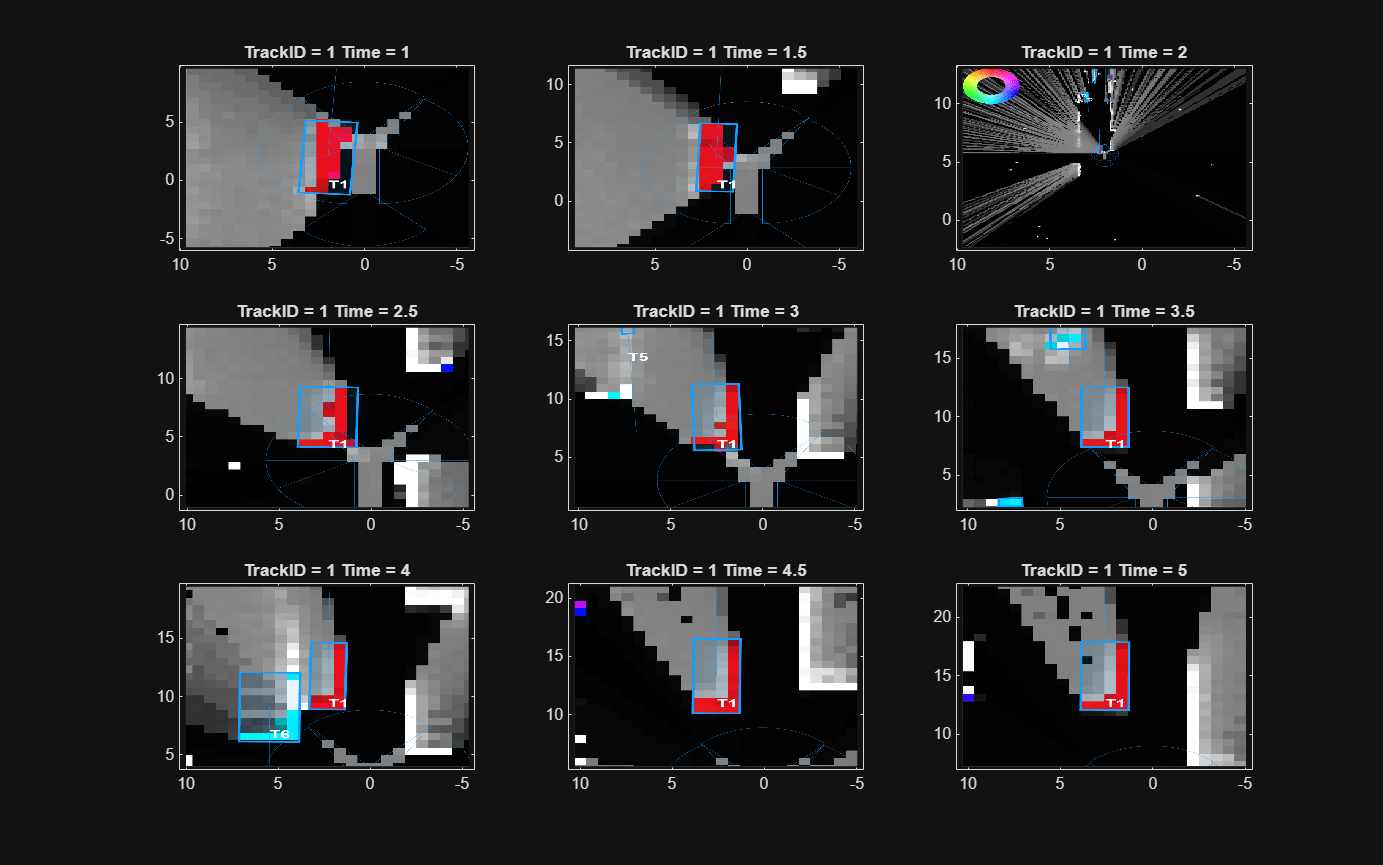
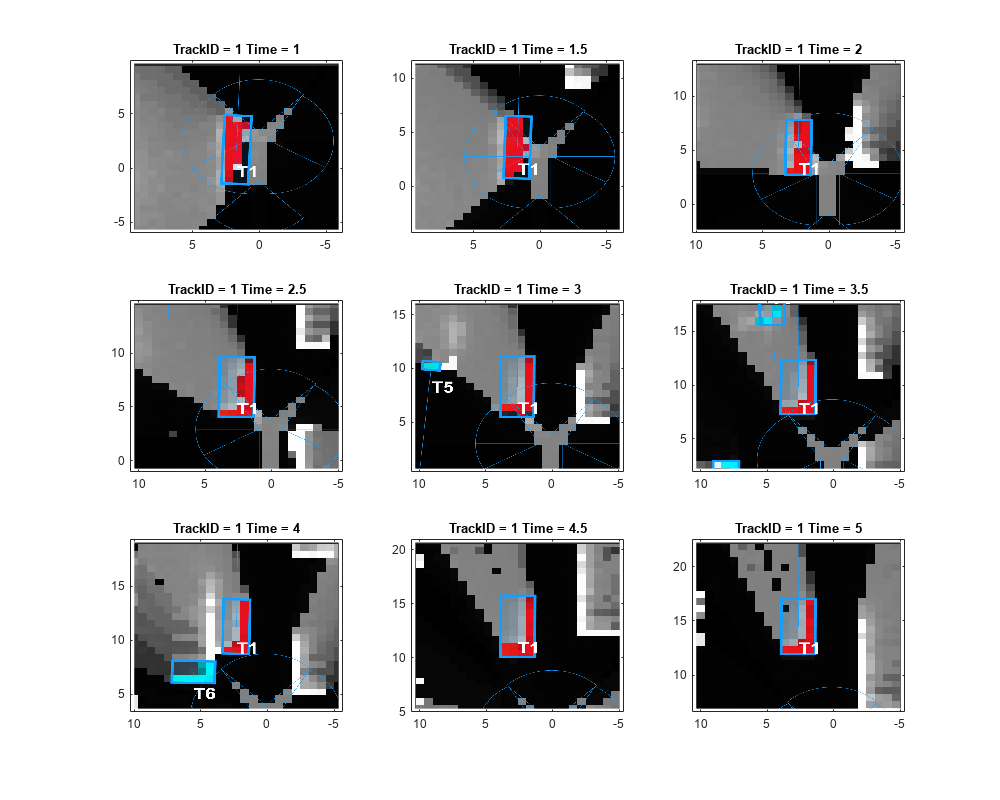
Next, take a closer look at the history of T6. The track T6 represents the truck moving in the opposite direction of the ego vehicle. Notice that the grid cells representing this track are colored in blue, representing the estimated motion direction of the grid cell. Also, notice that there are grid cells in the track that are misclassified by the tracker as static (white color). These misclassified grid cells often occur when sensors report previously occluded regions of an object, because the tracker has an establishment delay to classify these cells property. Also, because the uncertainty of the velocity estimate at the grid increases when the object is occluded, the probability of the grid cells to be classified as dynamic reduces.
Notice that at Time = 4, when the truck and the vehicle came close to each other, the grid cells maintained their respective color, representing a stark difference between their estimated velocity directions. This also results in the correct data association between grid cells and predicted tracks of T1 and T6, which helps the tracker to resolve them as separate objects.
showSnapshots(display.GridView,6);
Laterally Moving Tracks
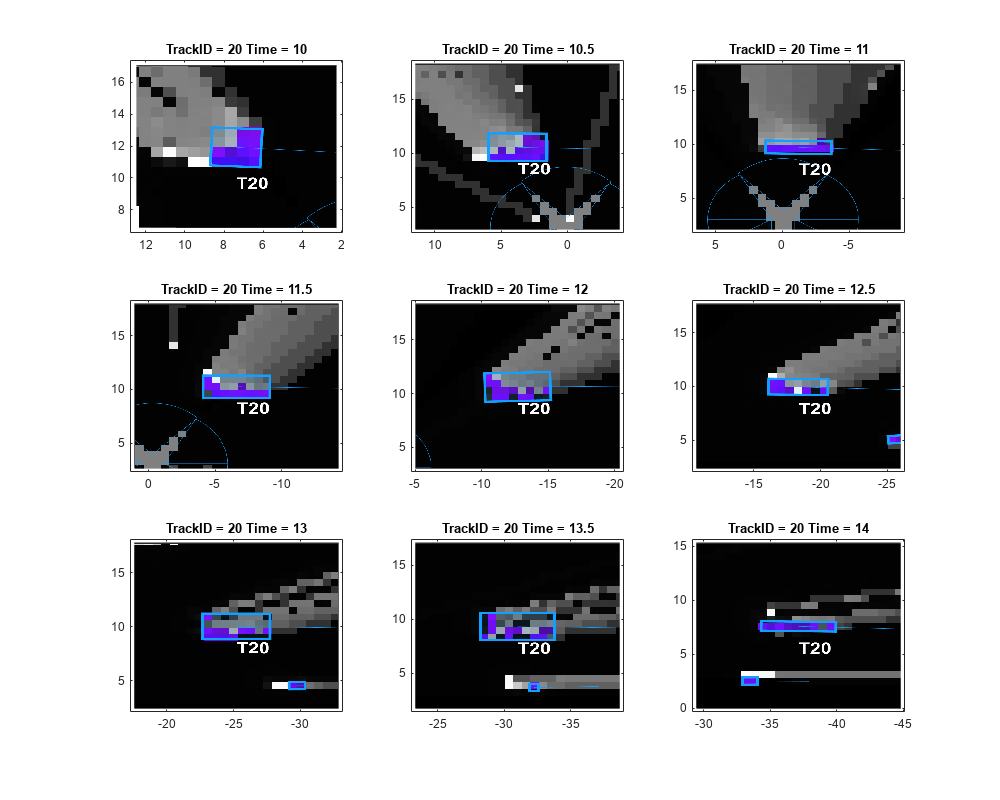
The following snapshots represent the track denoted by T21. This track represents the vehicle moving in the lateral direction, when the ego vehicle stops at the intersection. Notice that the grid cells of this track are colored in purple, representing the direction of motion from left to right (in negative Y direction). Similar to other tracks, the track acquires its length and width estimate using the spatial distribution of the assigned grid cells.
showSnapshots(display.GridView,21);

Tracks Changing Direction
In this example, you used a "constant-velocity" model with the tracker. This motion model assumes that the targets move at a constant velocity, meaning constant speed and direction. However, in urban scenes, this assumption is usually not accurate. To compensate for the unknown acceleration of the objects, a process noise is specified on the tracker. Given the sparse resolution of the point cloud with noisy observations, as shown in this example, the process noise also helps to compensate for the measurement uncertainty when the measurement from the same true position jumps from one grid cell to another due to noise. The sparse point cloud and the measurement noise also impacts the tracker's ability to detect slowly moving objects as dynamic. Notice in the images below that the tracker struggles to maintain the track T8 on cyclist traveling in the positive X direction before taking a right turn at the intersection. This is because its grid cells were misclassified as static. Due to coasting (DeletionThreshold) of the tracks and allowed threshold between tracks and cells (AssignmentThreshold), the tracker was able to maintain the track on this cyclist.
showSnapshots(display.GridView,8);
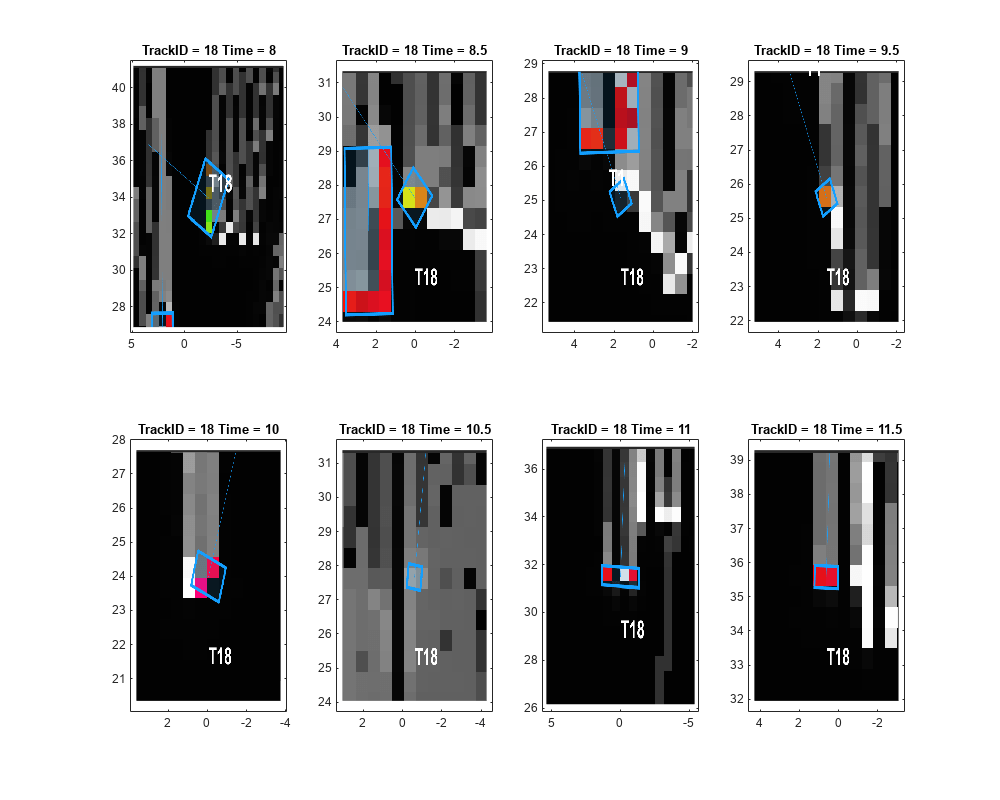
However, notice in the images below that the tracker drops the track T2 on the car traveling in front of the ego in the positive X direction before taking a right turn at the intersection. After grid cells from the car were correctly classified as dynamic again, the tracker established a new track T18 on the car.
showSnapshots(display.GridView,[2 18]);
Run Scenario Without Doppler and Analyze Tracking Performance
The results discussed so far in this example are based on sensor data that includes azimuth, elevation, range, and range-rate (Doppler) measurements. In this section, you will remove Doppler information from the sensor inputs and re-run the tracker using the same scenario and configuration. This will allow you to observe the effect of Doppler absence on tracking performance. You will also examine how measurement noise affects the 2D dynamic occupancy grid.
Doppler measurements provide direct insight into an object's velocity along the radar beam's line of sight. They help constrain the particle sampling region during tracking and enable faster convergence of velocity estimates. By disabling Doppler, you will compare how the tracker's performance changes and gain insight into its impact on velocity estimation.
Unlike lidar, which produces dense point clouds, radar data tends to be sparse and lower in resolution. As a result, when mapping radar returns onto the grid, many cells may remain empty due to the limited number of returns per scan. This sparsity becomes more problematic when Doppler measurements are missing—neighboring cells may be incorrectly marked as unoccupied, leading to poor object representation. In some cases, the tracker may incorrectly split a single object into multiple tracks due to poor clustering. Tuning tracker parameters such as MinNumCellsPerCluster and ClusteringThreshold can help address these issues and improve object association.
To begin, you'll reset the tracker from the previous section and update the sensor configuration to disable Doppler measurements by setting the HasVelocity field in SensorTransformParameters to false. As a result, the tracker will only receive azimuth, elevation, and range data. This change is implemented through the helperRemoveDoppler function which strips Doppler data and sets the HasVelocity flag in the MeasurementParameters structure to false. The Doppler-free data is then passed through the tracker pipeline, and the resulting tracks are stored in a cell array for comparison in the upcoming subsections.
% Restart the scenario
restart(scenario);

% Reset tracker states
reset(tracker);

% Modify tracker sensor configuration HasVelocity to false
release(tracker)
for i = 1:numel(sensorConfigs)
    tracker.SensorConfigurations{1}.SensorTransformParameters(1).HasVelocity = false;
end

% Allocate memory to store track information
groundTruthInfo = cell(numSteps,1);

% Loop over time steps
for i = 1:numSteps
    % Advance the scenario
    advance(scenario);

    % Current simulation time
    time = scenario.SimulationTime;

    % Pack point clouds and sensor configurations using recorded
    [sensorData,sensorConfigs] = helperPackData(radarPointCloudLog{i},egoPoseLog{i},radarSpecification);

    % Modify sensor data and config to remove doppler
    [sensorData,sensorConfigs] = helperRemoveDoppler(sensorData,sensorConfigs);

    % Call the tracker
    tracks = tracker(sensorData,sensorConfigs,time);

    % Record track states and ground truth
    trackInfo{i,2} = tracks;
    groundTruthInfo{i} = scenario.Actors;

    % Capture snapshot of dynamic map
    if i==59
        display.saveTrackerFigure(tracker,'DynamicMap_Without_Noise');
    end
end
Tracking Results Without Doppler
The following visualization illustrates tracking results obtained without Doppler measurements. You can observe notable differences in the number of tracks compared to Doppler-enabled tracking.
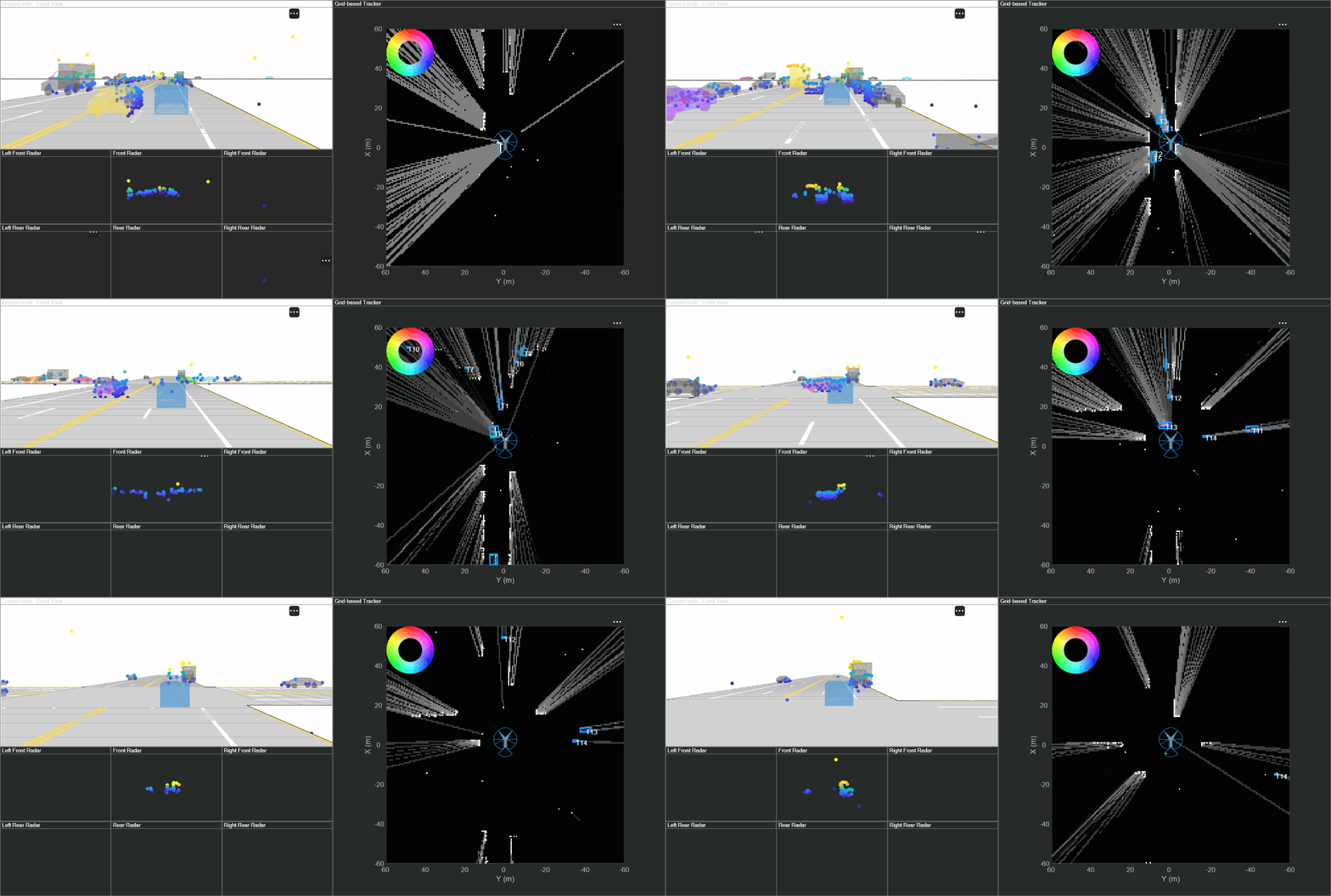
While Doppler data generally improves velocity estimation, it can also introduce ambiguity. For example, grid cells corresponding to elongated, stationary objects such as guardrails may appear to move at the same speed as the ego vehicle. In these cases, their reflections can be indistinguishable from those of a moving vehicle, like a truck traveling alongside. This may lead the tracker to misinterpret static objects as dynamic ones, resulting in the generation of false tracks.
Impact on Velocity Estimation
At this point, you have ran the tracker in the same scenario with and without doppler and stored the track information in trackInfo cell array of size N-by-2 where the first column indicates the first tracker run with doppler and second column represents second tracker run without doppler. Additionally you also stored the actor ground truth information. In this section, you will use the helperPlotTrackVelocity to plot the track velocity error for an actor. The Actor ID are determined from the scenario and the Track ID are determined from the visualization obtained from tracker results.
The actor ID 10 corresponds to an incoming truck at the start of the simulation passing the ego vehicle in the adjacent lane after the car. Track ID 6 is generated for tracker with doppler and Track ID 5 is generated for tracker without doppler. Use the helperPlotTrackVelocity function to plot the velocity error for both the tracks.
figure;
ax(1) = subplot(2,1,1);
ax(2) = subplot(2,1,2);
helperPlotTrackVelocity(ax,groundTruthInfo,10,trackInfo,[6,5]);
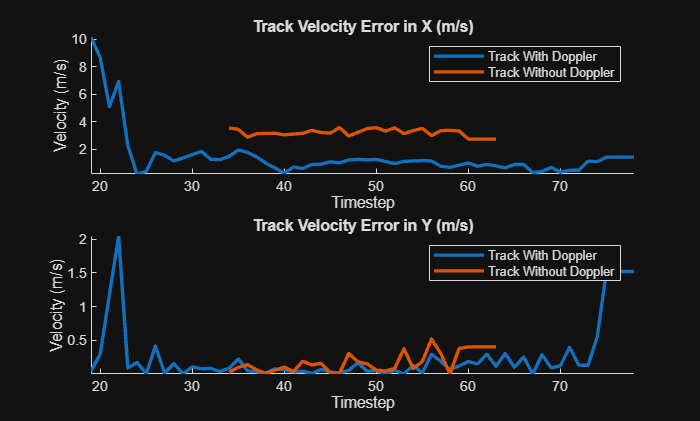
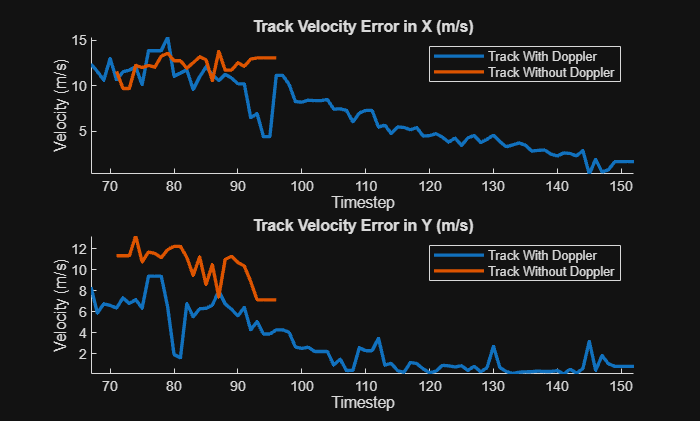
The plot above compares the velocity error in the X and Y directions for tracks generated with and without Doppler measurements. Notice that the tracker using Doppler creates the track earlier under identical conditions. Initially, the velocity error in the X direction is relatively high—this can be attributed to the sparse radar returns from the truck and suboptimal clustering.
As seen in the "Ground Truth – Front View" the incoming truck is sparsely detected at first. But as it moves closer, radar points begin to accumulate on the object, leading to a more stable track and reduced velocity error. Around the 3-second mark, the bounding box briefly expands because the tracker mistakenly includes a cell belonging to a nearby parked car. This misclassification explains the temporary spike in error at 20th timestep in the plot. Shortly afterward, the truck becomes partially occluded by a passing vehicle in the left lane of the ego car. Despite fewer visible points during this occlusion, the tracker maintains an accurate orientation, however the velocity error remains minimal in case of the Doppler case. The doppler-enabled tracker is also able to initiate and maintain track earlier and longer than the doppler-disabled tracker.
Overall, the final tracking results for the truck are more accurate and sustain for longer for Doppler-enabled configuration. Using Doppler allows the tracker to estimate the target's velocity much earlier, while the Doppler-free configuration relies solely on spatial distribution, resulting in a delayed velocity estimate.
Now, evaluate the tracker's performance on a vehicle that travels normal to the ego vehicle. Actor ID 13 begins by moving in the normal direction to the ego vehicle, then turns at the intersection, orienting itself to the ego's path. During this maneuver, the initial track is dropped, and a new one is created once the vehicle completes the turn in the case of the Doppler-free case. Track ID 12 corresponds to the Doppler-enabled tracker, while Track ID 10 represents the Doppler-free case after the vehicle made the turn.
figure;
ax(1) = subplot(2,1,1);
ax(2) = subplot(2,1,2);
helperPlotTrackVelocity(ax,groundTruthInfo,13,trackInfo,[12,10]);
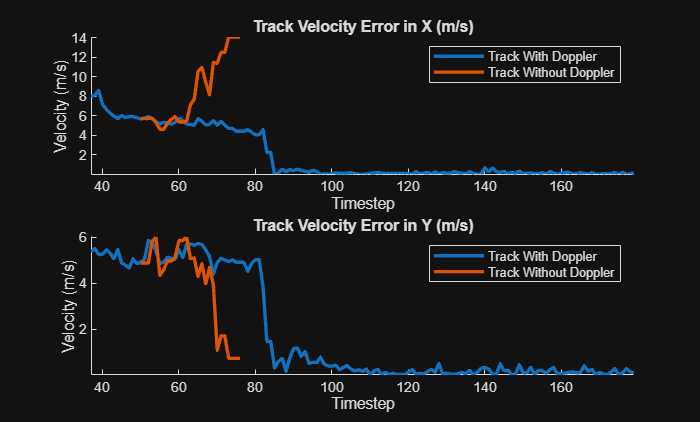
A similar trend appears for a vehicle that turns perpendicular to the ego vehicle. The Doppler-enabled tracker initiates tracking earlier, and while X-direction velocity error fluctuates at first and later stabilizes as vehicle completes the turn.
Since Doppler only captures motion along the radar beam's line of sight, estimating velocity perpendicular to that beam especially during turns can be less accurate. As the ego vehicle moves forward, X-direction estimates improve. In the Y direction, both trackers perform similarly, though Doppler readings can vary during a turn due to reflections from different parts of the vehicle.
Now, consider Actor ID 17, a cyclist traveling along the right side of the road in the X direction who turns at the intersection. In this scenario, Track ID 8 corresponds to the Doppler-enabled tracker, while Track ID 6 represents the Doppler-disabled case.
figure;
ax(1) = subplot(2,1,1);
ax(2) = subplot(2,1,2);
helperPlotTrackVelocity(ax,groundTruthInfo,17,trackInfo,[8,6]);
Due to the cyclist's smaller footprint compared to other vehicles, it occupies fewer grid cells and are is difficult to detect, especially with sparse radar point clouds. This limited detection coverage can affect tracking consistency. Measurement noise can help project uncertainty onto grids, enabling classification of neighbor cells as dynamic and tackle sparsity. In this scenario, the tracker with doppler is able to initiate track for the cyclist before during and after the cyclist has turned and the velocity error decreases once the motion is constant. However for the doppler-disabled case the tracker initiates the track quite later than tracker with doppler and also results in slightly greater velocity errors in X and Y direction during the turn.
Comparision of Dynamic Maps: With vs Without Doppler
In this section, you'll examine how measurement projection affects the dynamic occupancy map. For both the Doppler-enabled and Doppler-free trackers, a snapshot of the dynamic map was captured at a point of interest where a vehicle traveling in the same direction returns sparse radar detections, primarily from its rear bumper. This sparsity is visible in the dynamic maps, and can be compared directly using the compareFigures method of the display object.
% Open saved figure for comparision
figureList = {'DynamicMap_With_Noise','DynamicMap_Without_Noise'};
display.compareFigures(figureList);
ax = findall(gcf,'Type','axes');

% Set limits
xlim(ax,[30 50]);
ylim(ax,[-10 10]);
view(ax,[-90 90]);
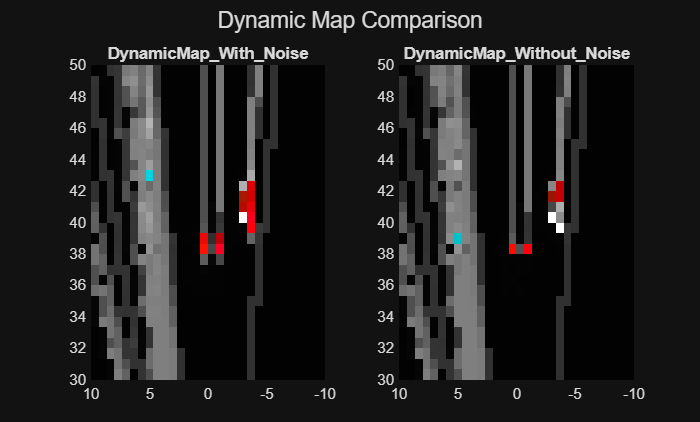
The figure above shows a car (left) and a bicycle (right), both highlighted with red dynamic cells in the respective dynamic maps. In the Doppler-disabled case, the car appears with only two radar detections due to sparse point cloud data. A key cell between them fails to be classified as dynamic—an artifact of low-resolution measurement and lack of uncertainty handling.
By projecting measurement uncertainty, neighboring cells within the measurement covariance receive higher mass values or occupancy probabilities. This improves particle sampling by keeping more particles alive in relevant regions. Cells with higher mass are more likely to be classified as dynamic, allowing the tracker to maintain object continuity. Without uncertainty projection, particles in sparse regions may die off and need to be resampled—slowing convergence and degrading map fidelity.
Summary
In this example, you explored the fundamentals of a grid-based tracker for dynamic object tracking in complex urban scenarios. You learned how to configure the tracker to handle sparse radar point clouds from multiple sensors, and examined how Doppler measurements and projected uncertainty help improve velocity estimation and mitigate the challenges of low-resolution data.
Supporting Functions
helperPackData packs sensor data into a structure format accepted by the tracker as input.
function [sensorData, sensorConfigs] = helperPackData(radarPtClouds, egoPose, radarSpecifications)
% Initialize arrays
sensorData = struct(SensorIndex = {},...
     Time = {},...
     Measurement = {},...
     MeasurementNoise = {},...
     MeasurementParameters = {});

sensorConfigs = cell(numel(radarPtClouds),1);

% Populate arrays
for i  = 1:numel(radarPtClouds)
    % Get radar configuration as trackingSensorConfiguration object
    sensorConfigs{i} = helperGetRadarConfig(radarSpecifications{i},egoPose);

    % Report time for sensorData
    sensorData(i).Time = radarPtClouds{i}.Time;

    % Allows mapping between sensor data and configuration without forcing
    % an ordered input
    sensorData(i).SensorIndex = sensorConfigs{i}.SensorIndex;

    % Assemble measurements
    sensorData(i).Measurement = [radarPtClouds{i}.Azimuth;radarPtClouds{i}.Elevation;radarPtClouds{i}.Range;radarPtClouds{i}.RangeRate];

    % Assemble measurement noise
    sensorData(i).MeasurementNoise = diag([0.1 0.1 0.15 0.1]);

    % Data is reported in sensor coordinate frame in spherical coordinates.
    % MeasurementParameters are same as sensor configuration transform
    % parameters
    sensorData(i).MeasurementParameters = sensorConfigs{i}.SensorTransformParameters;
end
end
helperGetRadarConfig packs sensor configuration into a trackingSensorConfiguration object.
function config = helperGetRadarConfig(radarSpecification, egoPose)
% Create configuration object
config = trackingSensorConfiguration(SensorIndex = radarSpecification.SensorIndex, ...
    IsValidTime = true);

% Provide detection limits (FOV of the sensors)
config.SensorLimits(1,:) = radarSpecification.FieldOfView(1)*[-1/2 1/2];
config.SensorLimits(2,:) = radarSpecification.FieldOfView(2)*[-1/2 1/2];
config.SensorLimits(3,:) = radarSpecification.RangeLimits;
config.SensorLimits(4,:) = radarSpecification.RangeRateLimits;

% Provide sensor resolutions
config.SensorResolution(1,:) = 2;
config.SensorResolution(2,:) = 10;
config.SensorResolution(3,:) = 1.5;
config.SensorResolution(4,:) = 1.5;

% Provide radar mounting with respect to ego
config.SensorTransformParameters(1).OriginPosition = radarSpecification.MountingLocation(:);
config.SensorTransformParameters(1).OriginVelocity = cross(radarSpecification.MountingLocation(:),deg2rad(egoPose.AngularVelocity(:)));
config.SensorTransformParameters(1).Orientation = rotmat(quaternion(radarSpecification.MountingAngles(:)','eulerd','ZYX','frame'),'frame');
config.SensorTransformParameters(1).IsParentToChild = true;

% Set HasVelocity field to true if radar measures range-rate.
% HasVelocity defaults to false.
config.SensorTransformParameters(1).HasVelocity = true;

% Provide ego pose with respect to a static reference frame
config.SensorTransformParameters(2).OriginPosition = egoPose.Position(:);
config.SensorTransformParameters(2).OriginVelocity = egoPose.Velocity(:);
config.SensorTransformParameters(2).Orientation = rotmat(quaternion([egoPose.Yaw egoPose.Pitch egoPose.Roll],'eulerd','ZYX','frame'),'frame');
config.SensorTransformParameters(2).IsParentToChild = true;

% Detection probability of the radar
config.DetectionProbability = 0.95;
end
helperRemoveDoppler removes doppler data from sensor data and configurations.
function [sensorData,sensorConfig] = helperRemoveDoppler(sensorData,sensorConfig)
for i = 1:numel(sensorData)
    % Remove Doppler from sensorData
    sensorData(i).Measurement = sensorData(i).Measurement(1:3,:);
    sensorData(i).MeasurementNoise = [];
    % sensorData(i).MeasurementNoise = diag([0.1 0.1 0.2]);
    sensorData(i).MeasurementParameters(1).HasVelocity = false;

    % Modify sensor config
    sensorConfig{i}.SensorTransformParameters(1).HasVelocity = false;
end
end
helperPlotTrackVelocity extracts track velocity and covariance from a given trackID and plots it for comparision
function helperPlotTrackVelocity(ax,actorsInfo,actorID,trackInfo,trackID)
velocitySelector = [0 1 0 0 0 0 0; 0 0 0 1 0 0 0];  % [x; vx; y; vy; yaw; L; W]

% Number of timesteps
n = size(trackInfo,1);

% Initialize to store track velocity
track1Vel = nan(n,2);
track2Vel = nan(n,2);
track1VelCov = zeros(n,2);
track2VelCov = zeros(n,2);

% Initialize ground truth
actorVel = nan(n,2);

for i = 1:n
    % Extract track velocity and covariance
    tracks1 = trackInfo{i,1};
    tracks2 = trackInfo{i,2};

    if ~isempty(tracks1)
        idx1 = [tracks1(:).TrackID]==trackID(1);
        if any(idx1)
            track1 = tracks1(idx1);
            [vel1,velCov1] = getTrackVelocities(track1,velocitySelector);
            track1Vel(i,:) = vel1;
            track1VelCov(i,:) = [velCov1(1,1) velCov1(2,2)];
        end
    end

    if ~isempty(tracks2)
        idx2 = [tracks2(:).TrackID]==trackID(2);
        if any(idx2)
            track2 = tracks2(idx2);
            [vel2,velCov2] = getTrackVelocities(track2,velocitySelector);
            track2Vel(i,:) = vel2;
            track2VelCov(i,:) = [velCov2(1,1) velCov2(2,2)];
        end
    end

    % Extract actor ground truth
    actorInfo = actorsInfo{i};
    actorIdx = [actorInfo(:).ActorID]==actorID;
    actorVel(i,:) = actorInfo(actorIdx).Velocity(1:2);
end

% Velocity error
errorVx1 = track1Vel(:,1) - actorVel(:,1);
errorVx2 = track2Vel(:,1) - actorVel(:,1);
errorVy1 = track1Vel(:,2) - actorVel(:,2);
errorVy2 = track2Vel(:,2) - actorVel(:,2);

% Ordered colors
C = orderedcolors("gem");

% Plot velocity in subplot 1
clf(ax);
hold(ax(1),"on");
plot(ax(1),abs(errorVx1),'-','Color',C(1,:),'LineWidth',2);
plot(ax(1),abs(errorVx2),'-','Color',C(2,:),'LineWidth',2);
xlabel(ax(1),'Timestep');
ylabel(ax(1),'Velocity (m/s)');
title(ax(1),'Track Velocity Error in X (m/s)');
legend(ax(1),'Track With Doppler','Track Without Doppler');
axis(ax(1),'tight');
hold(ax(1),"off");

% Plot velocity in subplot 2
hold(ax(2),"on");
plot(ax(2),abs(errorVy1),'-','Color',C(1,:),'LineWidth',2);
plot(ax(2),abs(errorVy2),'-','Color',C(2,:),'LineWidth',2);
xlabel(ax(2),'Timestep');
ylabel(ax(2),'Velocity (m/s)');
title(ax(2),'Track Velocity Error in Y (m/s)');
legend(ax(2),'Track With Doppler','Track Without Doppler');
axis(ax(2),'tight');
hold(ax(2),"off");
end
References
[1] Nuss, Dominik, et al. "A random finite set approach for dynamic occupancy grid maps with real-time application." The International Journal of Robotics Research 37.8 (2018): 841-866.
[2] Steyer, Sascha, Georg Tanzmeister, and Dirk Wollherr. "Object tracking based on evidential dynamic occupancy grids in urban environments." 2017 IEEE Intelligent Vehicles Symposium (IV). IEEE, 2017.

