Update Tests in Polyspace Platform User Interface
R2026bYou can keep a Polyspace Platform project in sync with your source code repository throughout software development. For instance, when you modify functions or data types in your source code, you can automatically update an existing graphical test to use the revised function prototype or type definitions. Any existing test information that is still applicable is retained during the update.
This topic shows how to update tabular test steps in a graphical test from the Polyspace® Platform user interface. If you change a function’s signature, such as renaming or reordering its arguments, you can identify affected tests and remap them to the updated function directly within the user interface.
Find Tests That Need Update
Use test validation to find which tests in a project require an update because of changes to the source code or other issues in the test, like missing values. To find all tests that need updating:
Right-click the Tests node of a project and select Validate Tests.
Tests with validation issues are shown with a red exclamation mark icon
 next to them. Any suites that contain tests with
validation issues also appear with this icon.
next to them. Any suites that contain tests with
validation issues also appear with this icon.To identify the specific validation problems, look at the Logs pane. Log messages report the validation issues that were found in each test and test step.
You must fix some validation issues, such as missing or invalid values in a test, by manually entering the missing values. You can fix other validation issues that arise from source code changes, such as a code under test function that no longer exists, by automatically updating the impacted test or test step.
Update Test
After identifying tests that need updating, you can choose to update an entire graphical test, or update each tabular test step individually. The process and types of updates are similar, regardless of the scope you choose. In general, to keep your tests in sync with your source code, it is best to update at the test level. Updating at the test step level can be useful for certain test authoring situations.
Update Entire Test
To automatically update an existing graphical test to account for changes in your source code:
Right-click the test name in the Projects pane and select Update from the context menu, or open the test and use the
 Update button on the Test Case toolstrip
tab. To update referenced graphical tests, you must first open the test in edit
mode.
Update button on the Test Case toolstrip
tab. To update referenced graphical tests, you must first open the test in edit
mode.If your source code has not yet been parsed, the update process parses it before proceeding.
Note
Automatic update supports only tabular test steps. If a test contains a mix of graphical and scripted steps, the scripted steps are skipped during the update. You must update all scripted steps manually.
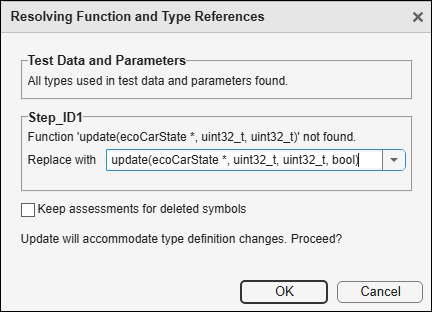
In the Resolving Function and Type References dialog box, select the new function.
By default, the update process removes assessments for any symbols that no longer exist in your source code — this helps ensure that the test is valid and will build after update. If you don't want the update process to delete those assessments, select Keep assessments for deleted symbols. You are then responsible for disabling or deleting those assessments after the automatic update is complete, or modifying your source code to ensure those symbols exist.
For this example, leave the check box cleared and click OK.
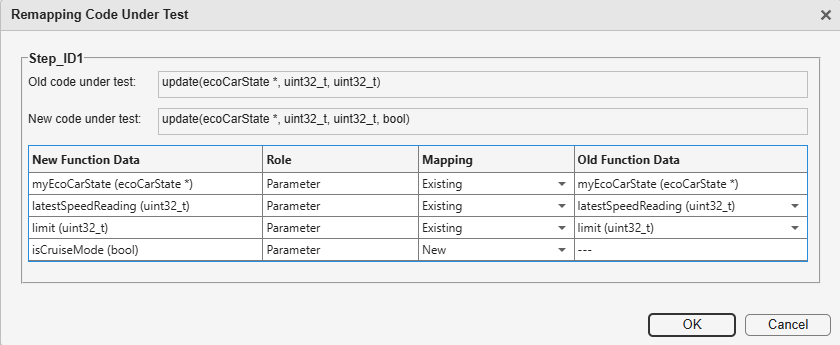
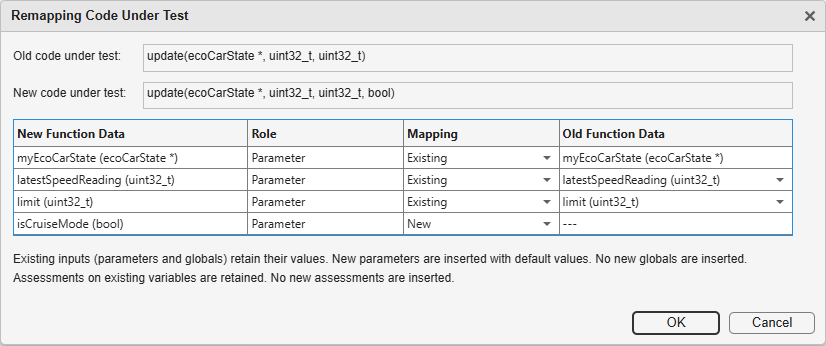
In the next Remapping Code Under Test dialog box, you see a mapping between the old and new functions. If the data type of a function parameter in the new function is equivalent to the data type of the corresponding parameter in the old function, the parameter is considered unchanged. Otherwise, it is considered as new.
Adjust the mapping as needed, then click OK to apply the updates. For instance:
If a function parameter is considered as existing by the software but is actually a new parameter, change the value in the Mapping column from New to Existing.
If you reordered two parameters of a function and both parameters are appearing as new, change the values in the Mapping column from New to Existing. Then, in the Old Function Data column, select the parameters to map to.
After the update completes, the test is automatically re-validated to check for any remaining issues. Review the Update Summary and Suggested Next Steps in the Logs window. For example:
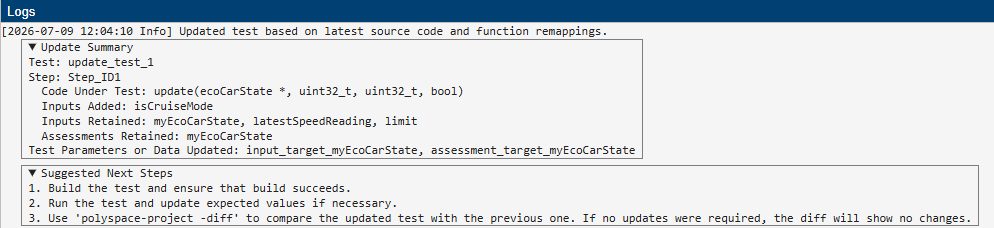
The Update Summary lists, for each step, the inputs and assessments that were added, retained, or removed. The Suggested Next Steps section provides guidance on what to do after the update, such as building and running the updated test.
If you selected Keep assessments for deleted symbols, check the summary to see which assessments for non-existent elements remain in the test. If you encounter validation errors or build failures, you may need to manually disable or delete these assessments, or modify your source code and re-update the test.
Update Individual Test Steps
Updating individual test steps gives you more control and can be useful in certain situations. For example, if you need to create a test for a function that shares a lot of inputs and data with another function that already has a test, you may be able to accelerate your test authoring process by duplicating the old test and then remapping the Code Under Test to the similar function you are now testing.
To update an individual test step that contains an invalid code under test:
Double-click the test on the Projects pane and open the test.
Right-click the step node in the left side of the test case editor and select Update Code Under Test.
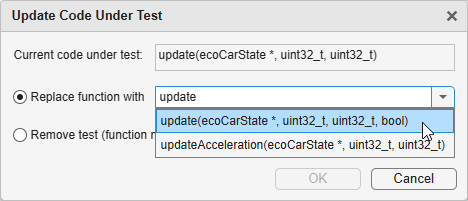
In the Update Code Under Test dialog box, select the new function from the Select function list and click OK.
In the Remapping Code Under Test dialog box, you see a mapping between the old and new functions. If the data type of a function parameter in the new function is equivalent to the data type of the corresponding parameter in the old function, the parameter is considered unchanged. Otherwise, it is considered as new.
Adjust the mapping as needed. For instance:
If a function parameter is considered as existing by the software but is actually a new parameter, change the value in the Mapping column from New to Existing.
If you reordered two parameters of a function and both parameters are appearing as new, change the values in the Mapping column from New to Existing. Then, in the Old Function Data column, select the parameters to map to.
You can also initiate this remapping process from a tabular test step by selecting the new function in the Code Under Test drop-down list. If you do not see the new function in the list, you need to parse code or validate the test to get the latest information from your source code. After you select the new function as the Code Under Test, a Replace function in Code Under Test? dialog box appears. Select the Remap data option to map the old function to the new function.
Test Updates During Function Remapping
When you map the old Code Under Test function in a test step to a new function:
You see these changes in the Inputs section of the step:
If you marked a function parameter as existing, it is retained along with its previous value. If you marked it as new, the parameter is entered with a default value (the same value as if you were creating the test for the first time). Parameters that no longer exist are removed.
If a global variable value was read during execution of the old function and continues to be read in the new function, it is retained in the test along with its previous value. If its data type changes and the new type is incompatible with the old, the global variable input is inserted with default values. Global variables that are no longer read-accessed in the new function get removed. No new global variables are entered.
If the new function shares a callee with the old function and the callee happens to be mocked, any relevant mock variable input is retained during update.
You see these changes in the Assessments section of the step:
If you marked a return value as existing, the assessment for the return value is retained. If you marked it as new, any existing assessment on a return value is removed and a new assessment is entered with default values.
If you marked a function parameter as existing, any assessment on the parameter is retained. No new assessments are added for new parameters. You can add them explicitly after update as needed.
If a global variable value was written during execution of the old function and continues to be written in the new function, any existing assessment on the variable is retained along with its previous value. If its data type changes and the new type is incompatible with the old, the global variable assessment is inserted with default values. Assessments on global variables that are no longer write-accessed in the function get removed. No new assessments are entered for global variables. You can add them explicitly after update as needed.
If the new function shares a callee with the old function, assessments on the call count of the callee are retained. If the callee happens to be mocked, assessments on mock variables exported from the callee are retained.
You see these changes in the Callees section of the step:
If the new function shares a callee with the old function, it is retained during update. If the callee happens to be mocked, it continues to be mocked after update.
Any callee of the old function that is not a callee of the new function is removed during update.
Any new callee of the new function is added during update.
In addition to function interface changes, changes in type definition can also affect a test. For instance, you might change a structured type to add or remove a member. Following a code under test update, all test elements in the test step and test header are updated to the latest definition of the type:
The test elements in the Inputs and Assessments section of the test step that use this type get updated.
For instance, if you add a new member to an existing structured type, for inputs using the type, this new member is entered with default values.
The test elements in the Test Data and Test Parameters sections of the test header that use this type also get updated.

