Change MATLAB Copilot Settings
R2026bYou can configure MATLAB® Copilot by changing its settings. Use the Settings window to interactively access and modify MATLAB Copilot settings.
To open the Settings window for MATLAB Copilot settings, use one of these options:
MATLAB Toolstrip: On the Home tab, in the Environment section, click Settings. Then, in the left pane of the Settings window, select MATLAB Copilot.
MATLAB Copilot status indicator: In the lower-left corner of the MATLAB desktop, click the MATLAB Copilot status indicator and select Copilot Settings.

MATLAB command prompt: Enter
preferences 'MATLAB
          Copilot'
.
Disable MATLAB Copilot
To disable MATLAB Copilot and hide its features, use one of these options:
In the MATLAB Copilot Settings window, clear the Enable MATLAB Copilot check box.

At the lower-left corner of the MATLAB desktop, click the MATLAB Copilot status indicator and select Disable Copilot. (since R2026a)
Disable MATLAB Copilot programmatically by using the
matlab.desktop.copilot.CopilotEnabled.PersonalValuesetting. You can set its value as:false— Disabledtrue— Enabled
For example, disable Copilot.
s = settings;
s.matlab.desktop.copilot.CopilotEnabled.PersonalValue = false;
Disable or Pause Autocompletions
In the Editor and Live Editor, you can use Copilot autocompletion to generate code. You can manage autocompletion behavior by using the MATLAB Copilot Settings window.
The Copilot autocompletions mode list has three options:
Enabled— In the Editor, Copilot autocompletion generates code after you press the Enter key. The generated code appears next to the button at the cursor location. This behavior is the default behavior.Disabled— Copilot autocompletion does not generate code. Pressing Enter results in a new line.Paused— Copilot autocompletion does not generate code after you press Enter. The button appears at the cursor location, but without generated code.
You also can manage Copilot autocompletions programmatically by using the
matlab.editor.autocompletions.EnableAutocompletions.TemporaryValue
setting. You can set its value as:
0—Disabled1—Enabled2—Paused
For example, disable Copilot autocompletions.
s = settings;
s.matlab.editor.autocompletions.EnableAutocompletions.TemporaryValue = 0;
Disable Inline Code Generation and Explanations in MATLAB Editor
Since R2026b
In the Editor and Live Editor, the icon appears to the left of your code when code generation predictions are available. This icon also provides options for explaining code selections or generating comments when you click it.
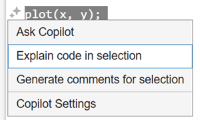
To disable these Copilot actions, in the MATLAB Copilot Settings window, clear the Show Copilot icon to access inline code generation and explanations check box. The icon no longer appears to the left of your code.
Disable Automatic Copilot Chat Context
Since R2026b
If you have files open in the Editor or Live Editor, MATLAB Copilot automatically adds the current file as context in its Copilot Chat responses.
To disable automatic chat context, use one of these options:
In the MATLAB Copilot Settings window, clear the Automatically include the active document as context check box.

Disable automatic chat context programmatically by using the
matlab.desktop.copilot.EnableAutomaticContext.PersonalValuesetting. You can set its value as:true— Enabledfalse— Disabled
For example, disable automatic chat context.
s = settings;
s.matlab.desktop.copilot.EnableAutomaticContext.PersonalValue = false;
Disable Hint for Ask Copilot Keyboard Shortcut
Since R2026a
You can disable the hint for the Ask Copilot keyboard shortcut. By default, the Command Window, Editor, and Live Editor frequently display a shortcut hint that you can press Ctrl+Shift+P (or Command+Shift+P on macOS) to generate code with MATLAB Copilot.

To disable the hint for the keyboard shortcut, use one of these options:
To dismiss the hint for the current session in the Command Window, Editor, or Live Editor, click the Dismiss link in the shortcut hint. You can still press Ctrl+Shift+P to generate code, but the hint will not be displayed again during the current session. The shortcut hint appears again if you switch between the Command Window, Editor, and Live Editor, or if you restart MATLAB.
To disable the hint for all sessions, select the Disable keyboard shortcut hint check box in the MATLAB Copilot Settings window. You can still press Ctrl+Shift+P to generate code, but the hint will not be displayed during the current or future sessions.
To enable the hint, clear the Disable keyboard shortcut hint check box.
To disable the hint programmatically, use the
matlab.desktop.copilot.AskCopilotShortcutHintDisabled.PersonalValuesetting. You can set its value as:true— Disabledfalse— Enabled
For example, disable the hint for the keyboard shortcut. You can still press Ctrl+Shift+P to generate code, but the hint will not be displayed.
s = settings;
s.matlab.desktop.copilot.AskCopilotShortcutHintDisabled.PersonalValue = true;
Customize Ask Copilot Keyboard Shortcut
Since R2026a
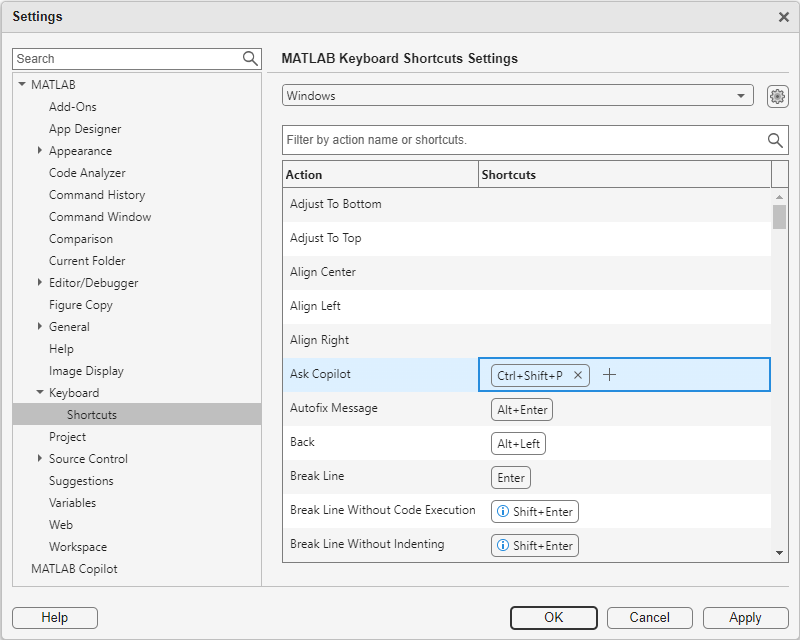
You can customize the keyboard shortcut that opens an Ask Copilot box. To change the shortcut from Ctrl+Shift+P, open the Settings window. On the Home tab, in the Environment section, click Settings. Then go to MATLAB > Keyboard > Shortcuts, and in the Ask Copilot row, remove the Ctrl+Shift+P shortcut. Click the + button to add a custom shortcut. (On macOS systems, use the Command key instead of the Ctrl key.)