Generate a Basic Standalone FMU from Simulink Model
R2026bGenerate standalone FMU from Simulink® models. You can export your Simulink model as co-simulation or Model Exchange FMUs compatible with FMI 2.0 or 3.0 standards. This topic shows how to configure the model's input and output interfaces, tunable parameters, and internal variables for FMU export.
Export Bouncing Ball Model as Standalone Co-Simulation FMU
This example shows how you can export a simple Simulink® model as an FMU. A Simulink model is set up so that you can export it as a standalone Co-Simulation FMU with a specified interface, solver settings, tunable parameters, internal variables, and a test harness model. This example uses a model that defines the behavior of a ball dropped from a height and calculates its position with respect to the ground over time.
Open Model and Set Up Model Configuration Parameters
First specify the model interface and solver setting for the model. Open the Simulink model model_bouncingBall which you will export as an FMU.
open_system('model_bouncingBall.slx');

Add input and output ports to the signals that you want to expose as input and output ports of the FMU. In this model, the input is specified as gravitationalAcceleration, and the output is specified as ballHeight. You can double-click the input and output port to configure the ports and specify data type, unit, sample time, and signal dimension. For more information about port specifications, see Inport and Outport block reference pages. You must adhere to the FMI standards while specifying these interface attributes.
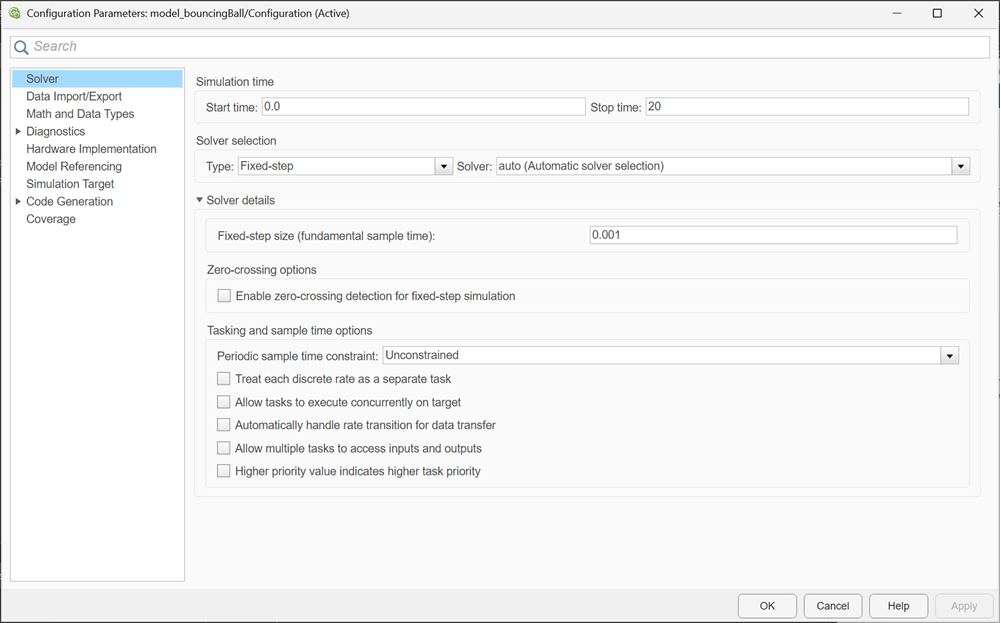
After configuring the input and output interfaces, specify the solver setting for the model that will be used by the Co-Simulation FMU. You can specify these settings in the Configuration Parameters dialog box. On the Simulink Toolstrip select the Modeling tab and click Model Settings button in the Setup section. You can also open the dialog box using the Ctrl + E keyboard shortcut. In the Solver pane, specify Solver and Type for your model. For this example, the Solver is set as auto and Type is specified as Fixed-step. For a fixed-step solver, you must also specify the Fixed-step size.
Specify Tunable Parameters and Internal Variables for FMU
You must configure the model so that the generated FMU will contain tunable parameters and internal variables. Tunable parameters allow you to change model parameters during FMU simulation. This enables you to test various parameters without having to regenerate the FMU, use the FMU in parameter sweeps or sensitivity analysis, and reuse FMU in different models. You can use internal variables to expose internal states of the FMU that can be probed during import and simulation. This enables you to debug FMU during simulation, gain insights into the internal states of the FMU and keep the interface clean.
You can specify block parameters of the model as tunable parameters. For this model, define the initial velocity and initial position of the ball as tunable parameters. First create a workspace variable containing a desired value for these parameters. Then open the block dialog boxes of Initial Velocity and Initial Position blocks and specify these variables as the Initial Value block parameter.
initial_velocity = 0;
initial_position = 25;
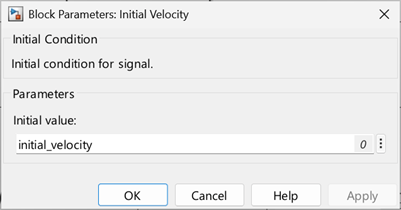
For more information on configuring a model for tunable FMU parameters, see Configure Model to Export as FMU with Tunable Parameters.
You can export intermediate signals of a model as internal variables of an FMU. For this model, expose the Velocity signal as internal variable of the FMU. Mark the signal for logging and create a Simulink.Signal object with the same name. You can also mark the signal as a test point or use a data store to capture the value of a signal and export these as internal variables of the FMU. For detailed steps on configuring signal for internal variable export, see Configure Model to Export as FMU with Internal Variables.
Velocity = Simulink.Signal;
Velocity.DataType = 'double';
Velocity.CoderInfo.StorageClass = 'ExportedGlobal';
Velocity.InitialValue = '0';
Specify Export Customizations
After configuring the model for FMU export, you must specify the settings for converting the model to an FMU package. You can use the FMU Builder Wizard or the exportToFMU function to specify FMU export settings.
To open the FMU Builder Wizard, in the Simulation tab on the Simulink toolstrip, click drop-down button for Save. Select Standalone FMU...... This opens the FMU Builder Wizard.
On the Welcome page, specify the FMI Version and FMU Type. You can also change the solver setting.

Click Next to move to the Configure page. You can select tunable parameters and internal variables that you want to export on this page. Click the Refresh button to get the latest variable information from the model. In the Parameters tab, select the check box for the parameters you want to export and optionally specify their exported name. In the Internal Variables tab, select the check box for the internal variables you want to export and optionally specify their exported name. You can check the FMU input and output specification in the Input and Output tabs.

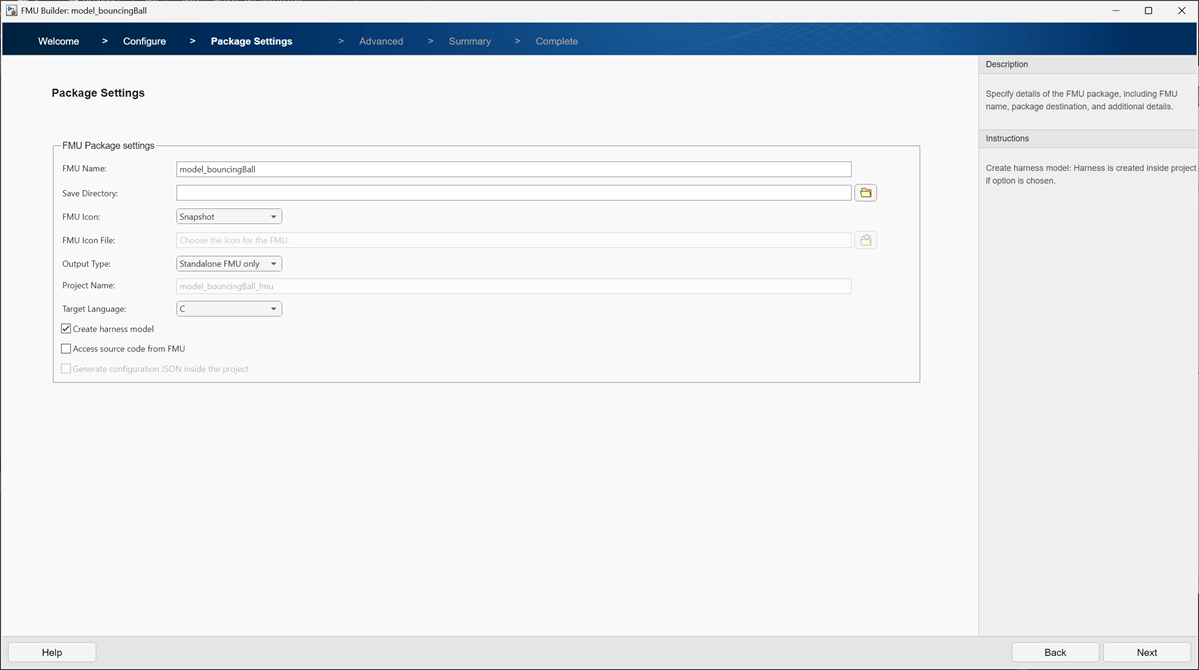
Click Next to open the Package Settings page. Specify the FMU Name and Save Directory to give your FMU package a desired name and location. Select the Create harness model check-box to generate a test harness for the generated FMU.
Click Next to open the Advanced page. You can specify additional package details on this page. Click Next to open the Summary page and view the export configuration for your model. Click Create to generate the FMU.

You can also specify these export configurations using the exportToFMU function.
exportToFMU('model_bouncingBall','FMIVersion','3.0','FMUType','CS', ...
    'CreateModelAfterGeneratingFMU','on', 'ExportedParameters',{'initial_velocity','initial_position'}, ...
    'ExportedInternals',{'Velocity'});
Setting System Target to FMU 'Co-Simulation' for model 'model_bouncingBall'.
Setting Hardware Implementation > Device Type to 'MATLAB Host' for model 'model_bouncingBall'.
### Searching for referenced models in model 'model_bouncingBall'.
### Total of 1 models to build.
### Starting top model code generation target build for: model_bouncingBall
### 'GenerateComments' is disabled for 'Co-Simulation' FMU Export.

Build Summary

Top model targets:

Model               Build Reason                                  Status                        Build Duration
==============================================================================================================
model_bouncingBall  Target (model_bouncingBall.c) did not exist.  Code generated and compiled.  0h 0m 11.879s

1 of 1 models built (0 models already up to date)
Build duration: 0h 0m 13.511s
### Model was successfully exported to 'Co-Simulation' FMU 'model_bouncingBall.fmu', harness model in '/tmp/Bdoc26b_3351752_1229001/tpb614ced1/fmubuilder-ex38609420'.
Import and Test Generated FMU
You can now use the generated harness model or your own model to import the generated FMU into Simulink, and check the interfaces, parameters, internal variables, and simulation performance.
Open the model that imports FMU with test inputs.
open_system('sim_bouncingBall_fmu.slx');

Double-click the FMU block to open the block dialog box. You can check and change the values of tunable parameters and probe internal variables using the Parameters and Output tabs respectively.
Simulate the model and observe the FMU outputs.
outputFMUSim = sim("sim_bouncingBall_fmu.slx");
plotFigure = figure(1);
plot(outputFMUSim.yout{1}.Values, 'LineWidth',1.5);
ylabel('Ball Height (m)');
xlabel('Time (s)');
grid minor;

See Also
exportToFMU | Generate and Simulate Standalone FMU in Simulink

