Safety Analysis Manager
R2026bDescription
The Safety Analysis Manager app lets you create and edit documents for safety analyses. You can:
Create tabular safety analysis documents, such as Failure Mode and Effects Analyses (FMEAs), Functional Hazard Assessments (FHAs).
Create deductive analysis documents, such as Fault Tree Analyses (FTA) (since R2026b).
Link document elements to model artifacts such as requirements and faults.
Analyze documents by running MATLAB® callback code.
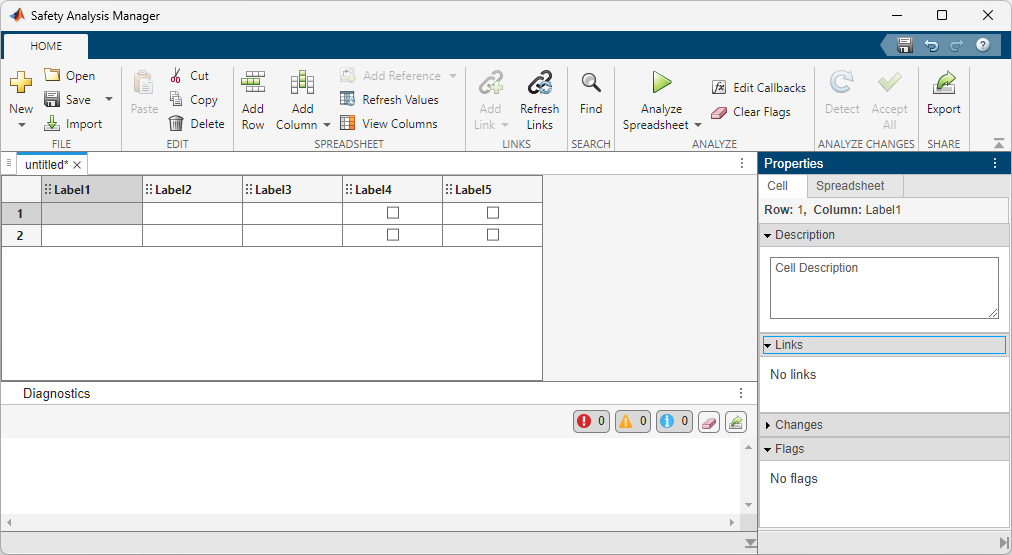
Open the Safety Analysis Manager App
MATLAB Toolstrip (since R2024b): On the Apps tab, in the Apps section, under Model Verification, Validation, and Test, click Safety Analysis Manager.
Simulink® Toolstrip: On the Apps tab, under Model Verification, Validation, and Test, click Safety Analysis Manager.
MATLAB command prompt: Enter
safetyAnalysisMgr.openManagerorsafetyAnalysisManager.
Examples
Related Examples
- Create Spreadsheets in the Safety Analysis Manager
- Create Columns and Rows in Safety Analysis Manager Spreadsheets
- Export Safety Analysis Manager Link Information to Excel
- Import and Export Safety Analysis Manager Spreadsheets
- Create Fault Trees in the Safety Analysis Manager
- Create Fault Tree Events
- Create Fault Tree Gates
- Organize Fault Trees in Fault Tree Documents
Parameters
Version History
Introduced in R2023bSee Also
Spreadsheet | FaultTreeDocument
Topics
- Create and Register Templates in the Safety Analysis Manager
- Write Callbacks to Analyze Safety Analysis Manager Spreadsheets
- Create and Select Custom Callbacks for Safety Analysis Manager Spreadsheets
- Link Safety Analysis Manager Spreadsheet Cells and Rows to Requirements, Tests, and Faults
- Create References in Derived Column Cells
- Use Self-References in Derived Columns
- Write Callbacks to Analyze Safety Analysis Manager Fault Tree Documents
- Create and Select Custom Callbacks for Safety Analysis Manager Fault Tree Documents
- Link Safety Analysis Manager Fault Tree Artifacts to Requirements, Tests, and Faults

