Main Content

Tanh Layer

R2026b

Hyperbolic tangent (tanh) layer

Since R2024a

  • Tanh Layer block

Libraries:
Deep Learning Toolbox / Deep Learning Layers / Activation Layers

Description

The Tanh Layer block applies the tanh function to layer inputs.

The exportNetworkToSimulink function generates this block to represent a tanhLayer object. Because it applies an element-wise operation, this block supports input data of any format and outputs data that has the same dimensions and format as the input.

Examples

expand all

Export a trained neural network to Simulink® as layer blocks.

For most workflows, you do not need to create neural networks in Simulink. Instead, import or train a neural network in MATLAB® and export it to Simulink.

Suppose that you have a trained neural network net specified as a dlnetwork object. Export the network to Simulink using the exportNetworkToSimulink function.

mdlInfo = exportNetworkToSimulink(net)
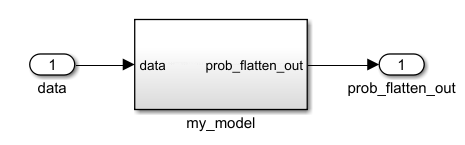
Neural network as subsystem in Simulink. The subsystem has the name "my_model". It has one input with the name "data" and one output with the name "prob_flatten_out".

The exported Simulink model represents the neural network as a subsystem. To view the layer blocks, open the subsystem. This example shows the first few blocks of a neural network.
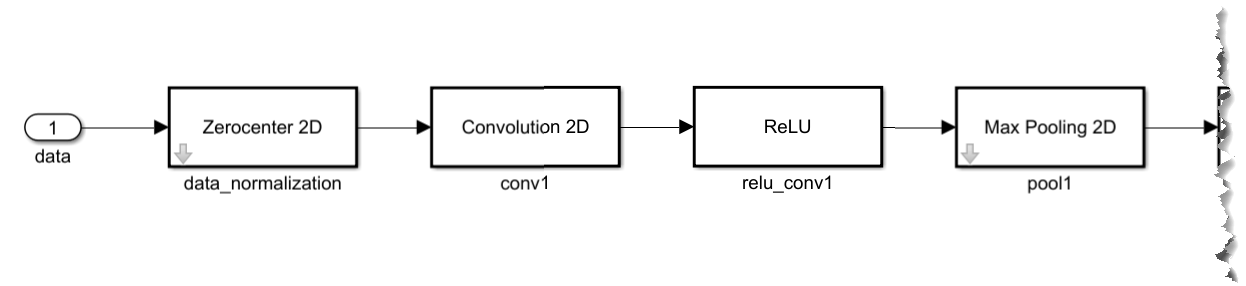
Neural network as layer blocks in Simulink. The subsystem has one input with the name data. The data input is connected to four layer blocks in series. The layer blocks in order are Zerocenter 2D, Convolution 2D, ReLU, and Max Pooling 2D layer blocks. There are more blocks in the model which have been cropped from the screenshot.

To view and edit the layer block parameters, open the corresponding layer block mask. This example shows the parameters for the ReLU block.
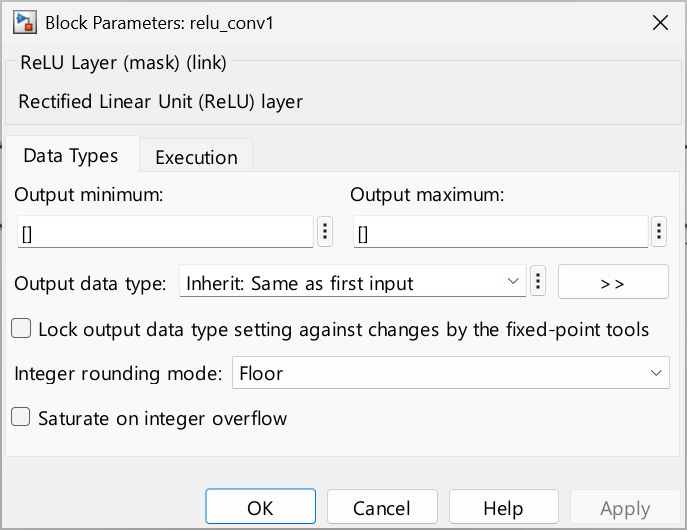
Block Parameters dialog for the ReLU block.

Using the layer block parameters, you can configure aspects like data types and execution options like sample times.

Ports

Input

expand all

The matrix on which to perform the hyperbolic tangent operation.

Data Types: single | double | int8 | int16 | int32 | int64 | uint8 | uint16 | uint32 | uint64 | fixed point

Output

expand all

The result of performing the hyperbolic tangent operation on the input matrix.

Data Types: single | double | int8 | int16 | int32 | int64 | uint8 | uint16 | uint32 | uint64 | fixed point

Parameters

expand all

To edit block parameters interactively, use the Property Inspector. From the Simulink Toolstrip, on the Simulation tab, in the Prepare gallery, select Property Inspector.

Data Types

Specify the type of approximation for computing the output.

Approximation MethodData Types SupportedWhen to Use This Method
None (default)

Floating-point

You are processing only floating-point data.

CORDIC

Floating-point (double and single) and fixed-point with a Bias value of 0 and a Slope value of a power of 2

You are processing fixed-point data and want to deploy to FPGA hardware.

Lookup

Floating-point and fixed-point

You are processing fixed-point data and want to generate C/C++ code.

For more information about the CORDIC approximation method, see cordictanh (Fixed-Point Designer).

Programmatic Use

Block Parameter: ApproximationMethod
Type: character vector
Values: 'none' | 'CORDIC' | 'Lookup'
Default: 'none'

Execution

Specify the discrete interval between sample time hits or specify another type of sample time, such as continuous (0) or inherited (-1). For more options, see Types of Sample Time (Simulink).

By default, the block inherits its sample time based on the context of the block within the model.

Programmatic Use

To set the block parameter value programmatically, use the set_param (Simulink) function.

Parameter: SampleTime
Data Types: char
Values: '-1' | scalar
Default: '-1'

Extended Capabilities

expand all

C/C++ Code Generation
Generate C and C++ code using Simulink® Coder™.

Version History

Introduced in R2024a